A general medical examination is a routine physical health checkup, where all new symptoms and illnesses are thoroughly made note of using the General Examination form.
The contents of this user manual will consist of the following information:
History
Vital Measurements
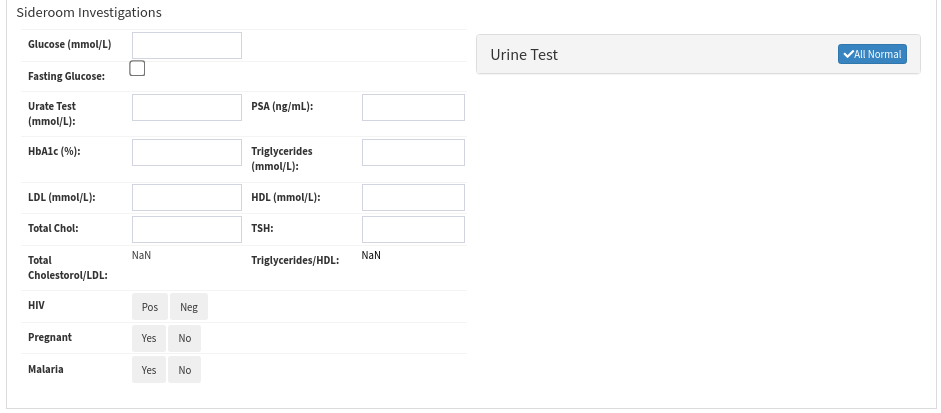
Sideroom Investigations
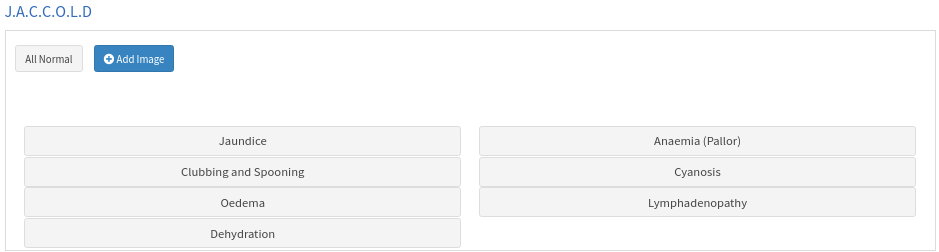
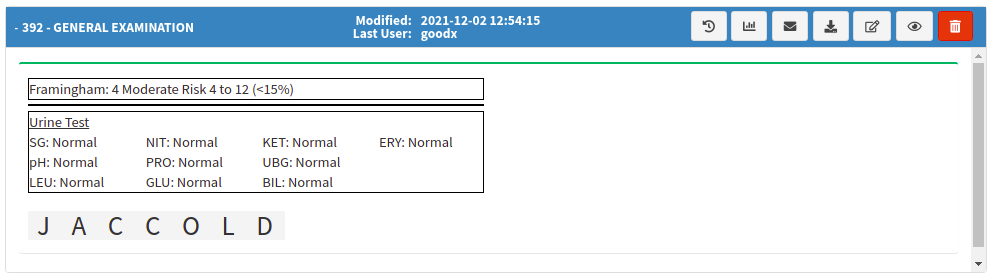
J.A.C.C.O.L.D
Clinical Procedures
Outcome
Physical Examination Overview
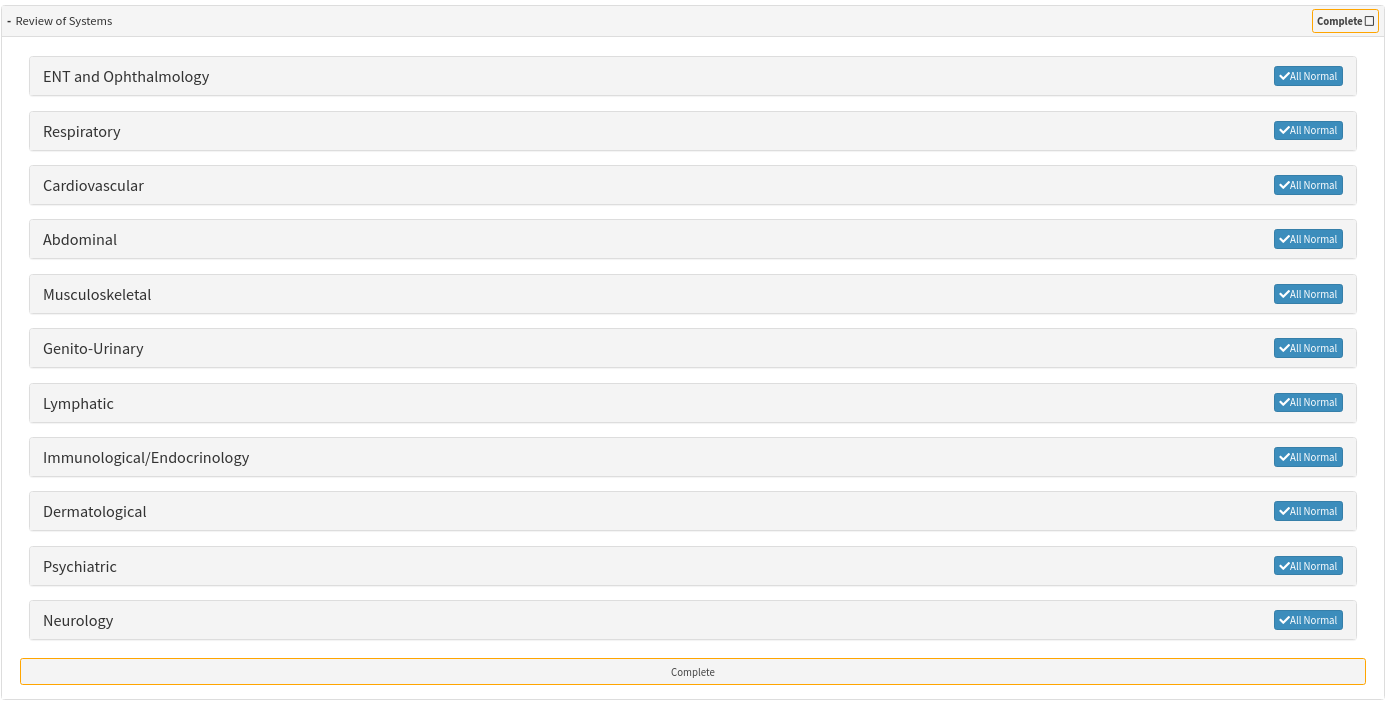
Review of Symptoms Overview
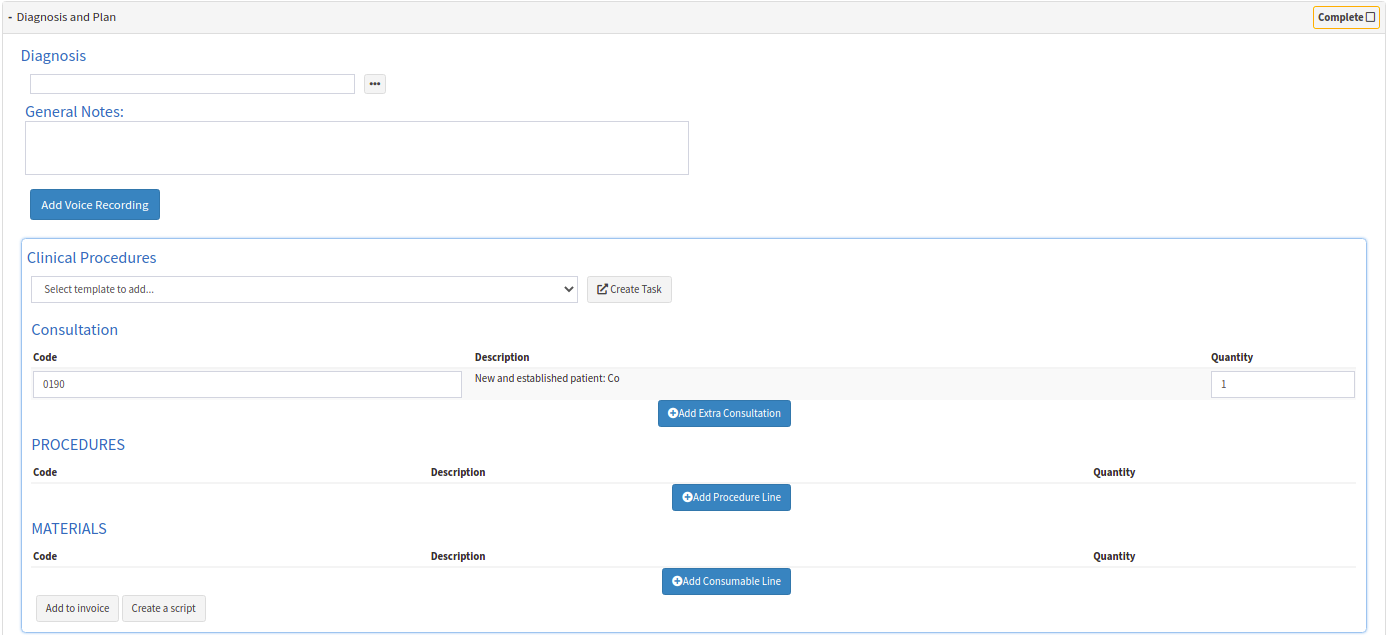
Diagnosis and Plan Overview
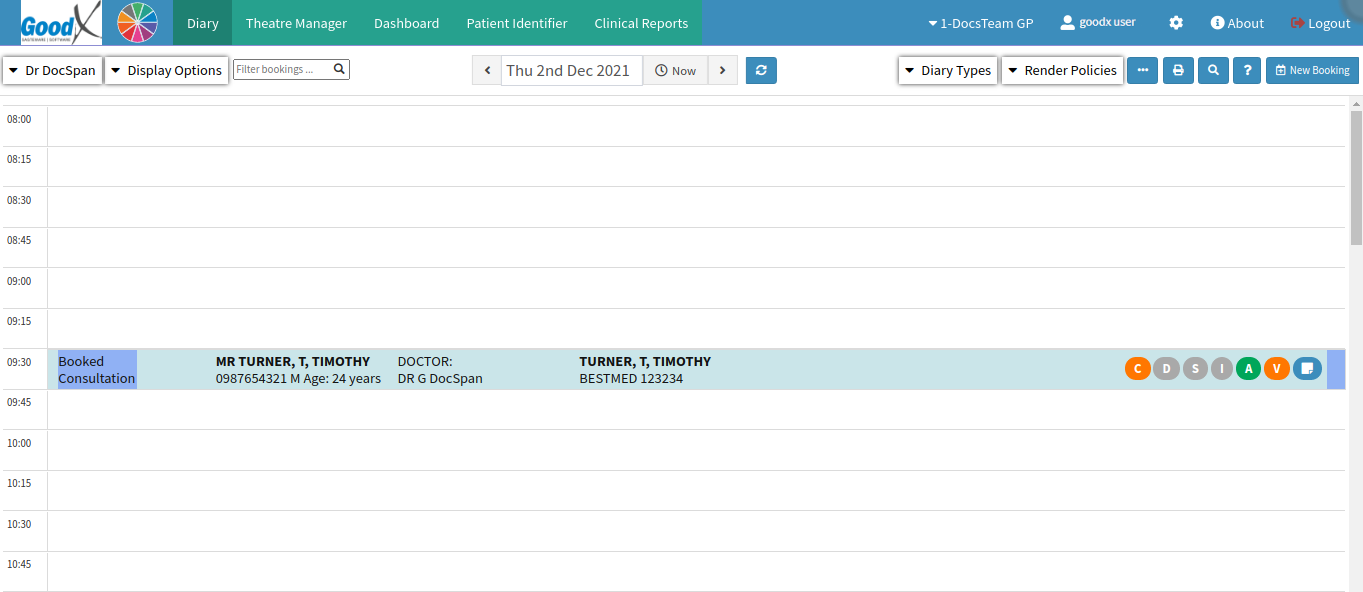
Log in to the GoodXWeb App with your GoodX username and password.
The main Diary screen will open.
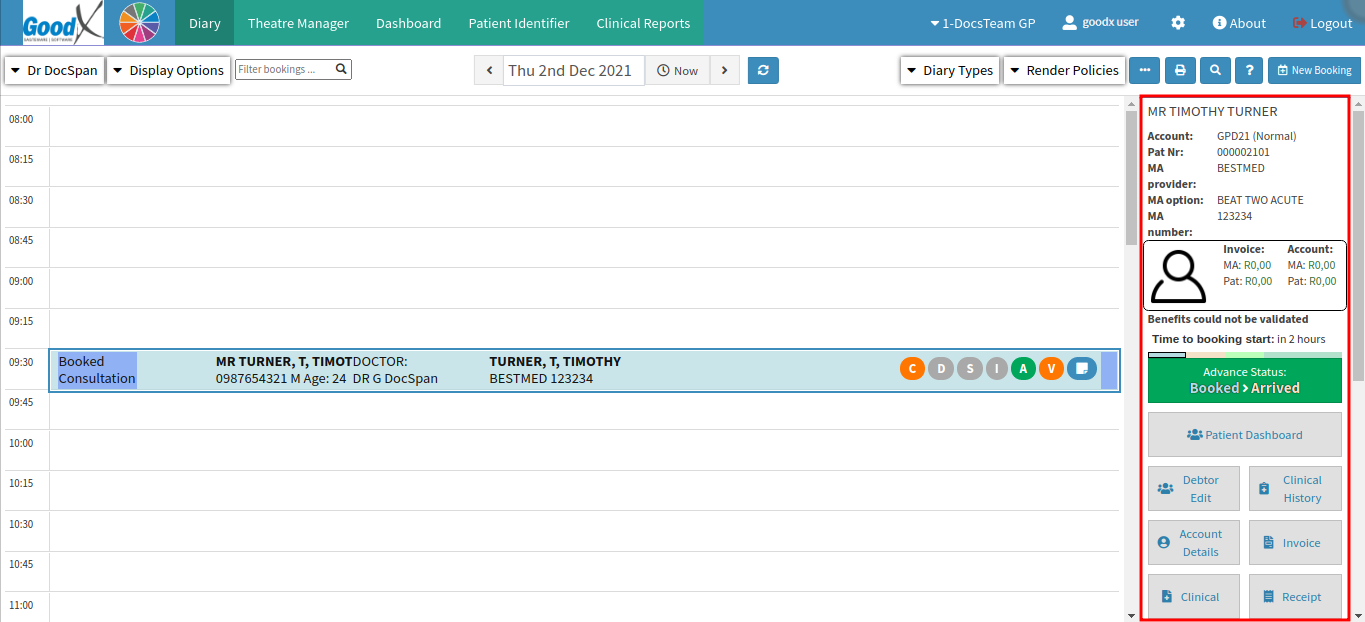
Click on the Patient's booking to open the Diary Sidebar.
Click on the Clinical button in the Diary Sidebar.
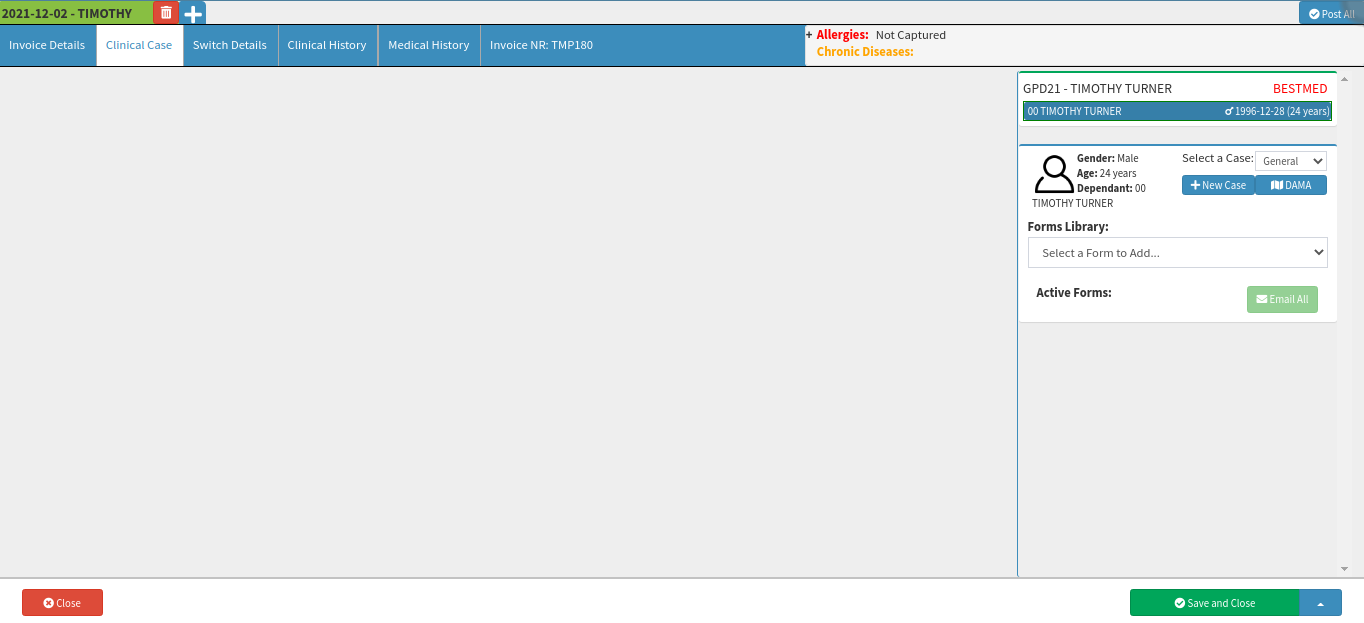
The Clinical Case screen will open.
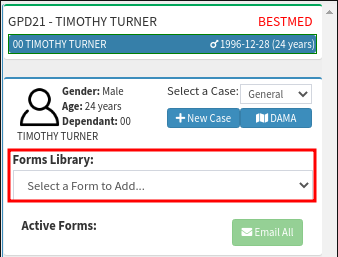
Select the General Examination formfrom either the Forms Library drop-down list or from Easy Events if it has been set up. For more information regarding the set-up of EasyEvents, please refer to the User Manual: Easy Events.
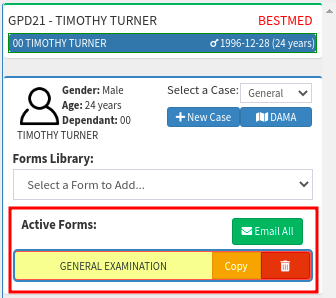
The General Examination form will open.
Please Note: The General Examination form will open under the Active Forms section in the Clinical Case Sidebar.
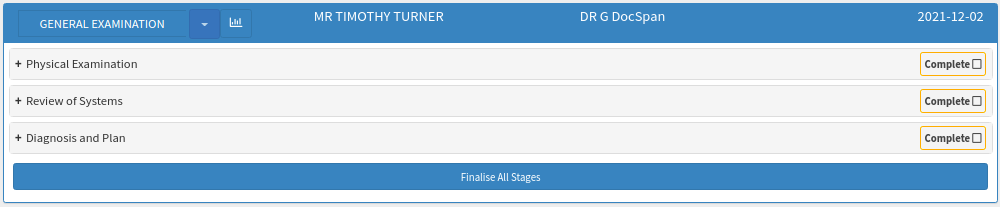
The General Examination form is split into 3 panels:
Please Note: Under the Physical Examination panel, any Complaints, Notes, Symptoms, Images, Vital Measurements, Sideroom Investigations as well as the J.A.C.C.O.L.D information can be captured.
The Complaint field is a free text field.
The Notes field is a free text field.
Under the Images section, click on the Add Image button to add an image. For more information regarding this function, please refer to the user manual: Video Capture Screen: Navigation and Use
Under the Symptoms section, click on the Add Symptom button to add any symptoms.
History:
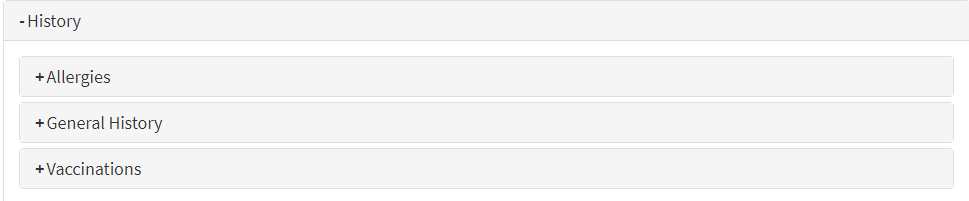
Click on the History panel to expand the medical history of the patient.
There are three sub-panels that will appear:
An explanation for each panel will be explained below:
Allergies: A negative immune response when a Patient comes in contact with a specific food, medicine or chemical. The Patient might get a rash or throat swelling when these foods, medicines or chemicals are ingested. For more information regarding Allergies, please refer to the user manual: How to Use the Allergies Subpanel.
General History: The patient's general medical history. Any information regarding past illnesses, operations, family illnesses, tests, and results of the patient can be found here. For more information regarding General History, please refer to the user manual: How to Use the General History Subpanel.
Vaccinations: Injections given to a patient to assist in the build-up of antibodies to fight against an illness/ disease. For more information regarding Vaccinations, please refer to the user manual: Vaccinations.
Vital Measurements:
In the Vital Measurements section, the user can capture various details such as the patient's Blood Pressure, Temperature, Weight, Height, whether they're on any Blood Pressure Medicine, if they're a Smoker, etc.
For an extensive explanation regarding Vital Measurements, please refer to the user manual: Vital Measurements.
Sideroom Investigations:
In the Sideroom Investigations section, the user can capture information such as Glucose levels, Urate Test, LDL and HDL levels, Triglycerides, TotalCholesterol, and whether the patient is Pregnant, has HIV, or Malaria.
J.A.C.C.O.L.D is an acronym for the following symptoms: Jaundice, Anaemia, Clubbing, Spooning, Cyanosis, Oedema, Lymphadenopathy, and Dehydration.
The Practitioner can Click on any of the symptoms if the Patient is experiencing them.
Review of Systems Overview
Review of Systems is where the user can go into more detail about the patient's issues that is specified in terms of the different systems in the human body. For a detailed explanation of all the functions within the Review of Systems panel, please refer to the user manual: How to Use the Review of Systems Panel on the General Examination Form.
Click on the Review of Systems panel to expand it.
ENT and Ophthalmology: An ENT is a Practitioner which specialises in the Ear, Nose and Throat. An Ophthalmologist is a Medical Practitioner which specialises in the diagnosis and treatment of eye-related disorders.
Respiratory: Respiratory refers to all breathing related actions. A Practitioner can perform various simple tests to determine whether a Patient has an irregular respiratory system, and judge whether the respiratory system requires further, more in-depth testing done.
Cardiovascular: The cardiovascular system involves the heart as well as the blood vessels throughout the body. The heart is one of the most important muscles in the human body, and regular care ensures that it keeps pumping blood efficiently and effectively.
Abdominal: Is the branch of biology that involves the area between the chest and the pelvis, which includes the diaphragm, stomach etc.
Musculoskeletal: Musculoskeletal is the branch of medicine that consists of the movement of the muscles and skeleton.
Genito-Urinary: The genitals, as well as the urinary tract, are looked at in the Genito-Urinary branch of medicine.
Lymphatic: The lymphatic system plays an important part in fighting off bacteria and infections within the human body.
Immunological/Endocrinology: Immunological is a branch of medicine that relates to the body's ability to fight off bacteria and infections, and is important for a Practitioner to ensure is working as it should. Endocrinology works with the hormones found in the body, which is also very important to ensure that the body is growing and functioning in a proper manner.
Dermatological: Dermatology is a specialised medical field that involves the treatment of the skin, hair and nails.
Psychiatric: Psychiatrists are specialised Practitioners that are trained to diagnose and treat various mental disorders.
Neurological: Neurology is the specialised branch of medicine surrounding the nerves of the human body and its nervous system.
Diagnosis and Plan Overview
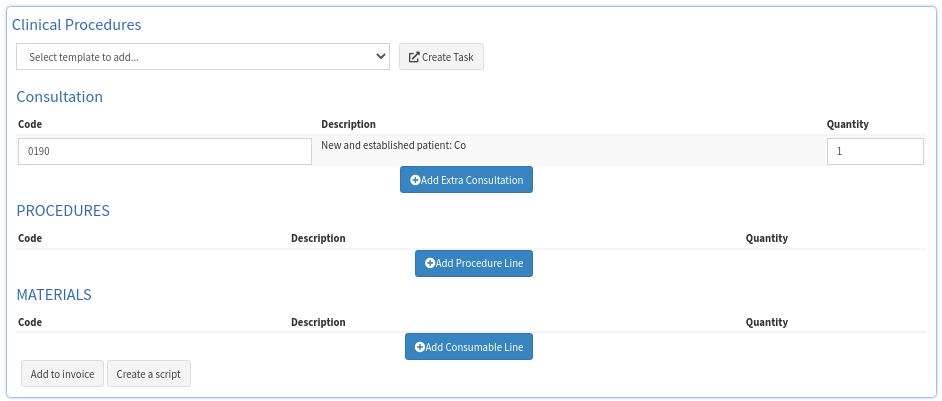
Under the Diagnosis and Plan panel any Diagnosis, General Notes, Clinical Procedures, Outcome, etc.information can be captured. For a detailed explanation of all the functions within the Diagnosis and Plan Overview panel, please refer to the User Manual: How to use the Diagnosis and Plan Panel on the General Examination Form.
Click on the Diagnosis and Plan panel to expand it.
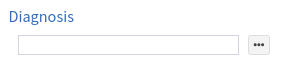
A diagnosis can be added manually in the Diagnosis field.
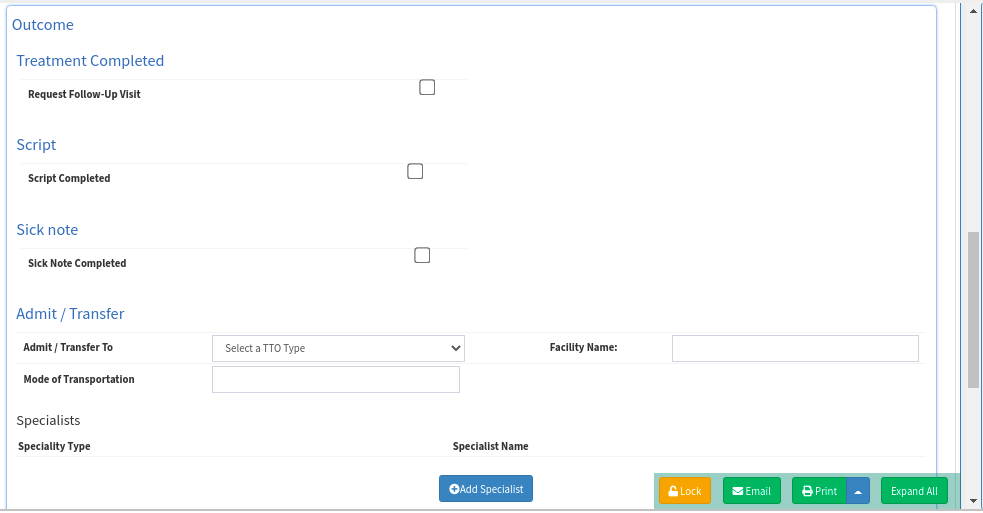
In the Outcome section, the user can easily note whether the patient needs a Follow-Up Visit, a Script or Sicknote, if they need to be Admitted/Transferred, etc.
ClicktheCompletebutton once theGeneral Examinationform has been completed.
Once selected, the Complete button will turn green.
Please Note: No changes can be made to the form when the Complete button is green. To make any changes, Click on the Complete button again to deselect it. The form will once again accept changes.
Click on the Close button to close the screen without saving.
Click on the Save and Closebutton to save any changes and to return to the Diaryscreen.
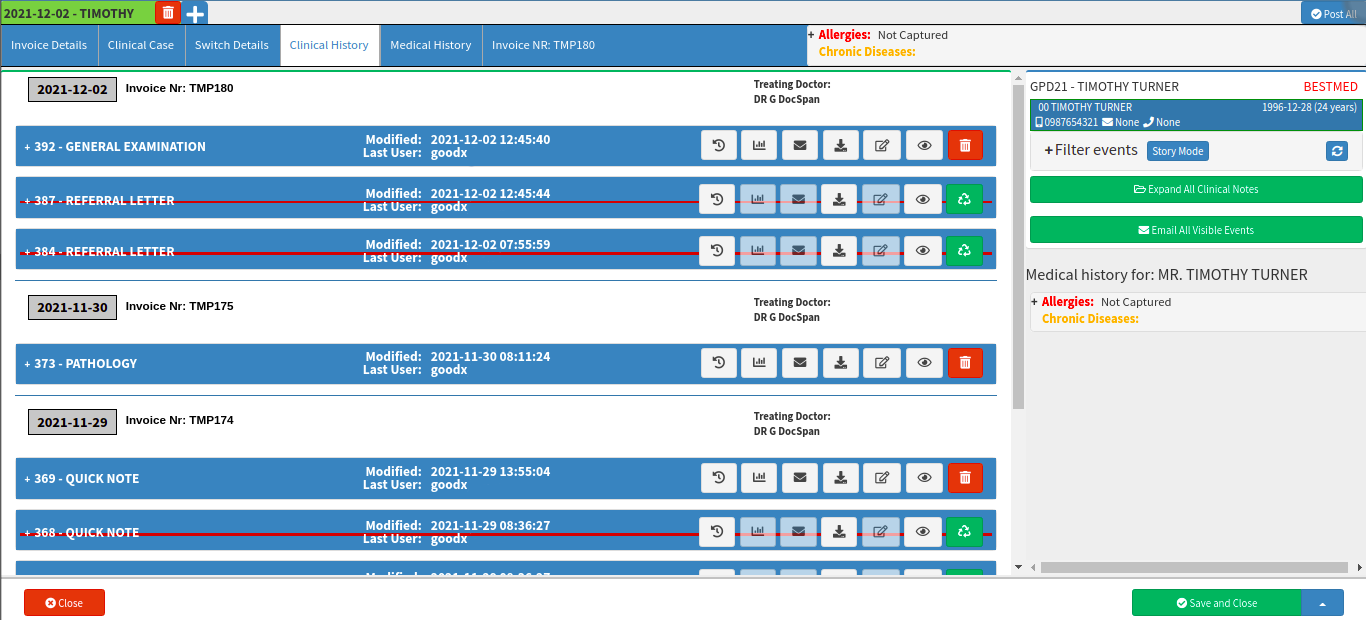
Click on the Clinical History button on the Diary Sidebar to assess theGeneral Examination form.
The Clinical History screen will open.
Click on the General Examinationpanel to expand it.
From the Clinical History screen, the General Examination form can be viewed, emailed, deleted, etc. For more information regarding this function, please refer to the User Manual: Patient File Screen: Navigation and Use
Click on the Close button to return to the Diary screen without saving.
Clickon theSave and Closebutton to save any changes and return to theDiaryscreen.