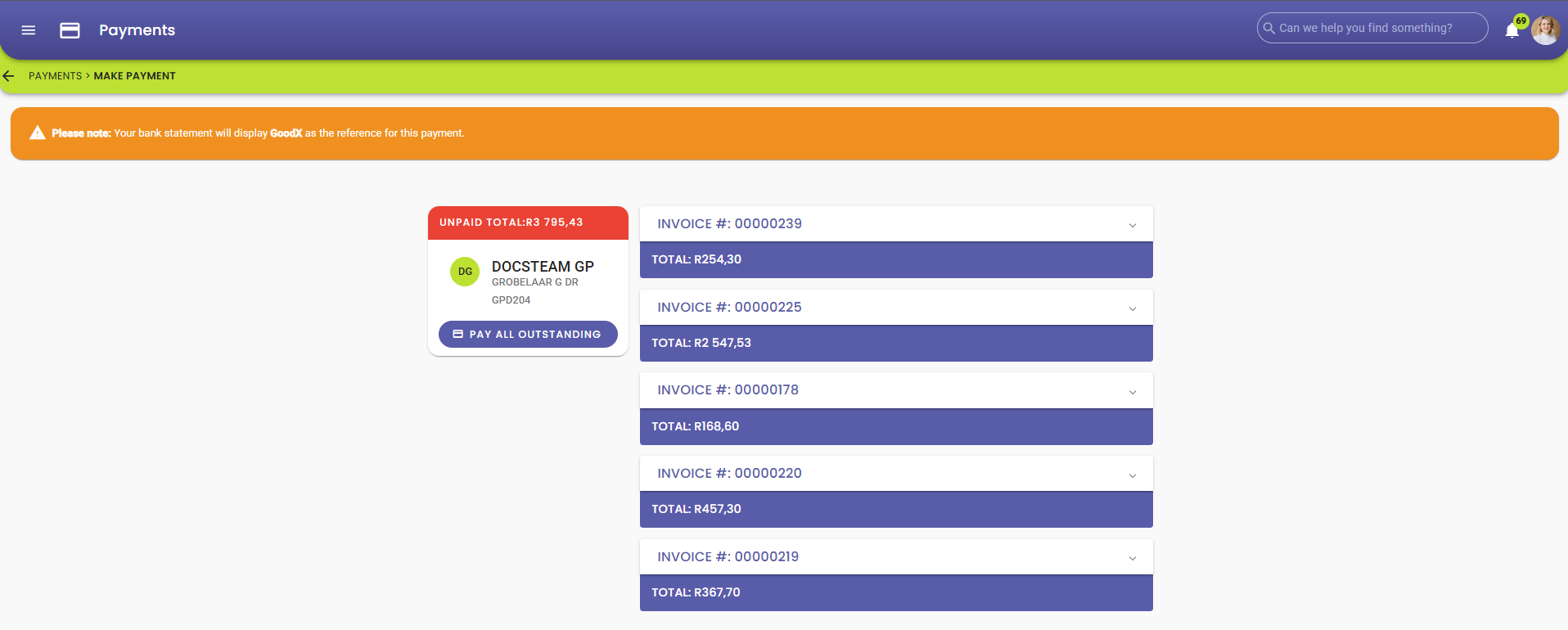
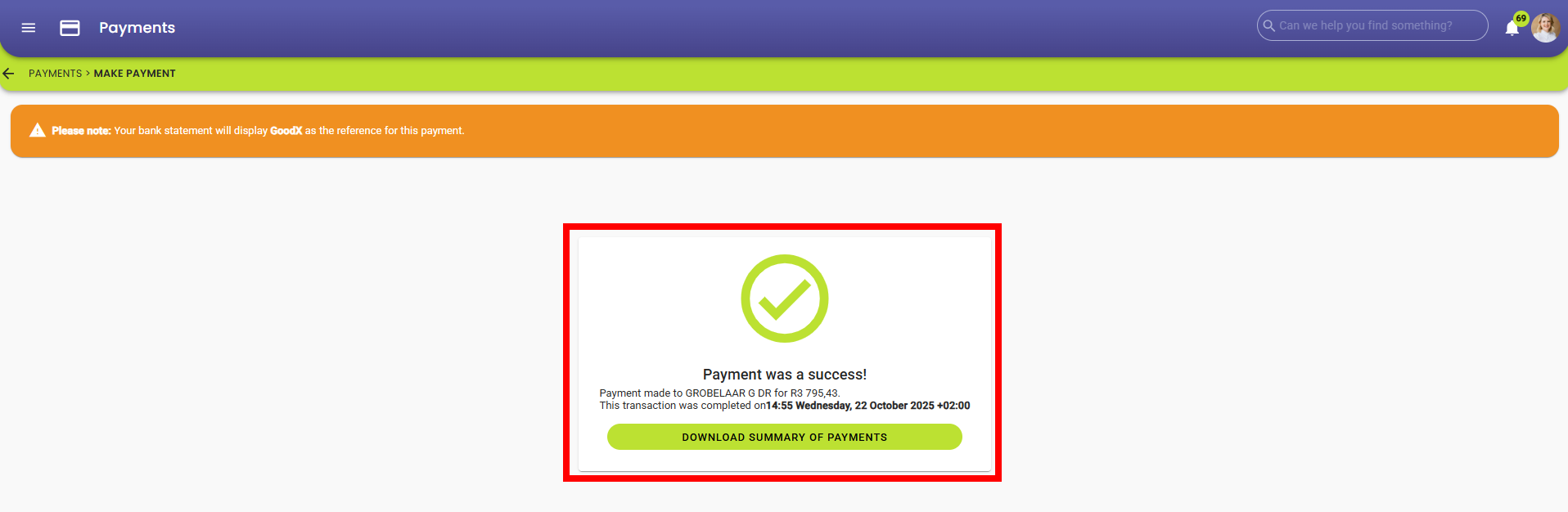
Making a payment using a Payment Request Link enables Patients and Debtors to conveniently settle accounts with the Practice. GoodX Payment Links are integrated with a secure online payment platform, accessible through the myGC Patient Portal. It also provides Patients with a simple and familiar payment experience, while helping Practices reduce outstanding accounts and streamline financial administration.
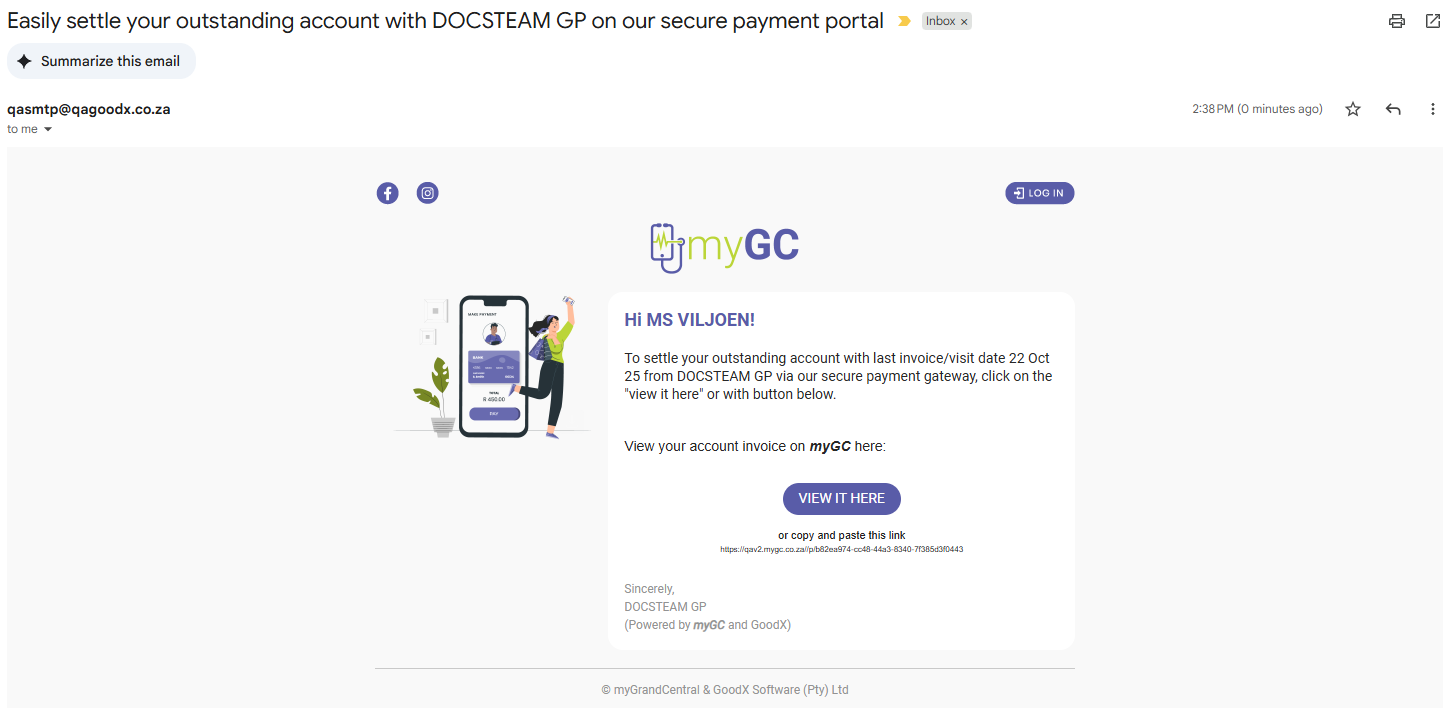
This user manual will start on the Email Payment Request screen.
Click on the View It Herebutton to be directed to the myGC Portal.
Alternatively, Click on the payment request link to be directed to the myGC Portal.
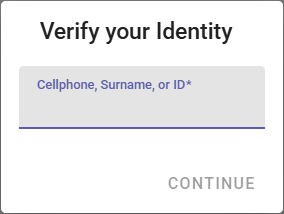
The Verify Your Identity screen will open.
Click the Continue button once you have entered your credentials.