The Travel tab provides a convenient way to log and track travel history for medical record purposes.
- This user manual will start on the Medical History screen, General tab.
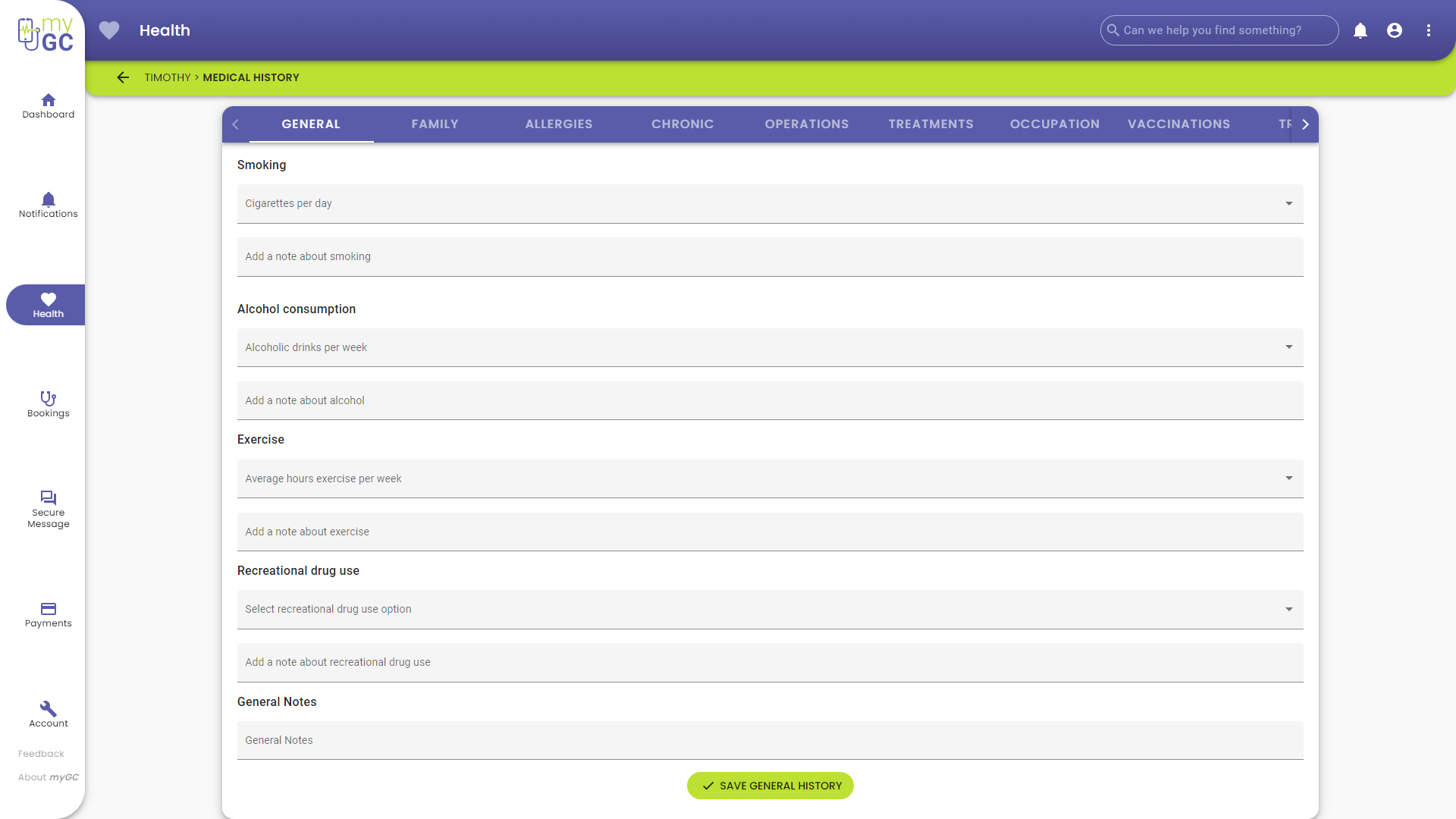
- Click/Tap on the Travel tab.

- The Travel screen will open.

- Click/Tap on the Description text field to enter the relevant information.

- Click/Tap on the Start Date field.

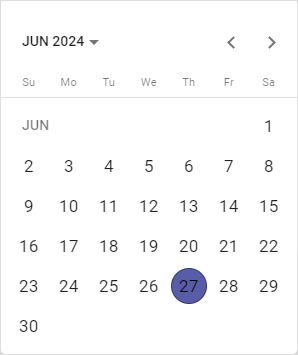
- Click/Tap the relevant Date.

Please Note: Dates can be entered manually.
- Click/Tap on the End Date field.


- Click/Tap the relevant Date.

- Click/Tap on the Location text field to enter the relevant information.

- Click/Tap on the Add Travel button.

- The Travel information will be added to the Travel screen.
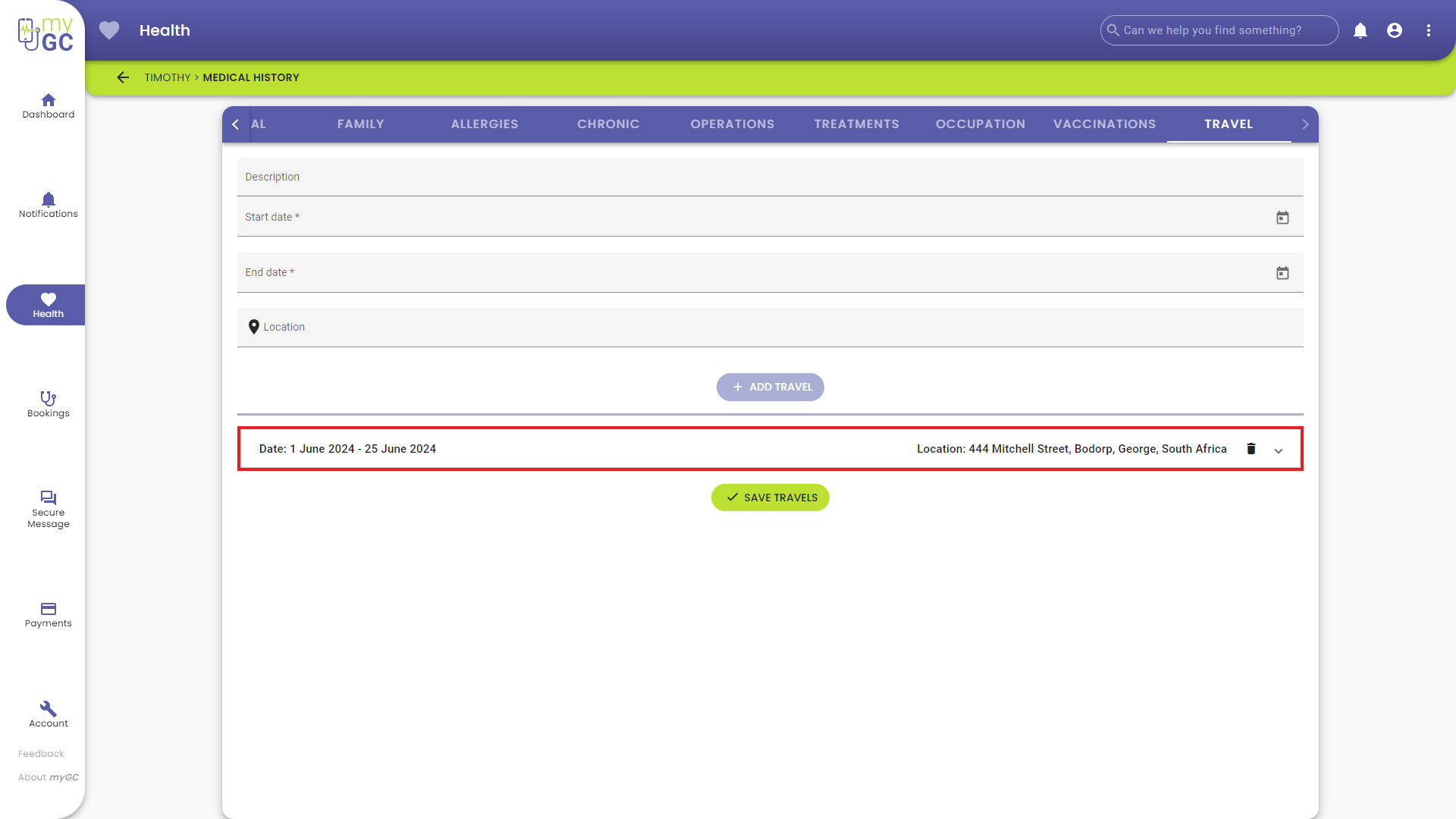
Please Note: More than one travel history entry can be added.
- Click/Tap on the Delete button to remove the operation from the list.

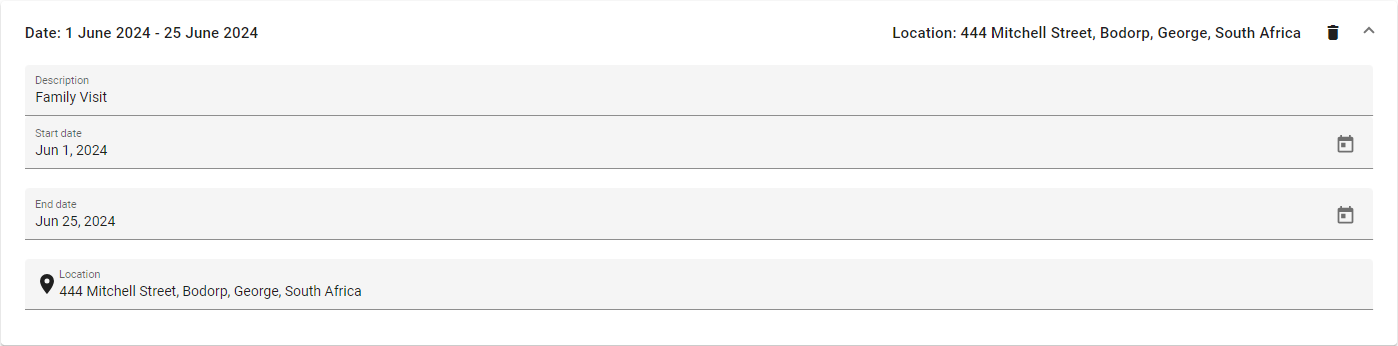
- Click/Tap on the Expand button to open the panel.

Please Note: Any information added about the travel history can be edited once the panel has been expanded.
- Click/Tap on the Save Travels button to save any changes made.

- A Notification will appear indicating that the Travel information was saved successfully.

Last modified: Tuesday, 7 April 2026, 10:42 AM