How to Save and Load Custom Report Profiles on the Report App
Why Use This Function:
Saving and loading custom Report Profiles allows you to quickly reuse specific filter and field settings without needing to configure them each time. By creating templates that capture your preferred setup, you can simplify report, maintain consistency, and save time when working with recurring data requirements. This function ensures that Reports remain accurate and aligned with practice needs, while giving you the flexibility to adapt templates as report requirements change.
The Contents of This User Manual:
Profiles
Filters
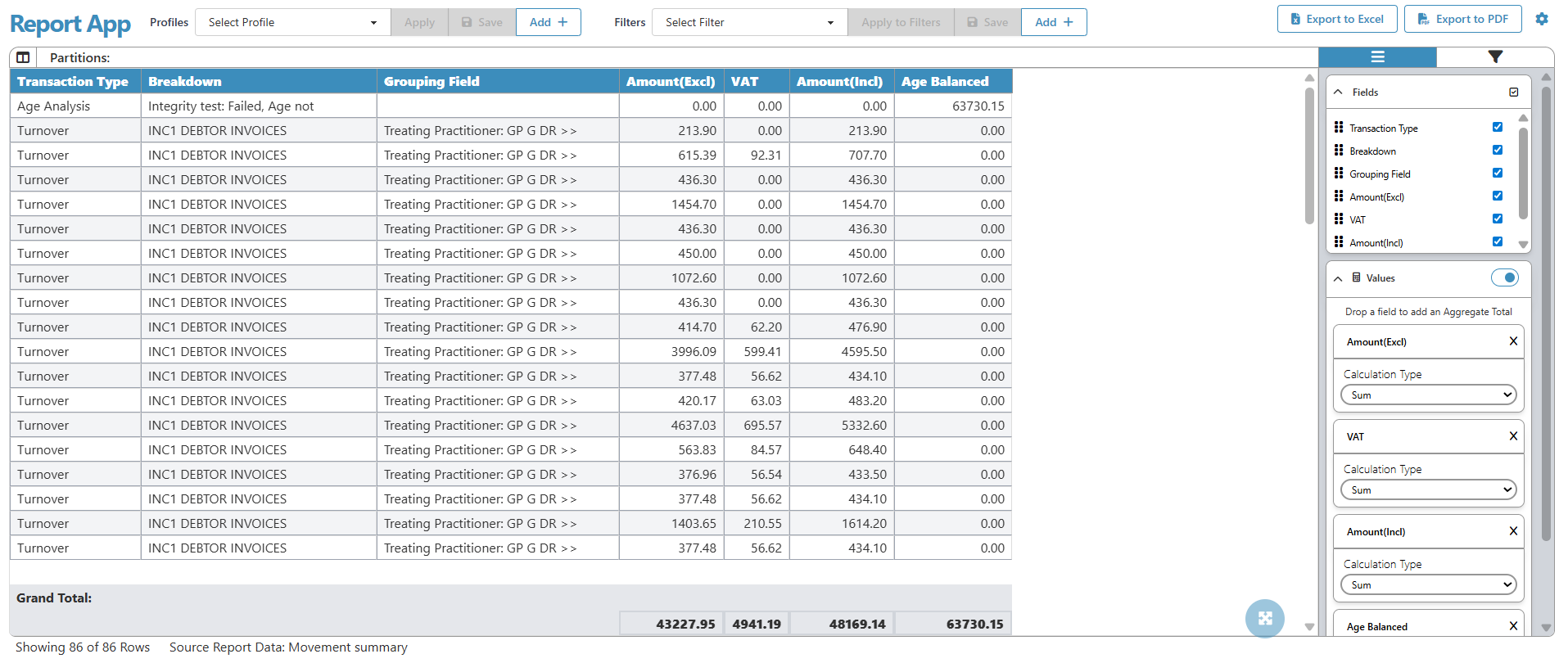
This user manual will start on the Report App screen.
Profiles make it easy to save preferred field setups as templates, so you can quickly apply the same configuration to Reports without having to redo the steps each time.
In the Profiles field, click Add.
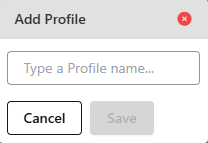
The Add Profile pop-up will open.
Name your profile in the Type Profile Name field.
Click Cancel to stop adding a Profile.
Click Save to add the profile.
The Profile will be added.
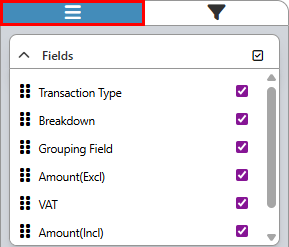
Click on the Fields tab on the Report App sidebar.
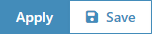
Once changes have been made on the Fields tab, the Apply and Save buttons will become available.
Click Apply to add your field changes to the Reports.
Click Save to create a new profile template.
Filters
Filters allow you to save commonly used filtering criteria as templates, helping you refine data more efficiently and reuse consistent settings when generating Reports.
Click on the Add button on the Filters field.
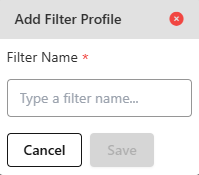
The Add Filter Profile pop-up will appear.
Click on the Type a Filter Name field to give your filter a name.
Click on the Cancel button to cancel adding the filter.
Click on the Save button to add your filter.
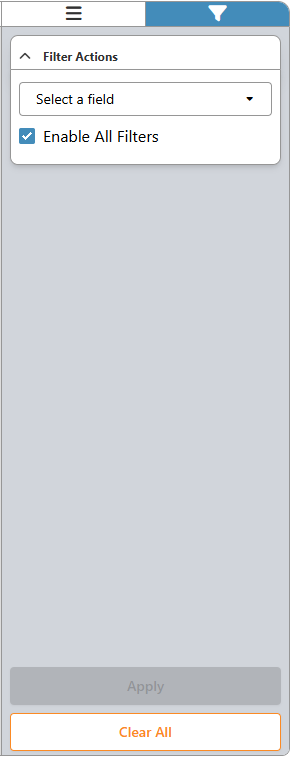
Click on the Filter tab on the Report App sidebar.