Text size
Line height
Text spacing
The Reporting App Settings screen allows administrators to enable, disable, and test new or experimental features within the Reporting App before they are rolled out to general use. By toggling individual features or groups of features (such as Live Reports), practices can control which advanced reporting capabilities are active, participate safely in beta testing, and provide feedback to help refine the experience. This ensures that only stable and approved functionality is used in day-to-day operations while allowing early access to improvements with minimal risk to existing data.
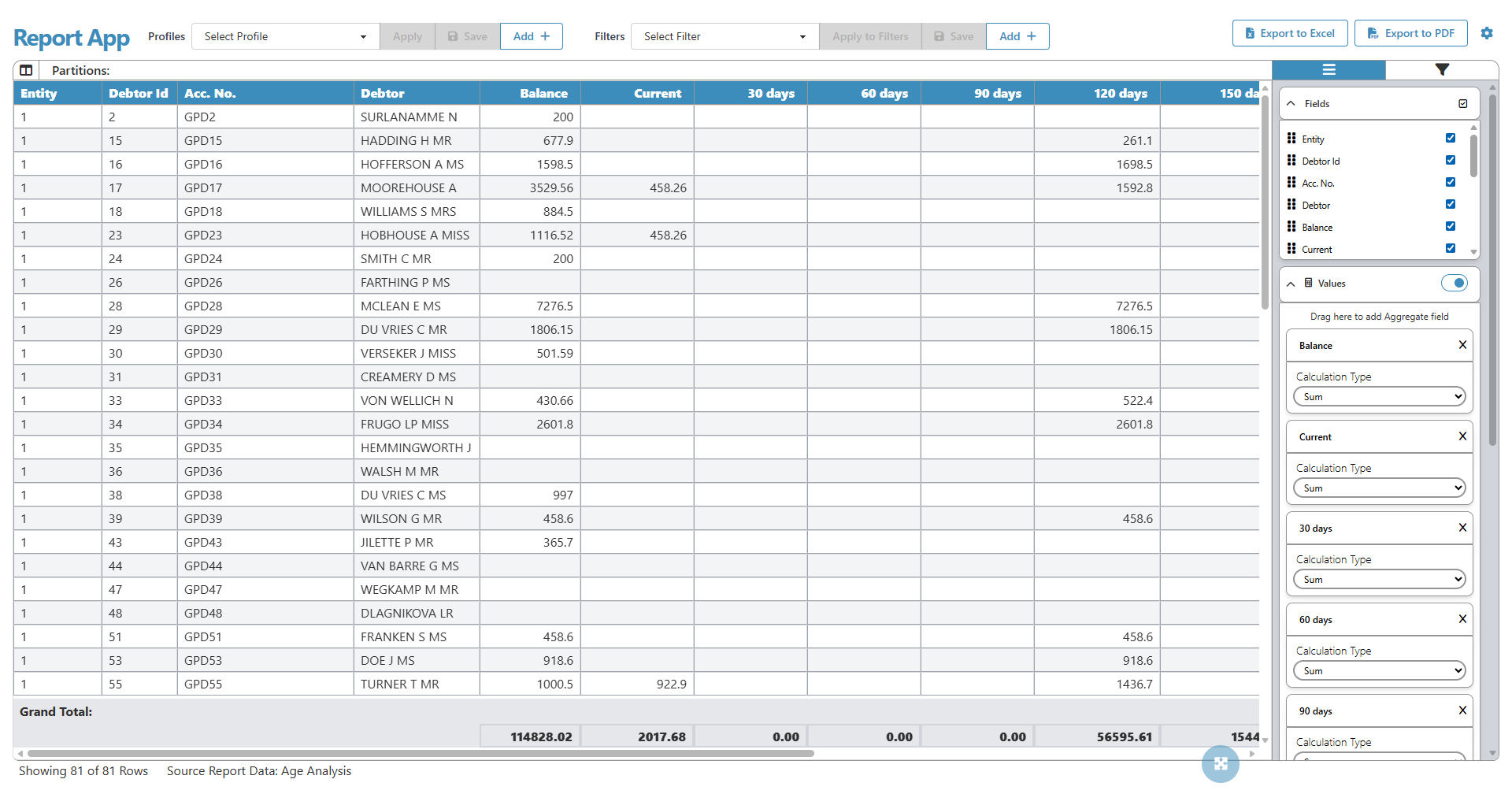


The Reporting App Settings screen allows administrators to view, enable, disable, and test features in the Advanced Reports module. Features are grouped under categories such as Live Reports and are marked as Experimental (red), Beta (blue), or Stable (green).

Click the slider next to the relevant feature to enable or disable it.


The Export section will allow you to export the Advanced Report Data as a JSON file to your local device.

Tick the checkboxes next to the applicable stores to select the store for export.