How to Set Up a Practitioner's Signature

Why Use This Function:

Saving a Practitioner’s signature in the GoodX system allows it to be securely and consistently applied to authorised clinical and administrative documents. When required, you will be prompted to enter your PIN code for security before the signature can be applied to documents, removing the need to manually add it each time. This streamlines workflows by eliminating the need to sign documents manually each time, while ensuring that all issued records are properly authorised. The stored signature can be used on sick notes, referrals, prescriptions, medical reports, consent forms, and other clinical documents, helping to maintain professional standards, support legal and audit requirements, and reduce the risk of unauthorised or inconsistent document signing.


  • This user manual will start on the Settings screen, User Settings tab
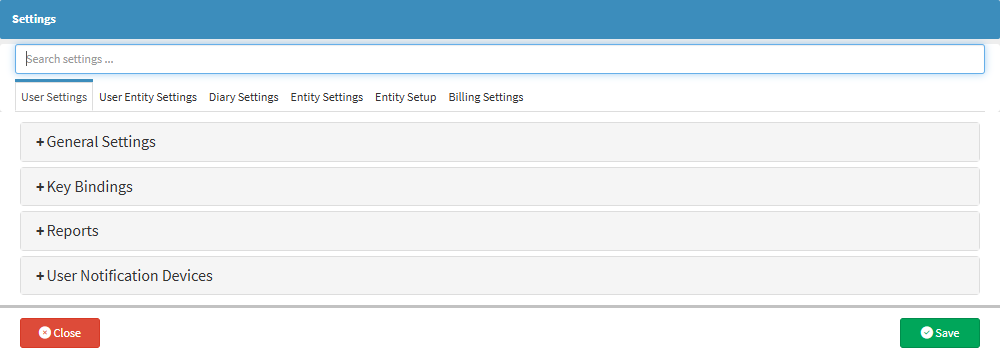


  • Click on the General Settings panel.


    • The General Settings panel will expand.

  • Click on the Change Signature button.

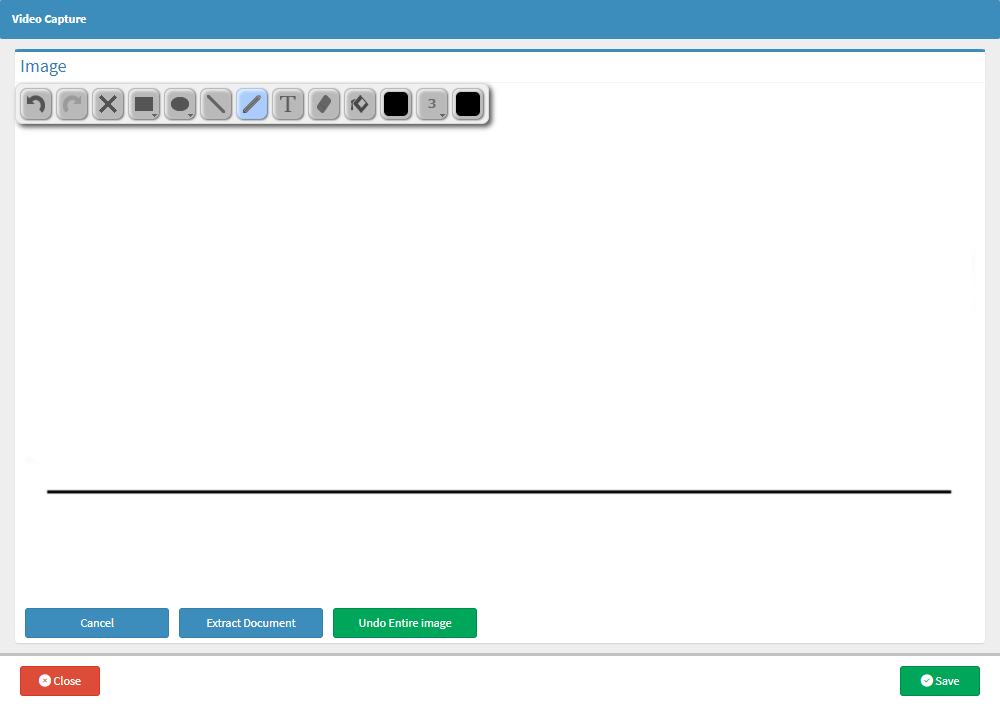
    • The Video Capture screen will open.


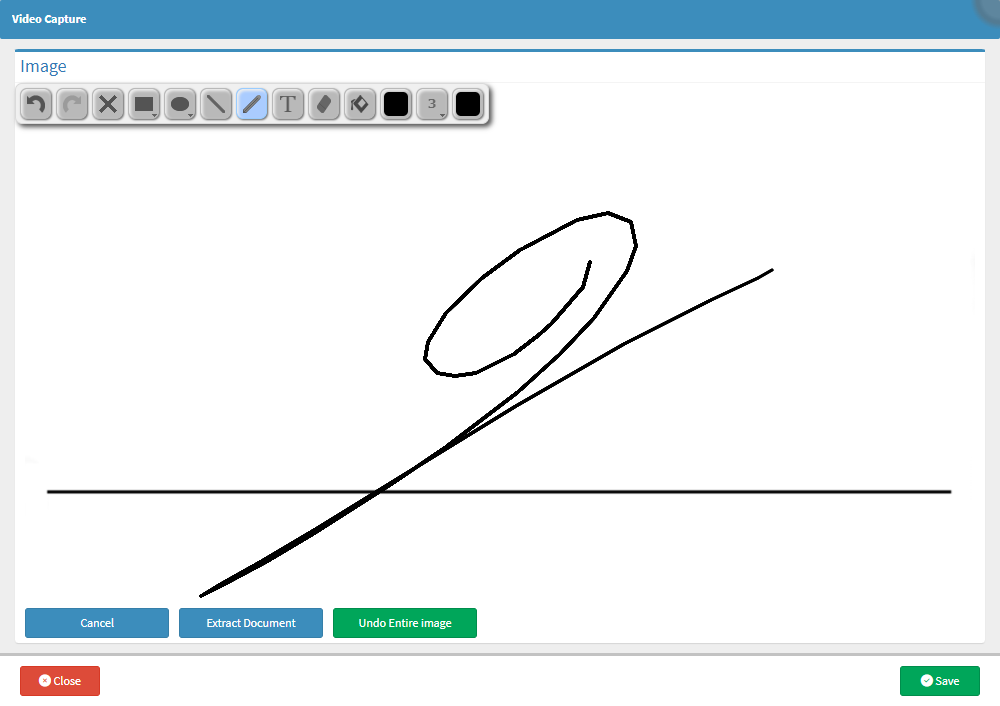
    • You can now draw your own signature using the desktop mouse or an external signature pad.


  • Click on the Save button.

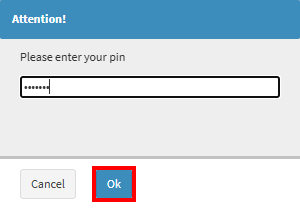
    • An Attention! pop-up message will appear requesting your Password

    • Enter your Password and Click on the Ok button.


      • A system message will appear confirming your signature has been updated.


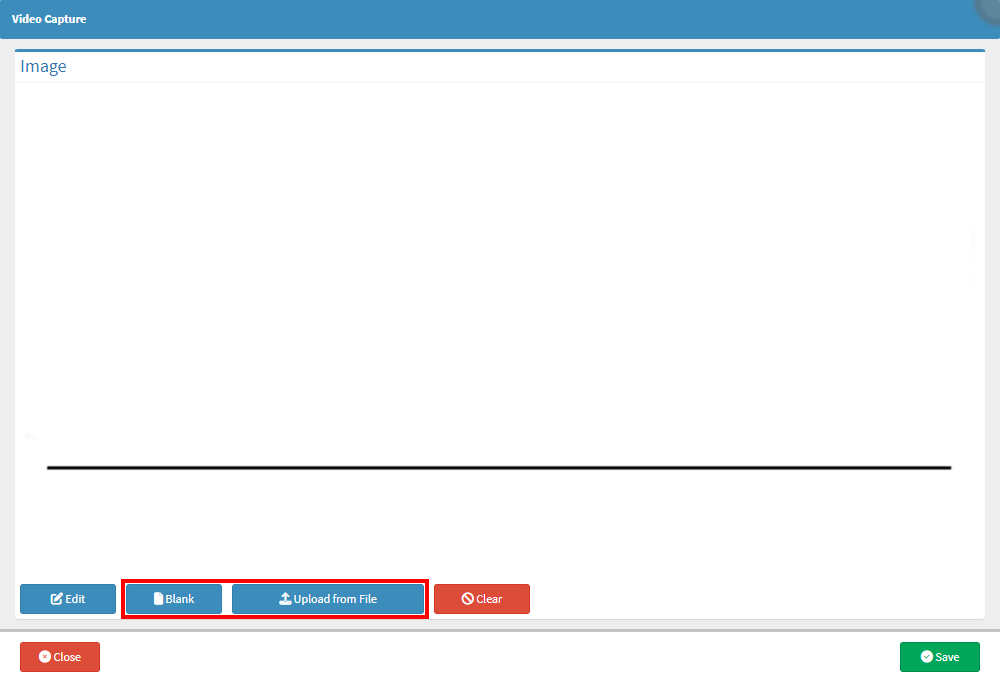
  • Alternatively, Click on the Cancel button to view additional options.
 

    • Additional options will now be available.

  • Click on the Blank button.


    • A large blank page will open, with various formatting options to create your signature, if required. 


  • Click on the Upload From File button.

    • Click on the Choose File button.


    • Select the desired signature file, then Click on the Open button.


    • The new Practitioner Signature will now display.

  • Click on the Save button.

    • An Attention! pop-up message will appear requesting your Password

    • Enter your Password and Click on the Ok button.


      • A system message will appear confirming your signature has been updated.


  • Click on the Save button to finalise any changes.


Last modified: Monday, 5 January 2026, 3:53 PM