Add/Edit Contact Point Screen
Why Use This Function:
Using the Contact Points screen provides a structured way to manage every contact method linked to a Debtor or related person. Accurate contact details are essential for communication, billing, follow-ups, and resolving account matters efficiently. By viewing, filtering, and editing Contact Points in one central area, you ensure that each Debtor has up-to-date and reliable information assigned to the correct person. This improves workflow accuracy, supports proper recordkeeping, and allows users to quickly identify, update, and maintain the contact details needed for smooth account and communication processes.
- This user manual will start on the Add/Edit Contact Point screen.

- For more information on how to navigate to the Add/Edit Contact Point screen, please refer to the user manual: Debtor Edit - Add Contact Point Screen: Navigation and Use.
- An explanation will be given for the options available:
- System: Displays the communication system selected and will be used for this contact point. In this case, SMS.

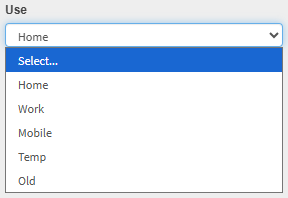
- Click on the Use drop-down menu and Select the desired option.

- Home: The Debtor's home contact details.
- Work: The Debtor's work contact details.
- Mobile: The Debtor's mobile or cell phone contact details.
- Temp: Temporary contact details that are valid for a limited period.
- Old: Contact details that are no longer actively used.
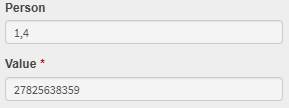
- This section of the screen only displays relevant information regarding the Debtor's contact points, and can not be changed on this screen.

- Person: Displays the identifier of the person linked to this contact point.
- Value: Displays the contact detail associated with the selected system, for example, a phone number or email address.
- Click on the Rank field.

- Click on the Up or Down Arrow buttons to Select the priority or importance of this contact point.
![]()
💡Please Note: Lower values are typically used first when the system selects a preferred method of communication.
- Click on the Start or End Date fields to open the Date Picker.

- From here, you can Select the date from which this Contact Point will be active, or no longer active, for use within the system.
- Click on the Note field to enter any additional information relevant to this address.

- Click on the Save button to finalise any changes made.

Last modified: Saturday, 10 January 2026, 8:41 PM