Setting a Collection Display Name enables you to rename a pricelist, allowing for a more easily identifiable name of your choice. By customising the name, you can improve clarity and ease of reference across your pricing structures.
From the Navigator, Double-click on the GoodX Manage module.
The GoodX Manager screen will open.
Click on the Pricelist Management button.
The Pricelists Collections (PLC) screen will open.
Double-click on the desired Pricelist which you would like to change the name of.
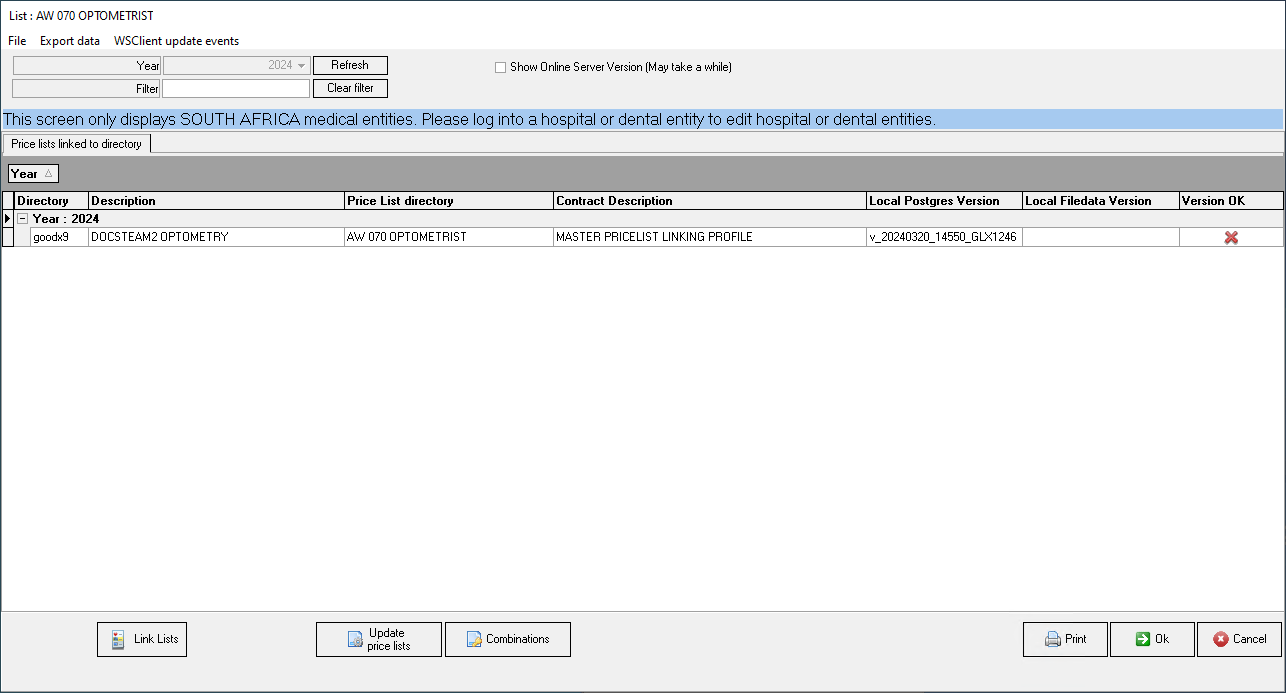
The List screen of the desired option will open.
Click on the Pricelist to select it.
Click on the Update Price Lists button.
The GoodX Price Updating Tool screen will open.
Click on the SetCollection Display Name button.
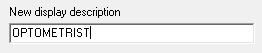
The Pricelist Display Description screen will open.
Click on the New Display Description field to enter the desired name.
Click on the Ok button to save your changes.
Click on the Exit button to close the GoodX Price Updating Tool screen.
Click on the OK button on the List screen.
Click on the Ok button on the Pricelist Collections (PLC) screen.
Click on the Pricelist Management button.
The Pricelists Collections (PLC) screen will open, where the Display name has updated to the name that you have changed it to.
?Please Note: The Display Name will also be present on the Price Collection Report when generated and any other place where the Pricelist is used.