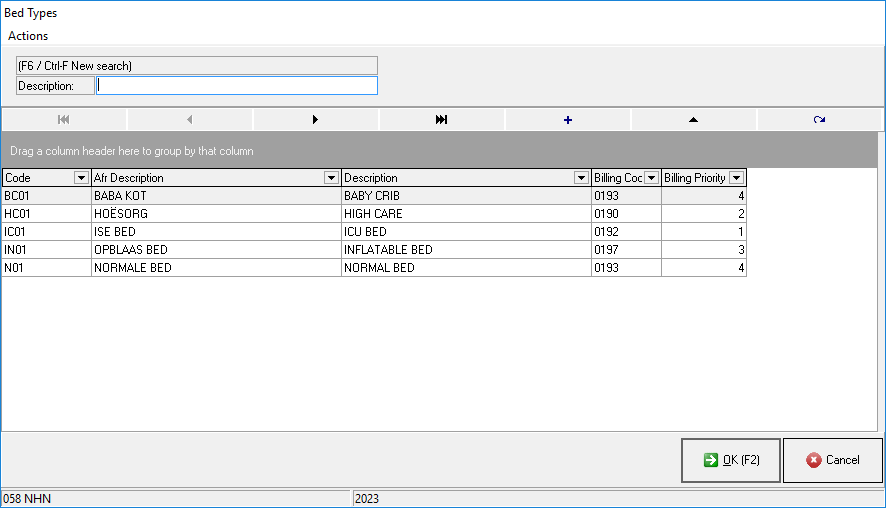
Users can set up different types of Beds for different types of medical care a Patient needs. A Bed Type is a type of bed used for Patient care and treatment. For example, an adult will have a normal bed, high care bed or an inflatable bed, but a baby will stay in a cot. The Bed type can also determine the price that the Patient pays to sleep in the bed.
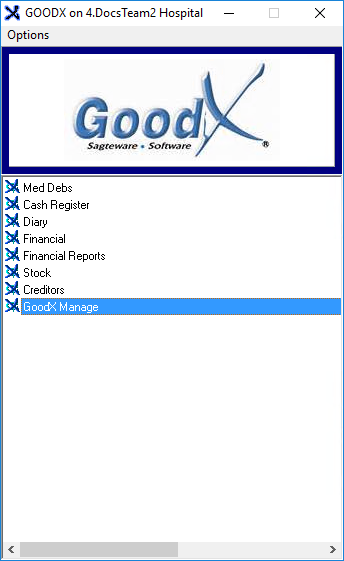
Log in to the GoodX Desktop using your GoodXusername and password.
From the Navigator, Double Click on the GoodX Manage Module.
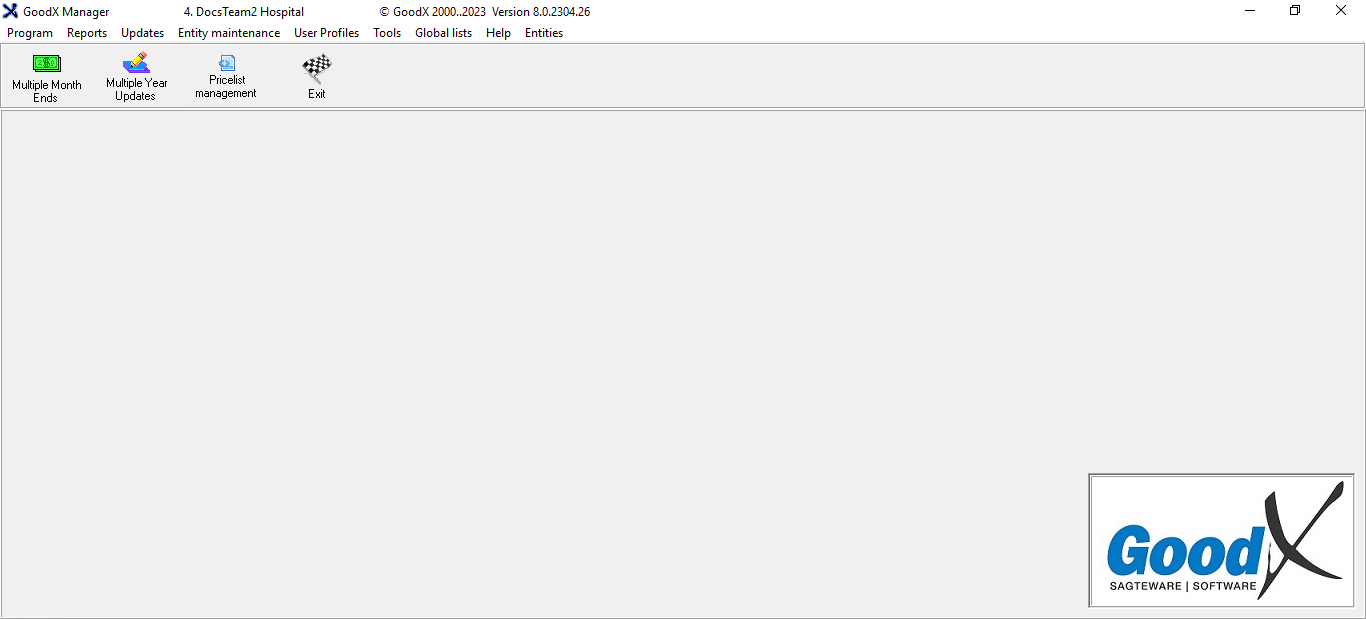
The GoodX Manager screen will open.
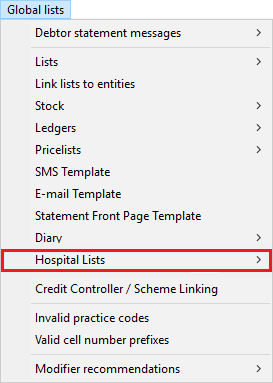
Click on the Global Lists menu located on the Menubar.
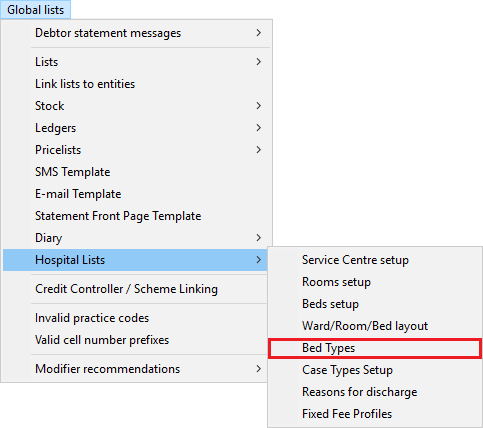
Click on the Hospital Lists from the sub menu.
Click on the Bed Types.
The Bed Types screen will open.
Click on the + (Add) button to set up a new Bed.
The Bed Type Descriptions screen will open.
An explanation of the fields on the Bed Type Descriptions screen will be given:
Code: A Code that the user creates to identify the Bed Type on the system.
Type the Code of the Bed Type into the Code field, the user must type in their own code into the Code field, for example, A code for a Baby Crib could be BC01.
Afrikaans Name: The title of the Bed Type in Afrikaans. For Example, Baba Kot.
Click on the Afrikaans Name field.
Type in the Afrikaans name of the Bed Type into the Afrikaans Name field.
English Name: The title of the Bed Type in English. For Example, Baby Crib.
Click on the English Name field.
Type in the English name of the Bed into the English Name field.
Billing Code: The unique code used to accurately bill Patients that will be using the bed type being created, as registered at SAMA (South African Medical Association).
Click on the Billing Code field.
Type in the relevant billing code as registered with SAMA.
Billing Priority: The specific order in which the Bed Type must be billed based on their priority level, for example, a Bed Type with a billing priority of 1 will be billed before a Bed Type with a billing priority of 5.
Click on the Billing Priority field.
Type in the billing priority of the BED Type being created, for example, 1 is the most important and 5 is the least important.
Click on the Cancel button to exit the Bed Type Descriptions screen without creating a new Bed Type.
Click on the OK button to create a new Bed Type and exit the Bed Type Descriptions screen.