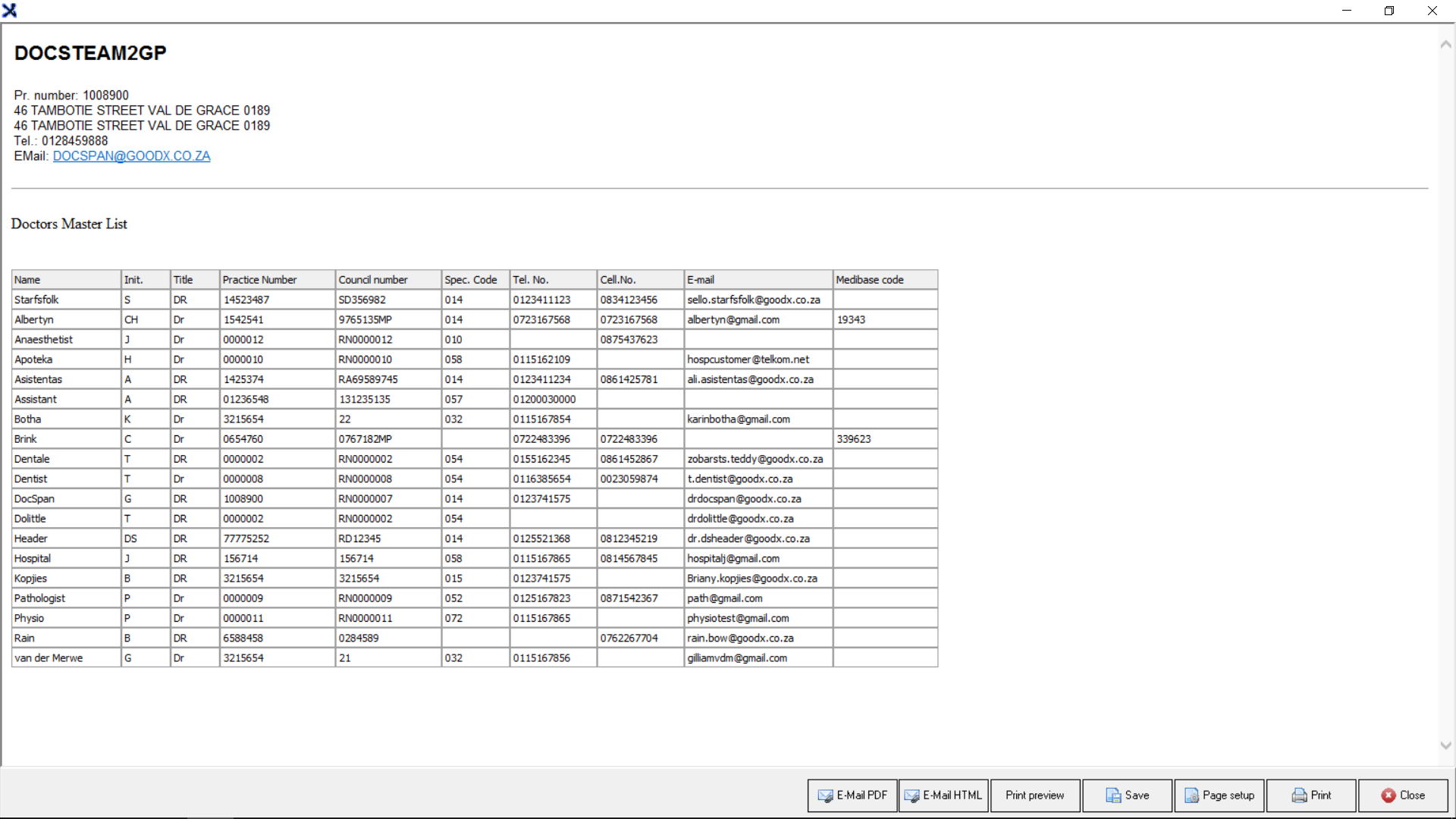
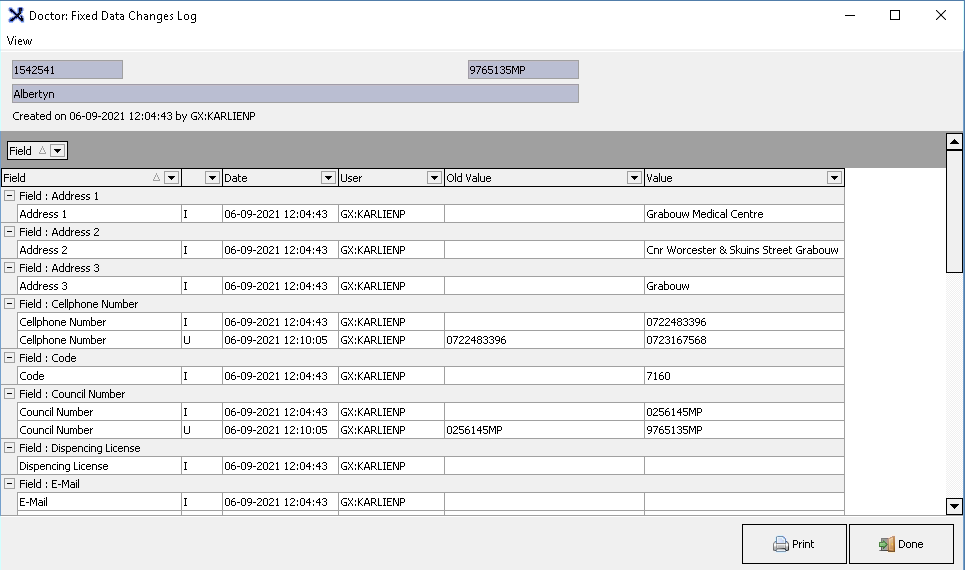
The Master List will show all the Treating Doctors, Referring Doctors, Assisting Doctors, and Staff Doctors for this specific Practice. The list will include the Practitioners Name, Surname, Practice number, BHF Council number, Speciality code, Telephone number, Email address and Medibase Code if the Doctor was imported from Medibase. The information will be used for Medical Aid claims. To ensure that the correct payments are received from Patients and Medical Aids the information needs to be kept up to date at all times.
The contents of this User Manual will consist of the following information:
Search
Count
Sorting
Arrows
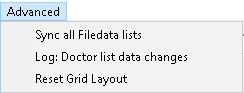
Advanced Menu
All doctor screen columns
Import from Medibase
Print
Log in to the GoodX Desktop App with your username and password.
From the Navigator Double Click on the GoodX ManageModule.
The GoodX Manage screen will open.
On the Menubar, click on the Global Lists menu.
The Global Lists sub-menu will open.
Click on the Lists sub-menu.
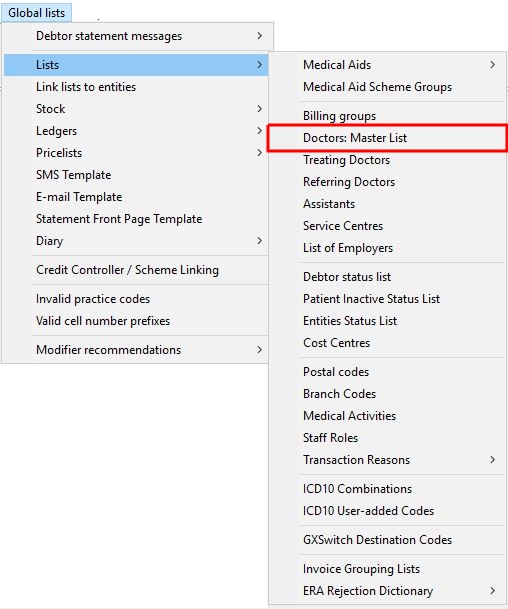
In the Lists sub-menu, click on the Doctors: Master List sub-menu.
TheAll Doctors screen will open.
Search
The Search function is used to search for a specific Practitioner on the List of Doctors. The search function can be used to search on the Practitioners Name, Surname, Practice number, BHF Council number, Speciality code, Telephone number, Email address and Medibase Code.
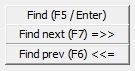
After the information you want to search for is typed into the Search field the following Find buttons can be used to search for the information or the Enter key on the keyboard can also be used.
Find (F5 / Enter): The Find button will search for the exact results that were typed into the Search field.
Find next (F7): The Find next button will search for the next results applicable to the information that the user is searching for.
Find prev (F6): The Find previous button will navigate back to the previous results applicable to the information that the user is searching for.
Count
The Count field will display the number of Practitioners currently on the All Doctors screen.
Sorting
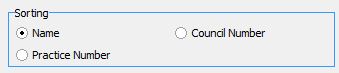
The Sorting function will sort and arrange the Practitioners on the All Doctors screen according to the following options:
Name: The Practitioners will be sorted alphabetically according to their Names.
Council Number: The Practitioners will be sorted according to their Council (BHF) Number starting from 0.
Practice Number: The Practitioners will be sorted according to their Practice Number starting from 0.
Arrows
The arrows will help the user to navigate to the next Practitioner / Page on the List of Doctors, it will allow the user to Add a New Practitioner and Edit / Update an Existing Practitioner.
and - The following arrows take you to the first page of the list of Practitioners or the last page of the list of Practitioners.
and - The following arrows take you to the next or the previous Practitioner on the list.
- The Plus sign button is used to Add a New Practitioner. Please refer to the Add a Treating Doctor link or related button to open the Manual for more information on How to Add a New Practitioner.
- The upward arrow button is the Edit button. The Edit button will allow the user to Edit the Practitioners details that are selected.
- The rounded arrow button is the Refresh button. The user can refresh the Page to see changes that were made or new Practitioners that were added.
All doctor Screen Columns
The following information will display for the Practitioners that are saved on the All doctors screen:
Name: The practitioner's Surname will display in the Name field.
Initial: The Initial is the first letter of each first name of the practitioner.
Title: The Title will show the status or profession of the practitioner for example Dr / Prof.
Practice Number: The practice number of the practitioner, as registered with the HPCSA and BHF.
Council Number: The practitioner's registration number from the South African Medical and Dental Council.
Speciality Code: The Speciality Code is a certain field in which a person decided to specialise in. These individuals had to undergo extensive education to go into these specialities, for example, Nurses, Audiologists, General practitioners etc. Every Speciality will have a unique speciality code.
Telephone Number: A telephone number where the practitioner can be reached.
Cellphone Number: Acellphone number where the practitioner can be reached.
Email: An address where electronic mails can be sent to the practitioner.
Medibase Code: The Medibase Code will display a unique Code (ID) after the Practitioner is imported from Medibase. The Medibase Code is a unique ID that is created on the Medibase database if the Practitioner wants an Online Presence.
Import from Medibase
Click on the Import from Medibase button to import and Link the Practitioner from Medibase.






 and
and  - The following arrows take you to the first page of the list of Practitioners or the last page of the list of Practitioners.
 and
and  - The following arrows take you to the next or the previous Practitioner on the list.
 - The Plus sign button is used to Add a New Practitioner. Please refer to the Add a Treating Doctor link or related button to open the Manual for more information on How to Add a New Practitioner.
 - The upward arrow button is the Edit button. The Edit button will allow the user to Edit the Practitioners details that are selected.
 - The rounded arrow button is the Refresh button. The user can refresh the Page to see changes that were made or new Practitioners that were added.