Reprinting a script will allow the user to print a copy of a prescription that has already been created on the system. Scripts are usually reprinted to keep a copy in the patient's hardcopy file as a reference to what was prescribed should the electronic copy not be available, or if a patient has misplaced their copy before they have handed it in at the pharmacy.
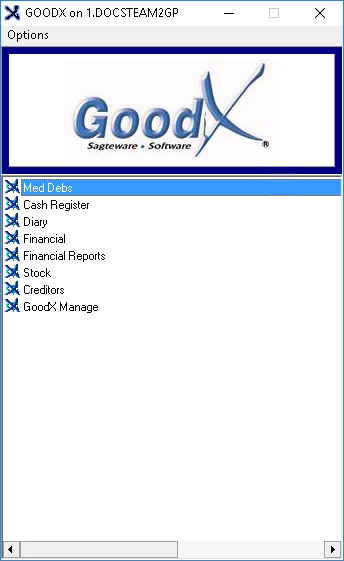
Log into the GoodX Desktop App with your GoodX username and password.
From the Navigator, DoubleClick on the MedDebs module.
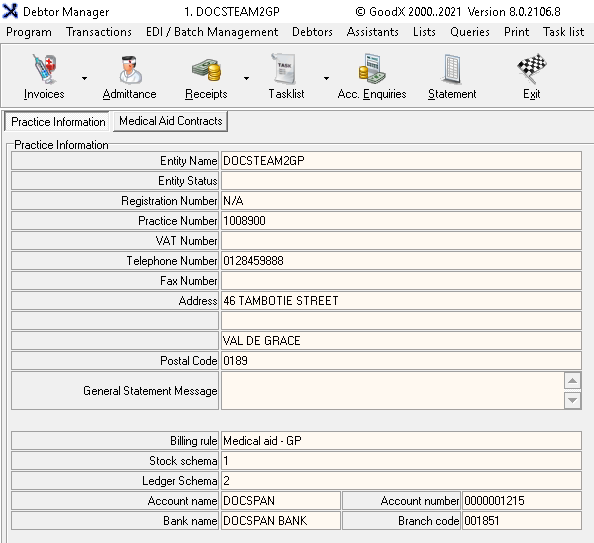
The Debtor Manager screen will open.
Click on Admittance on the Toolbar.
The Main Member Input screen will open.
Search for the desired debtor using the Search field.
Click on the Debtor for whom the user would like to reprint a script.
Click on the Account button or press the F9 key on the keyboard.
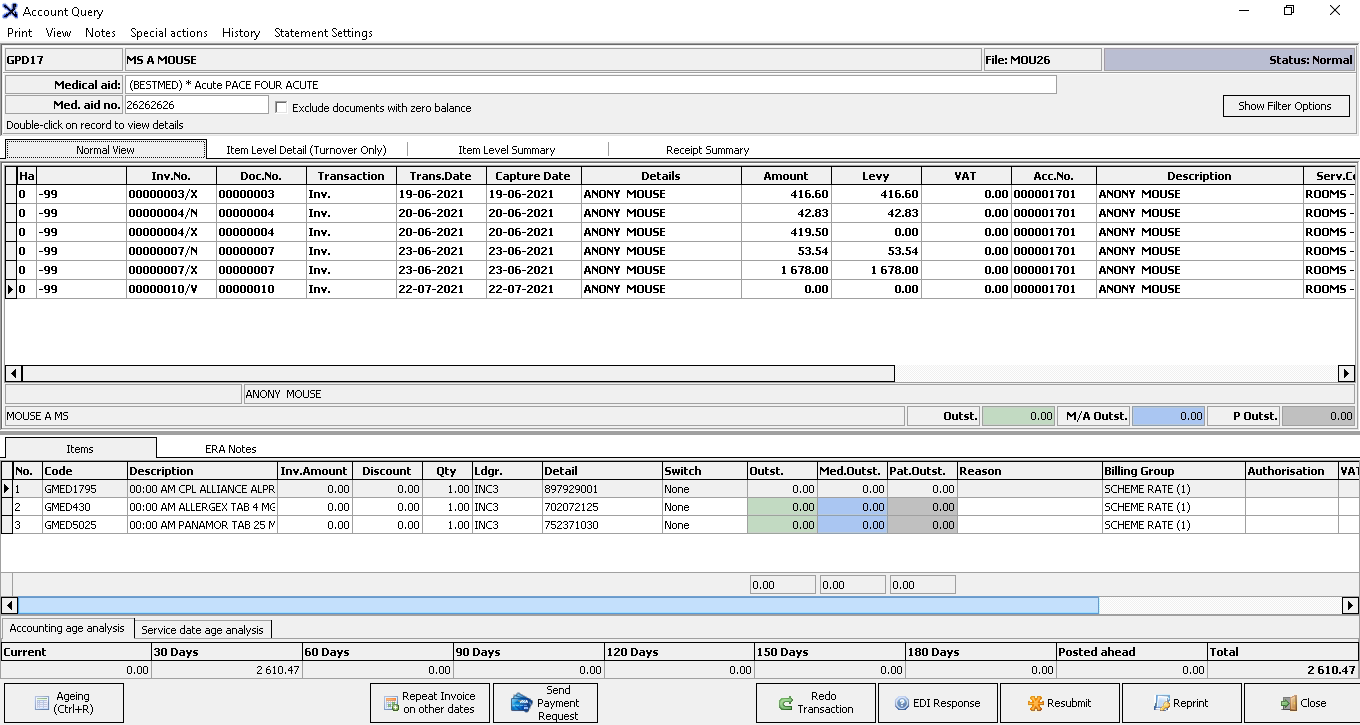
The Account Query screen will open.
Select the Transaction that the user would like to reprint the Prescription for, by clicking on it.
Please Note: A prescription will always end with a /V. This will be indicated at the end of the invoice number.
Click on Reprint.
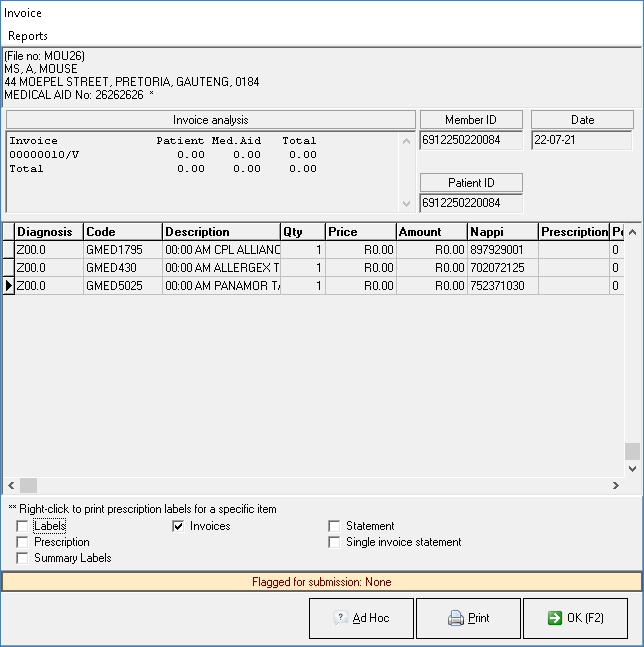
The Invoice screen will open.
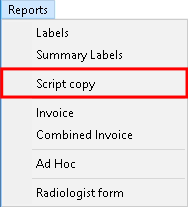
Click on Reports in the menubar.
Click on Script Copy on the sub-menu.
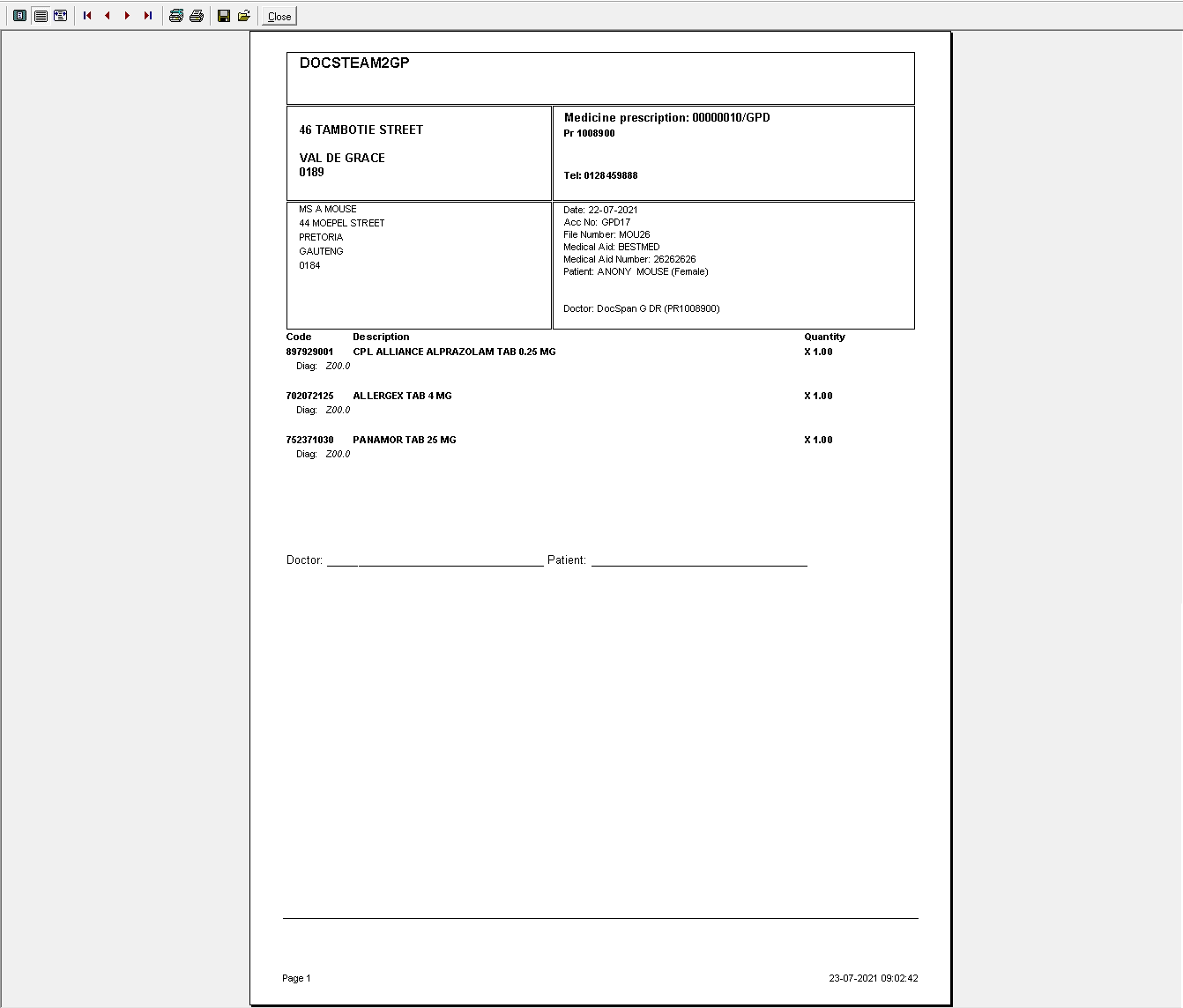
The Prescription will print to the screen.
Click on the printer button to print the invoice to the preset up printer.
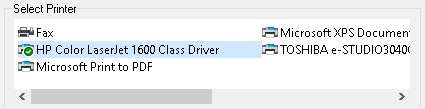
The next screen that will come up will solely be determined by the practices printer set up.
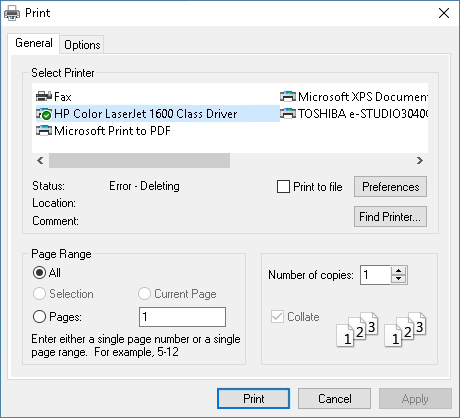
The Print Screen screen will open.
Click on the desired printer to select it.
Click on Print to send the Script copy to the selected printer. The print screen will close and return to the Prescription screen.
Click on Close on the Prescription screen to close the screen and return to the Invoice screen.
Click on Ok to close the Invoice screen and return to the Account Query screen.
Click on Close to exit the Account Query screen and return to the Main Member input screen.
Click on Exit to close the Main Member Input screen and return to the main Debtor Manager screen.