How to Make a Booking as a Non Registered User (Logged Out)
Completion requirements
Why Use This Function:
Making a Booking on myGC as a non-registered user allows potential Patients to explore and engage with the booking process without needing to create an account. This provides fast and convenient access to a wide range of Healthcare Practices, enabling Patients to view availability and schedule appointments without completing a full registration process. It offers a streamlined and user-friendly experience, allowing individuals to familiarise themselves with how the booking system works before committing to registration.
When the Patient is ready to finalise their appointment, they can simply register on myGC and continue without losing any progress, ensuring immediate access to available consultations while maintaining the security and integrity of the Practice’s scheduling system, ultimately supporting a smooth, intuitive, and efficient booking journey for both new and returning Patients.
This user manual will start on the myGC home page.
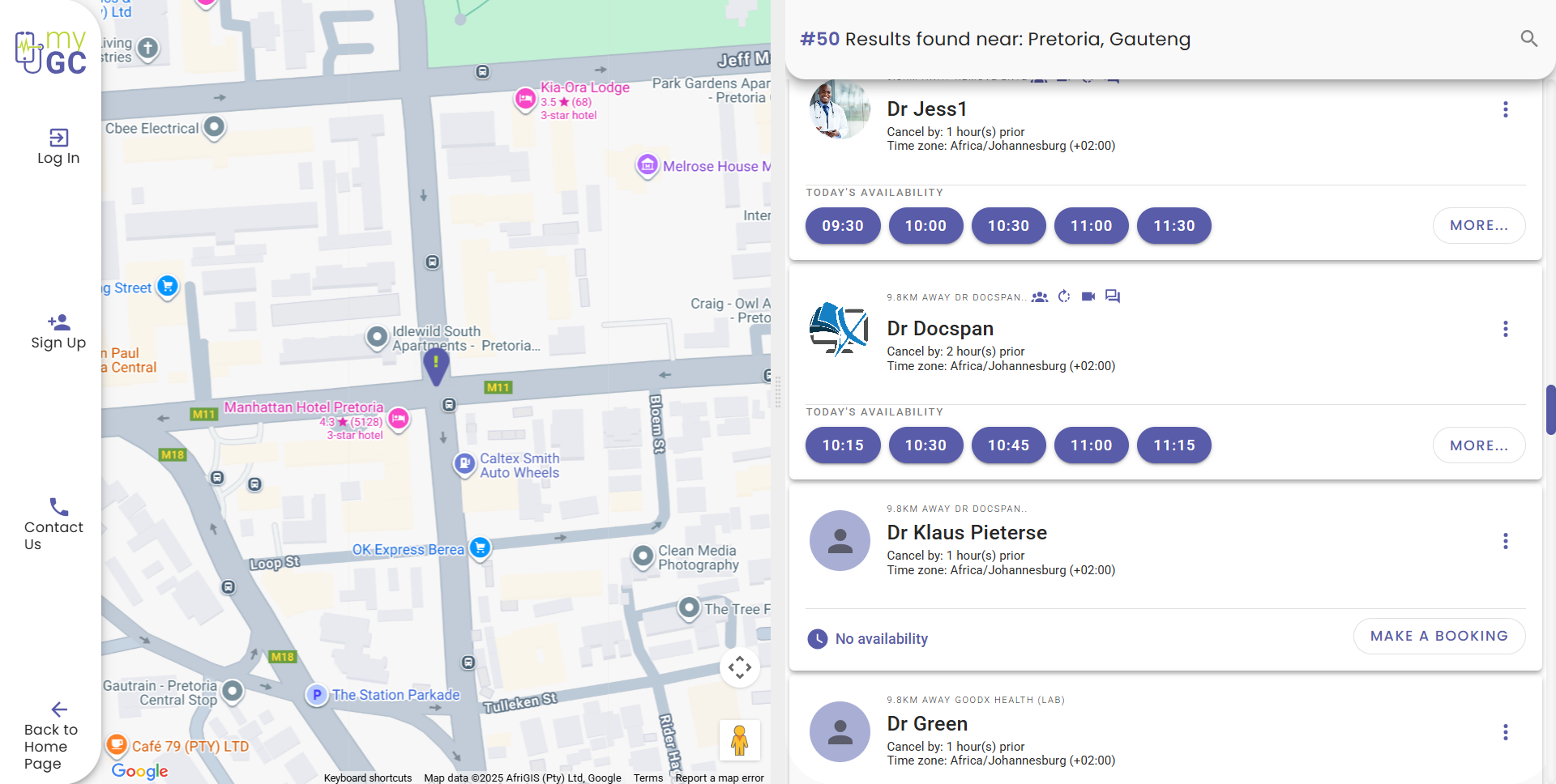
Click on the Near Me button.
The myGC Results screen will open displaying all available Practitionersnear your location.
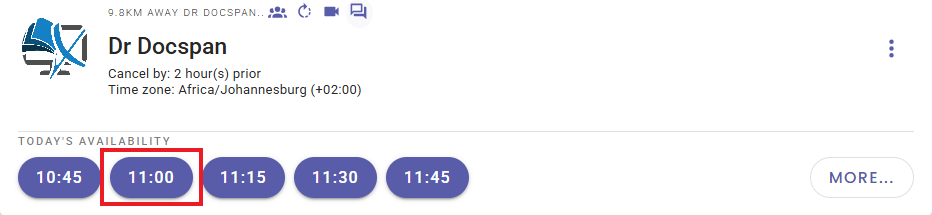
Click on the desired Practitioner timeslot.
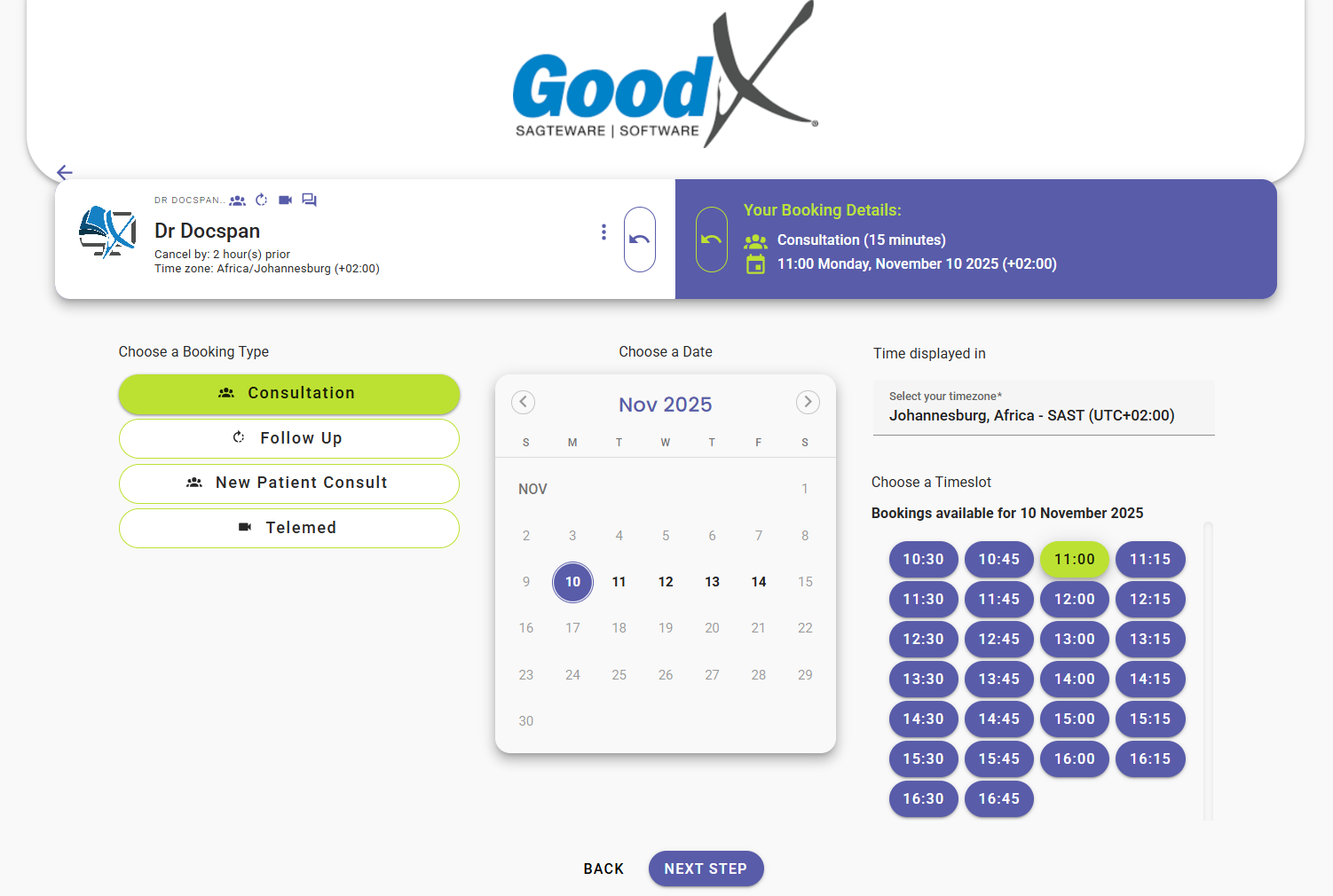
The Booking Details screen will open.
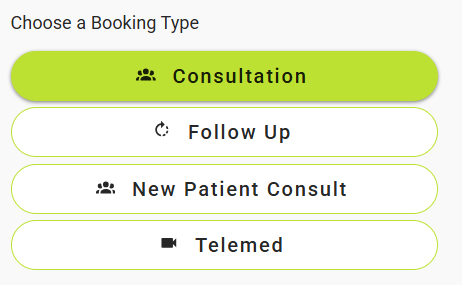
Click on the button of the desired Booking Type in the Choose a Booking Type section to select the appropriate option.
?Please Note: The Booking Types that are listed will correspond to the types of bookings that are available at the Practice.
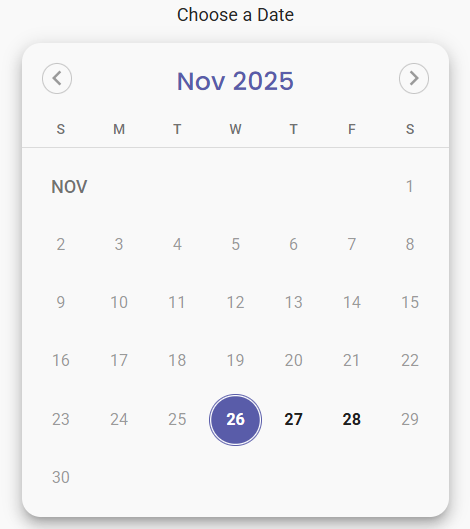
Click on thedesired Date on the calendar to select the day the booking will be made for.
?Please Note: The Date will be selected by default according to the date of the booking timeslot you chose.
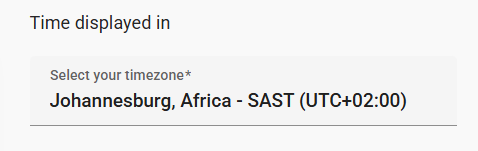
Click on the Select Your Timezonefield to change the timezone if the need arises.
?Please Note: The timezonewill correlate to the current timezone of your device/and or browser by default.
?Disclaimer: The Practitioner's calendar will update to show the adjusted time for the booking if their timezone differs from yours.
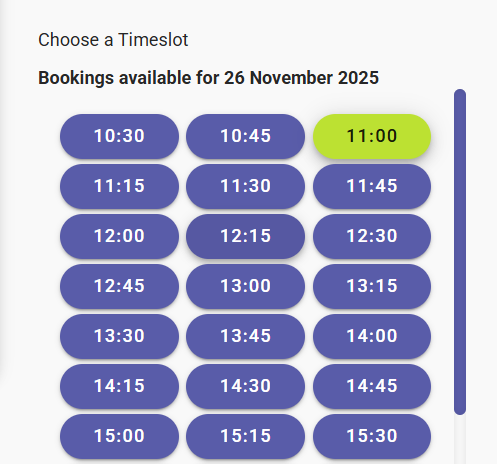
Click on the Timeslot button of the desired time to make a selection for that specific time.
?Please Note: All available times will be listed, and the selected time will be highlighted.