Without being logged in to the myGC App, the user can access the Practitioner search function and also view the Practitioner's availability for online bookings. Once the user finds a relevant Practitioner, and a suitable timeslot, the user will be allowed to make a booking.
This user manual will consist of the following information:
Location
Pins
Speciality
Search a Name
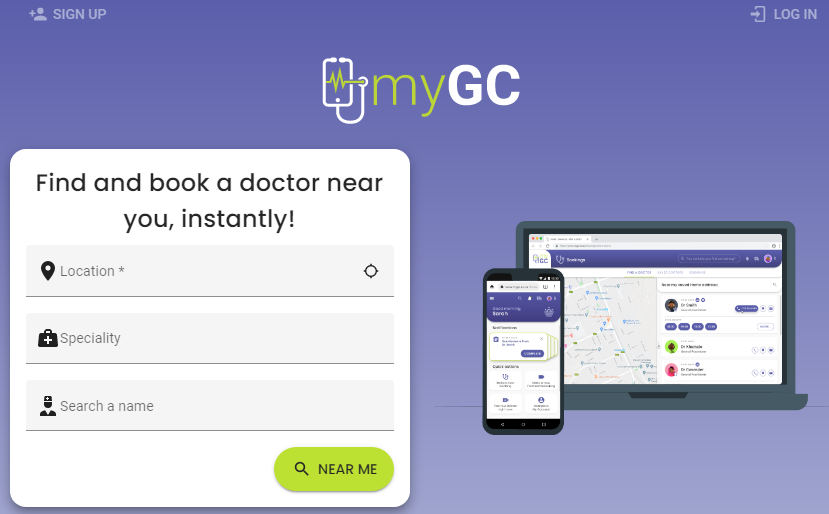
This user manual will start on the myGC Landing Page.
Location
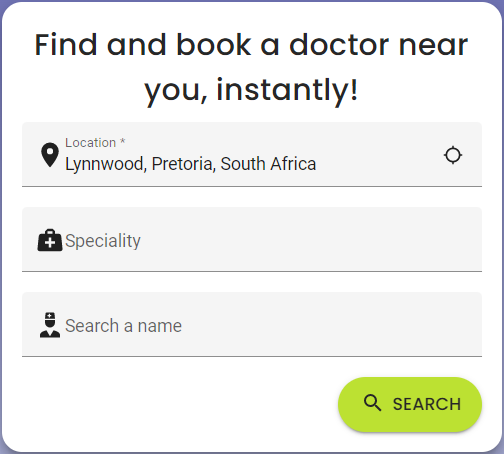
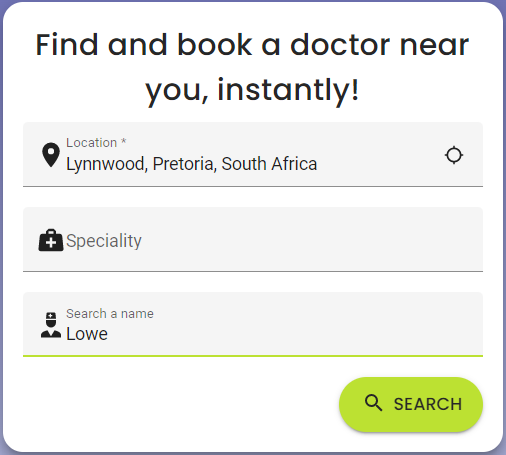
Location is the geographical position of where to find the Practitioners' consultation rooms that are being searched.
Please Note: The Location field is a required field. If a required field is not filled in, the field will turn red and the Search button will not appear until the information is entered into the field.
Click/Tap in the Location field.
A pop-up message will appear.
The message explains that the user is able to search for Practitioners around the user's current location by Typing "Near Me" into the Location field.
Alternatively, Click/Tap on the Near Me button to perform a search of nearby Practitioners.
Please Note: If no location has been chosen when searching by Speciality or name, the Near Me button will default as a Search button, but only with results in and around the user's current location.
Type the relevant addressinto the Location field if the user does not want to use the Near Me function. Options will appear on a drop-down listto choose from. Only 1 character is required for results to start showing.
Please Note: The location feature is powered by Google Maps and a list of possible locations will come up to choose from as the user types.
Click/Tapon the desired location from the available list.
The Search button will appear.
Click/Tap on the Search button
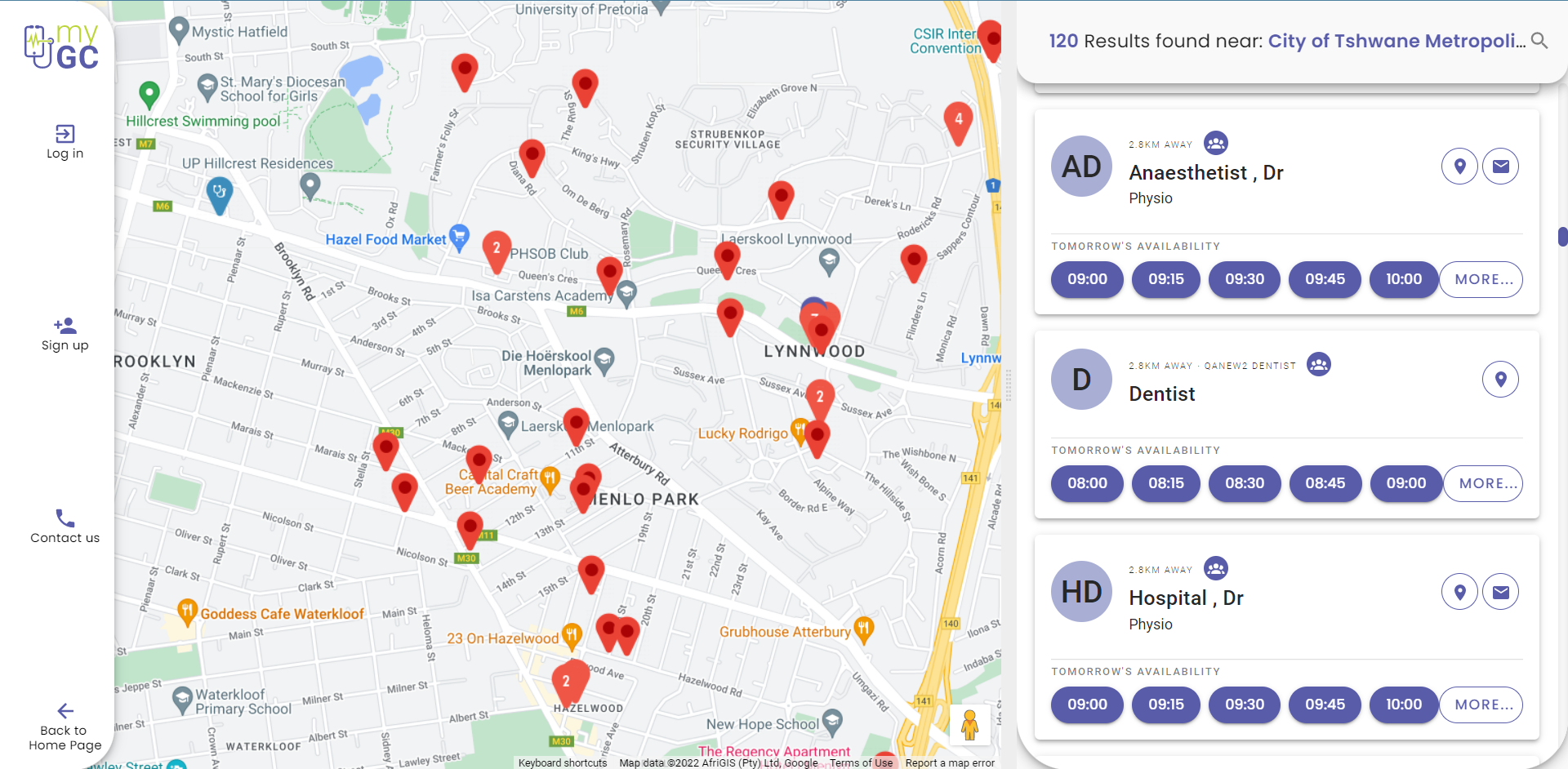
A map will open to show the Practitioners in and around the chosen location.
Pins
Red Location Pin: An indication of relevant Practitioners that have been found during the search.
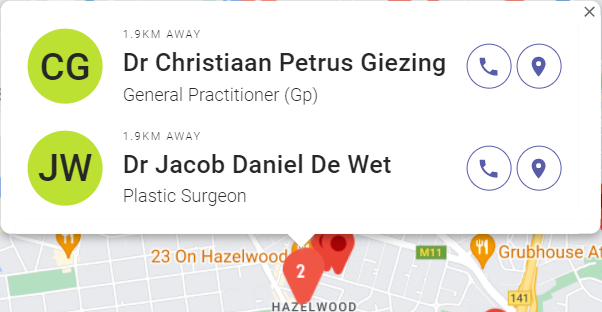
Numbered Red Location Pin: An indication that there is more than one Practitioner at that specific location.
Click/Tap on a Location Pin to view a Practitioner's information. If there is more than one Practitioner at a specific location, a list will be available to choose a Practitioner from.
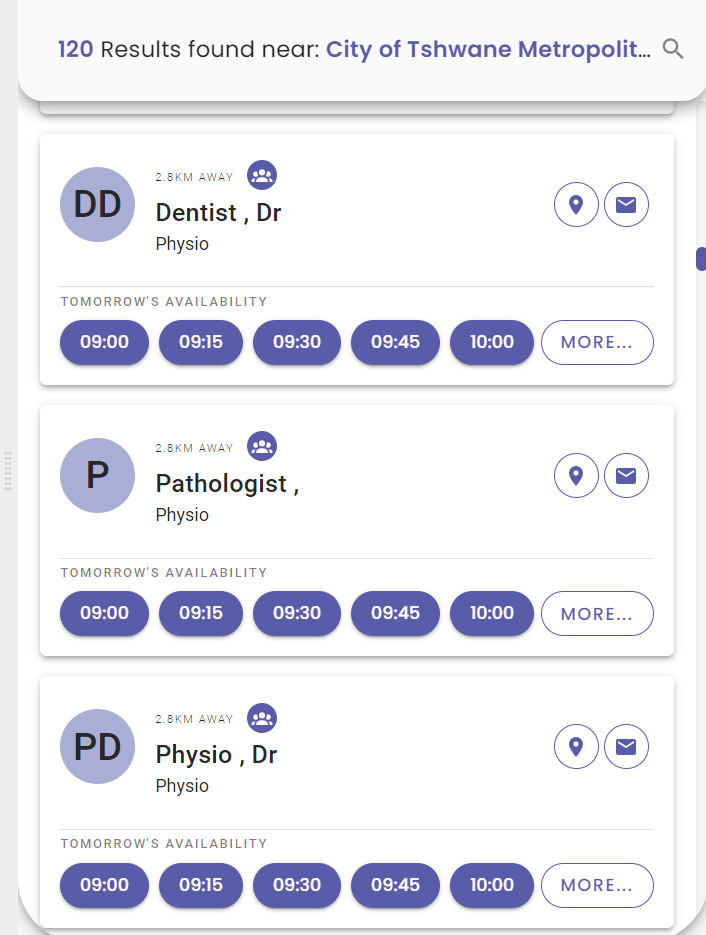
Alist of the Practitioners from the search results will also be available on the sidebar, in the order of nearest proximity to the location entered.
Purple Location Pin: The user's current location is shown by a purple location pin containing a green (!) exclamation point.
Blue Location Pin: An indication that a Practioner is a myGC Practitioner and a booking can be made from the sidebar on the map.
Speciality
Speciality is a certain field in which a Practitioner has decided to focus their medical knowledge in. These individuals had to undergo extensive education to go into these specialities, for example, Cardiologists, Gynaecologists, Dermatologists etc.
Click/Tap onthe Speciality field to add a specific type of Practitioner or Specialist to the search.
A drop-down list will become available to choose the relevant Practitioner.
Type the desired Speciality for a more accurate list.
Click/Tap on the preferred Speciality to select the option.
A map will open to show the relevant Practitioners in and around the chosen location.
Search a Name
The user is able to search for Practitioners using either the first or last name of the desired Practitioner.
Type the known first or last name of the desired Practitioner into the Select a Name field.
The more information that is typed into the field, the more accurate the search results will be for the desired Practitioner.
A map will open to show the relevant Practitioners in and around the chosen location.
Search and Filter
If a user is unsatisfied with the search results, additional filter options are available to narrow down the search for the desired Practitioner.
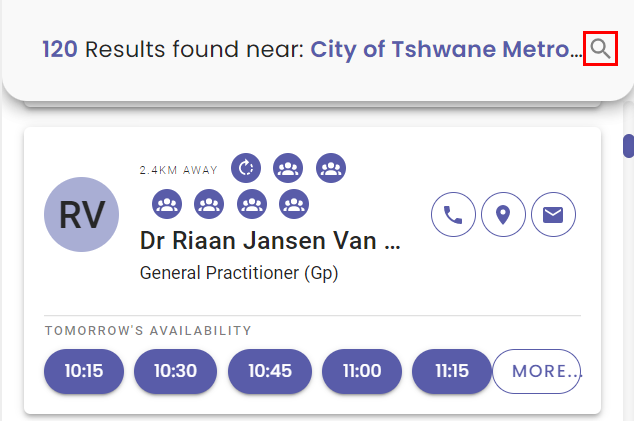
Click/Tap on the Magnifying Glass at the top of the results list.
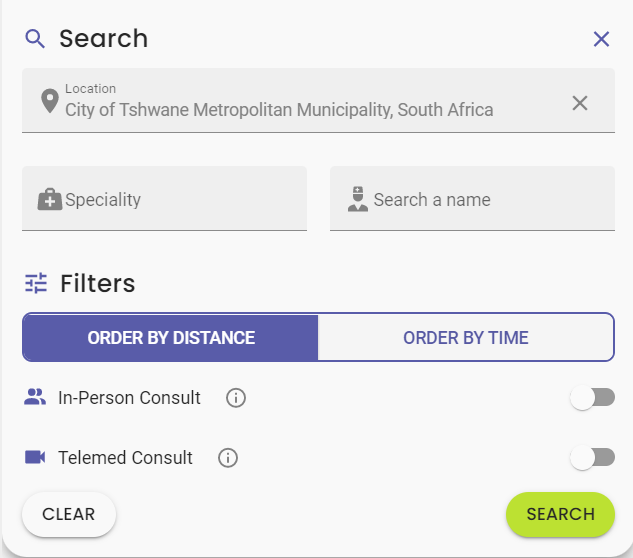
The Search section will open with additional filter options available for use.
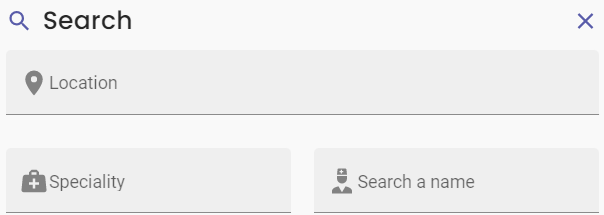
The aditional Searchand Filter fields will be explained below:
Search
Location: A specific address, Suburb or Area.
Speciality: Search by Speciality type, for example, General Practitioner, Endocrinologist, etc.
Search a Name: Search for a Practitioner by name or surname.
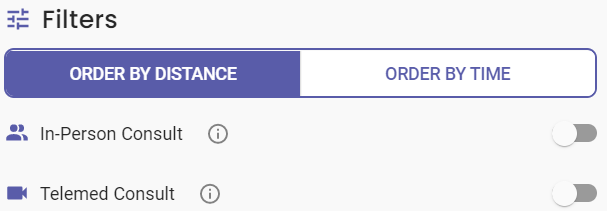
Filters
Order by Distance: Lists the search results by nearest distance to either the location entered, or nearest to the user's current location.
Order by Time: Lists the search results by the first available timeslot. Only Practitioners that are registered on the myGC app will be discoverable through the Order by Time filter.
In-Person Consult: Search for a Practitioner that is able to do face to face consultations at their Practice.
Telemed Consult: Search for a Practitioner that is able to do video consultations through the myGCapp.
Click/Tap on the Clear button to remove all of the filters set by the user.
Click/Tap on the Search button to perform a search of Practitioners with the Search and Filter information completed.
Click on the X button on the top right of the Searchand Filter panel to close the additional search options, and return to the map.