The Debtor Drilldown Report is a detailed financial report which gives an overview of all transactions on the system within a specific timespan, on specific accounts, and types of transactions, using specific selected groupings and filters to customise the report to the information you want to see.
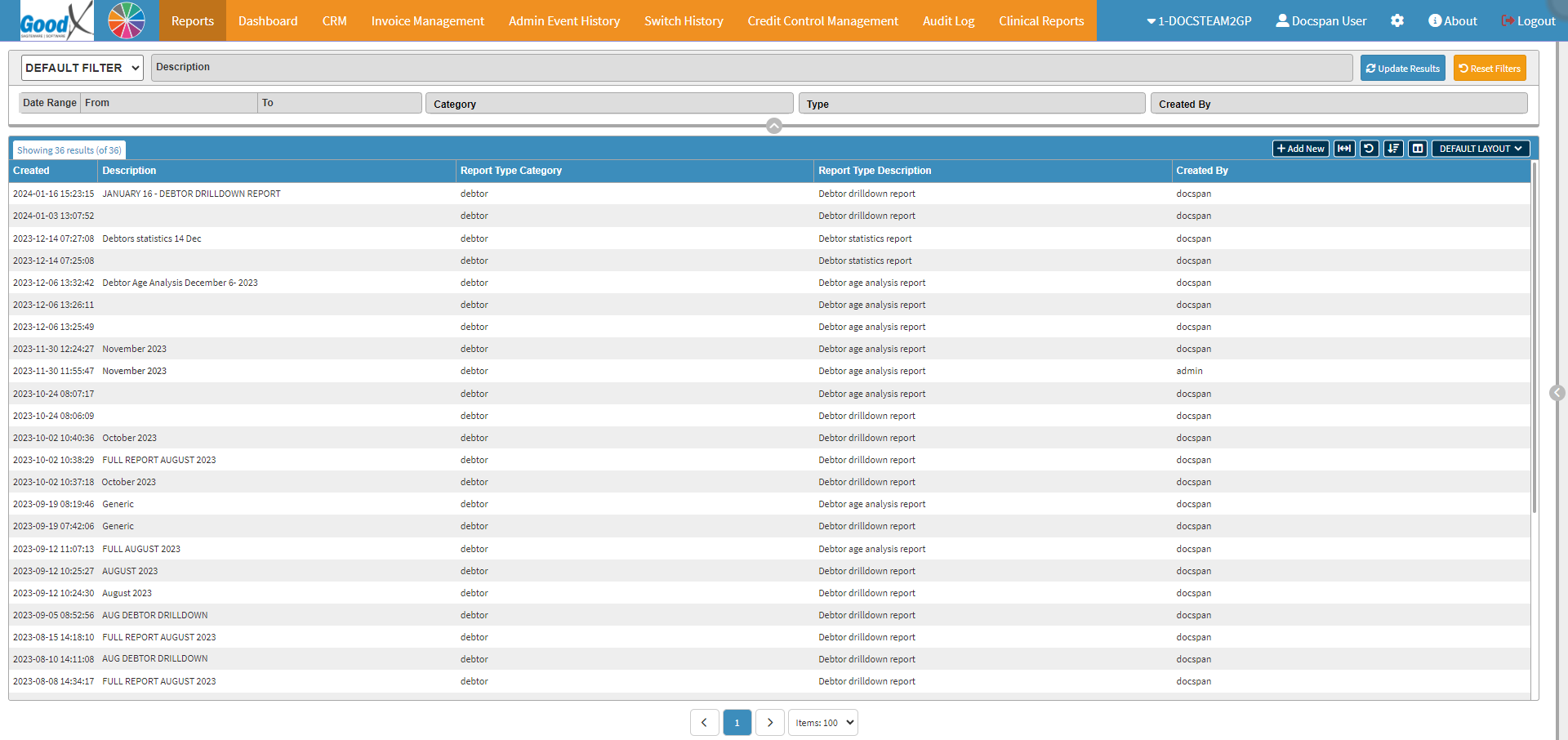
This user manual will start on the Reports screen.
Click on the +Add New button.
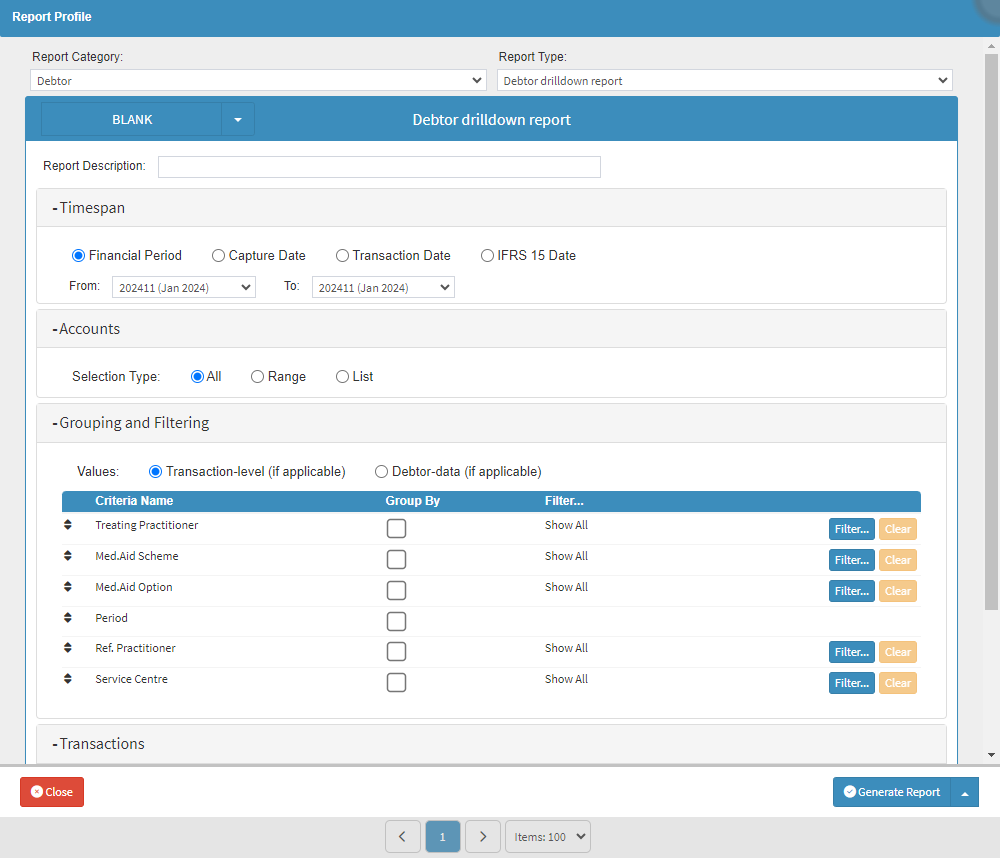
The Report Profile screen will open.
Select the Debtor option on the Report Category drop-down menu.
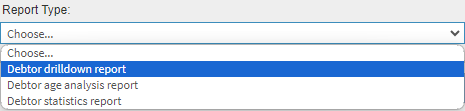
Select the Debtor Drilldown Report on the Report Type drop-down menu.
The Settings and Parameters of the Debtor Drilldown Report will open.
Choose the Settings and Parameters of the information that you want to have displayed on the report.
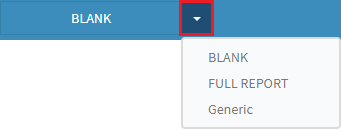
Alternatively, Click on the Report Profile drop-down menu to Select the desired Report Profile that was saved previously.
For more information on how to Save a Report Profile for future use, please refer to the user manual: How to Save Report Profiles.
Click on the Generate Report button to create the report.
A notification will appear to advise that the Report is being generated in the background.
A second notification will appear once the Report has successfully been generated.
The Report will then appear on the Report List screen.
Please Note: The Report may take a while to load. If the Report does not appear on the list immediately, Click on the Updates Results button to refresh the Report List.
For more information regarding how to open the Debtor Drilldown Report that you have generated, the information displayed and the options for the Report, please refer to the user manual: Navigating and Understanding the Debtor Drilldown Report.