User preferences are set per user to customize the program to the specific needs of the user. The user can set the following:
The type of screens to be used.
The layout of the screens.
The type of system functions to be used.
The way the user will search for data on the system.
The layout of the diary.
You can access the preferences from Any Module in the Desktop App
The User Preferences can be found in the same place from every module
Sign in to the GoodX Desktop using your GoodX username and password.
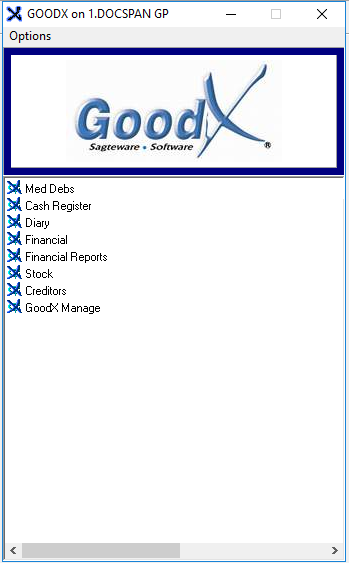
From theNavigator Double Click on the Any Module
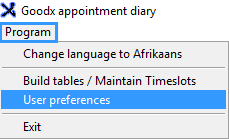
From the Menu Bar, Click on Program
Click on User Preferences from the drop-down
Click on the Diary Tab
Display patient details on arrival of an existing patient:
When an existing patient arrives at the practice and you mark the patient as arrived, the admittance screen (Deblist) will open so that you can confirm that all the patient information is still the same.
Go to next Appointment after Invoicing:
The marker will immediately move to and select the next appointment after invoicing a patient.
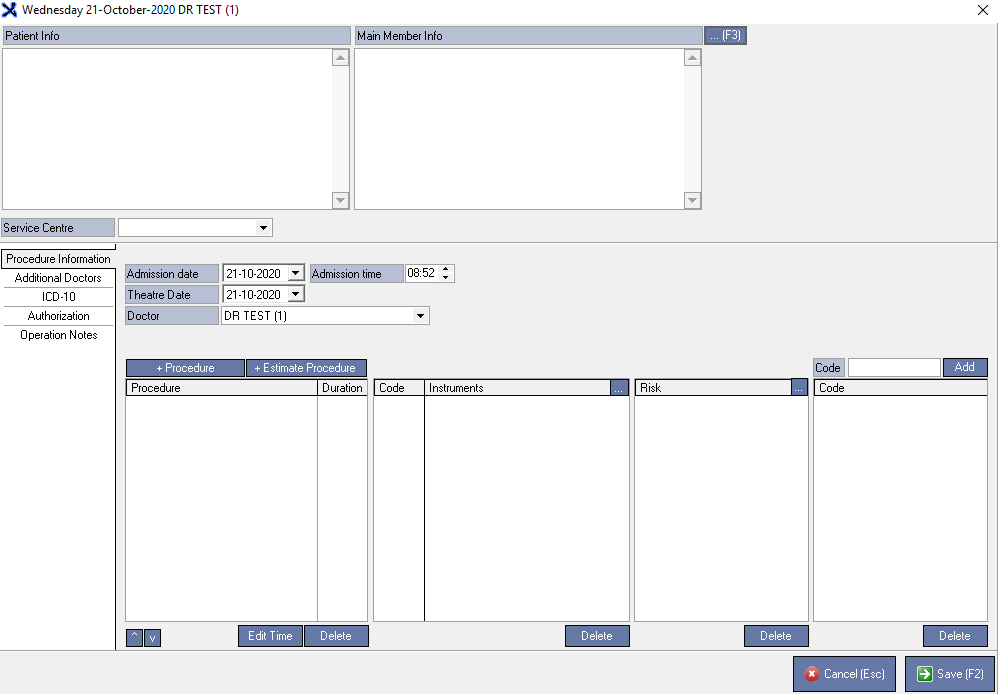
Enable case view in theatre list
When this is enabled it will show all available fields in the theatre scheduling section
Warn if a new task has been assign to the user:
The Tasklist button in the Diary will turn red when a user assigned a new task for you.
Centre Focused timeslot on refresh of grid
When clicking on the refresh button on the task menu at the top of the screen, the current (now) time be centre to the middle of the diary page.
Display Debtor notes :Will open the Debtor Notebook, dependant on your selection
On Booking:
Tick this checkbox if you would like the patient notebook to display on booking of an appointment
On Arrival
Tick this checkbox if you would like the patient notebook to display on the arrival of a patient.
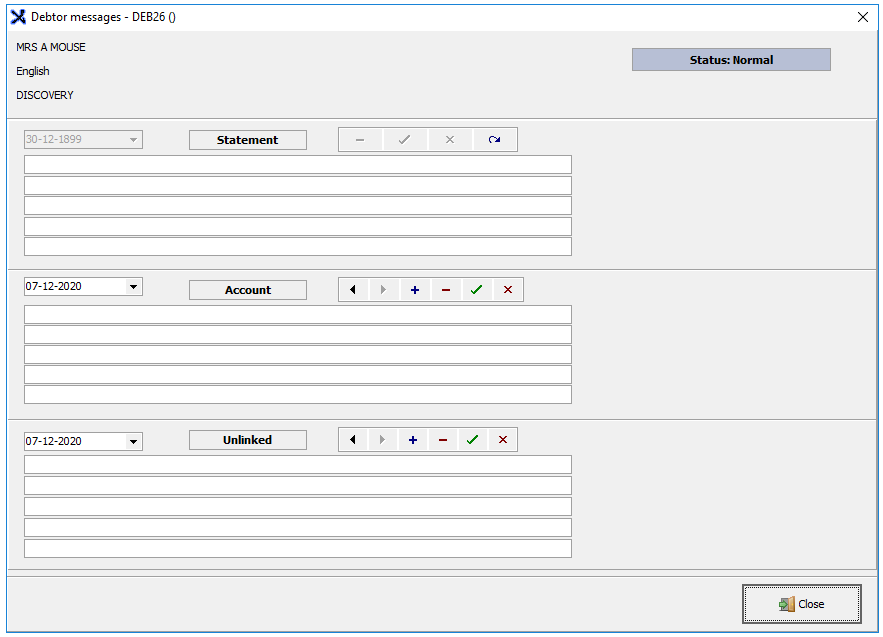
Display Message book: Will open the Debtor messages, dependant on your selection
On Booking:
Tick this checkbox if you would like the patient notebook to display on booking of an appointment
On Arrival
Tick this checkbox if you would like the patient notebook to display on the arrival of a patient.
Always display debtor notes (even of there are no notes)
Displays the debtor note pop-up screen even if no notes have been made for the selected debtor
PLEASE NOTE: When the "Always display debtor Notes" tick is used one of the following must also be ticked:
On booking: As you are done entering booking details
On arrival: As soon as you mark the patient as Arrived
Multi-doctor view saving:
Allows you to choose which diary date should it save the view for, for the next time you log in
Default Dates to last used
Automatically opens the diary to the date that you last used
Default Dates to Today
Automatically opens the diary to the date of the current day
Default Dates to date from main diary
Automatically opens the diary on the same date as the main diary for all doctors
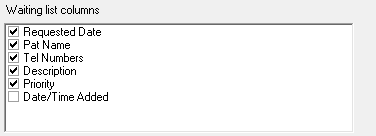
Waiting list columns:
Tick the columns you want to be able to view on the waiting list.
Requested Date : The date the appointment was requested
Patient Name: Patients Details
Tel Number : Patients Telephone number
Description : The details provided by the patient ( complaint)
Date/Time Added: When the patient was added to the waiting list
Click OKwhen satisfied with your settings to save
Click Cancel to close the screen or cancel (changes will not save)











 when satisfied with your settings to save