Assistants conduct physical exams, diagnose and treat illnesses, order and interpret tests, counsel on preventive health care, assist in surgery, and can also write prescriptions. The purpose of the Assistant is to assist the Treating Doctor in certain procedures in the Practice or in Theater. By adding an assistant as a Creditor allows for easy billing and payment of their services
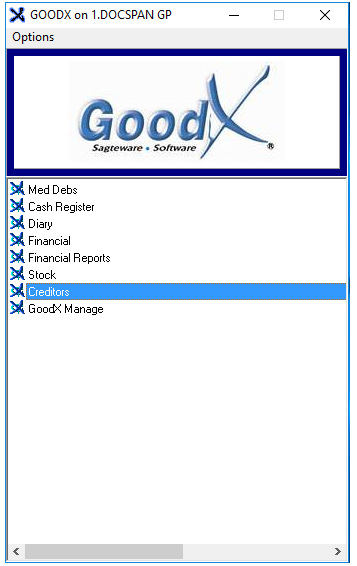
Sign in to the GoodX Desktop using your GoodX username and password.
From the Navigator Double Click on the Creditors Module
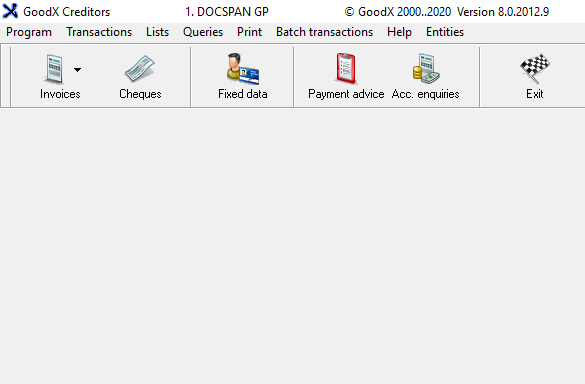
You will be directed to the Creditors screen
From the toolbar, Click on Fixed Data
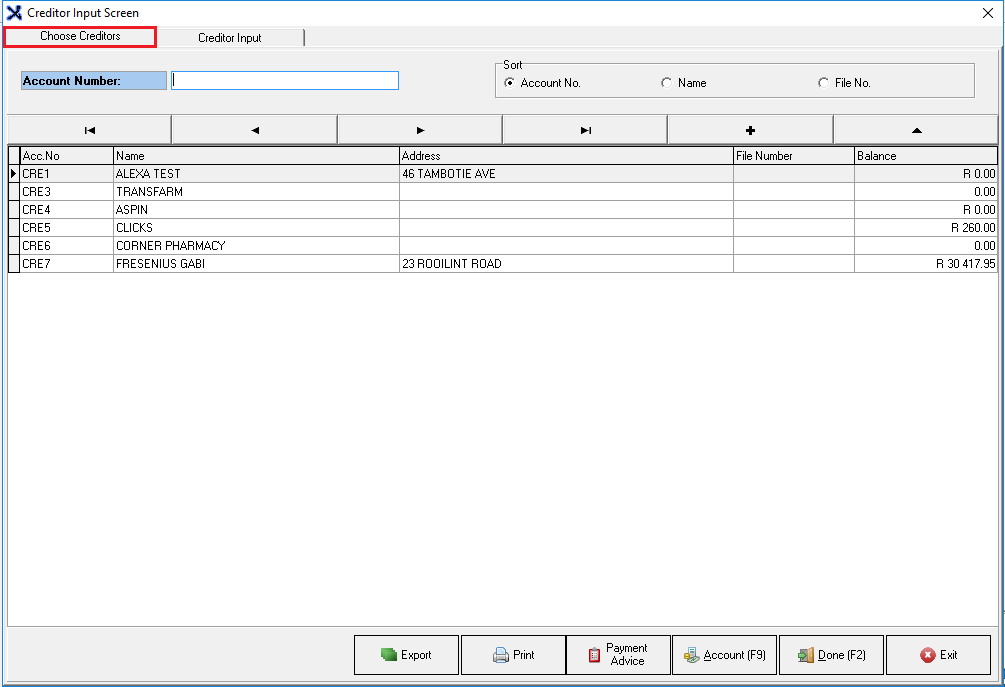
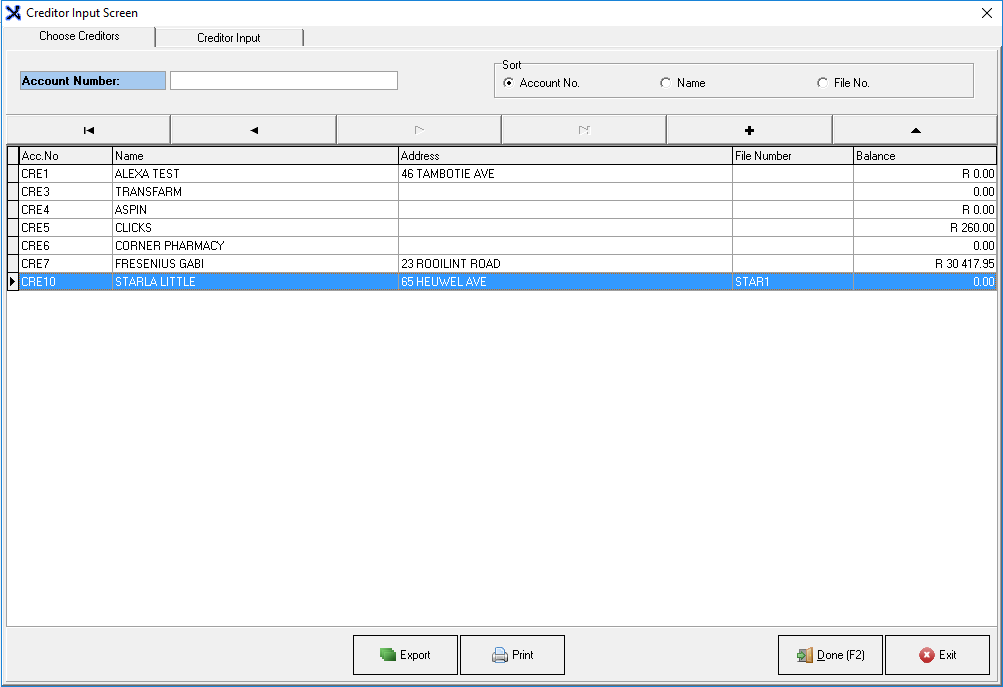
The Creditor Input screen, Choose creditors tab will open
Search for a specific Assistant by typing in the text box
The text box name will change depending on your Sort selection
Sort: Will determine what criteria are used to search for a specific creditor
Account Number: The assistants account that you have allocated to them
Name: The name of the Assistant
File Number: The unique number allocated to the patient/debtors hard copy file, uses the file number to search
By Clicking on the + you are able to add a new Assistant to your list
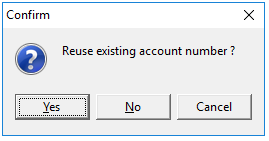
A pop-up will appear which will ask if you would like to Reuse existing account number
If you would like to, click Yes
If you would like to allocate a new account number, Click No
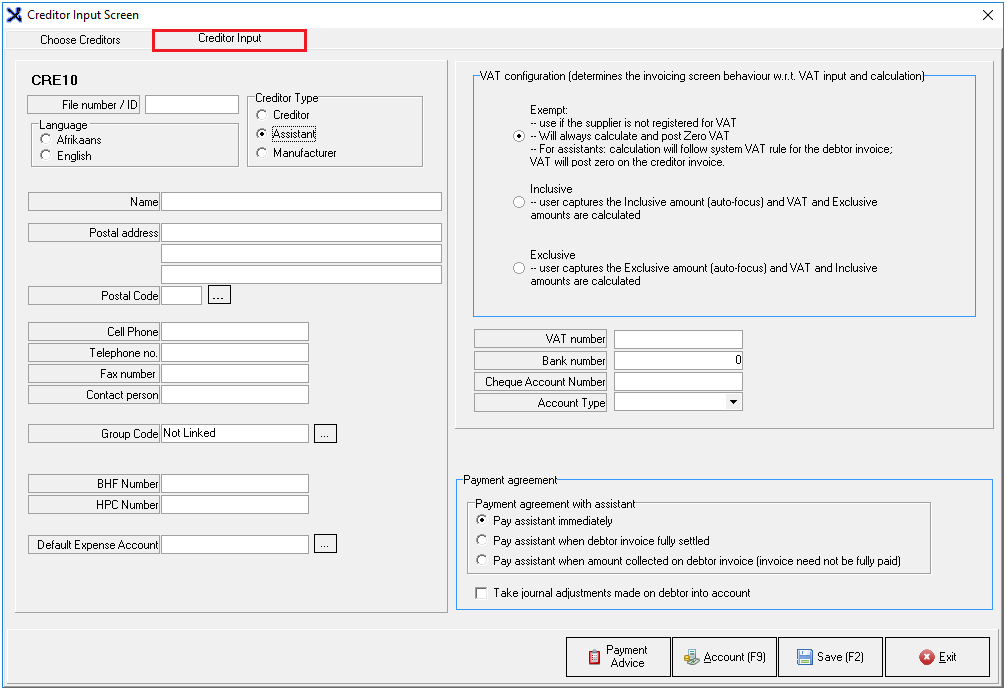
The Creditor Input tab will open
Fill in the relevant fields
File number /ID: Allocate a unique number or ID to the Assistant that references back to the hardcopy file
Language: Select the language preference of the Assistant the statements and invoice will be printed according to the preferred language chosen
Afrikaans
English
Creditor Type: Determines what type of creditor this will be (in this case select the Assistant)
Creditor: Someone that will be paid for goods or services
Assistant: An assistant physician who assists the main Doctor with procedures
Manufacturer: A person or company that makes goods for sale.
Name: Name of the Assistant
Postal Address: Address where parcels and letters can be delivered by the post office
Postal Code: Click the ellipse ... to search for the postal code
Cellphone: A cellphone/mobile number where the assistant can be reached
Telephone Number: A number where the assistant can be reached
Fax Number: A number where a facsimile can be sent
Contact Person: If different from the name of the creditor
Group Code: This group's certain creditors together, ifthe Assistant is linked to a creditor group, Click on the ellipse to open the Creditor group screen to link the assistant to a group
BHF Number: The Assistants'Board of Healthcare Funders registration Number
HPC Number: The Assistants'The Health Professions Council registration number
Default expense account: The expense account that will be used by default and this is the expense ledger where invoices will be posted to
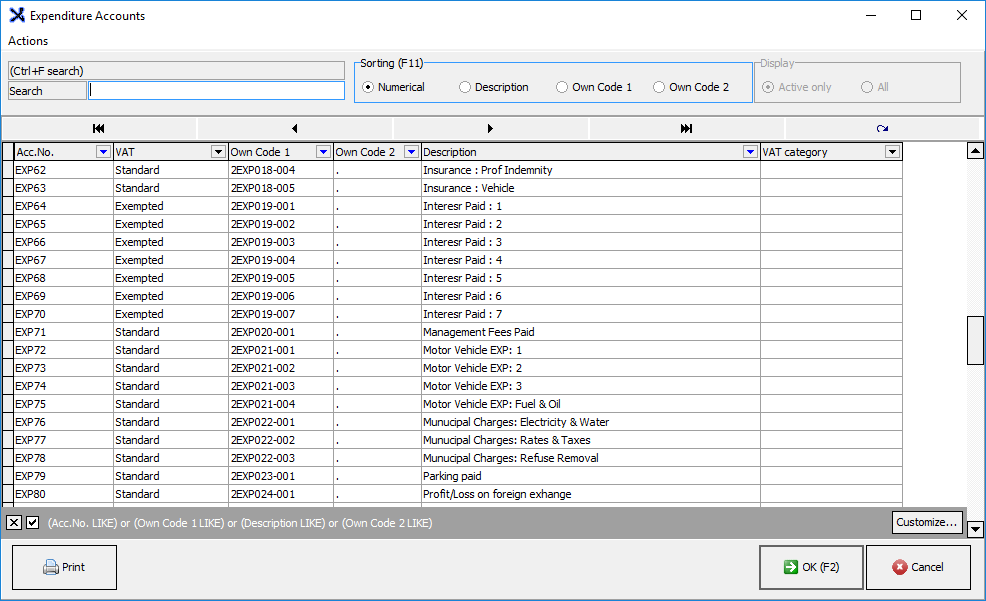
Use the ellipse to link an expense account to the assistant, by clicking on the ... ellipse this will open the Expenditure Accounts screen, where the expense account can be linked to the Assistant
On the Creditor Input screen Select the VAT configuration, an assistant will always be Exempt
VAT configuration (determines the invoicing screen behaviour w.r.t(with regards to)VAT input and calculation)
Exempt
Use if the supplier is not registered for VAT
Will always calculate and postZero VAT
For assistants: calculation will follow system VAT rule for the debtor invoice; vat will post Zero on the creditor invoice
Inclusive
The user captures the exclusive amount(auto-focus)and VAT exclusive amounts are calculated
Exclusive
The user captures the Exclusive amount(auto-focus)and VAT and Inclusive amounts are calculated
Add the details that are relevant to the option you have chosen
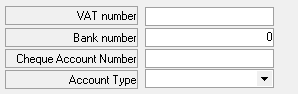
VAT Number: If registered for VAT the VAT number will be entered
Bank Number: Branch Code linked to the bank
Cheque Account Number: Bank Account Number
Account Type: Choose an option from the drop-down menu
Cheque
Savings
Transmission
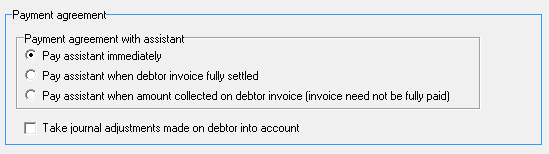
Payment Agreement: This is the type of payment agreement that will determine the calculation used on the Assistant Audit Report and how the assistant will be paid
Payment agreement with assistant
Pay assistant immediately: Assitant will be paid immediately after the patient is billed
Pay assistant when debtor invoice fully settled: Assistant will be paid once the debtor has settled the account
Pay assistant when amount collected on debtor invoice (invoice need not be fully paid): Assistant will be paid even if there is only a partial payment made
Take journal adjustments made on debtor into account (checkbox): When the check box is ticked it will take journal adjustments into account should there be any changes
When you are done and satisfied Click on Save to save changes to the new assistant created
A confirm pop-up will appear to ask whether you would like to post the record
Click on Yes to post
Click on No to exit to the Creditors Input Screen, Choose Tab
Click on Cancel to make changes
When posted you will see your Assistant (creditor) has been added to the Creditor List on the Creditors Input Screen, Choose Tab