The Practice can use the Stock Movement Detail report to see the complete audit trail details of each stock item for a specific time period. Details such as the opening and closing balances, unit price, transaction types, running totals, and supplier details can all be seen per stock item per warehouse. The Movement report can be created for a single item, a list of items, or all items with movement or without movement.
Log in to the GoodX Desktop using your GoodX username and password.
From the Navigator, double click on the Stock Module.
The Stock Manager screen will open.
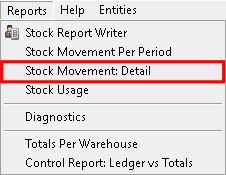
Click on the Reports menu onthe menu bar.
Click on the Stock Movement: Detail from the sub-menu that opens.
Please Note: The information and columns shown on the report will be dependent on the options selected during the setup.
Screen Menu
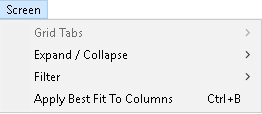
Click on Screenon the menu bar for more options that are available for the Stock Movement Detail screen.
A sub-menu will open.
For an extensive explanation on the Screen sub-menu, please refer to the user manual: Screen Menu on Reports.
Report Options
Additional options will be available for the Stock Movement Detail report:
Mail a view: Enables the user to email the current view of the Stock Movement Detail report to the desired recipients.
Print: Prints the Stock Movement Detail report of the current view to the screen with options available for the printed report. For more information regarding the print options that are available, please refer to the user manual: Options to Print.
Mail All Views: This allows the user to email all the tabs that are on the report.
Export: Exports the Stock Movement Detail report to an Excel spreadsheet.
Exit: Closes the report and returns to the Stock Movement Detail report Choose a Profile screen.
Click on the Close buttonon the Current profile: Stock Usage reportscreen to return to the Stock Manager screen.