Text size
Line height
Text spacing

What is the “Payment Links” feature?
The Payment Link is a feature designed to limit fraud and reduce the risks associated with keeping cash on the premises. You can choose to send this link via SMS, email, or both; alternatively, it can be accessed exclusively through the QR code provided on patient statements.
Please note that your unique Payment Link terms are outlined in your GoodX contract agreement, which details the percentage fee associated with sending links or processing received payments. Certain functions may incur additional costs, such as utilizing the SMS feature to communicate the payment link.
Setup details about the payment links
The method by which payment links are communicated to the patient must be configured beforehand. This requires the completion of templates to determine the specific content the patient will view in both the email and the SMS.
To set up your templates, navigate to the GoodX website settings icon located next to the “i About” section and select the “Entity settings” tab. Expand the “+ Workflow Events Templates” section and choose “PAYMENT REQUEST” from the dropdown menu. Select the “+ Add template” button to create the specified event, then modify the template according to your practice's specific requirements
It is recommended that you create separate templates for SMS and email communications and provide a unique description for each.

How does the template of the “Payment Links” reflect on the patient side?
Templates should be applied as consistently as possible to ensure that accurate, relevant patient information is maintained throughout the communication process.
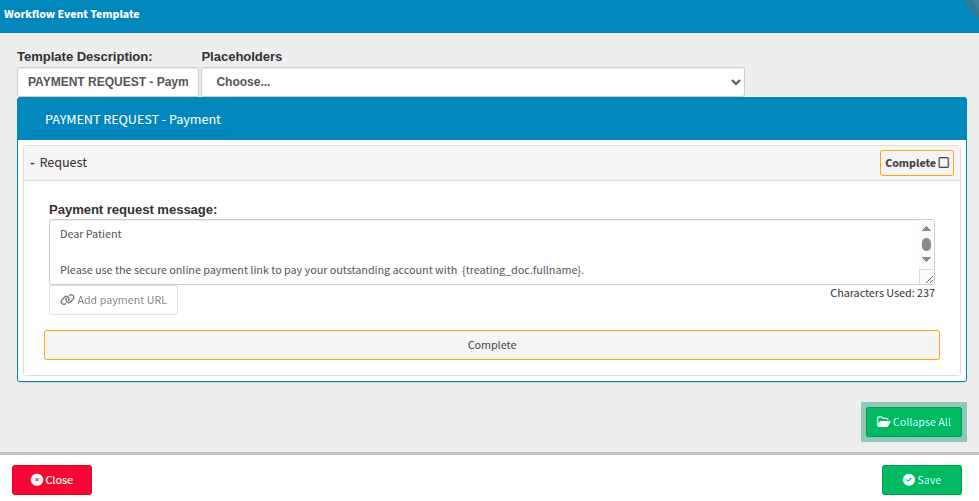
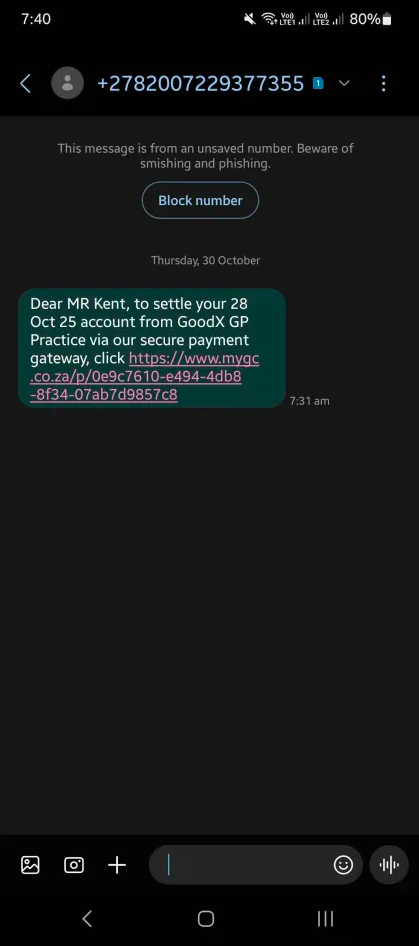
The following example demonstrates how the payment link configuration translates from the template setup on the left to the final SMS received by your patient on the right.
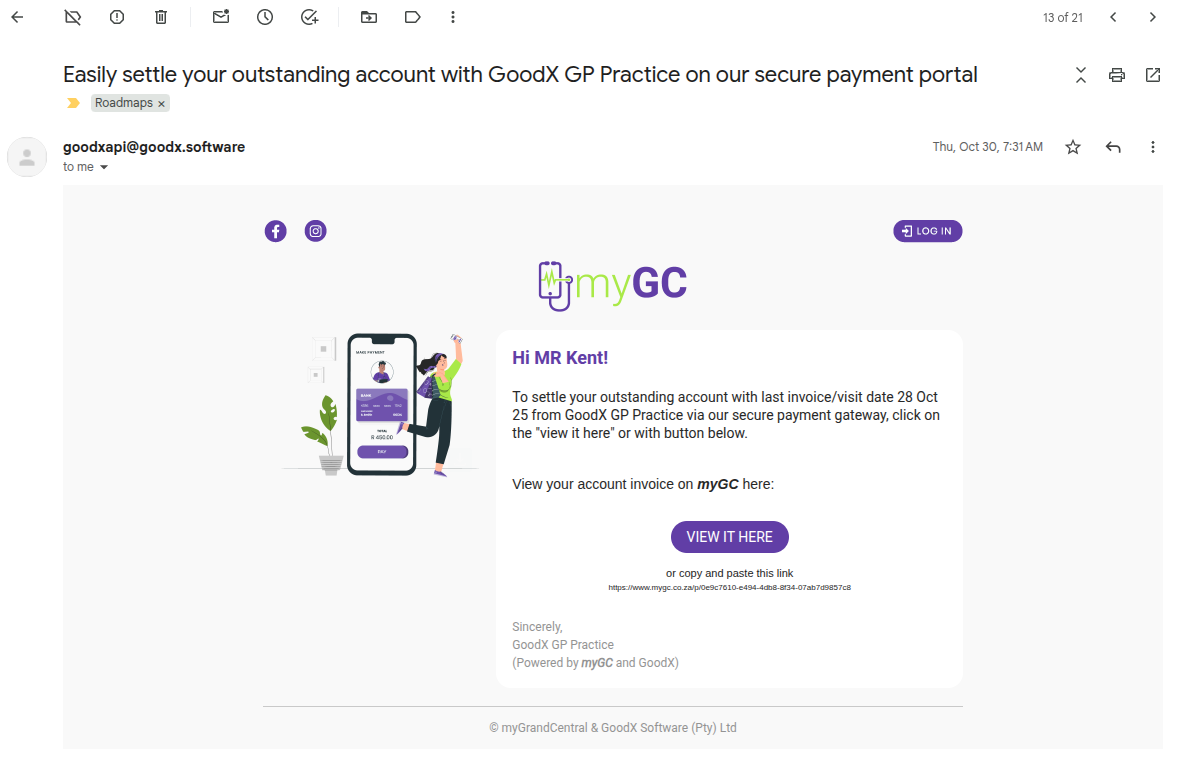
The following example illustrates how the payment link request email is structured, showing the template format above and the final version your patient will receive below.
“Dear Patient
Please use the secure online payment link to pay your outstanding account with {treating_doc.fullname}. {url}
For any account queries, please contact us on {entity.telephone1} or {entity.email_address}
Kind regards {entity.practice_name} {entity.street_address}”
Where does the “Payment Links” take the patient?
The payment link received by the patient is a secure connection to the MyGC platform, which enables them to safely complete payments for outstanding practice invoices. It is not necessary for the patient to be registered with the MyGC application to access and pay the accounts linked to them.
Before the platform opens on the device, the user is required to confirm their identity by answering one of three security questions.
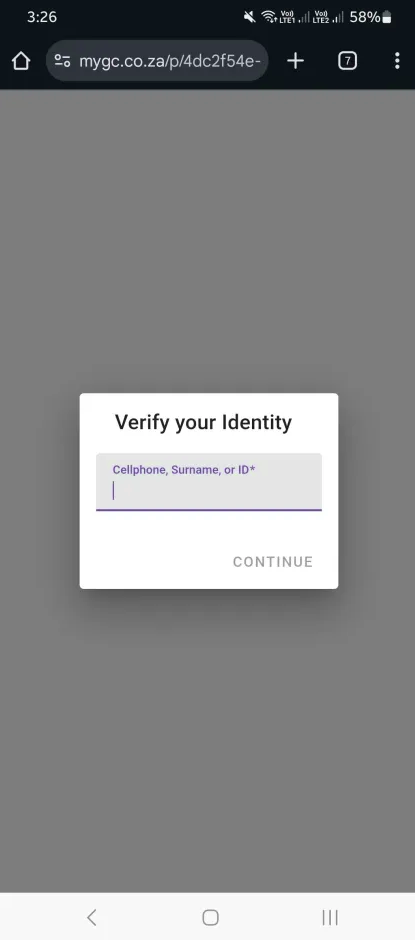
Once the correct information is provided, the full invoice amount will be displayed, allowing the patient to complete the payment details and process the transaction securely.
When following the payment link provided via email, the user will be presented with the same security question to verify their identity.
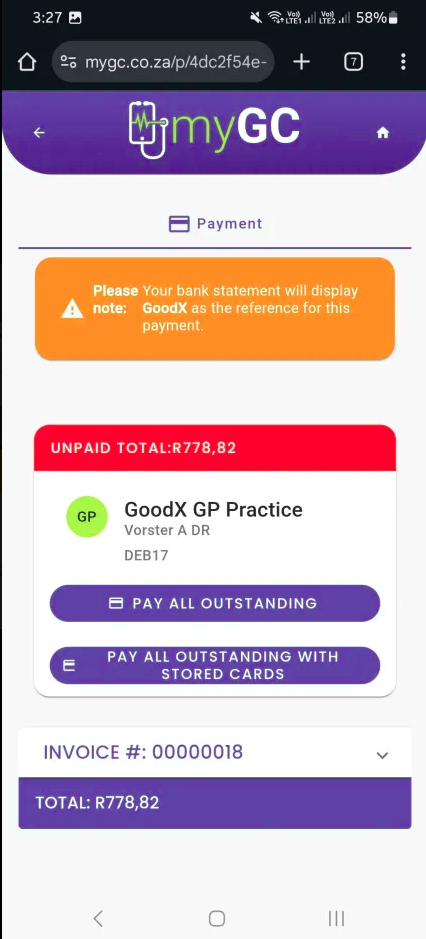
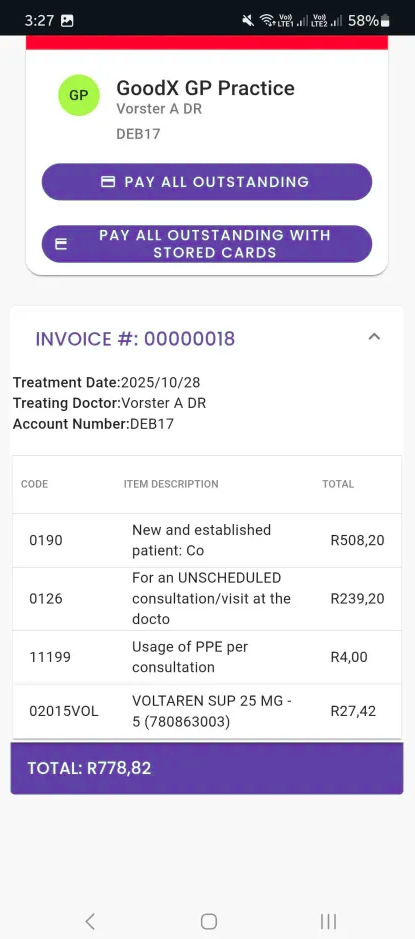
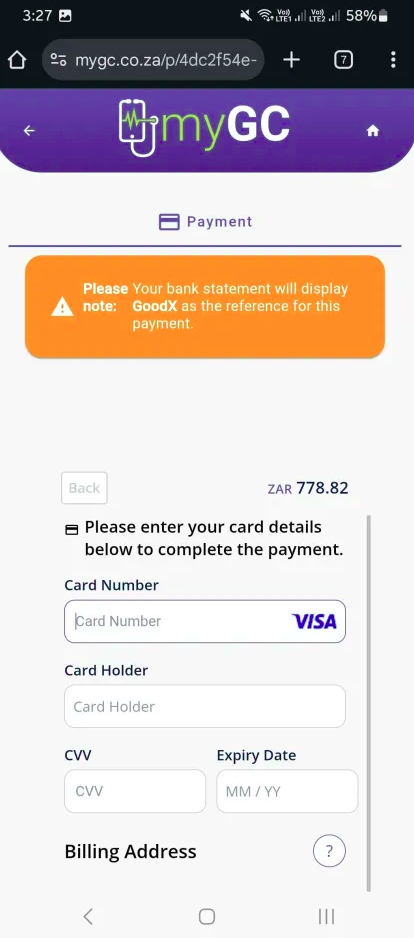
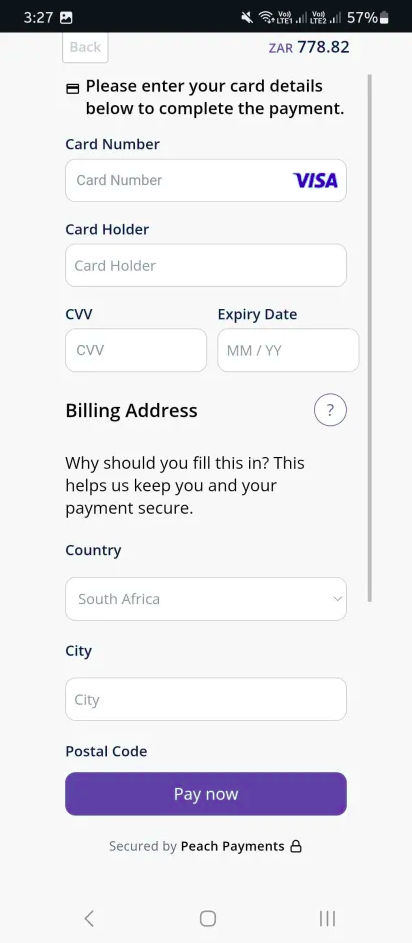
Once the correct information is provided, the patient can select the "Pay now" button to finalize the process. Upon completion, a notification will appear to confirm that the payment was successful.
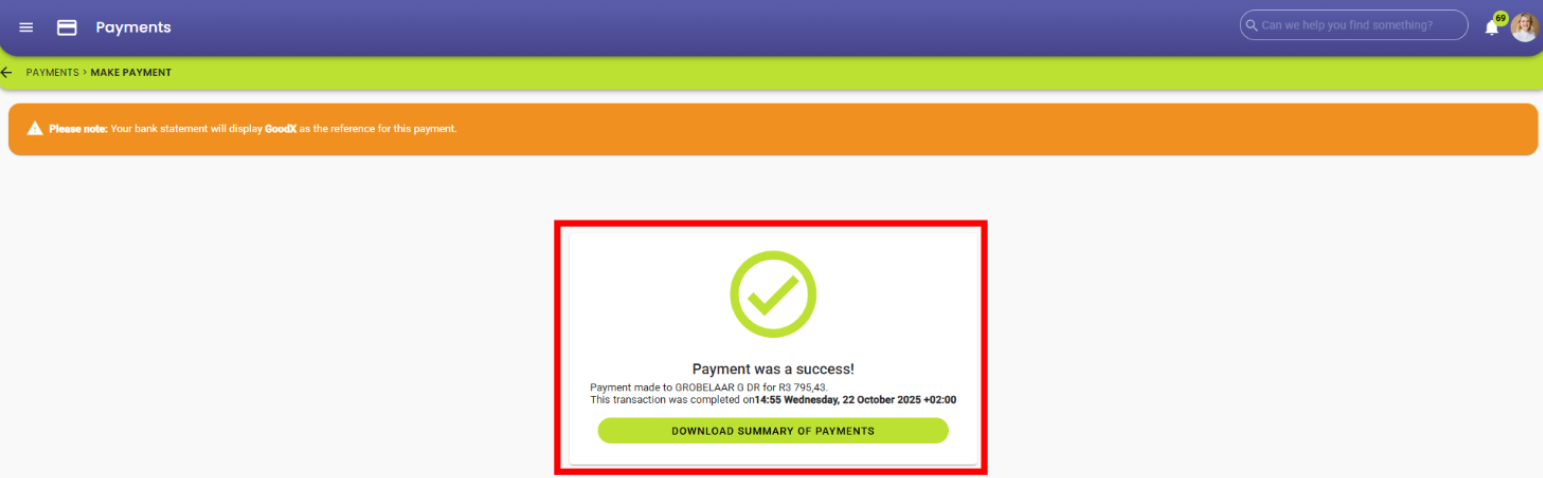
Please note that viewing and completing this process on a computer or similar large-screen device may be more convenient, as depicted below.
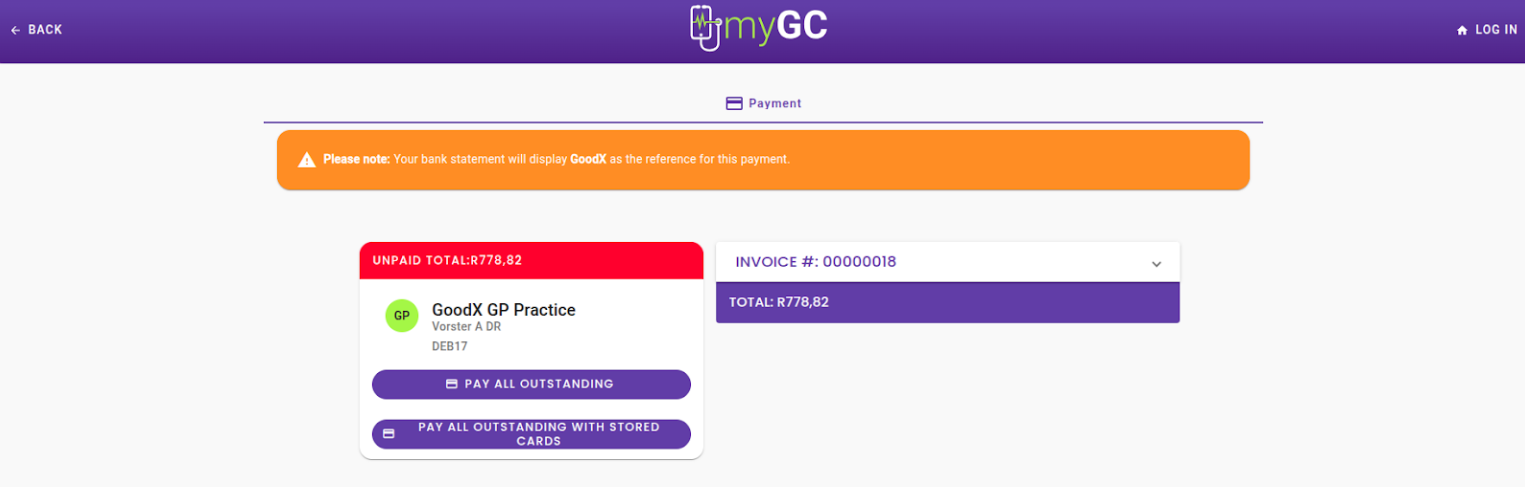
Methods for accessing the payment link
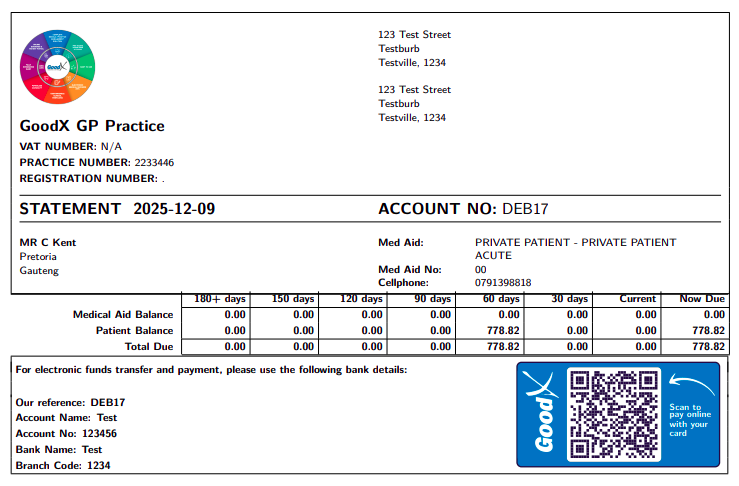
If a patient happens to lose or misplace their payment link, the QR code provided on the patient statement serves as a direct alternative to access the MyGC portal. Most modern mobile devices can scan this code automatically using the standard camera application; the user simply needs to ensure the entire QR code is visible within the camera's focus area. In instances where patients may have difficulty stabilizing their hands to allow the camera to focus, it is advisable to resend the payment link via SMS or email instead.
From where can the “Payment Links” be sent?
Payment links may be distributed from the Diary Screen, the Debtor Screen, or directly from the Reports Screen.
From the Diary Screen
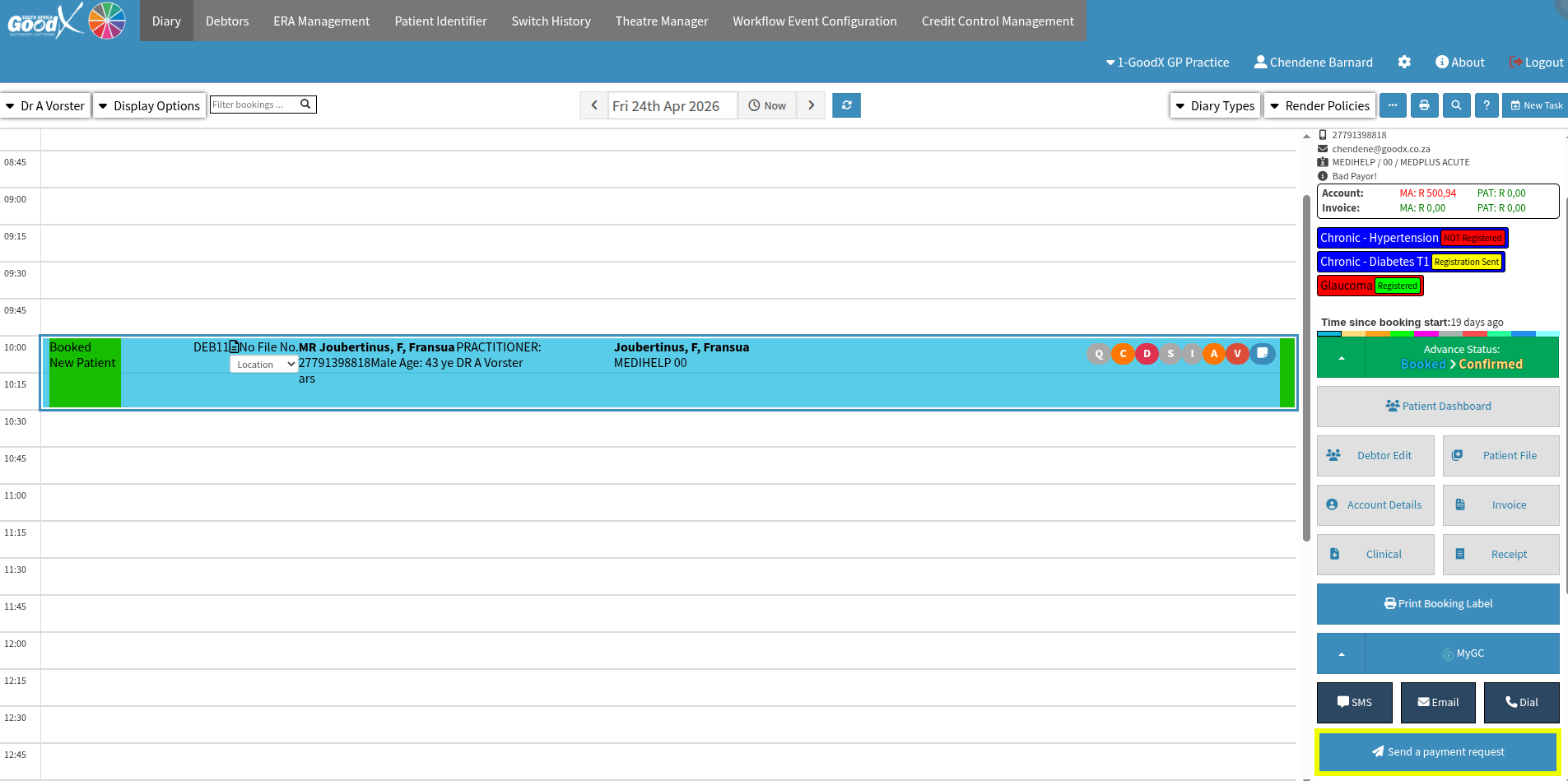
To send a payment request via the diary, select "Diary" from the GoodX navigation wheel and click on the relevant patient booking. A side panel will appear displaying additional actions associated with that booking; scroll down to locate and select the "Send a payment request" button.
From the Debtor Screen
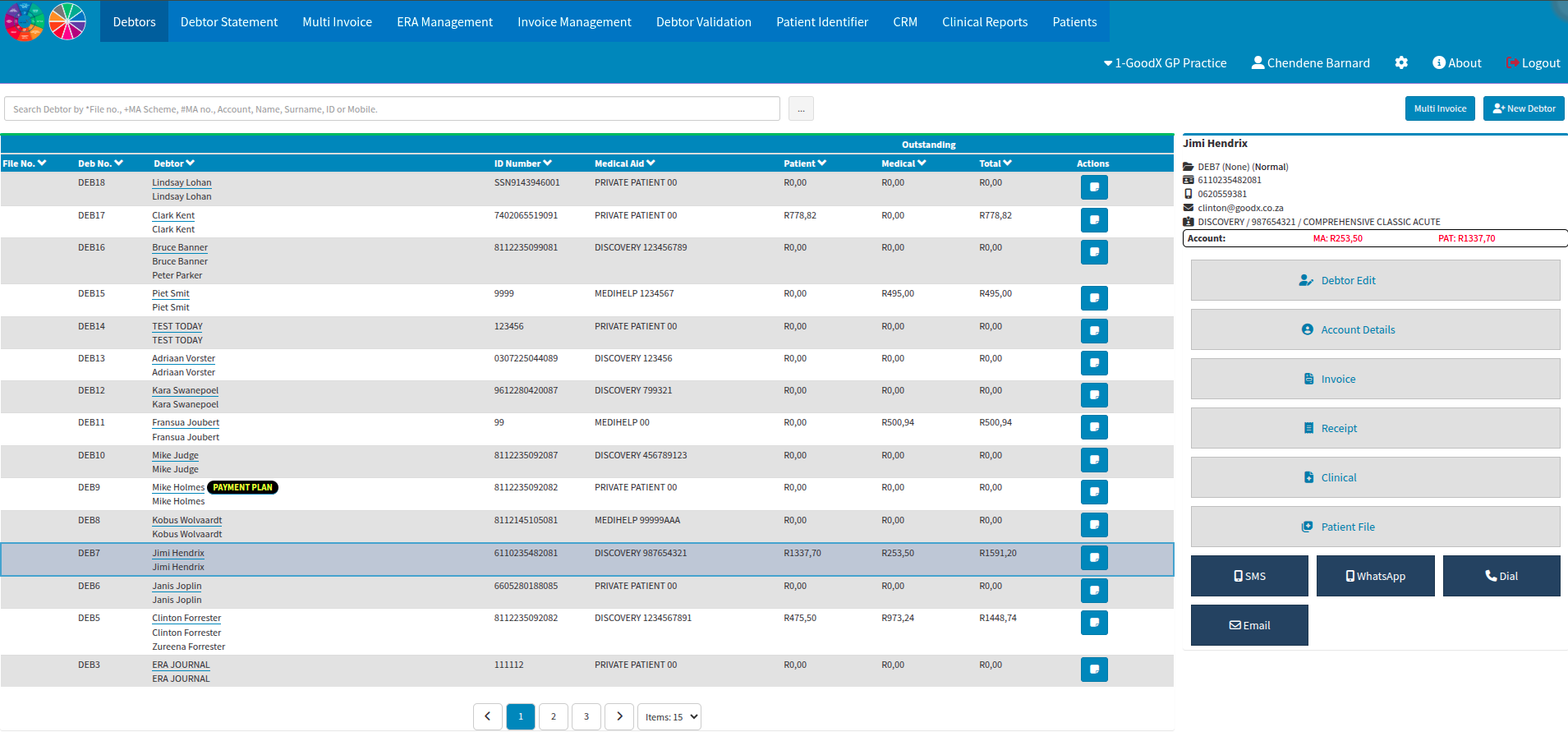
To access this feature through the debtors module, select "Debtors" from the GoodX navigation wheel and either double-click on the specific debtor line item or navigate to the "Account details" section once the debtor has been selected.
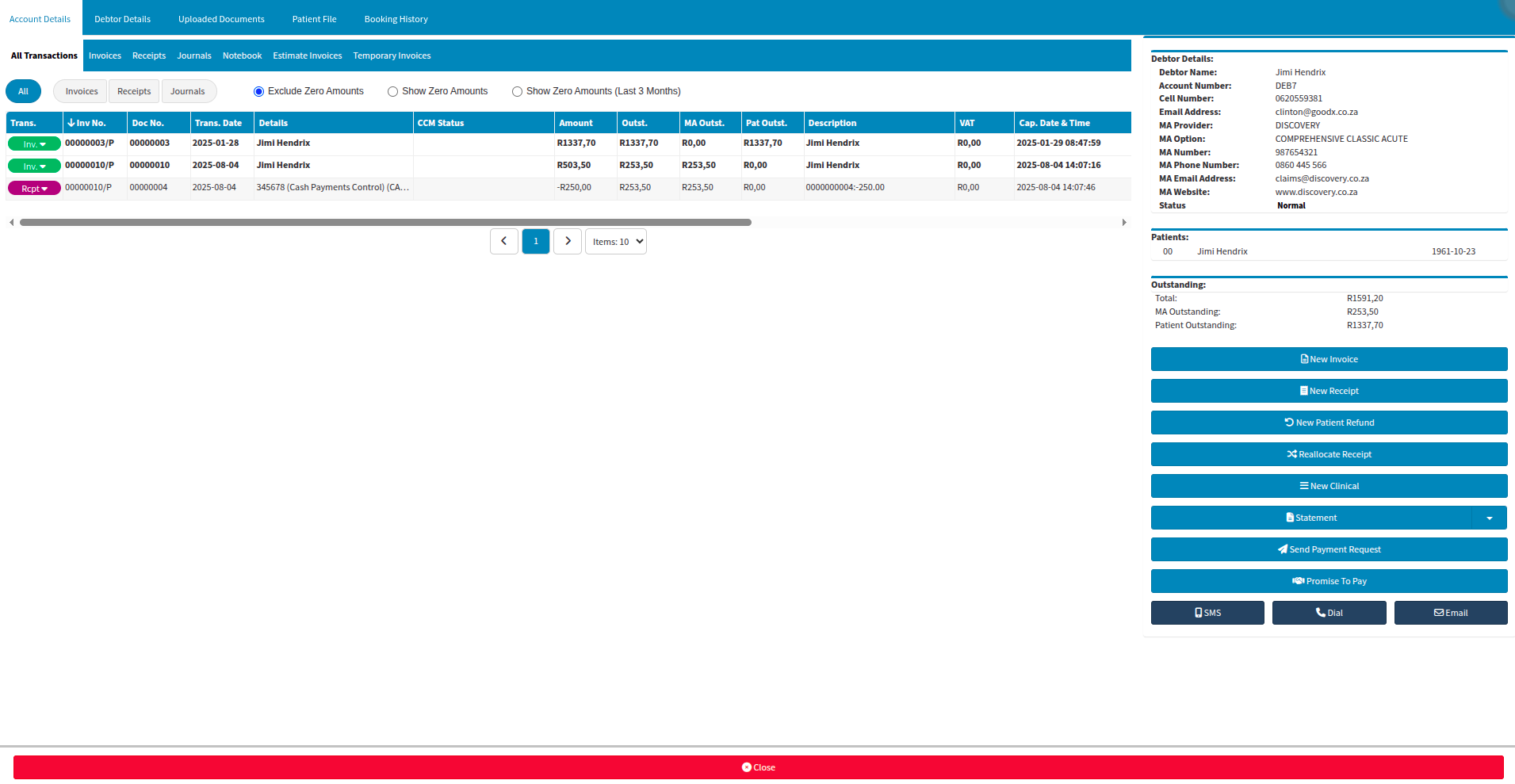
The "All Accounts" tab displays a list of all invoices linked to the patient. To request payment for a specific transaction, select the relevant invoice and click the "Send Payment Request" button. If no specific invoice is selected before clicking the button, the payment link will reflect the total balance of all outstanding invoices.
From the Reports Screen
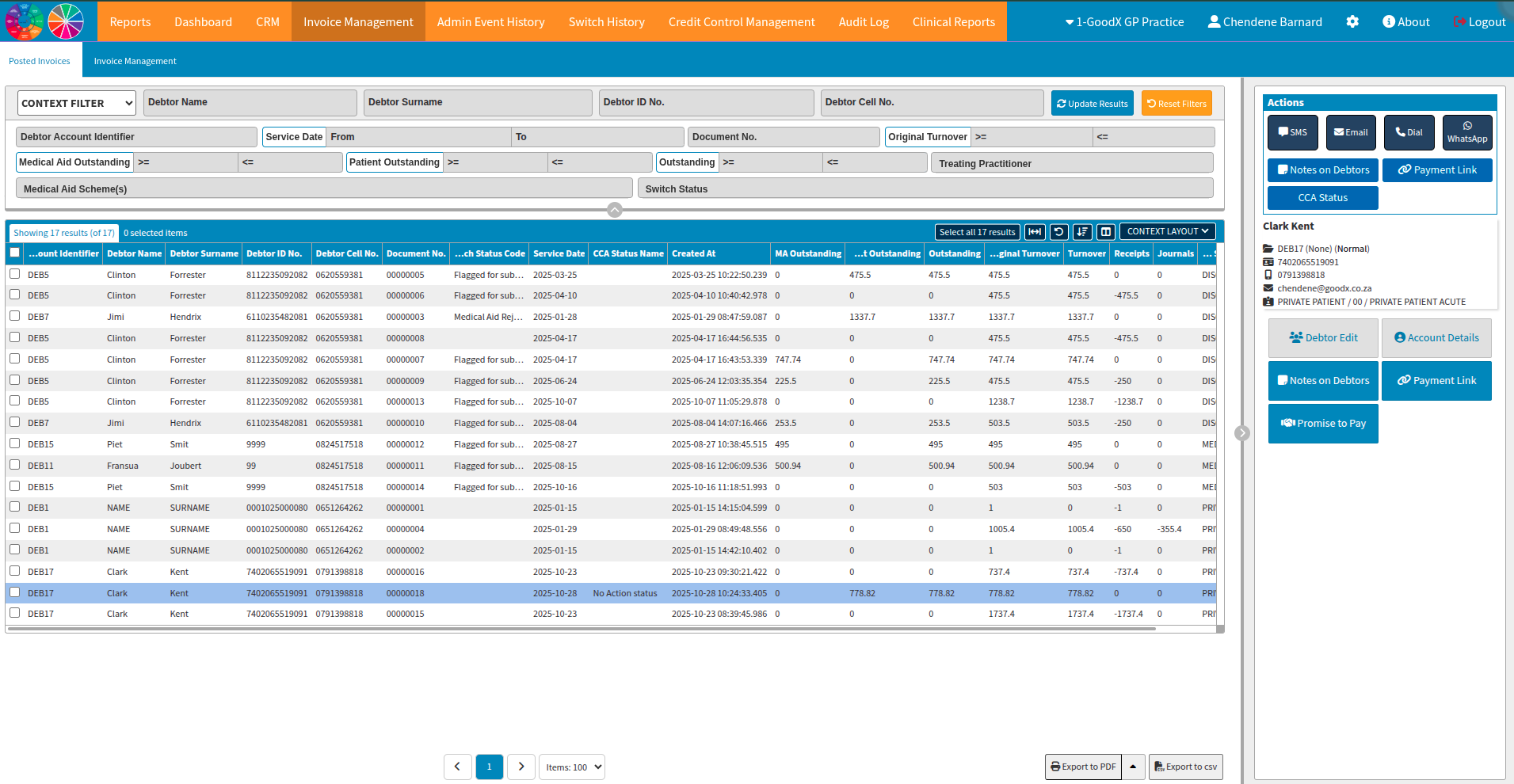
To generate a payment request from the reports module, select "Reports" from the GoodX navigation wheel, navigate to the "Invoice Management" tab, and apply the necessary filters to find the relevant debtor. Once the debtor is selected, you can action the "Payment Link" option to continue.
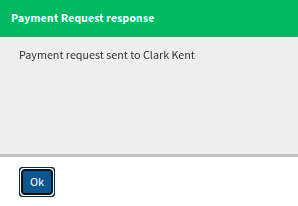
Depending on the specific practice preferences, the patient will receive an SMS, an email, or both, redirecting them to a secure payment link to settle their account through the MyGC platform interface.
How does the practice receive “Payment Links” payments?
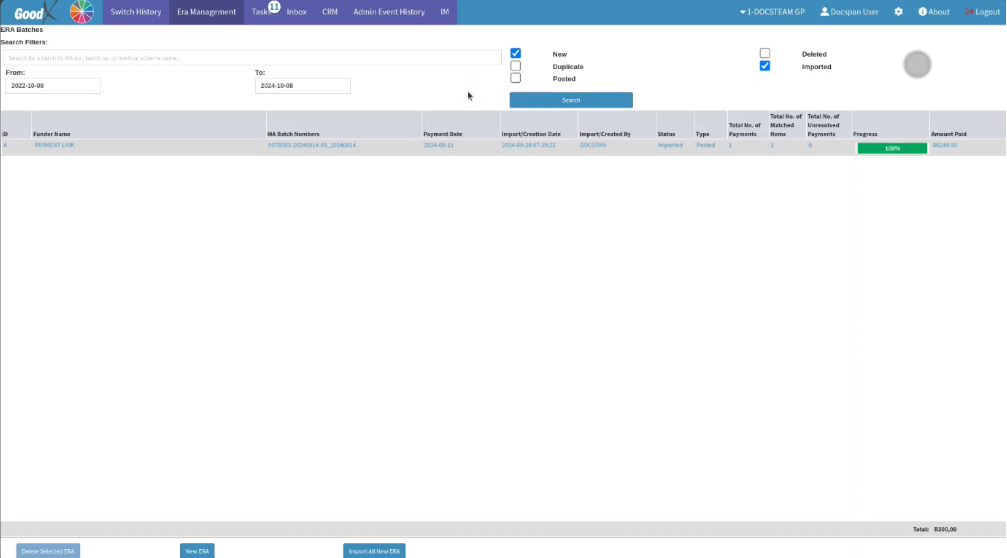
Once the patient has completed the transaction, the payment is allocated to the practice as an Electronic Remittance Advice (ERA), functioning similarly to medical aid switch remittances. These payments are automatically linked to the specific patient who performed the transaction, though the ERA remains editable should manual intervention be required.
The system reviews all successful payments daily at midnight once they have cleared. Funds are typically disbursed to the practice within two to three business days from the date of clearing. An ERA is generated immediately upon the initiation of the payment to the practice. If multiple payments are received within a single day, they are compiled into a consolidated ERA and processed as a single total payment to the practice.
Where to learn more about Payment Links within GoodX :
The GoodX Click&Learn Courses https://courses.goodx.co.za/
The GoodX YouTube Channel https://www.youtube.com/@GoodXSoftware
The GoodX Learning Centre https://learning.goodx.co.za/
Please note these courses are only modules and are different from the Click&Learn courses. To learn more about Payment Links, you can apply these search terms:
| Date of Change | Changes | Editor |
| 2026 05 13 | Established Page | Chendene Barnard |