Text size
Line height
Text spacing

What is the “Cash Register” feature?
The Cash Register feature supports the practice by facilitating the processing and recording of patient payment transactions. This functionality ensures that all funds received are documented accurately, allowing for the effortless reconciliation of payments against practice records.
Where do you make use of a cash register through GoodX?
Please ensure that your software liaison is informed of your intent to utilize the Cash Register feature, as your entity requires specific software elements to be activated and enabled. This coordination ensures that all necessary system requirements are in place for the feature to function correctly within your practice.
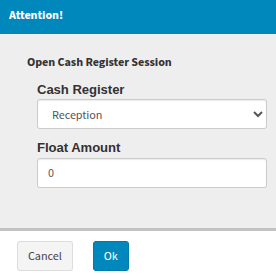
Upon loading your entity’s GoodX Web page for the first time each day, the system will prompt you to select your unique cash register configuration. During this process, you may also specify a float amount if it is relevant to your practice’s daily financial procedures.

After completing the default information, selecting "OK" will activate the daily register. This register remains active until it is manually closed at the end of the day or business cycle. It is important to note that the setup pop-up will reappear upon every browser refresh until the process is either finalized or cancelled.
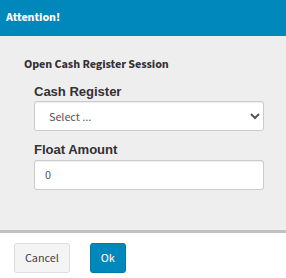
Each session is linked to a specific cash register report for accurate record-keeping. Your GoodX liaison will configure these registers to ensure they are active for the relevant entities, while also restricting the setup pop-up so that it only appears for the specific users responsible for managing the register information.
Depending on the specific needs of the practice, the system offers the flexibility to implement either individual cash registers or location-specific configurations. This ensures that the financial tracking structure can be tailored to align with the unique operational workflow of the facility.
Where practices do not use cash - please leave the float amount as zero.
Where on GoodX do you complete patient payments received?
By accessing the debtor account details, you can select the specific invoice intended for payment. This ensures that the subsequent transaction is automatically linked to the correct invoice on the debtor profile, maintaining an accurate and organised financial record.
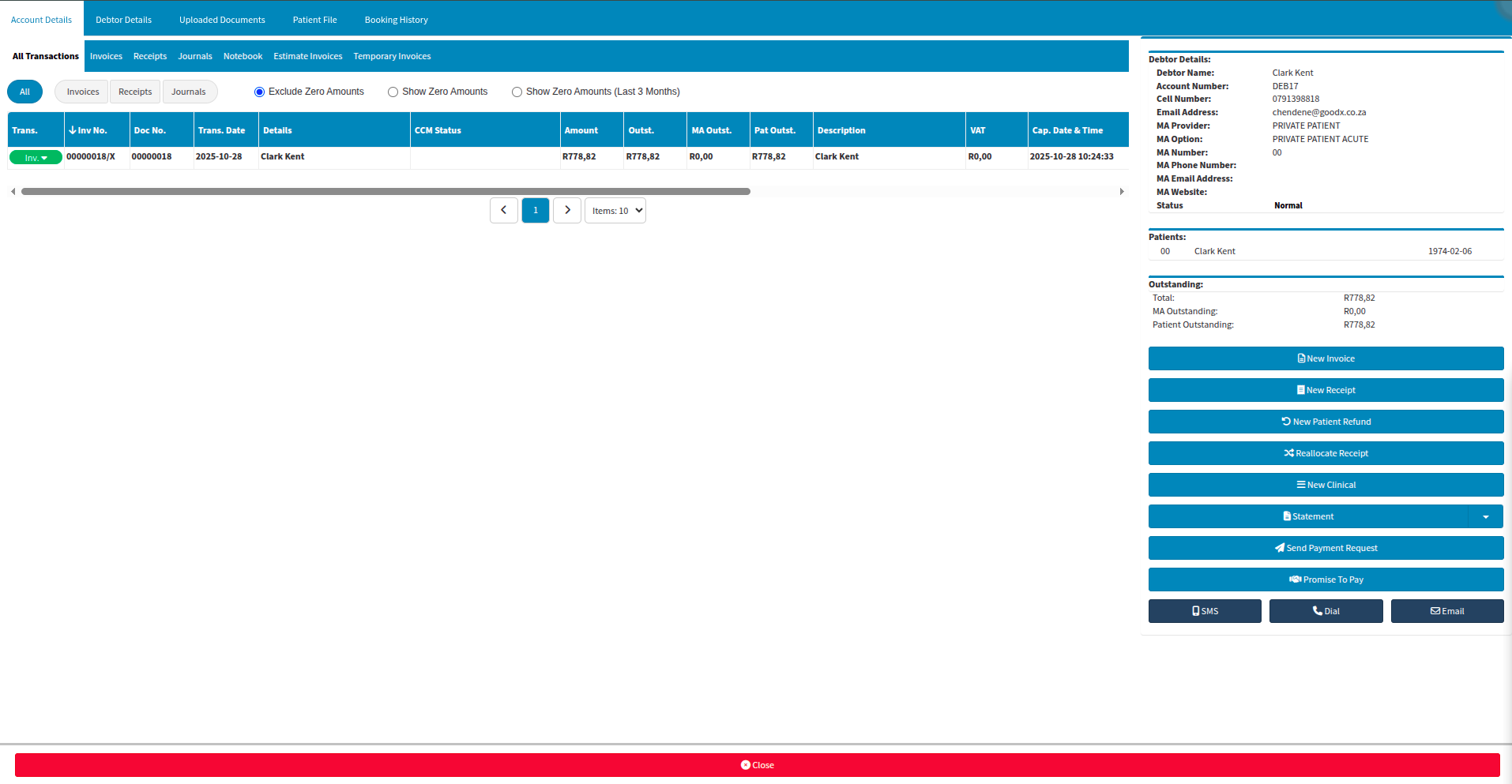
By selecting the New Receipt option, a new window will appear, allowing you to choose the necessary information from drop-down menus. These menus are pre-configured and tailored specifically to meet your practice's unique operational requirements.
In the event that an invoice is not immediately visible, it can be located by accessing the drop-down menu and selecting the Show Invoice option. This action will retrieve and display the outstanding invoice, ensuring the payment can be correctly allocated.
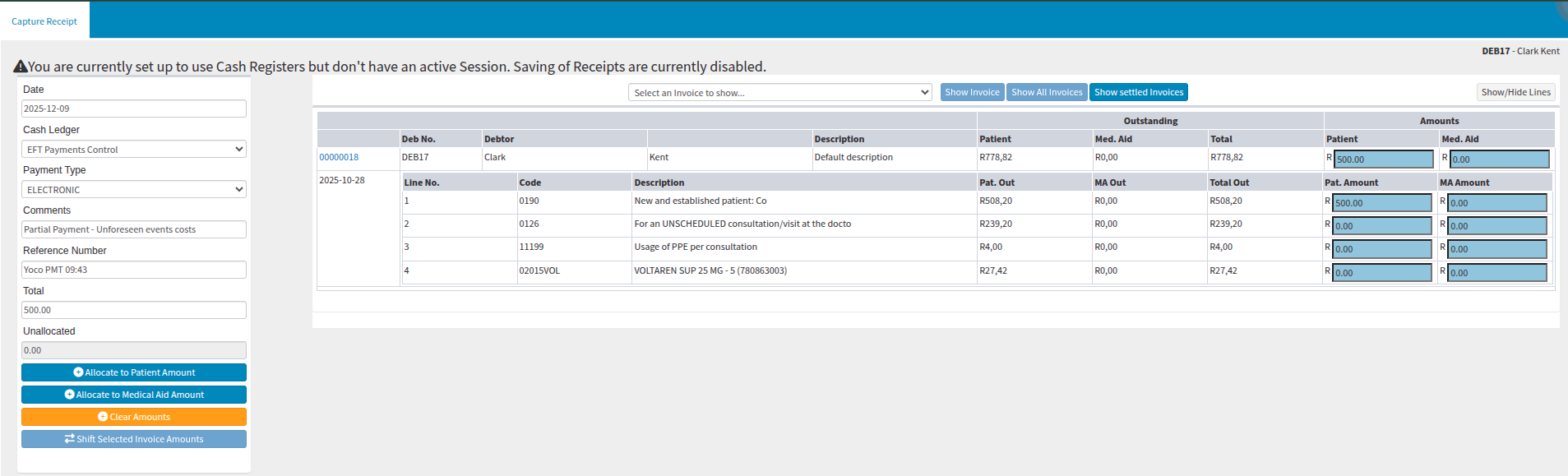
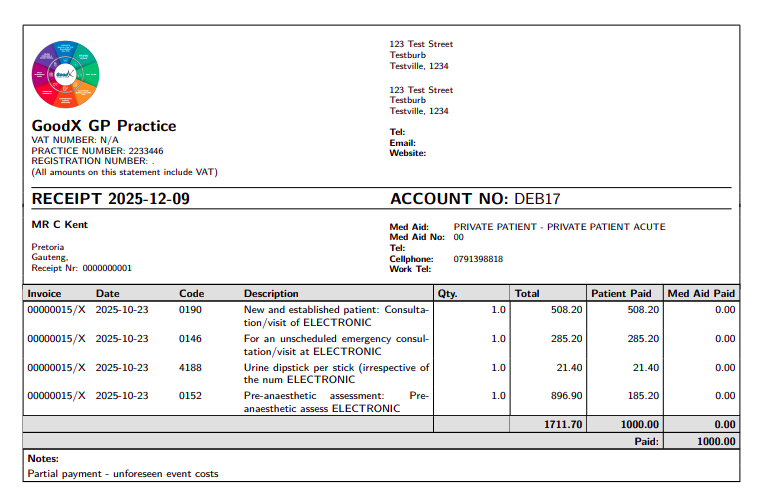
The Comments and Reference fields are optional and provided to support efficient management and ensure high-quality audit trails. Please be aware that any comments entered in this section will be displayed under the Notes heading on the printed GoodX receipt.
When processing a partial payment, the system automatically allocates the funds to invoice line items in sequential order, starting from the top and moving downward. This process continues until the total amount of the partial payment has been fully distributed across the available line items.
Once the process is complete, you have the option to either Post the transaction only or Post and Print the receipt for the patient. These options are accessible via the drop-up menu, allowing you to choose the most appropriate action for your workflow.

If you choose the print option, the document will download as a PDF file. This file can then be emailed directly to the patient or printed locally if a physical copy is requested. Please note that document headers are fully customizable to align with your practice's branding and requirements.
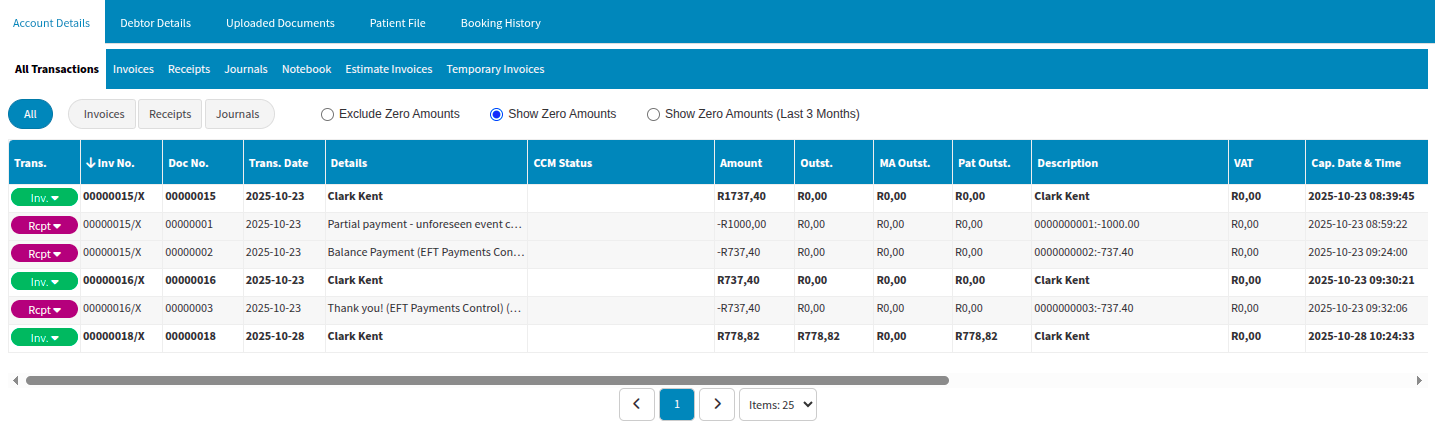
The receipt is automatically allocated to the debtor's account and is reflected as a payment against the dedicated invoice. This automated synchronization ensures that the account balance remains current and that the specific transaction history is accurately updated within the system.
Where do you close the cash register within GoodX?
When you have completed your transactions for the day or specific period, you can finalize the process by navigating to the GoodX Wheel and selecting Configuration. This section allows you to access the necessary settings to manage and conclude your active cash register session.
The Cash Register Management tab includes a sub-tab labeled Sessions. Once selected, you will be able to manually close the active session. It is important to remember that these sessions do not close automatically, so this step is vital for ensuring your daily financial records are finalized.

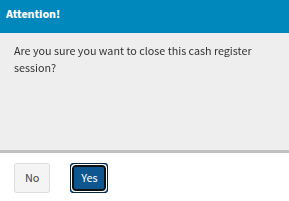
To prevent any unintentional disruptions to your workflow, the system will display an additional confirmation prompt before finalizing the action. This safety measure ensures that sessions are not accidentally closed, allowing you to double-check your records before the period is officially locked.
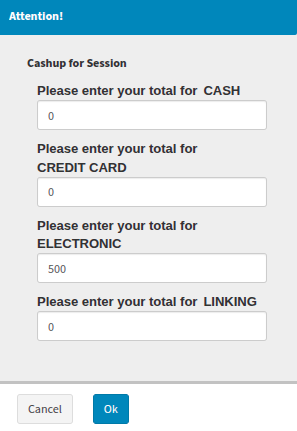
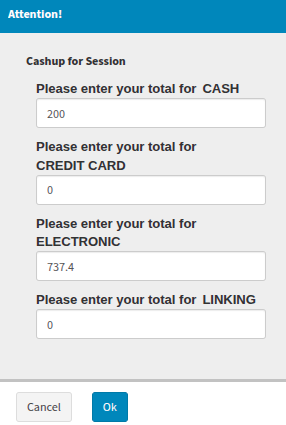
Upon proceeding, you will be prompted to compile the relevant information required to finalize the process. This step ensures that all necessary financial data and closing figures are accurately recorded and reconciled before the session is officially concluded.
All completed cash register periods are available for download and review, providing your practice with a transparent audit trail. This feature allows you to export historical session data to verify reconciliations, track daily intake, and ensure that all financial periods have been closed correctly.
Review Capabilities
Audit Readiness: Access detailed breakdowns of every session for internal or external audits.
Historical Data: Retrieve records from specific dates or cycles to analyze practice performance.
Format Flexibility: Review information directly on the platform or download reports for offline storage and reporting.

How does Float Amounts work within GoodX?
The float amount is not included in the calculations if you require an immediate balance of the day's takings. This ensures that the figure displayed represents only the actual revenue processed during the session, providing a clear view of the day’s financial activity without incorporating the static opening balance.
In instances where the float amount is also entered, an additional pop-up will appear requiring a reason for any resulting discrepancy to be recorded. This field serves as the ideal location to specify the details of the float amount to ensure the session balances correctly.
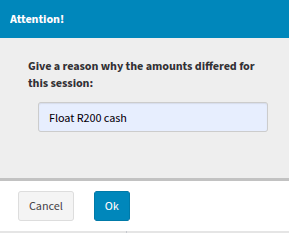
Notes are not recorded on the primary session views; instead, they are accessible under the "Recon" sub-tab, where any listed reasons for discrepancies will be displayed. Ultimately, the specific method for handling and recording the float remains at the discretion of the practice to suit its internal financial protocols.
An audit comment section is available, allowing the practice manager to review the session and add comments according to the specific preferences or internal requirements of the practice. This feature ensures that any oversight or administrative notes are captured directly within the system for future reference and management oversight.

Where to learn more about Cash registers within GoodX :
The GoodX YouTube Channel https://www.youtube.com/@GoodXSoftware
The GoodX Click&Learn Courses https://courses.goodx.co.za/?
The GoodX Learning Centre https://learning.goodx.co.za/
Please note these courses are only modules and are different from the Click&Learn courses. To learn more about Cash Registers, you can apply these search terms:
| Date of Change | Changes | Editor |
| 2026 05 12 | Established Page | Chendene Barnard |