Text size
Line height
Text spacing

What is the “AI GoodXpert” feature?
The AI GoodXpert is a powerful assistant integrated directly into the GoodX software suite, functioning as a real-time AI scribe that streamlines clinical documentation. By transforming voice recordings or text prompts into context-aware medical notes, this feature significantly reduces the administrative burden on practitioners. It can also automatically generate detailed reports and assessments from recorded clinical observations, eliminating the need to manually search through patient files for relevant data.
While the AI GoodXpert is designed to provide proficient clinical support and relevant content, it is not a diagnostic tool. Healthcare professionals must remain responsible for reviewing all system responses to verify their accuracy and clinical relevance before finalising any patient records or decisions.
Please note that AI GoodXpert is an optional, premium service that requires an additional subscription fee. Similarly, certain features within the credit control management system may incur extra costs. For example, Voice over IP (VoIP) calling is an optional add-on service that requires a separate sign-up and subscription fee, whereas SMS rates are governed by your standard GoodX installation agreement.
What is considered and used by the “AI GoodXpert” feature?
The GoodXpert button is only available on specific Workflow Events where the AI functionality can be utilised to interpret information directly from voice and text transcriptions.
The system can build a comprehensive patient file and history by utilizing audio recordings and any existing context linked to the relevant clinical form. If there is specific information you would like the AI to consider that is not currently being captured, please consult your GoodX liaison to discuss feasibility or alternative solutions. For manual data entry, a built-in spellchecker is available to assist during rushed typing. Ultimately, the quality of the output depends on the input, as providing more detailed prompts to the AI GoodXpert will result in a more comprehensive and balanced note.
GoodXpert serves as both an intelligent clinical assistant and a clinical scribe within the GoodX system. While your voice recordings must be captured in either English or Afrikaans, the AI can transcribe and seamlessly translate the audio into another preferred language if required.
It is important to remember that the AI's output is only as effective as the manual prompts configured within your workflow event templates. All prompts are manually integrated for the AI to follow and apply to your workflow events using the audio transcriptions from your recordings.
Because of this manual customization factor, please allow time and patience to review, modify, and refine these prompts over a few months (or longer) to ensure they are perfectly tailored to your specific practice needs.
Always thoroughly review the generated prompt results to ensure that the correct interpretation of the recording has been populated before you accept the response.
How can the AI GoodXpert feature be set up?
Given the intricate nature of this configuration, we recommend that your GoodX liaison assists you with the initial setup. To begin, select the "Configuration" option on your GoodX wheel and navigate to the "Workflow Event Configuration" tab.
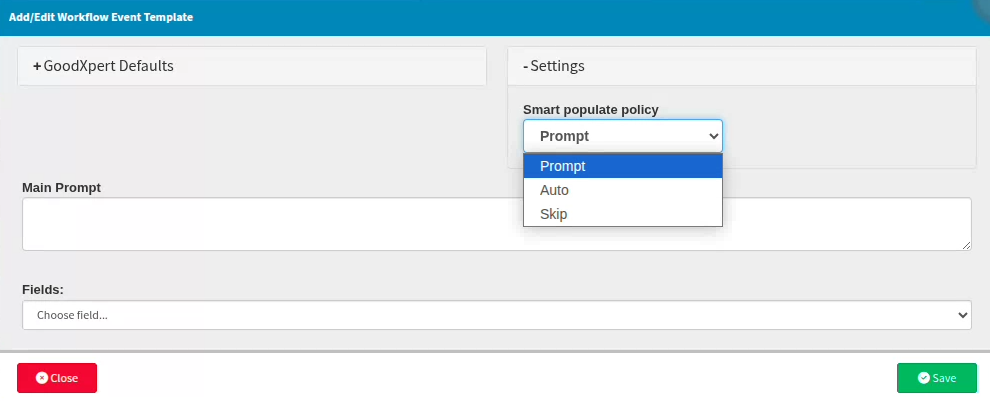
Locate the clinical form template you wish to update or edit. You can either double-click the line item to open the template directly. Once opened, you can use the "+ GoodXperts Default" drop-down menu to select the specific information you want included in the final generated results of the forms. This capability is particularly useful when compiling detailed medical reports or creating formal patient referrals. From the "+ Settings" drop-down menu, you can determine how the AI feature will be triggered within the system.
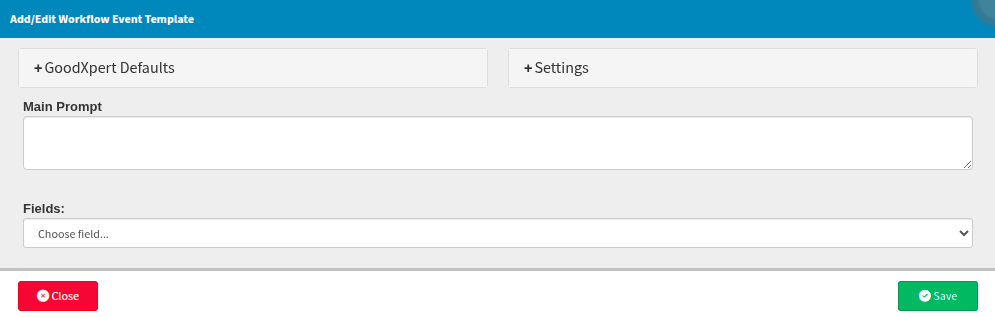
"Prompt" means the practitioner must initiate the action manually by selecting the GoodXpert button. "Auto" means the template is automatically applied; the practitioner only needs to accept the response to proceed, or select "Generate" to trigger the required actions and then accept the response if it meets their needs.
Any editing and corrections must be made directly on the form after accepting, as you cannot edit text within the GoodXpert feedback field itself. Once accepted, the response will populate on the letter for final review and completion. Adding your signature will then auto-complete the form.
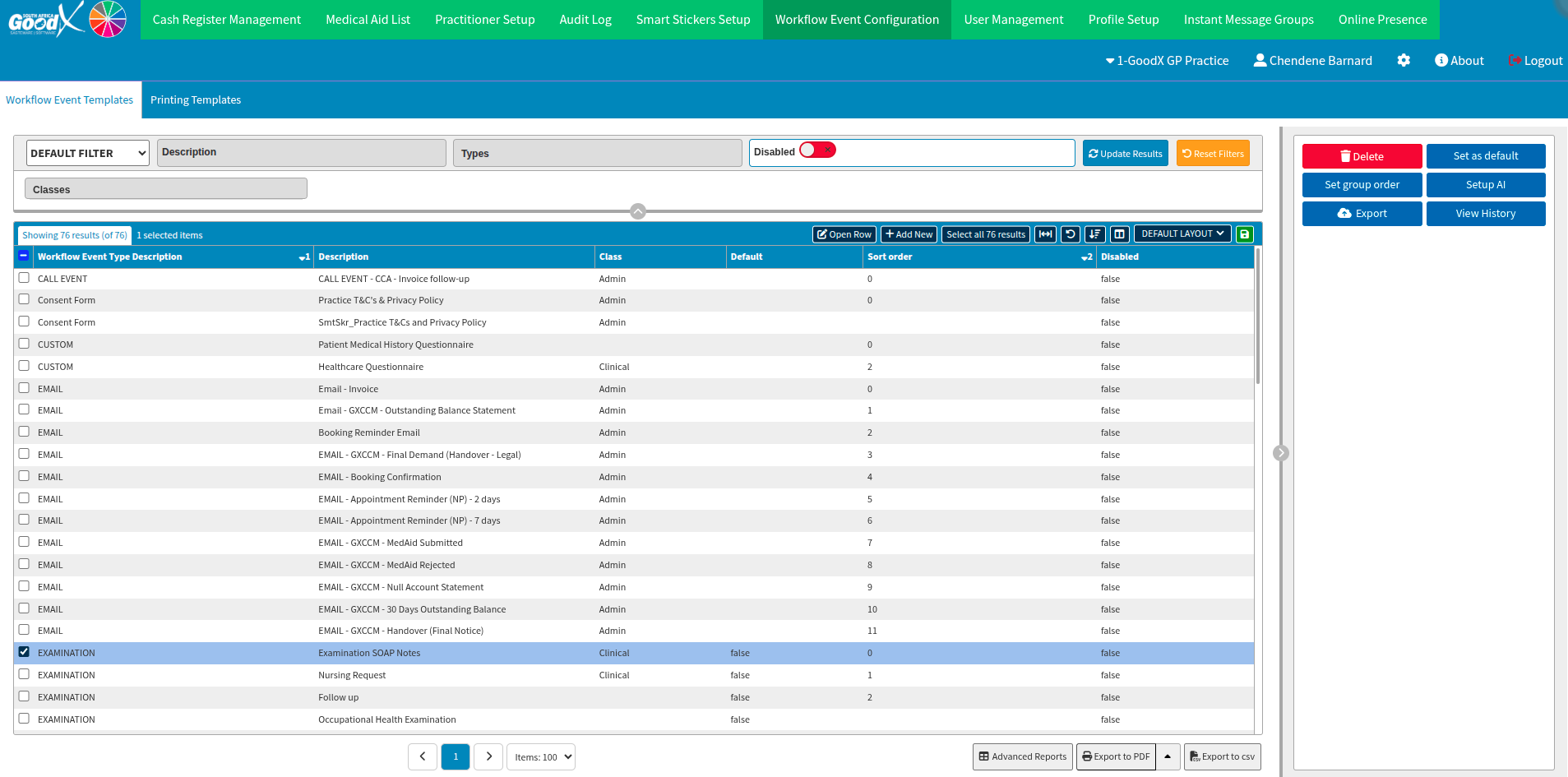
Alternatively, based on your GoodX software version, select the checkbox to the left of the form and click "Open Row" to view the current setup, or double click on the form of interest.
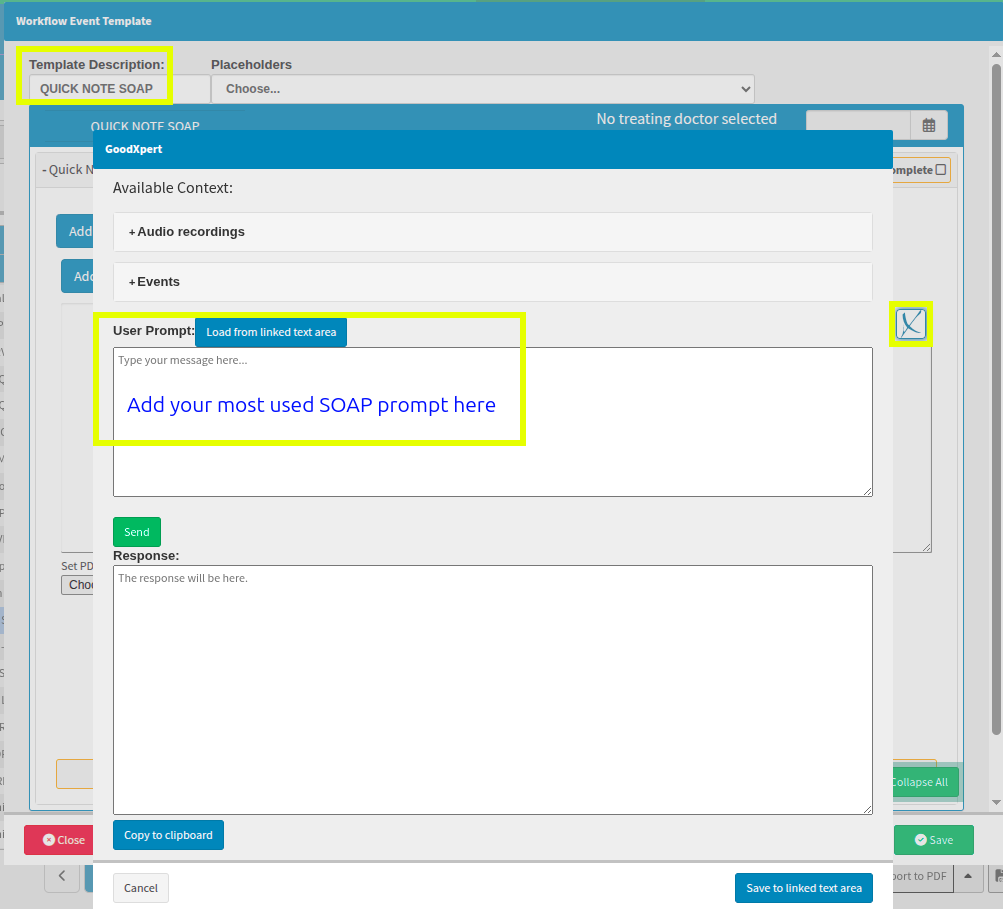
This provides an example of how SOAP notes, consisting of the Subjective, Objective, Assessment, and Plan components, are completed within the examination clinical form.
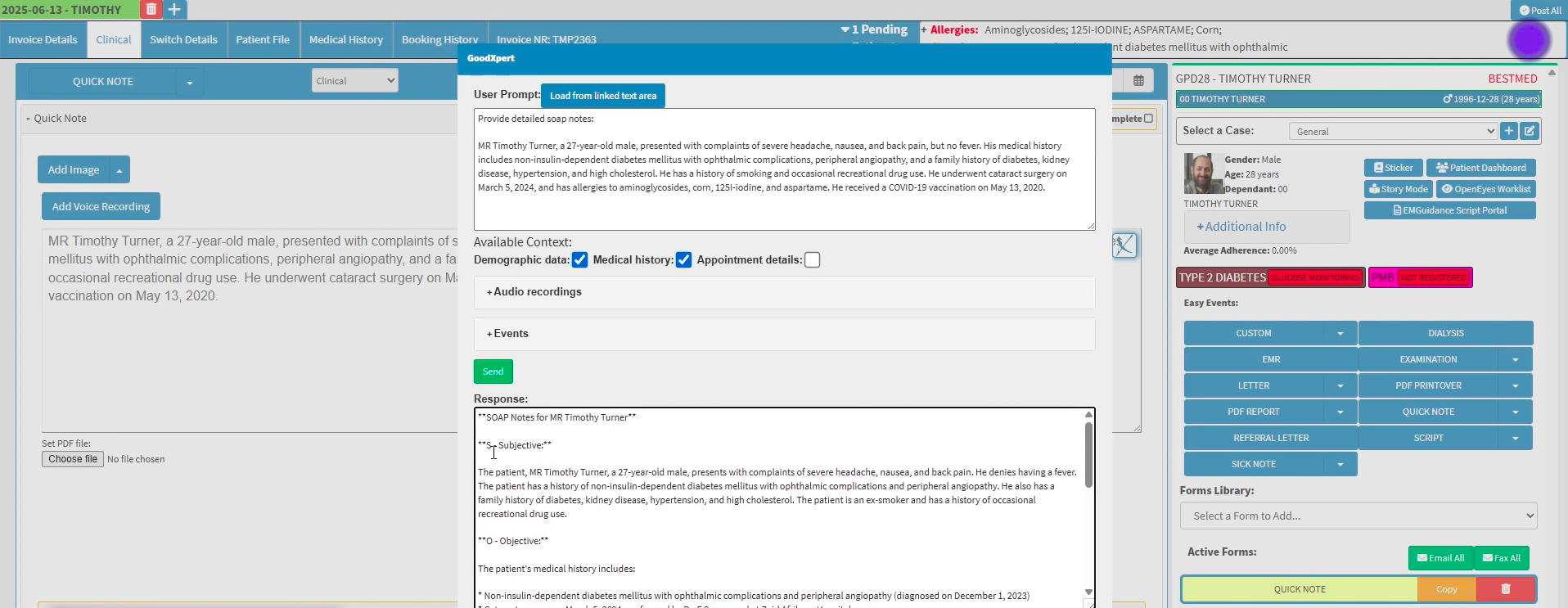
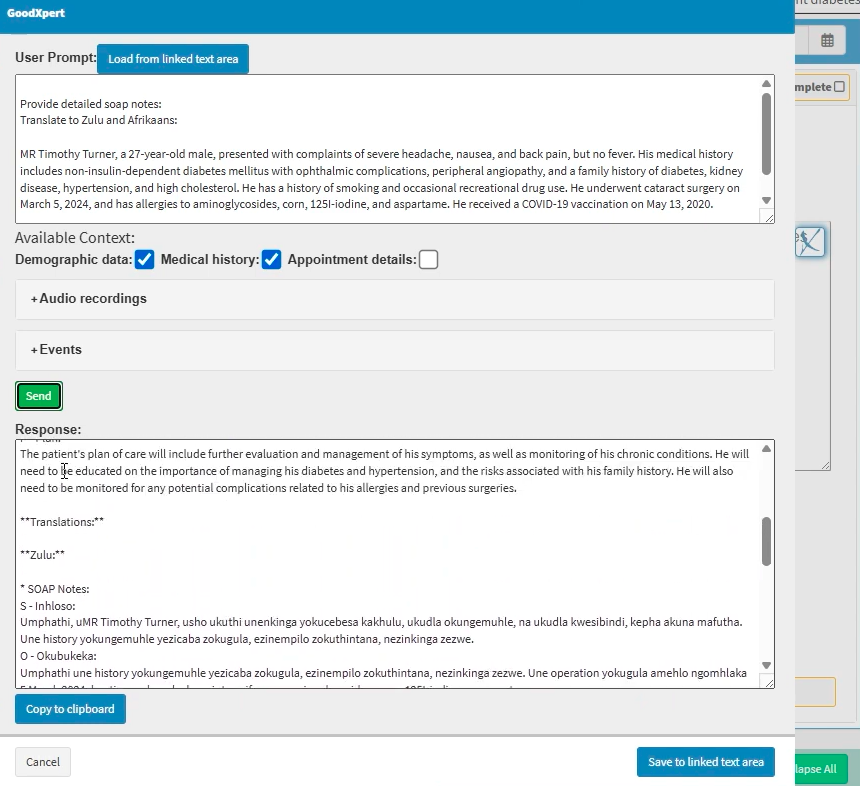
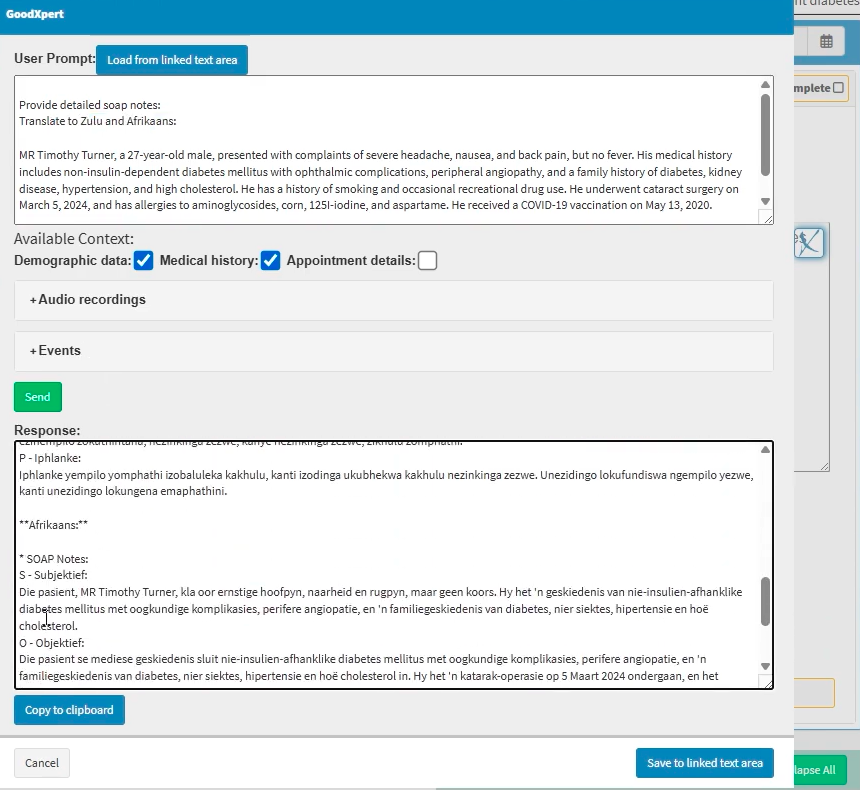
You can request the generated results to be translated into your preferred language if your primary language of operation is not English.
Zulu translation example
Afrikaans translation example
How to use GoodXpert only once on a patient?
Utilising GoodXpert directly within a patient file or at the patient level—rather than from the workflow event setup window—means that these configurations and changes will not be saved for future use. Any actions completed in this manner will apply solely to the single form you have opened for that specific patient.
Select the blue GoodXpert "X" button to open the prompt box, where you can define the limitations regarding which clinical notes should be utilised within the response. These limitations are unique to the specific type of clinical form you are currently working on. The prompt section is designed to direct the AI, so please clearly type the exact instruction or the specific outcome you require from the report or form.
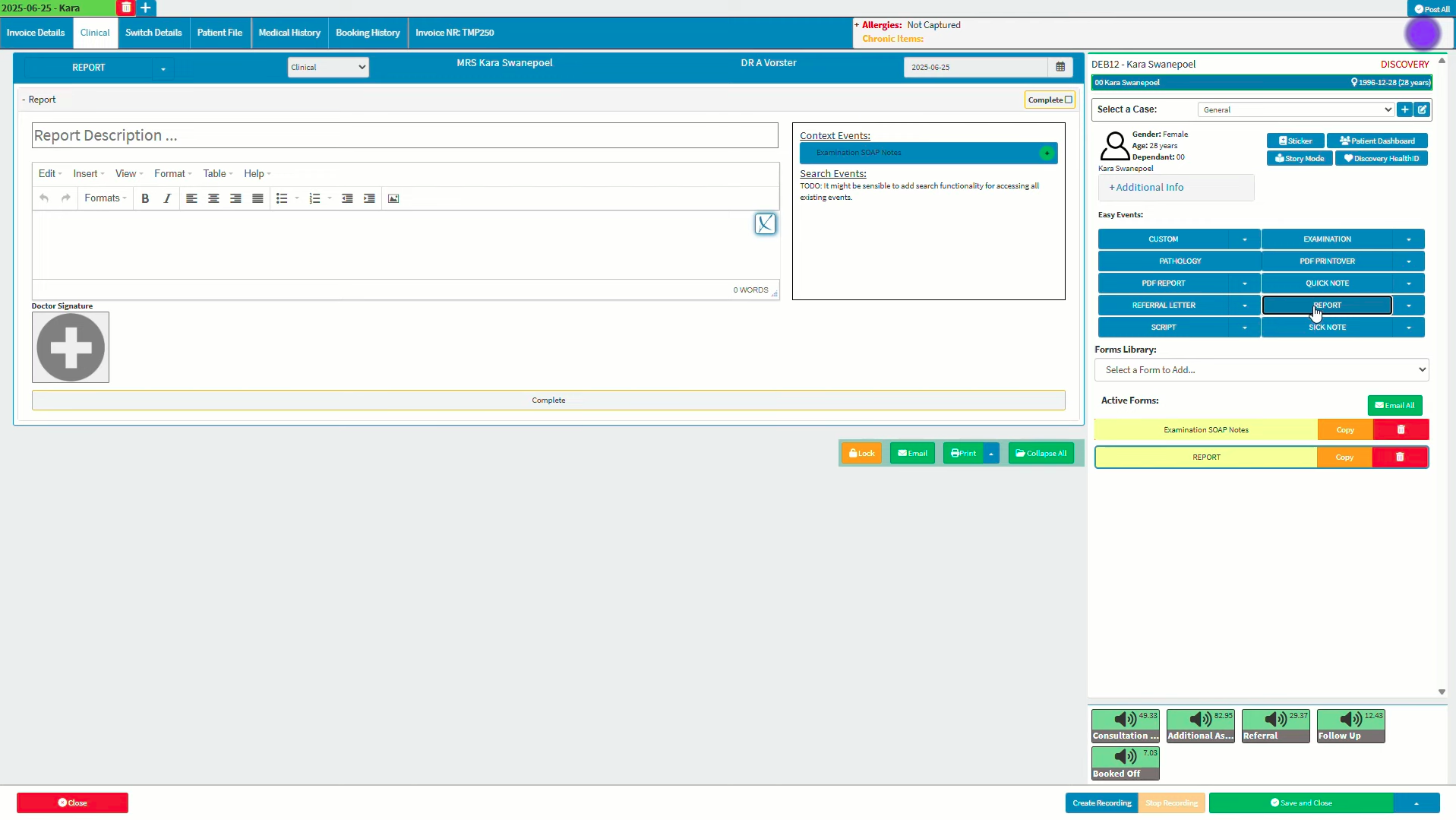
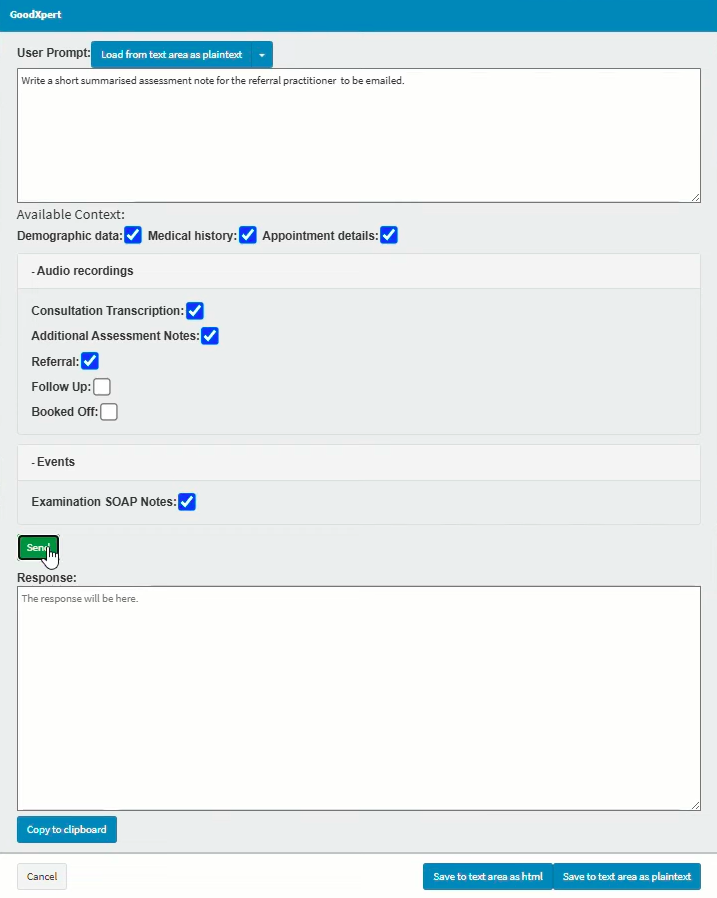
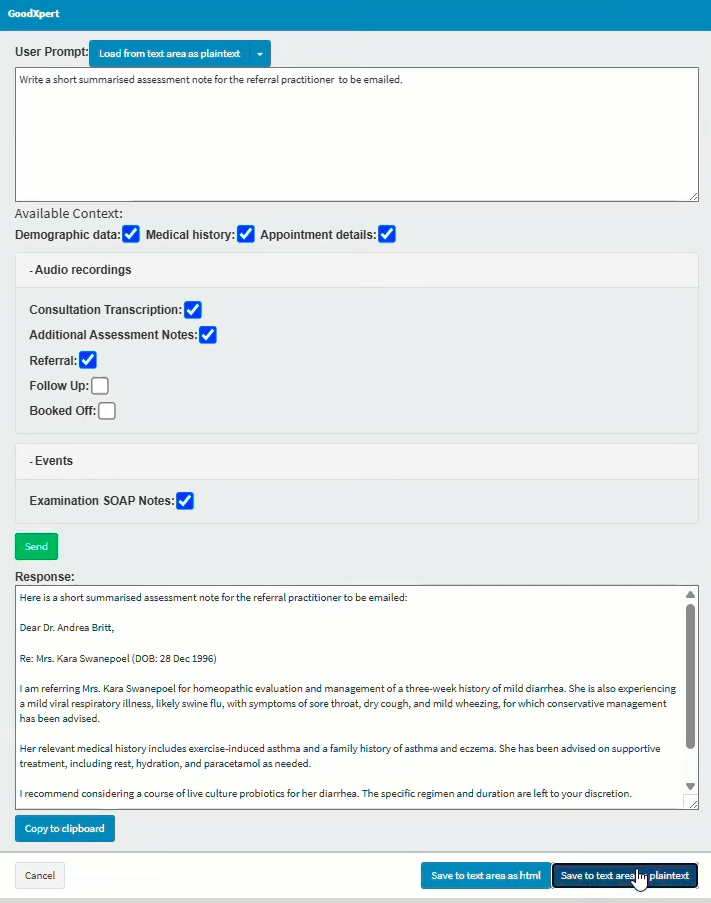
The recording transcript can be copied into the user prompt section along with the prompt to action.
Once you have selected the "Send" button, the AI GoodXpert will generate a response for you to review, copy, and apply. The "Copy (Save) to clipboard" button allows you to copy the generated text and paste it wherever required. It is good habit to select this option first before moving forward, to ensure your response is saved within your keyboard memory.
You can paste the text by pressing "Ctrl+V" or "Ctrl+Shift+V" on your keyboard when your mouse in in the correct text area, or by right-clicking with your mouse and selecting the paste option from your device's default menu.
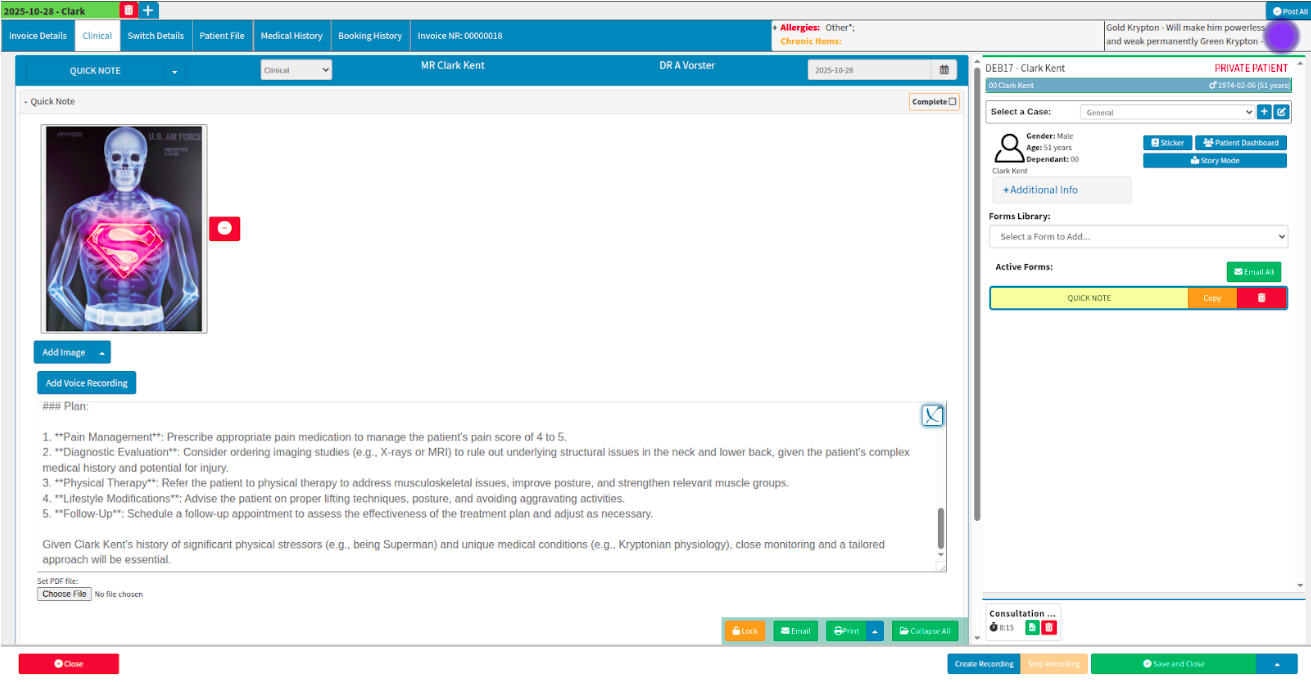
Selecting the "Save to text area as plain text" or "Save to linked text area" button will transfer the populated information directly into the specific report or text area from which the AI GoodXpert button was initially activated.
On this screen any changes or edits may occur. Once completed, you can mark the note or report as complete. If you subsequently realise that additional data or aspects need to be included, or if you want GoodXpert to provide alternative or further feedback, you can re-open the GoodXpert screen by selecting the blue "X" button.
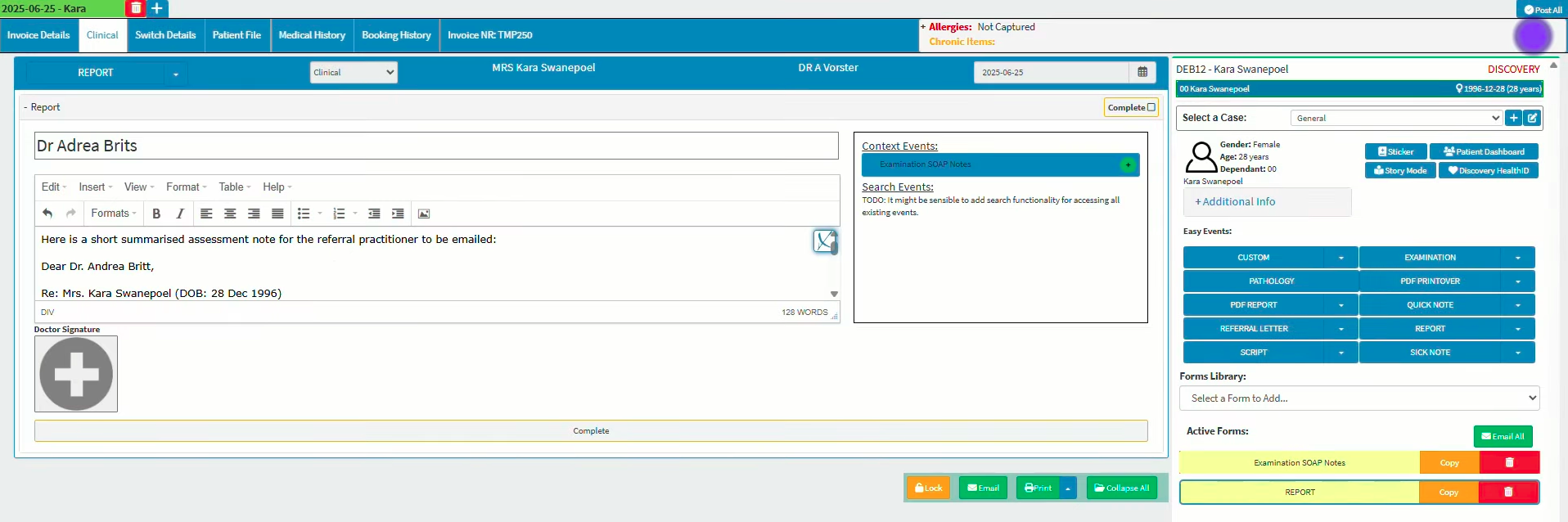
Example of manually using GoodXpert in the “Quick Note” clinical forms
Once on your patient file section, navigate to the library for the relevant clinical form. You can select quick notes directly from your clinical forms listed, or from the shortcut in the side panel if it has been configured that way. The report will be blank by default, and selecting "Start Recording" will open a new, blank voice recorder interface where you can manage audio permissions, rename the file, and begin recording. Ensure the selected language matches the language spoken during the session (e.g., en for English, af for Afrikaans).
It is recommended to rename the sessions according to the date, purpose, or a key aspect of the visit. This makes it easier to select the specific voice notes that hold relevance to the prompts you want AI GoodXpert to process. Where you need the audio transcribed to text, select the "Transcribe" button. Audio must be transcribed to be used by the AI prompts set up by the pratitioner.
Each recording can be reviewed by selecting "Listen", and the playback speed can be increased or decreased as required from the mini-menu next to the audio player.
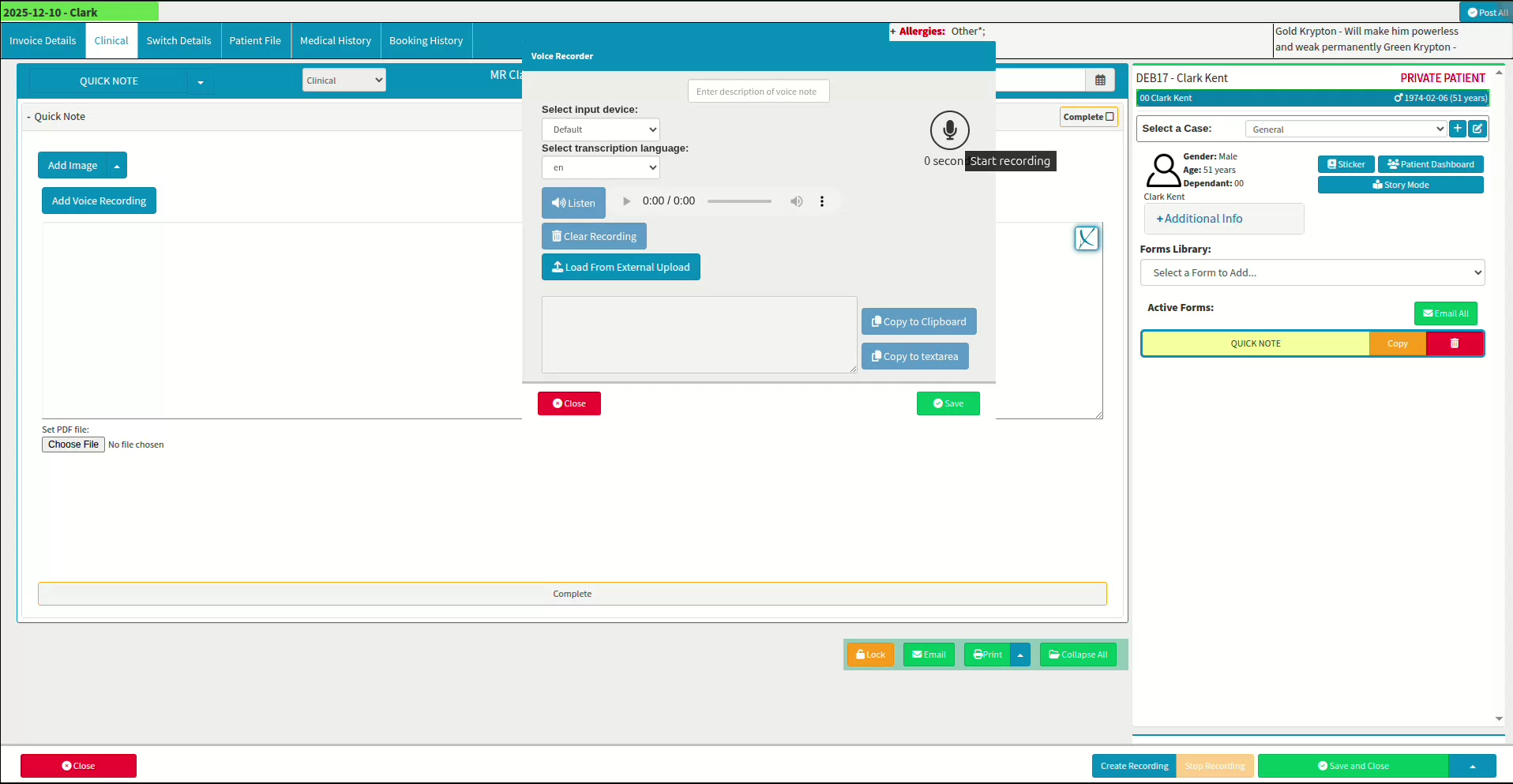
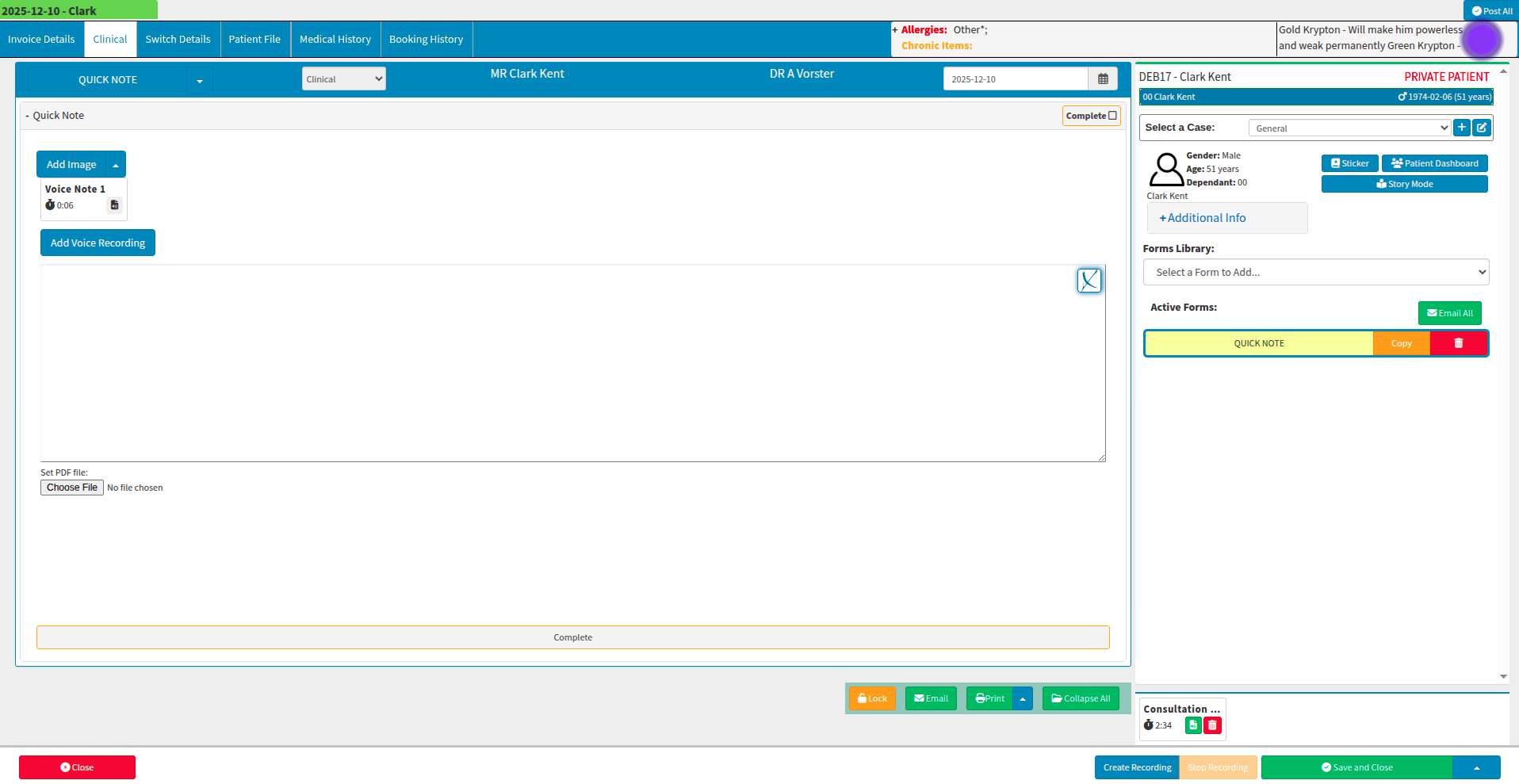
Any voice recordings linked to the patient will be reflected at the bottom of the clinical side panel screen and can be incorporated directly into your GoodXpert AI request.
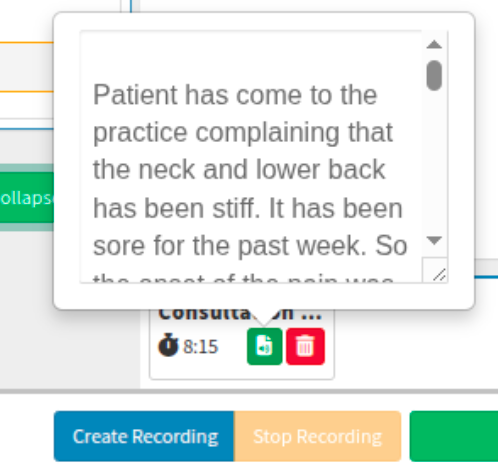
Hovering over the green notes page will allow you to read the transcribed session, or notes you have left on the session.
The moment the audio clip is closed, the recording will be reflected on the clinical side panel. Where GoodXpert is required for additional assistance, select the blue "X" icon, which represents the GoodXpert action.
How to make or prevent edits to the GoodXpert accepted responses?
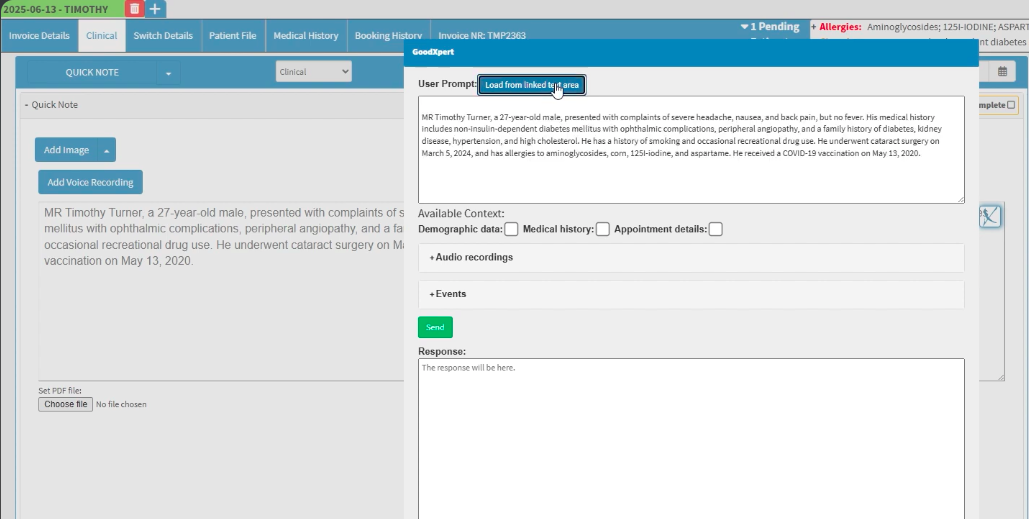
When information is already present on the form or note, the GoodXpert button can be selected to make additional alterations. Although the screen appears blank when initially opened, selecting the "Load from linked text area" button will repopulate the previous response directly within the user prompt area.
Any completed information can be marked with "Lock", which prevents further editing of the entry to ensure strict compliance with privacy laws like POPIA or HIPAA, whilst supporting traceability in patient care and maintaining legal accountability.
Locking the form establishes an audit trail and ensures that the information accurately reflects the practitioner's final decisions at the time of the consultation. To prevent accidental locking, the user will be prompted twice before the file is locked.
If the need arises, a locked item can be unlocked, but this action can only be performed by superusers or administrators. This process is recorded within the audit history to ensure the ongoing integrity of the medical records is upheld.
How is AI GoodXpert and AI prompt used together?
The clinical forms you use most frequently can be configured to pull through patient details automatically by setting up the main document from your library of clinical forms.
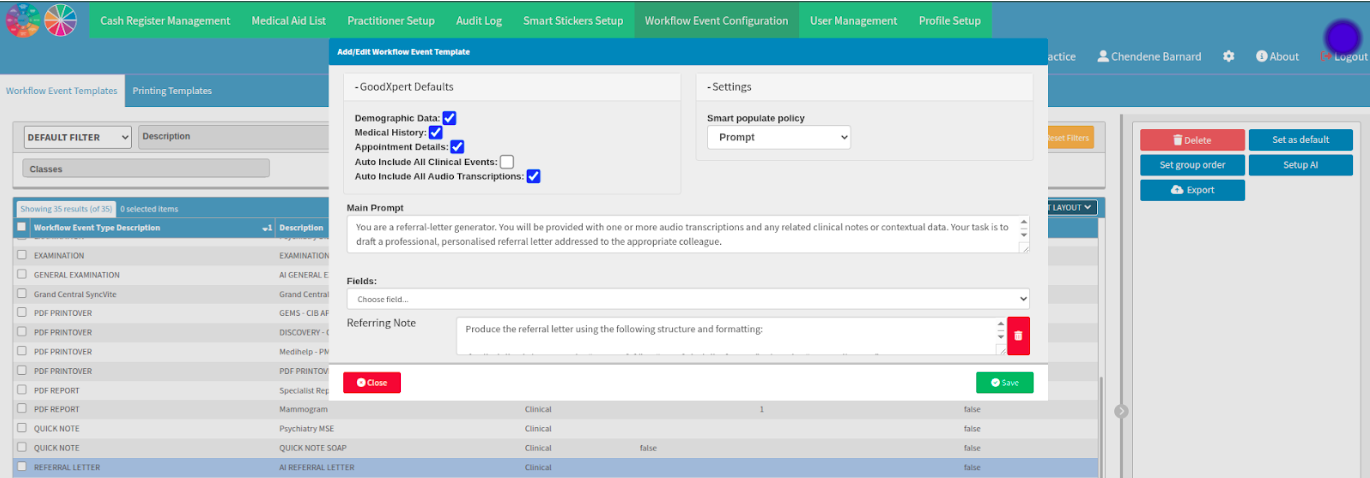
To set this up, select Configuration from your GoodX wheel. Navigate to Workflow Event Configuration, create the desired clinical form, and rename it to indicate its core linked services (for example, "AI Referral Letter"). Be sure to provide as much detailed information as possible within the configuration to ensure your intention is accurately received and processed by AI GoodXpert.
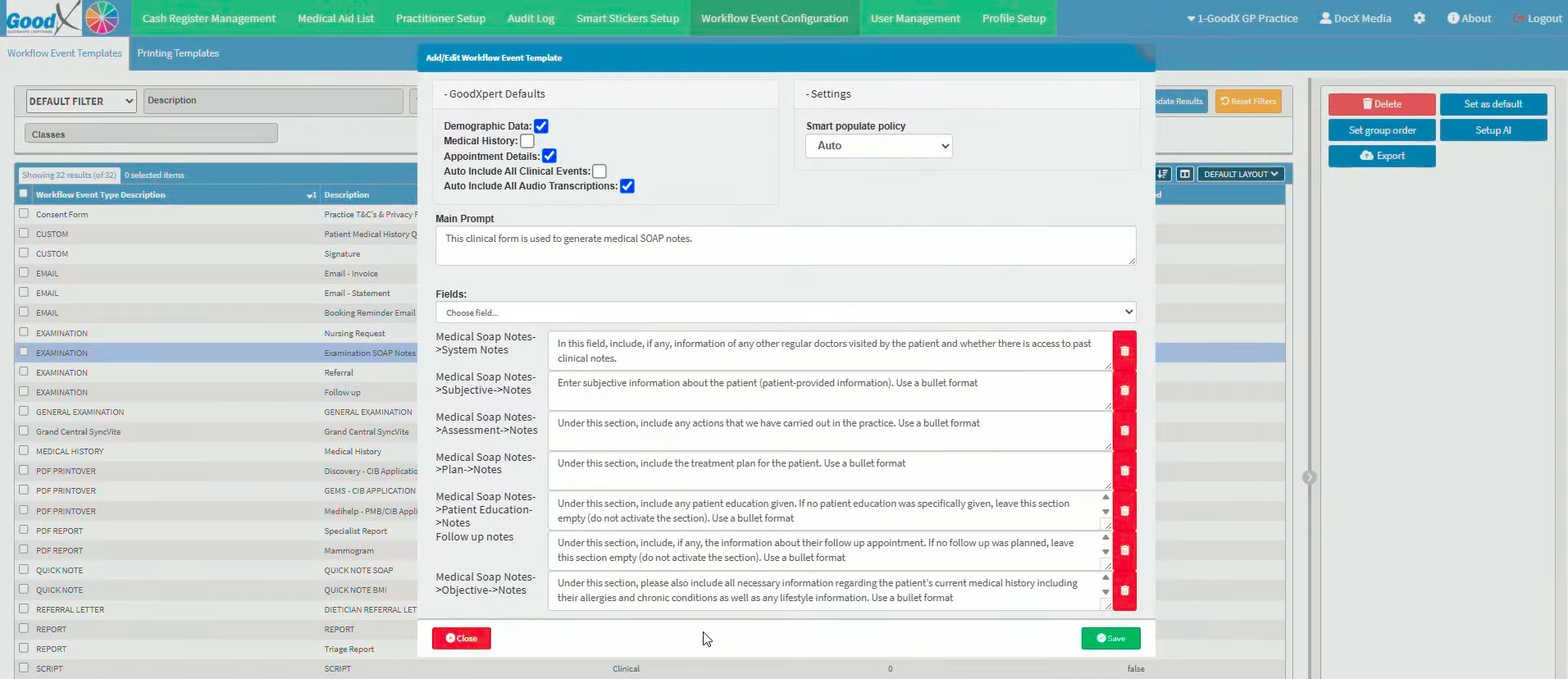
The AI prompts can be linked to clinical forms by selecting "Setup AI" on the relevant form. This is a single setup event per form, but the process must be repeated for individual patients if a different requirement arises for that specific form. Save any changes or additions to the form you want to keep. The document will then auto-populate automatically whenever it is called upon from the debtor library.
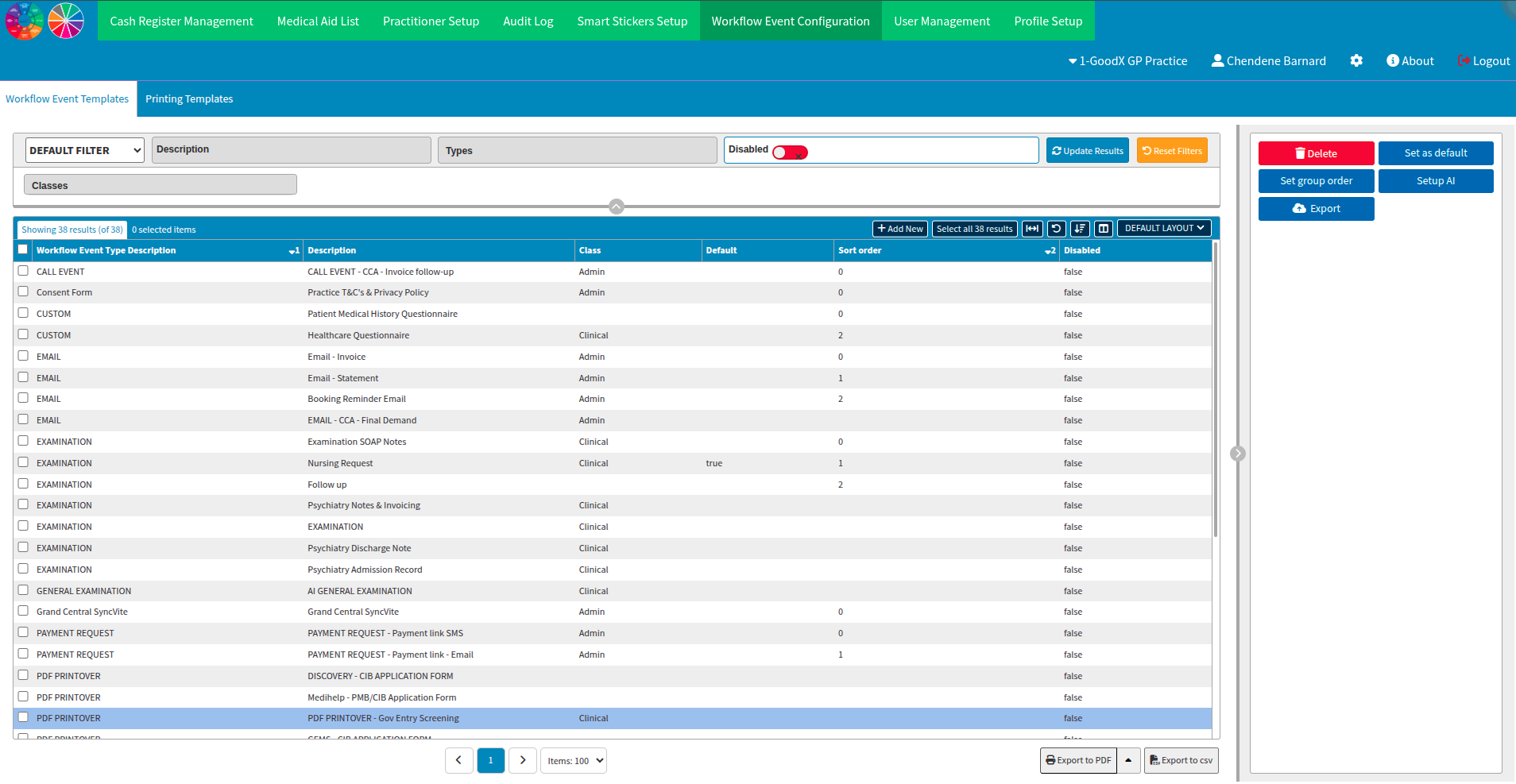
AI prompts can be linked to individual areas within your clinical form. Please note this setup is time-consuming and requires attention to detail and testing to ensure the form is functioning the the practitioners preferences.
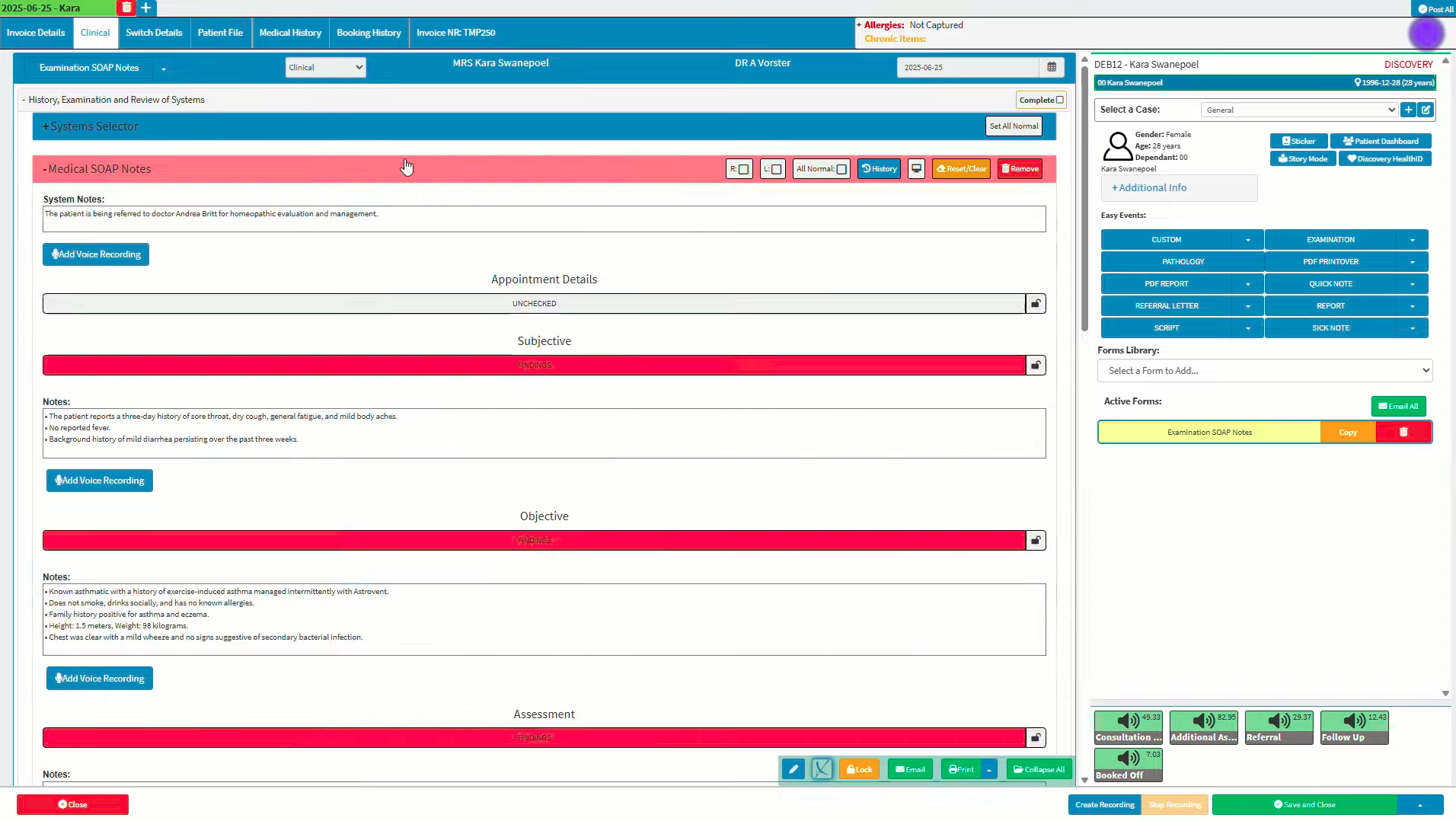
Example of line item level AI Prompt linked to an Examination Clinical form
Below is an example of the AI line item prompt outcome after GoodXpert has transcribed the audio, and the AI prompts have been applied. This outcome incorporates the audio linked to the patient alongside the specific fields selected for consideration based on the practitioner's setup.
Example of prompts
Prompt hidden text example: “You are a referral-letter generator. You will be provided with one or more audio transcriptions and any related clinical notes or contextual data. Your task is to draft a professional, personalised referral letter addressed to the appropriate colleague.”
Referring note hidden text example: “Produce the referral letter using the following structure and apply formatting: If a discipline is known, write “Dear Dr [X],” or “Dear [Discipline] Team,” otherwise “Dear Colleague,”. Provide the necessary demographic information about the patient including full name, age and gender. Provide one or two sentences summarising why the patient is being referred. Provide a brief medical history, including any chronic conditions and lifestyle choices, and key findings from the consultation or notes. Highlight any investigations or treatments already undertaken. Mention attachments (e.g. test results, imaging reports), if available. If his weight and height are both available, provide a BMI. If either is missing, only provide the data you have and do not mention the BMI. Clearly state what you would like the specialist to assess or manage. Note any time sensitivity or follow-up requirements. Thank the colleague for their assistance. Ensure the final letter reads smoothly as a single, cohesive document.
The prompt box can be kept simple and focused entirely on the current visit. Once you are ready, select "Send" for AI GoodXpert to provide you with a clear and accurate response tailored to your submitted query.
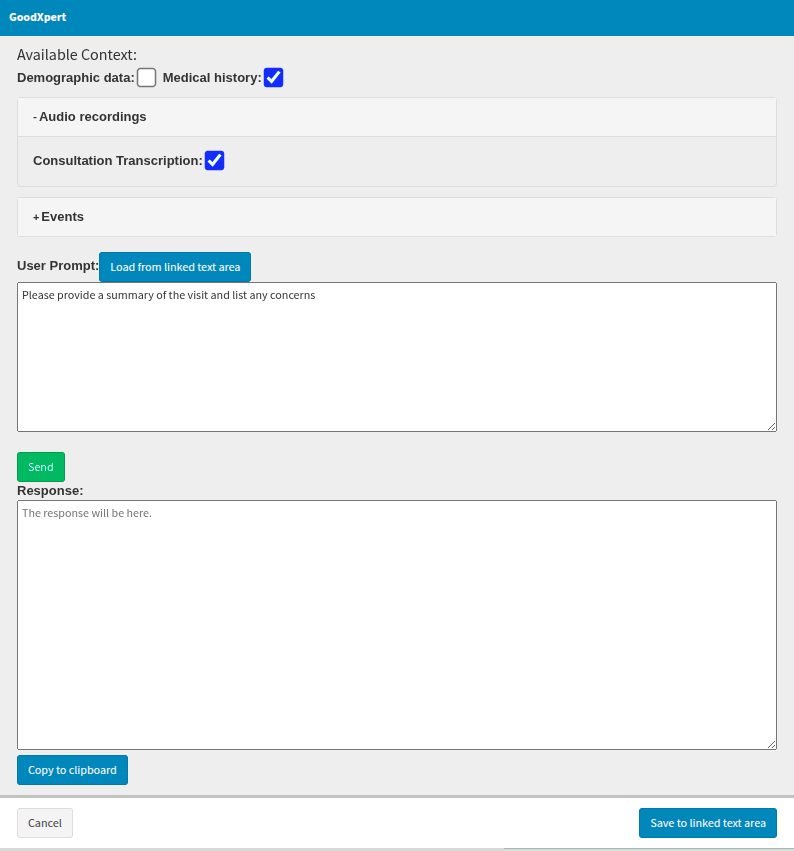
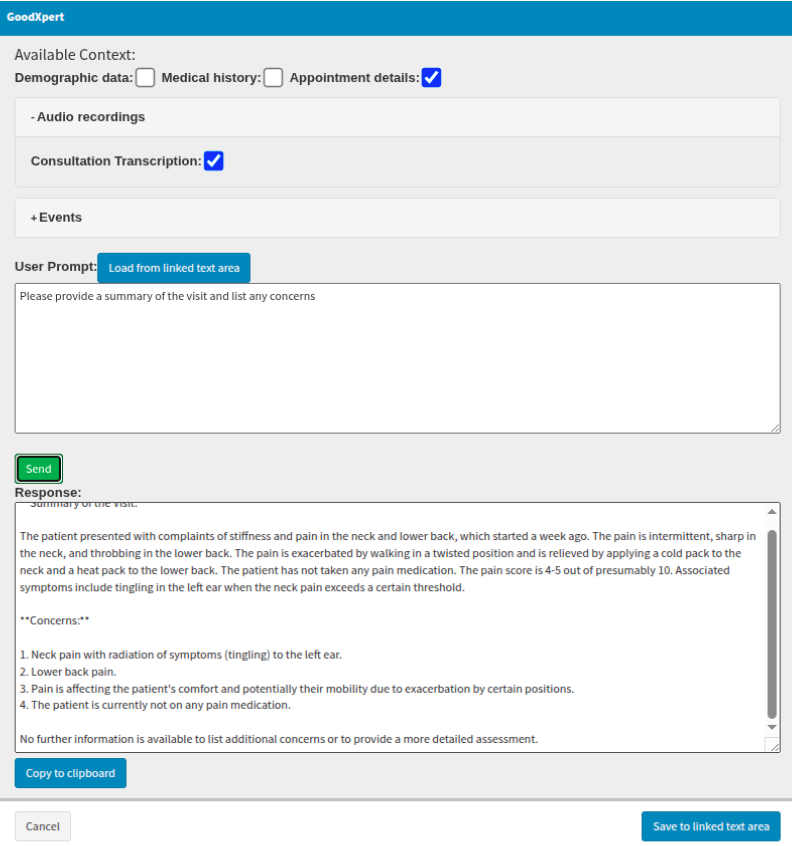
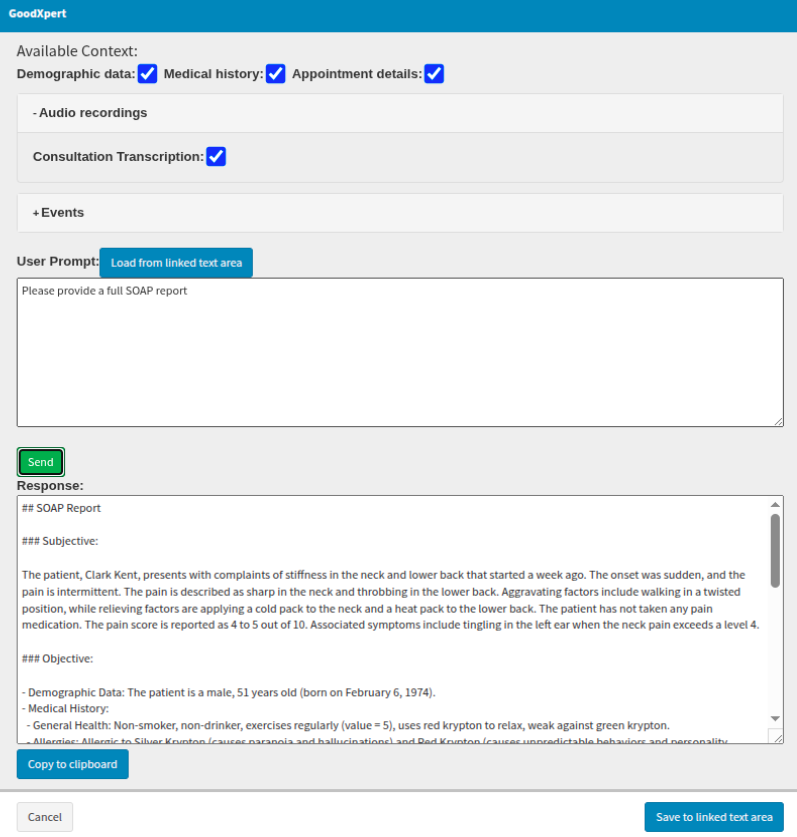
Alternatively, the prompt can be more intricate, allowing you to request that the full details of the patient be taken into consideration. Once completed, select "Send" for AI GoodXpert to provide you with a clear and accurate response tailored to your submitted query.
The information received can be sent directly to the current clinical document by selecting the "Save to linked text area" button.
Where to learn more about AI GoodXpert within GoodX?
The GoodX Click&Learn Courses https://courses.goodx.co.za/
The GoodX YouTube Channel https://www.youtube.com/@GoodXSoftware
The GoodX Learning Centre https://learning.goodx.co.za/
Please note these courses are only modules and are different from the Click&Learn courses. To learn more about AI GoodXpert, you can apply these search terms:
Software Version Discrepancies
As the GoodX software suite continuously evolves to incorporate new features and optimisations, you may notice slight variations between the visual layouts or menu options shown in this guide and your active system interface. These discrepancies generally occur if your practice is operating on a different software release or a customised user interface version. If a specific button, tab, or field referenced in this manual does not align with your current screen view, it does not necessarily mean the functionality is unavailable; rather, it may have been relocated or updated. For clarification or to ensure your system is running the latest release, please reach out to your GoodX representative for guidance.
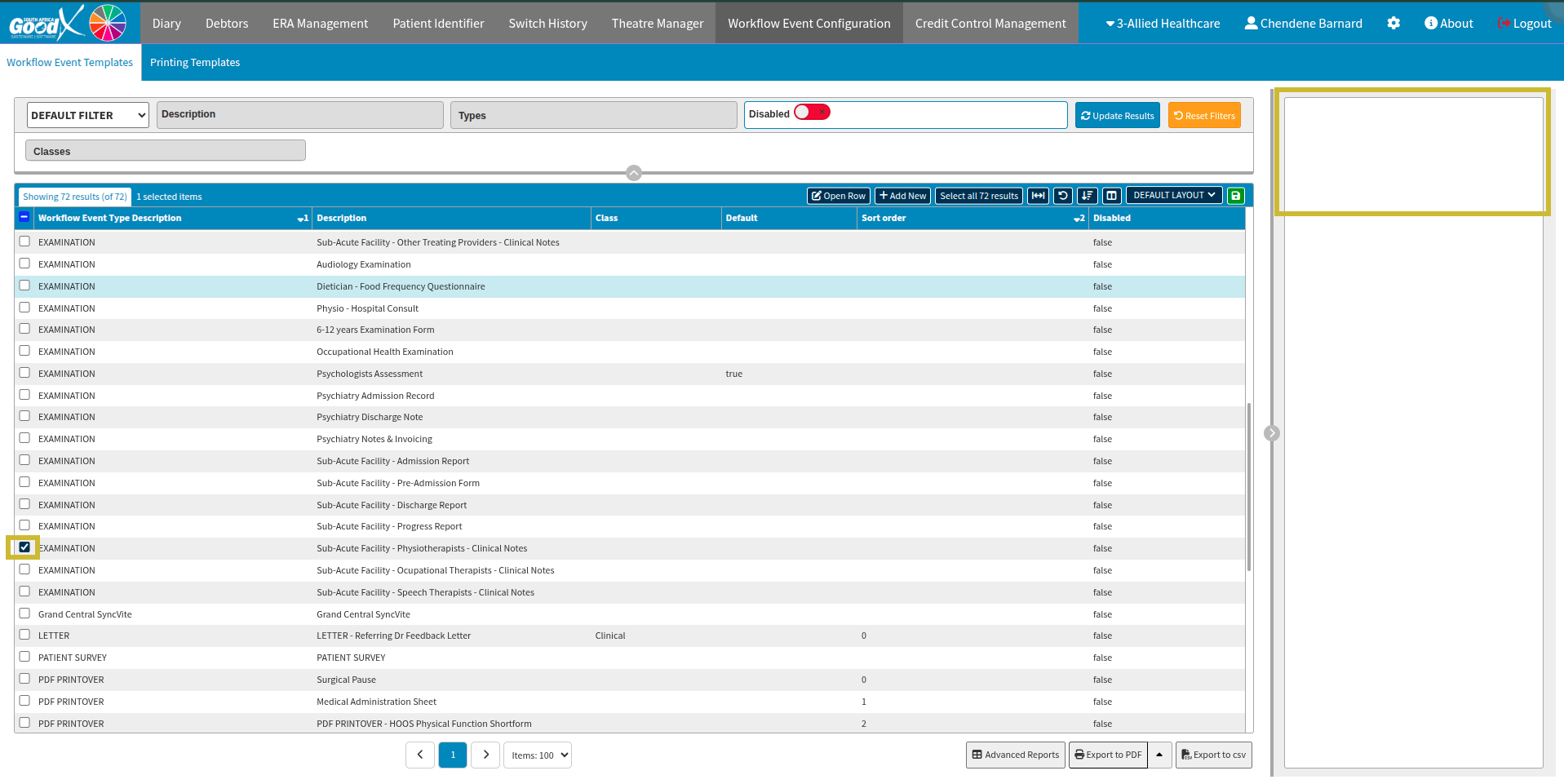
V1.19.16 : You might have an AI prompt view delay
To access the AI prompt setup on specific clinical forms, double-clicking may no longer open them. Instead, you must navigate to the checkbox area and select the relevant form, which will make the side panel visible for actions linked to that form. Please note that this view may initially appear blank due to a display delay in this software version. To refresh the view and access the AI prompts, simply navigate from the current "Workflow Event Template" tab to the adjacent "Printing Template" tab, and then switch back again. This quick action will need to be repeated each time you open a form.
| Date of Change | Changes | Editor |
| 2026 05 17 | Established Page | Chendene Barnard |