Text size
Line height
Text spacing

What is VoIP?
VoIP, or Voice over Internet Protocol, enables activated entities to make calls using their internet connection rather than traditional airtime or telephone service providers. The benefits of utilising VoIP include significantly lower costs and superior call quality. For added convenience, all completed calls can be saved directly to the patient profiles, allowing these recordings or logs to be accessed at your convenience.
Since calls are recorded, it is recommended that you update your practice's telephonic introduction to ensure patients are aware of this. For example: “Please note that this call is being recorded for quality and training purposes.”
Please note that the VoIP calling feature is an optional service which requires users to subscribe at an additional fee.
Where do you make a VoIP call through GoodX?
For your convenience, calls can be initiated from the following locations:
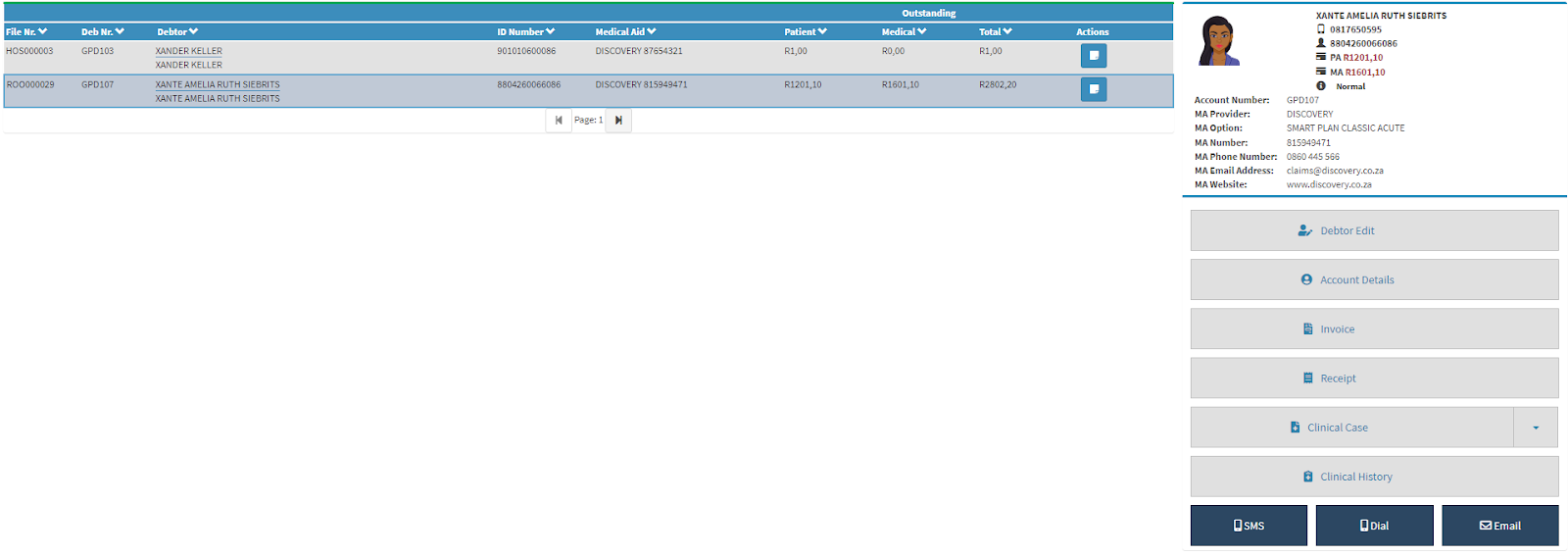
Debtors Wheel: Within the Debtor tab, via the Debtor Panel view.
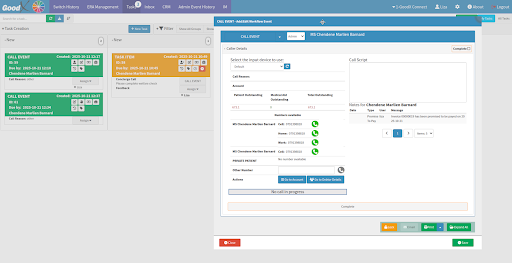
Communication Wheel: Within the Task tab, by selecting a task event linked to the Call Event button.
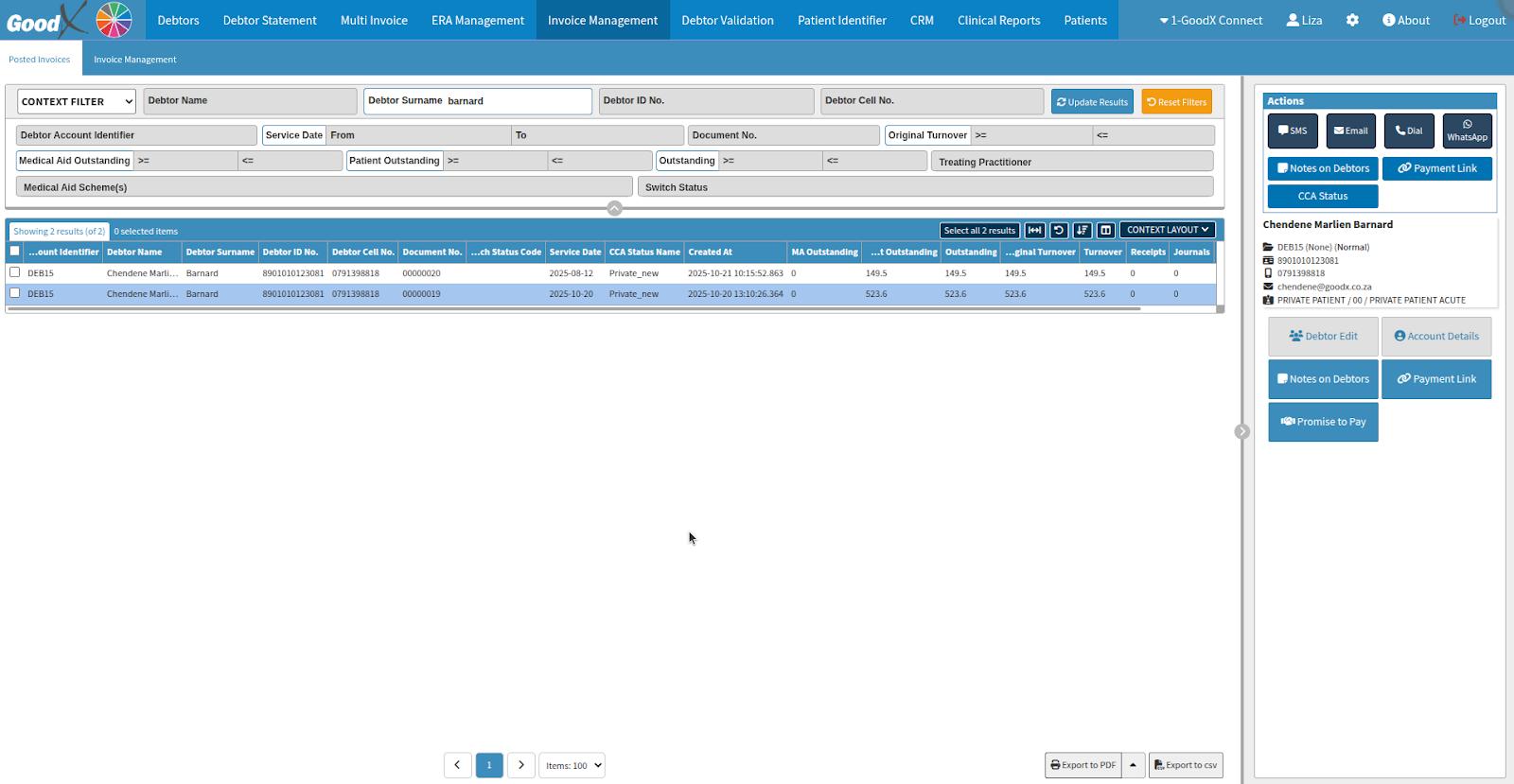
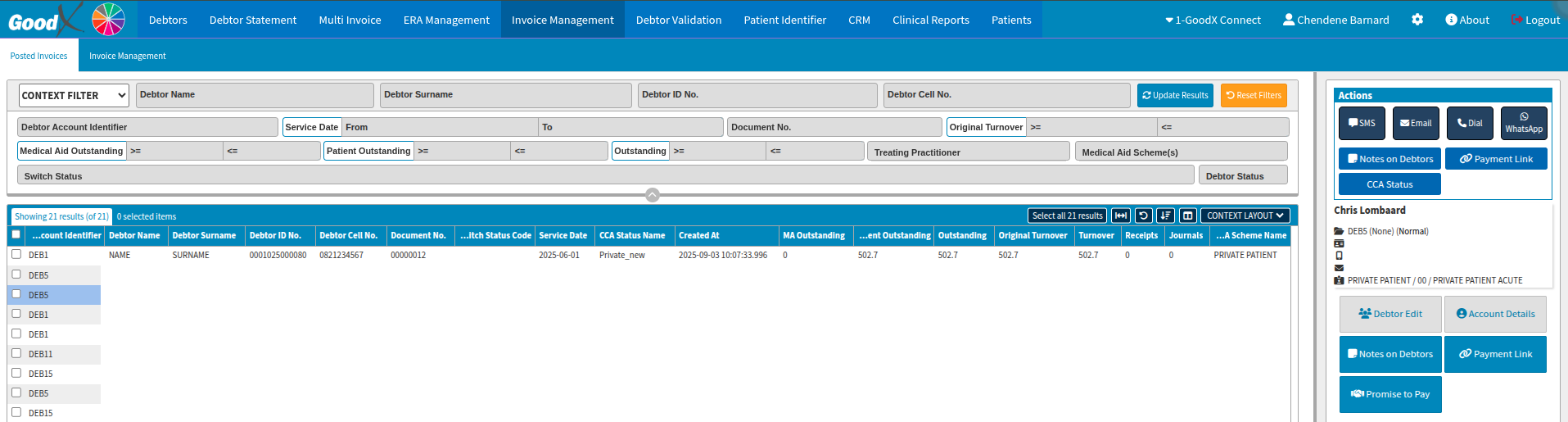
Debtors Wheel: From the Invoice Management screen, where selecting the relevant debtor will display the available call options.
From the Debtor panel view
From the Call Event Task
From the Invoice Management Screen
Where do you access the call which was made through VOIP?
VoIP call records can be accessed via the Notebook or through the Admin Event History screen.
From the Navigation Wheel select Debtors
Navigate to the Debtors tab to view the Actions column. Hovering your cursor over an icon will display a tooltip indicating its specific function or destination.

From the Navigation Wheel select Communication
To review specific call records, navigate to the Admin Event History tab. You can refine the view by deselecting irrelevant options to filter for the Call Event type.
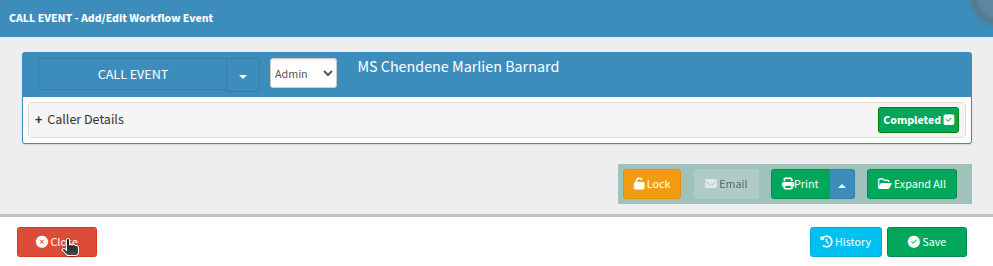
Double-click the desired event to open it. Once reviewed, please ensure all call events are marked as Completed to lock the entry and prevent further edits to the notes or event details.
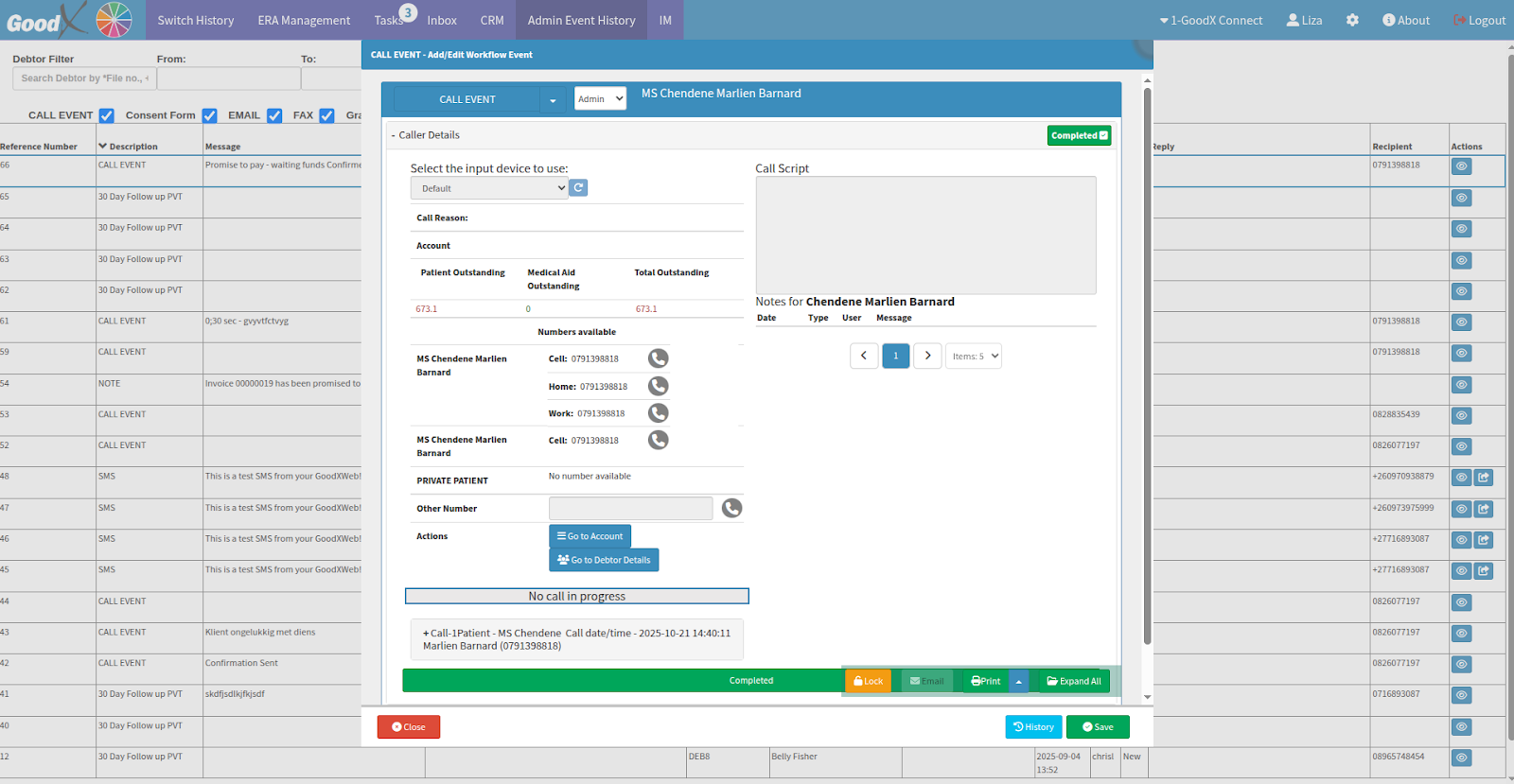
To view more comprehensive details, expand the record by selecting + Call.
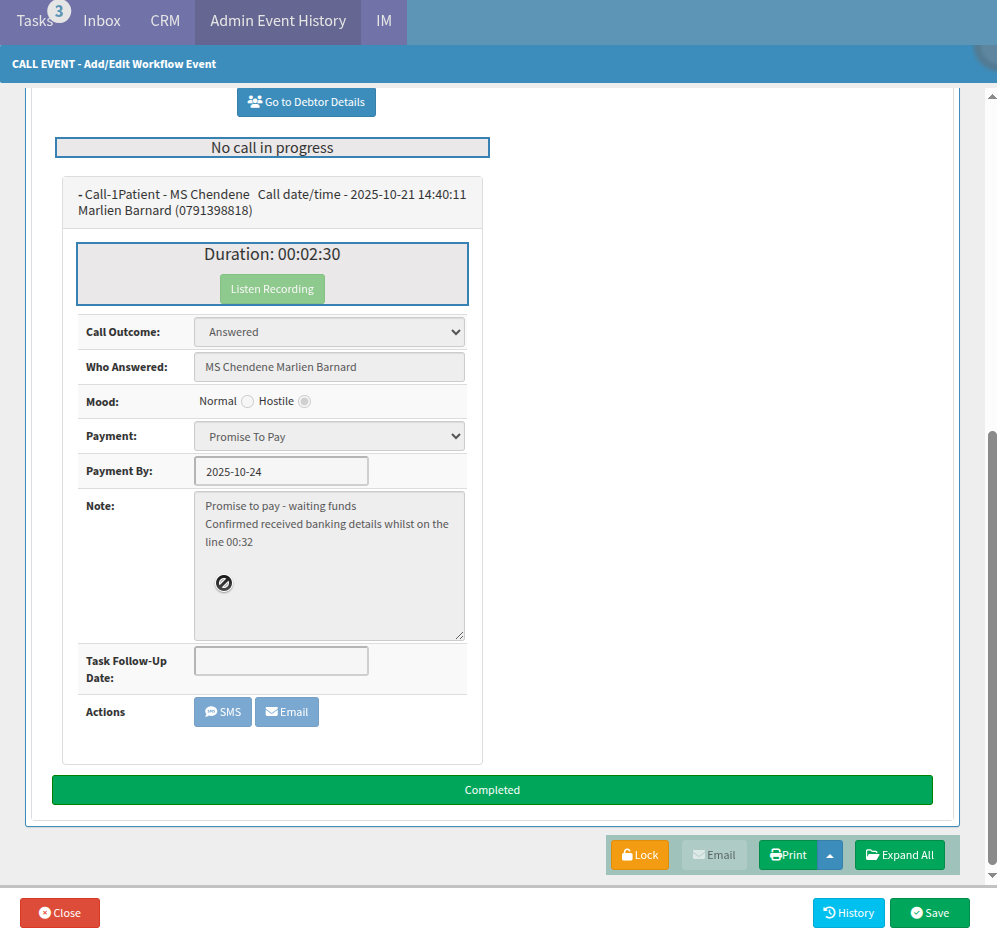
If you need to listen to or download a recording, you can toggle the status of the call event by selecting Completed again to unlock it. Then, select Listen Recording to open the mini-menu; from there, you can expand the bulleted options to access the download or playback features.
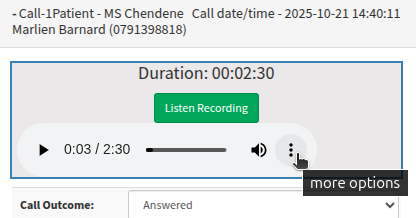
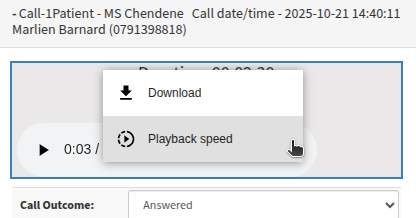
Once finished, please remember to mark the call event as Completed again to prevent any further edits to the notes or event details. If you have updated the original notes, ensure you click Save to apply those changes.
How do you make a VoIP call through GoodX Tasks?
When specific personnel are dedicated to particular actions, the GoodX software allows you to create tasks that notify the relevant team to take action. These tasks can be left unassigned for the next available staff member or specifically assigned to an individual.
These columns can be customised and renamed to suit your entity’s specific requirements. To manage your workflow effectively, you can filter tasks to view all entries or exclude those already marked as completed. Additionally, tasks are not restricted to a single individual and can be assigned to multiple people simultaneously.
Users have the flexibility to filter the task list to view all entries or exclude those already completed.
From the Navigation Wheel select Communication
Navigate to the Task tab, the default view displays tasks assigned to the currently logged-in user. In this scenario, we will focus on the payment team generating a Call Event task for the reception team to complete.
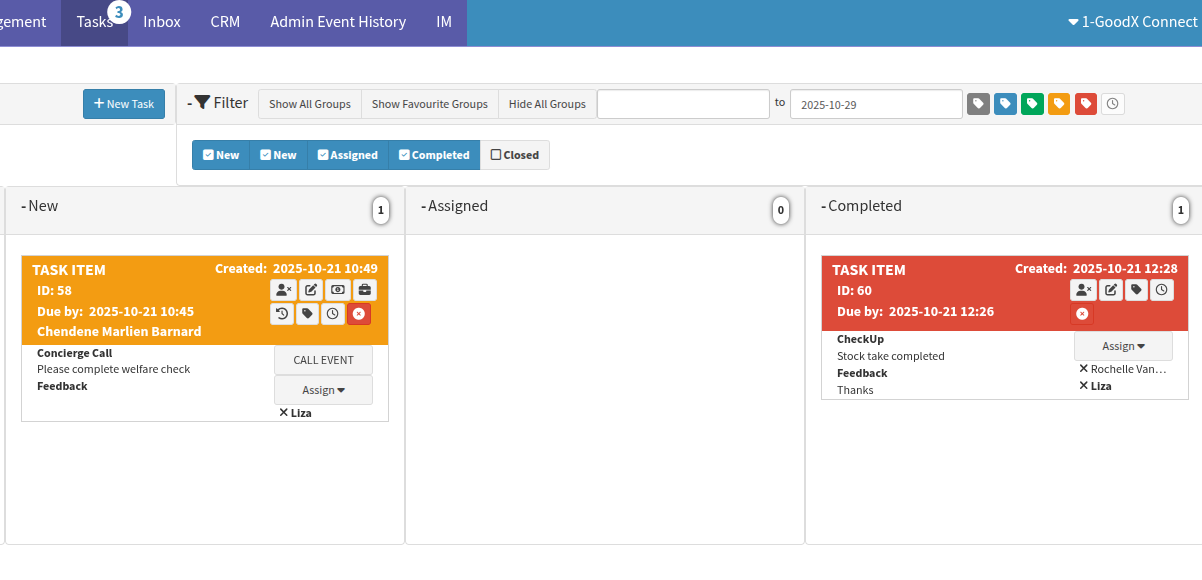
The example below does not require a call, as no call event workflow is linked to the task. Tasks that are manually created will display Task Item as the task type. Conversely, when a call request is generated via the Automated Credit Control Management system, it will be identified as a Call Event task type.
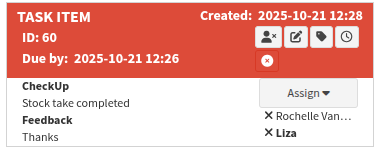
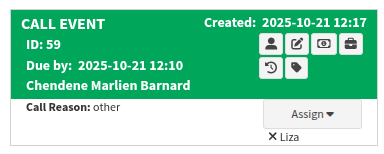
To determine if a call request has been assigned, look for these two indicators:
Assigned Tasks: These display a person icon alongside the name of the designated staff member.
Unassigned Tasks: These display a hand icon.
By clicking the hand icon, you are taking ownership of the task and assigning it to yourself for completion.
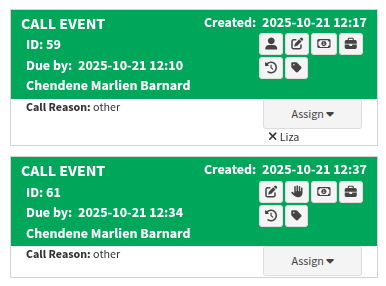
The Automated Credit Control Management system is designed to automate repetitive tasks, such as generating call requests to multiple debtors or triggering automated responses to specific actions. The possibilities for streamlining your workflow are virtually infinite.
The Invoice Management tab defaults to displaying patient invoices. To refine your view and filter for specific patient criteria, navigate to the dedicated Invoice Management screen.

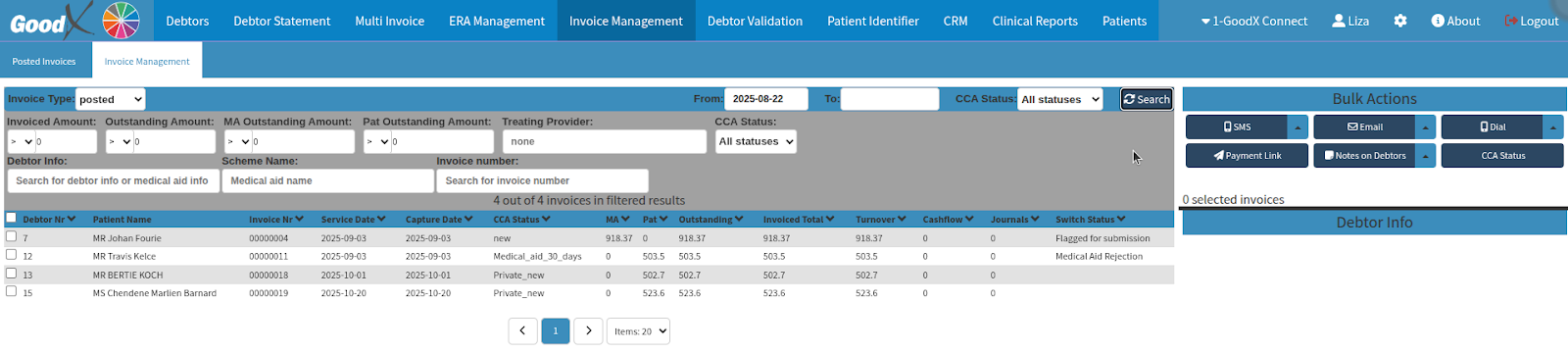
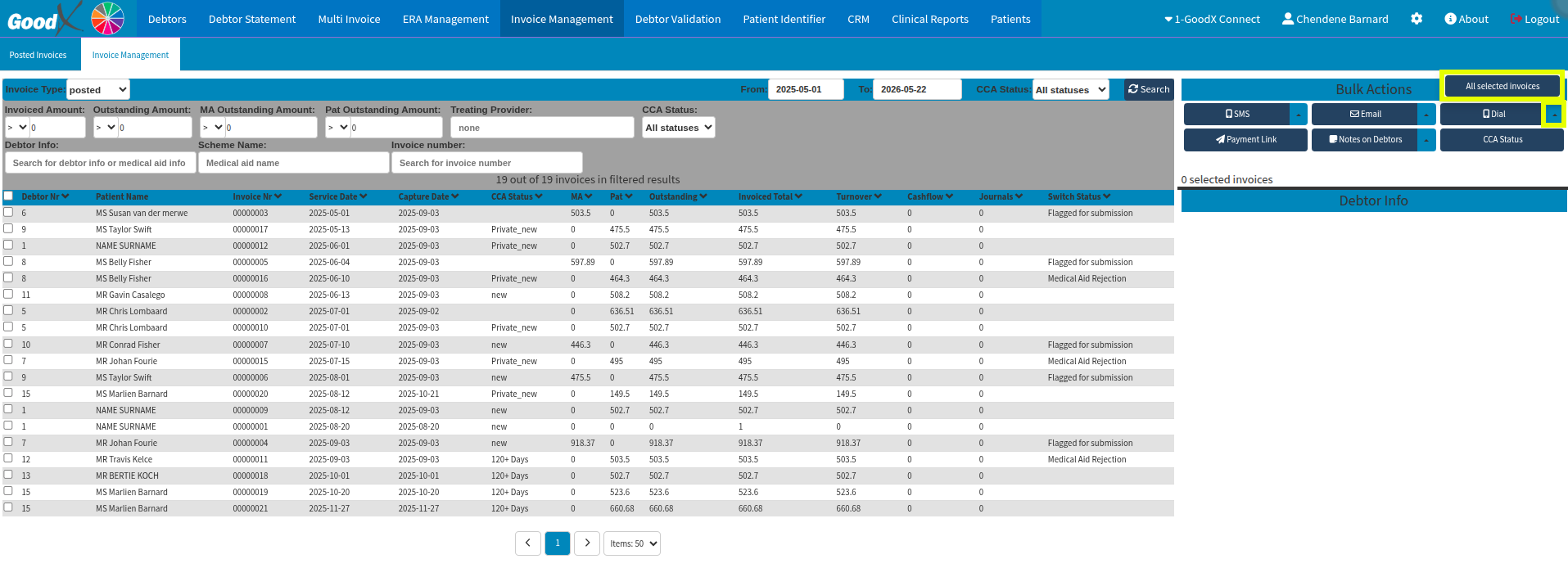
When contacting only specific individuals or a small group of patients, you can use the Dial dropdown to initiate calls for only the selected entries. Alternatively, by clicking the main Dial button, you do not need to make manual selections, as the system will automatically include all patients. In either case, as illustrated by the prompt, the system will only generate a single task per debtor.
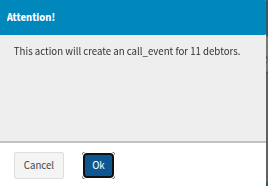
Once you select OK, you can proceed by choosing the appropriate template from the dropdown menu, depending on your practice's specific configuration. If a user was designated within that template, the resulting tasks will be automatically assigned to them for completion.
Because these call requests were generated via the Automated Credit Control Management system, the user can utilize the Auto Dialler session to work through these calls efficiently.
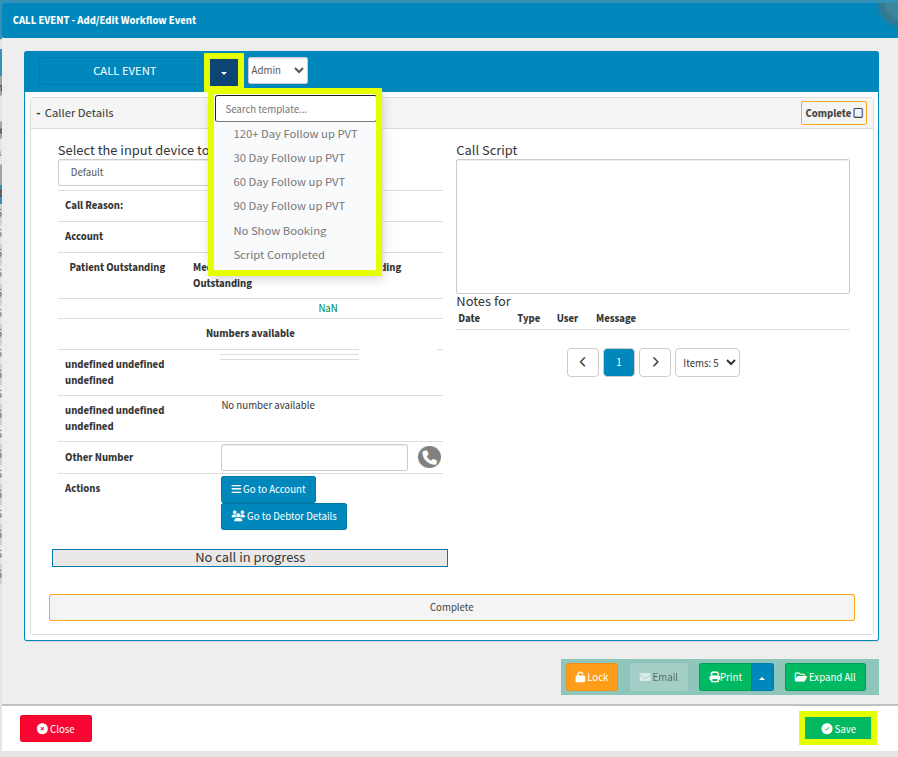
For more information on how to leverage the Automated Credit Control Management effectively, please contact your client liaison for additional software support. Please note that utilizing the Automated Credit Control Management system may incur an extra service fee depending on the specific application. Users may also be required to sign up for this service at an additional cost.
What is the Auto Dialler?
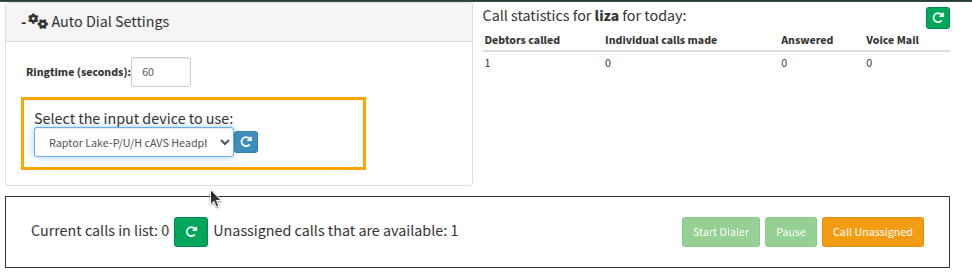
The Auto Dialler is directly integrated with the Automated Credit Control Management system to facilitate seamless, continuous dialing for your call lists.
As a user, you have full control to initiate or pause the session as required. The intent to pause or stop must be done before the current call is ended. For further details regarding the configuration and use of Call Event templates, please refer to the previous Task section.
Where to learn more about VoIP within GoodX?
The GoodX Click&Learn Courses https://courses.goodx.co.za/
The GoodX YouTube Channel https://www.youtube.com/@GoodXSoftware
The GoodX Learning Centre https://learning.goodx.co.za/
Please note these courses are only modules and are different from the Click&Learn courses. To learn more about VoIP Connect, you can apply these search terms:
| Date of Change | Changes | Editor |
| 2026 05 13 | Established Page | Chendene Barnard |