Text size
Line height
Text spacing

What is the "AI Document Extraction" feature?
The AI Document Extraction feature has recently been introduced to a limited number of practices, designed to simplify and accelerate the extraction of demographic information directly from uploaded documents.
Please note that the use of AI Document Extraction may be linked to supplementary features such as AI GoodXpert, a specialised service that requires a separate subscription and carries an additional fee. Furthermore, please be aware that certain functions, such as the dispatching of SMS notifications, may also incur additional costs.
The AI Document Extraction tool is designed to process data from a single document at a time, as the system does not currently support sourcing from multiple documents simultaneously. Any subsequent attempts to extract data will override previously imported information, and loading a new document will repopulate the readable fields with the most recently extracted data. For optimal results, it is recommended to use South African identity documents or accounts where the customer information is clearly presented in the document header.
While the system is capable of reading various document types, the AI may currently prioritise the account source rather than the account holder. This specific functionality remains under active development and is undergoing further evaluation to refine its accuracy.
You may review the extracted information to ensure it was captured accurately and then proceed to select the correct supplementary details, such as the relevant account email addresses.
How is the “AI Document Extraction” used?
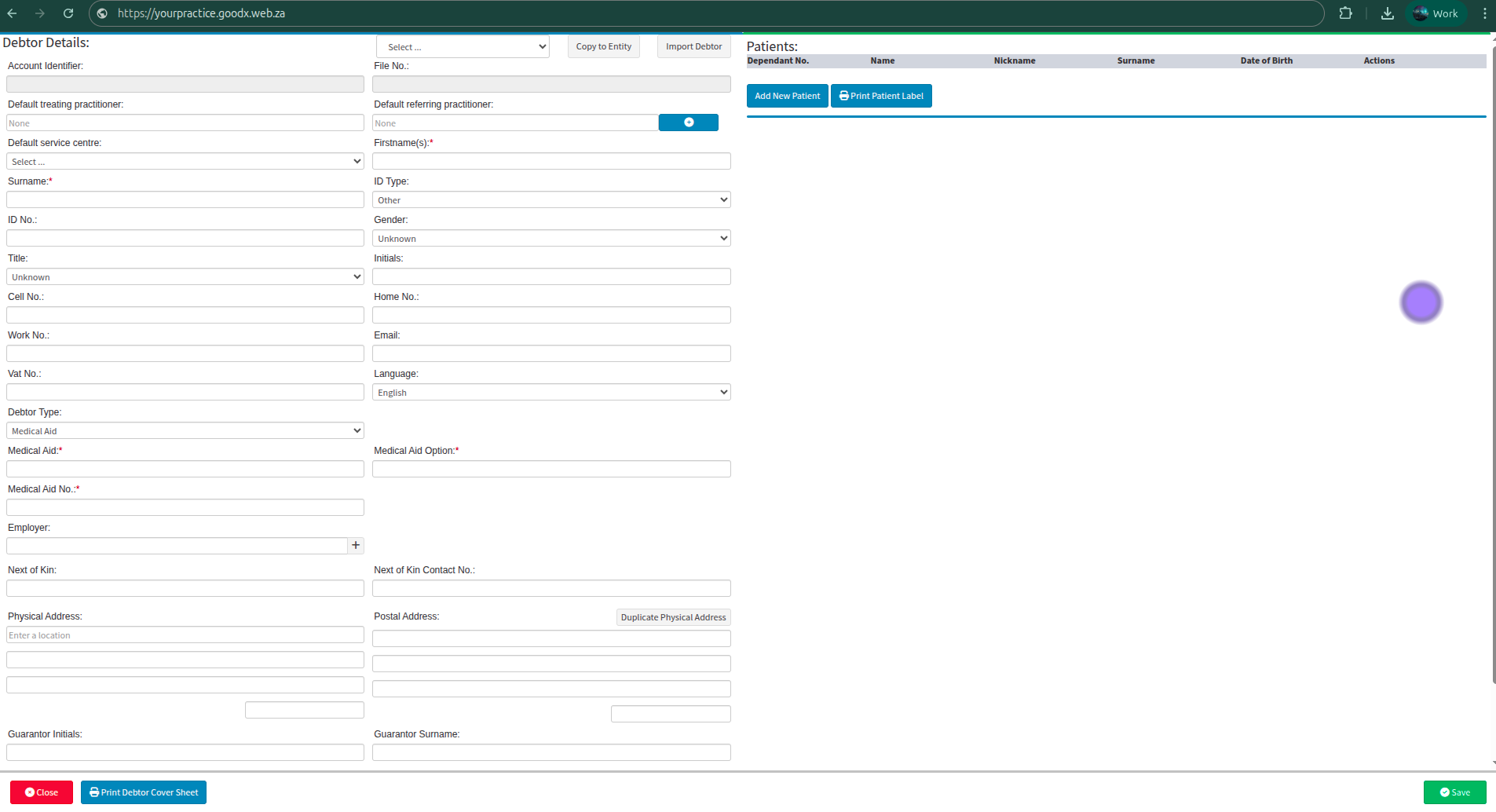
The AI Document Extraction service is accessible during the process of adding a new debtor to the system.

To import a debtor, you may currently select the "Import Debtor" button to initiate the process.
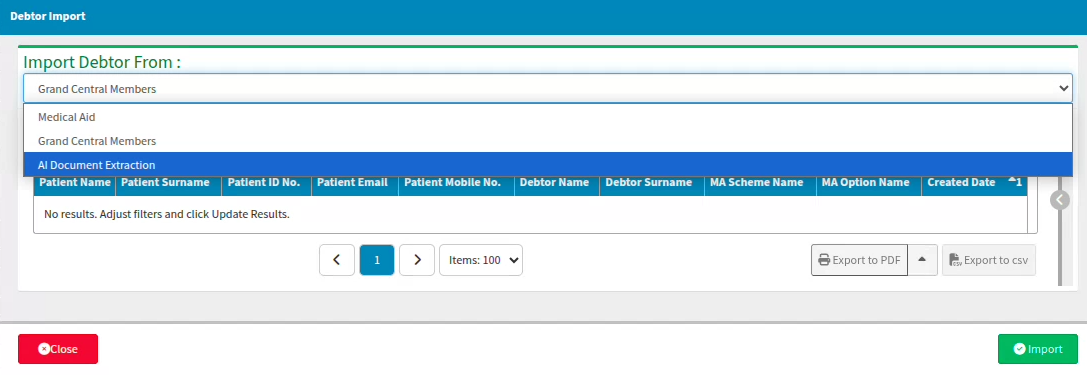
The Import dropdown menu defaults to "Grand Central Members." However, you can expand this menu to select alternative methods, such as importing via "Medical Aid" or utilizing the "AI Document Extraction" option.
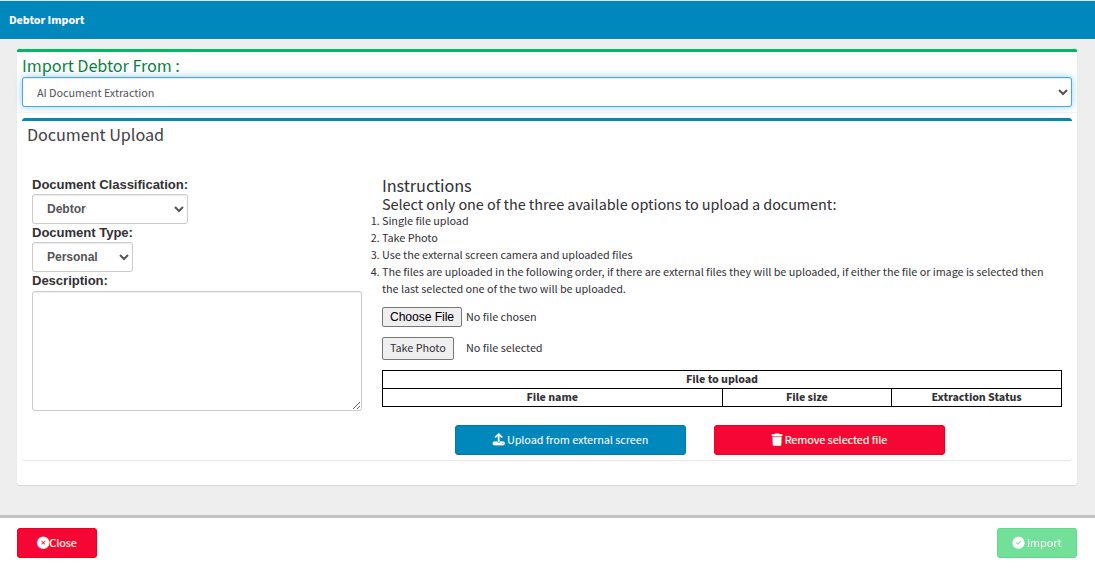
Once the AI Document Extraction option is selected from the dropdown menu, you will need to complete several additional steps to ensure the data is correctly classified as a Case, Debtor, Patient, or Printout. To ensure accuracy, you must always specify the category of the document being uploaded: Financial, Personal, or Practice.
The settings default to the basic configuration of Debtor – Personal. You may upload the document either as a high-resolution image file or as a standard PDF.
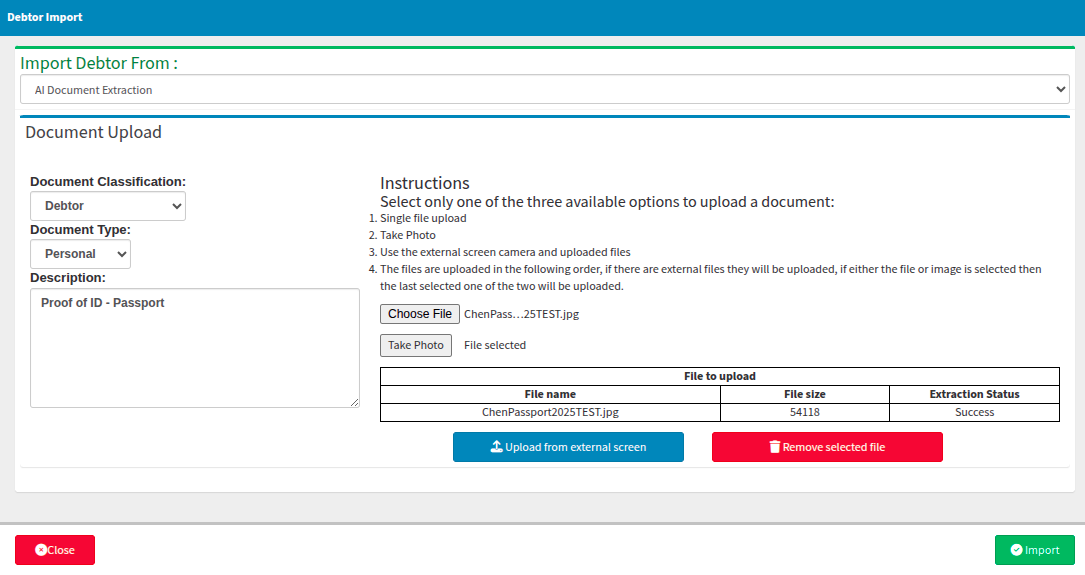
Once the AI Document Extraction process is complete, the "Import" button will brighten, indicating that it is active and available for selection. After the extracted information is displayed, you may proceed to add the debtor or patient to the system as required.
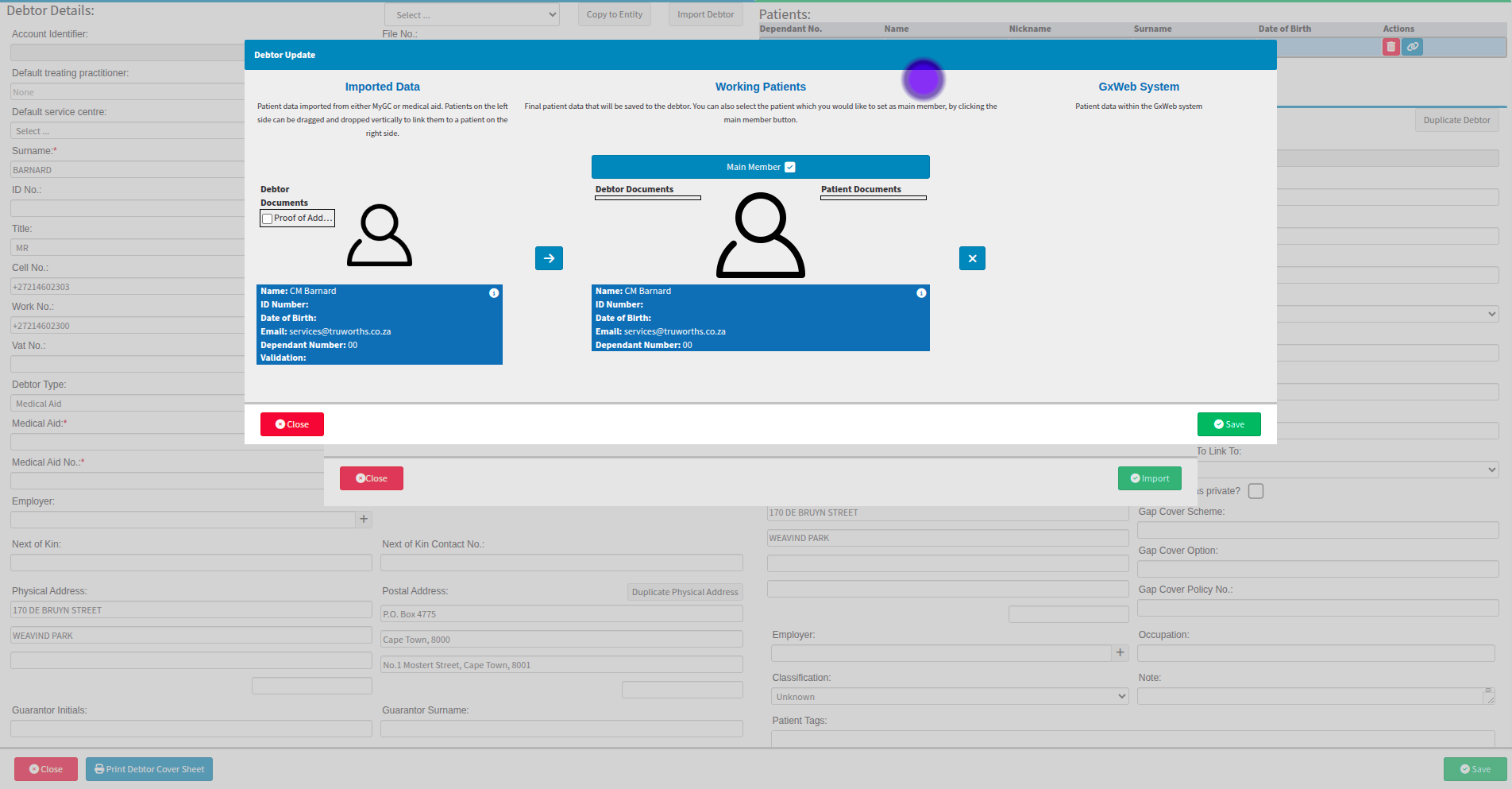
In the event that a patient or debtor record is duplicated—often triggered by multiple identifying values such as matching dates of birth or ID numbers—you have the discretion to select and import the record containing the most comprehensive and complete information.
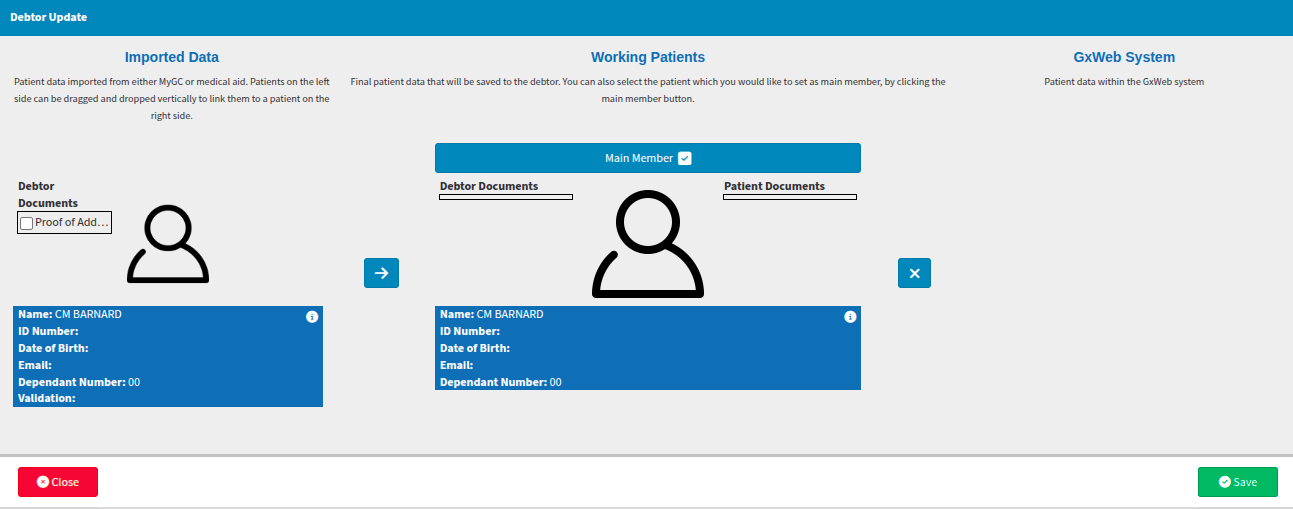
Additionally, you have the option to save the uploaded document and link it directly to the debtor or patient profile currently being created for future reference, by selecting the empty "Debtor Documents" box.
Secondary information can be removed by selecting the "X" icon, as highlighted below. It is essential to verify that you are not duplicating existing debtor or patient information during the import process.
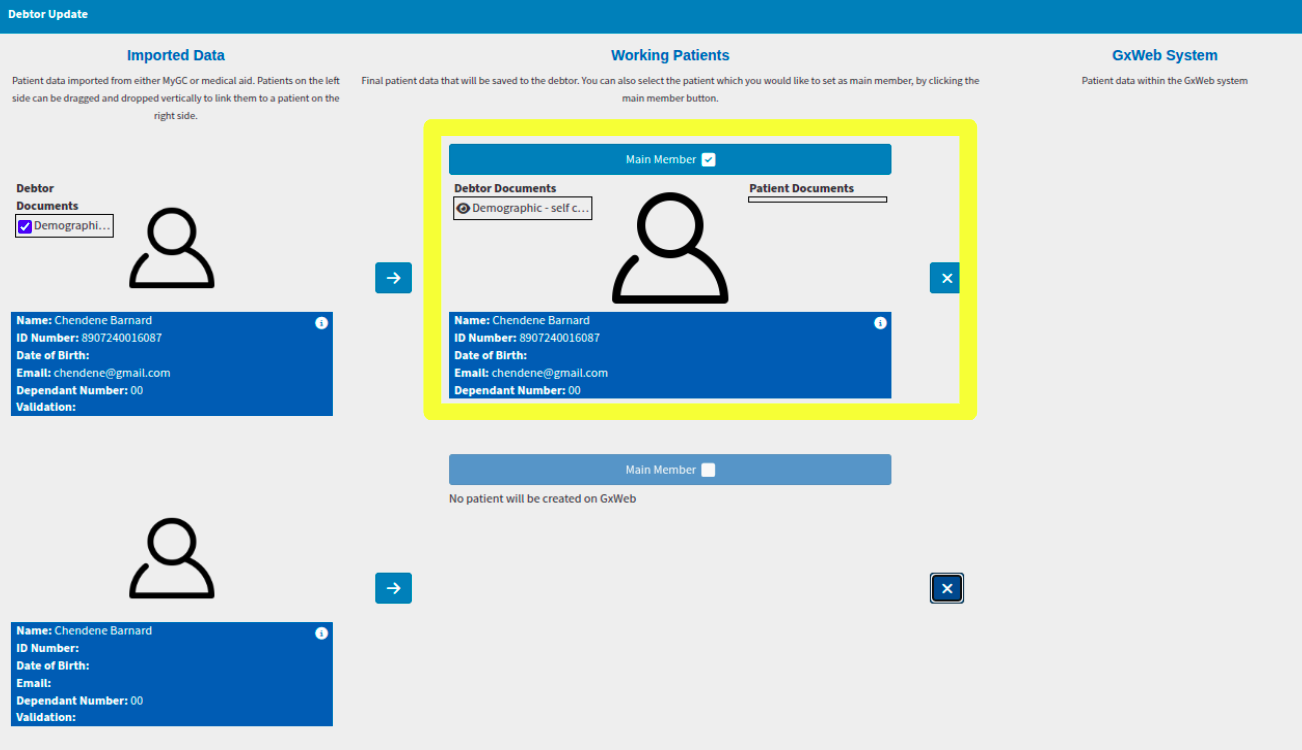
If duplicate information is inadvertently imported, you can remove the redundant entries within the patient information section. Once marked, the duplicate debtor will be displayed with a red strike-through to signify its status. Please note that these duplicates cannot be permanently hidden or removed from the system views.

Once you select "Save," the extracted information will automatically populate the corresponding fields. It is essential to perform a final review of these areas to ensure that the data sourced from statements or alternative documents is accurate and relevant to the specific debtor or patient profile.
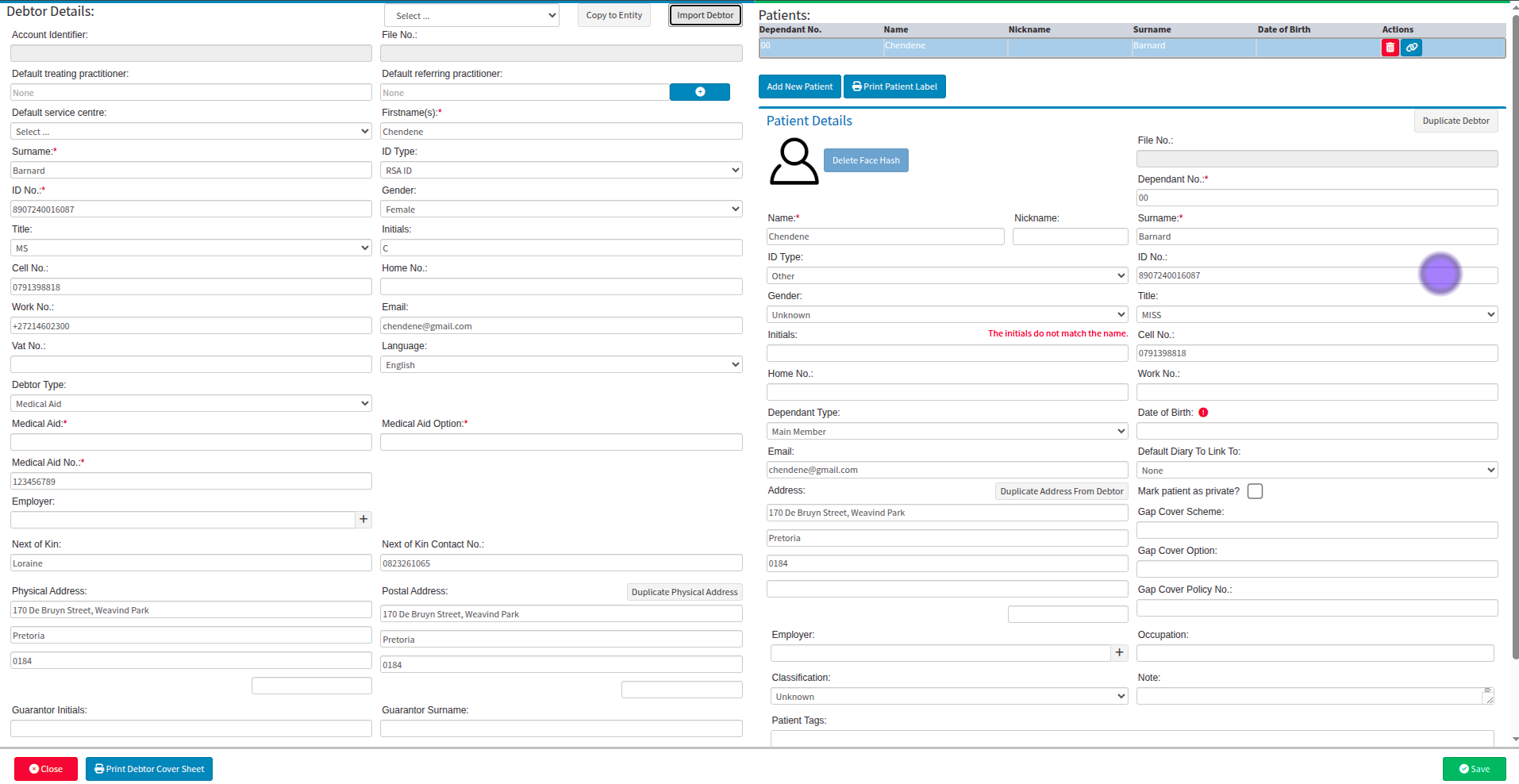
While you can have patients pre-fill forms and then use the AI Document Extraction tool to pull that typed data, you must carefully verify the results. Ensure all fields are populated correctly, and manually add, select, or correct any information as required to maintain data integrity.
Where to learn more about AI Document Extraction within GoodX :
The GoodX YouTube Channel https://www.youtube.com/@GoodXSoftware
The GoodX Click&Learn courses https://courses.goodx.co.za/
The GoodX Learning Centre https://learning.goodx.co.za/
Please note these courses are only modules and are different from the Click&Learn courses. To learn more about AI Document Extraction, you can apply these search terms:
| Date of Change | Changes | Editor |
| 2026 05 12 | Established Page | Chendene Barnard |