Text size
Line height
Text spacing

What is the “MyGC” feature?
The MyGC Portal is a secure, patient-facing application designed to enhance transparency and engagement. Once registered, patients are empowered to manage their healthcare journey by accessing historical and current invoices, clinical prescriptions, and detailed medical notes. This integrated platform also drives practice growth by enabling patients to conveniently schedule appointments with their preferred specialists, providing a modern, digital-first experience for your practice.
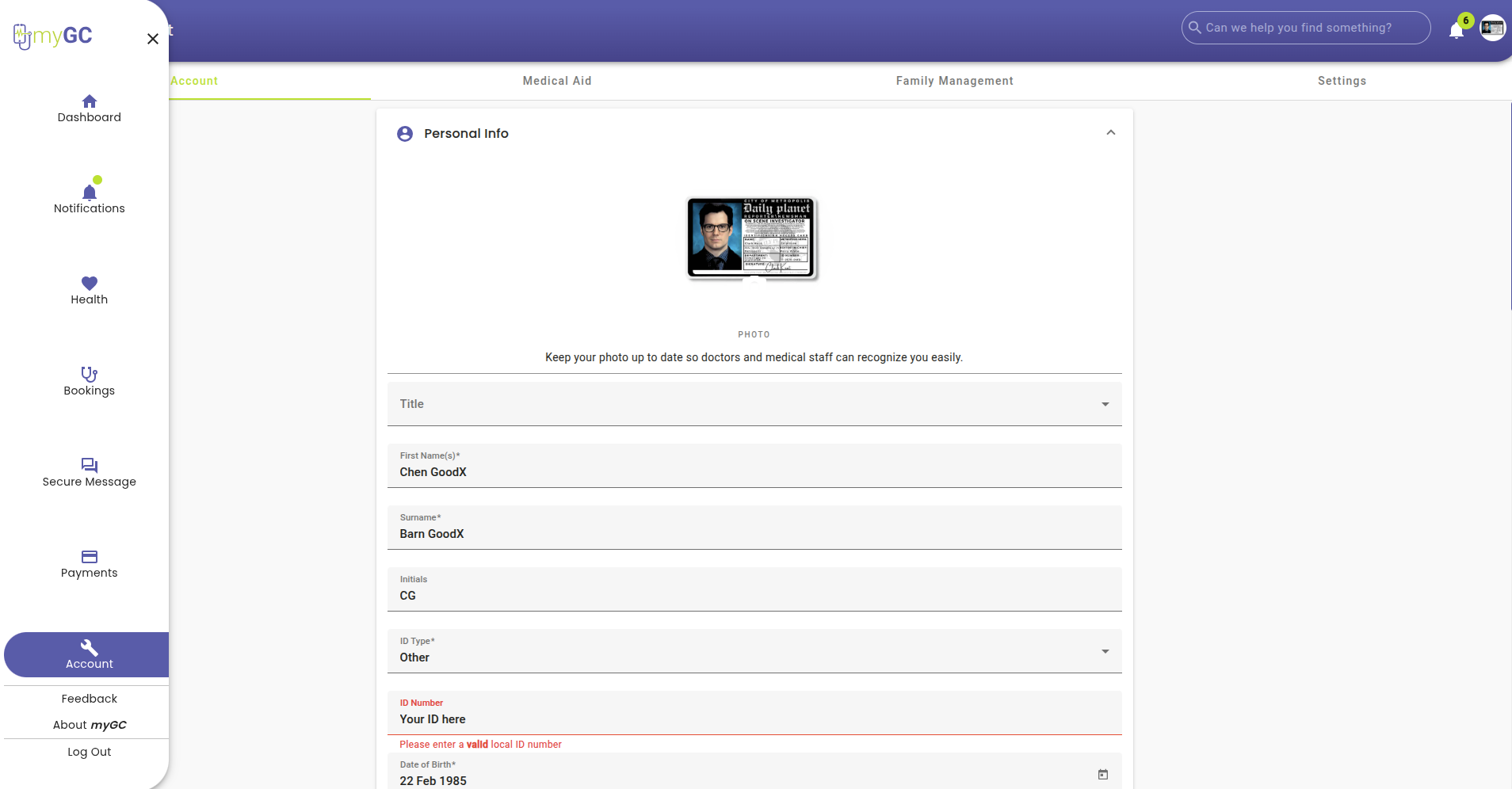
Please note that while the MyGC Portal is a core feature, it integrates with several Value-Added Services that may incur separate charges. Standard SMS notifications are typically governed by your existing GoodX Service Level Agreement. However, premium features—such as Integrated VOIP Calling and Digital Payment Links—are optional add-on services that require a separate subscription and carry additional usage fees. Contact your representative to activate these enhanced capabilities for your practice.
How is the “MyGC” feature activated?
Activation of the MyGC interface is managed at the entity level via the GoodX Web platform. To ensure a successful rollout, please verify that the following three core requirements are met:
Grandcentral Settings: Ensure this section is fully populated within your Entity Diary configuration.
Online Presence: Confirm that the "Online Presence" toggle is active. (Note: As of Web v 1.19.3 / Web v 1.18.16, this setting is located under the Configuration tab of the GoodX navigation wheel).
Please be advised that GoodX does not have the administrative authority to modify practitioner data within external directories. Should you identify a discrepancy in your online presence or credentials, these corrections must be initiated at the source - Medpages. Once updated at the directory level, the corrected information will automatically synchronize with your MyGC profile.
Is a patient MyGC profile mandatory to use the interface?
While the MyGC Portal significantly streamlines the patient journey by providing instant access to digital forms, invoices, and clinical records, its use is entirely optional. Patients are not required to register on the application to receive care.
Patients can fulfill outstanding balances via secure Payment Links without the requirement of a registered MyGC profile. This "Guest" payment path ensures a frictionless settlement experience. However, please note that while the payment is processed securely, the patient will not have on-demand access to their transaction history or past invoices. In these instances, the financial record remains stored exclusively within the practitioner’s local debtor database.
Transform your waiting room with Digital Kiosk Intake. Using the MyGC interface on a tablet, patients can quickly review and sign digital forms. By leveraging Auto-Patient placeholders, the system dynamically pulls existing data from the patient’s Debtor file to pre-populate the forms. This streamlines the intake process, often leaving the patient with only the final signature to provide. While these forms are saved directly to the practitioner's clinical debtor file, registered MyGC users enjoy the added benefit of being able to retrieve their completed documentation at their convenience from their own devices.
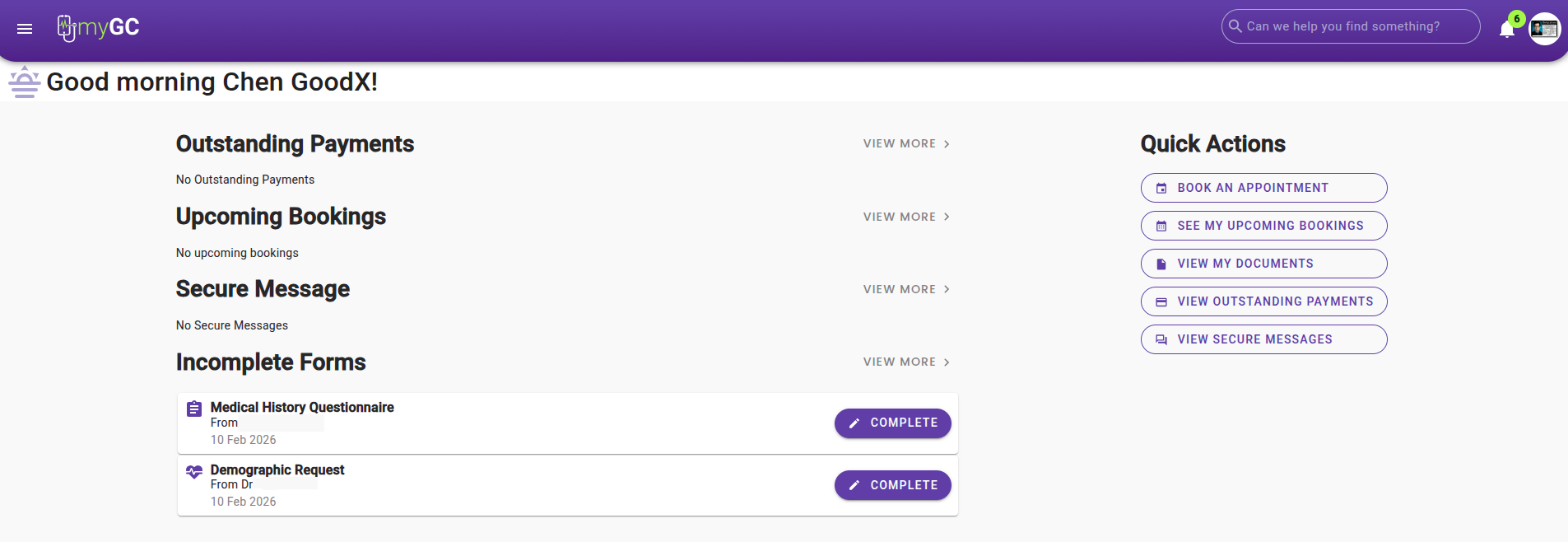
Patients have the option to use Google Single Sign-On (SSO). By authenticating through an existing Google account, users can instantly access their documents using their existing Google credentials. This secure authentication method ensures that patients can access their forms and questionnaires with minimal effort while maintaining high security standards.
How can the “MyGC” feature be applied?
The MyGC platform integrates seamlessly with your diary to streamline document management. Your practice maintains full control over which specific files are mandatory for each patient. The system utilizes color-coded indicators for immediate clarity: a red status signifies that essential documents are still outstanding, while a green status confirms that all required documentation has been received and successfully processed.
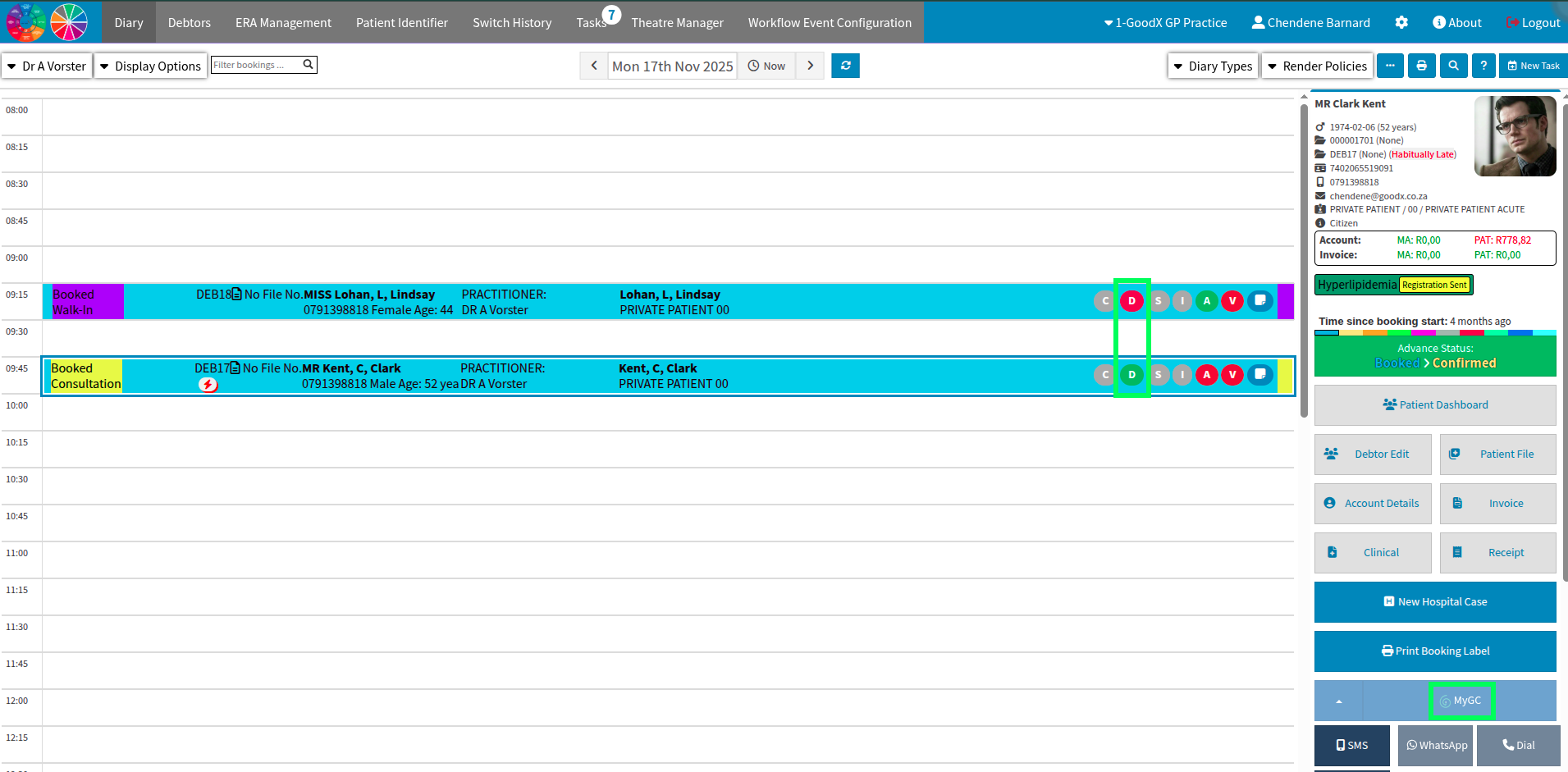
Functions that have not yet been configured will appear greyed out or in a lighter shade to indicate they are inactive. An inactive MyGC button signifies that the practitioner's setup is incomplete; until finalized, features such as digital form distribution or patient direct online booking will remain disabled for that specific entity.
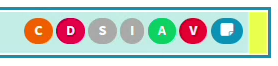
The "C" icon on the Diary serves as a dedicated status indicator for clinical documentation. When clinical documents are dispatched through the MyGC platform, this icon will transition to Orange.
Optimize your patient flow with Custom Status Transitions. You can easily add a "Kiosk" step to your workflow, ensuring patients complete all digital documentation before they proceed. This ensures that no patient moves forward until their mandatory intake requirements have been satisfied at the Kiosk.
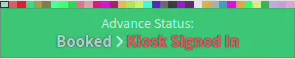
What should the “MyGC” diary setup look like if the patient is to receive custom / multiple forms based on booking type?
To achieve full Diary Optimization, the MyGC interface allows for highly customized booking types tailored to practitioner preferences. Each booking type can be configured with specific consent forms, custom questionnaires, and automated reminders or confirmations, with precise control over their release timing. For these automated workflows to function, it is critical to include "Grand Central SyncVite" within your technical setup to ensure seamless data synchronization.
System automation allows for a chronological communication timeline, such as an immediate booking confirmation followed by an SMS or email reminder sent 1 to 7 days prior to the appointment. This setup is ideal for integrating Patient Care and Education into the workflow. Practices can attach unique information booklets or guides and embed trusted web links (e.g., YouTube) directly into the email templates, ensuring the content is specifically tailored to the procedure or booking type selected.
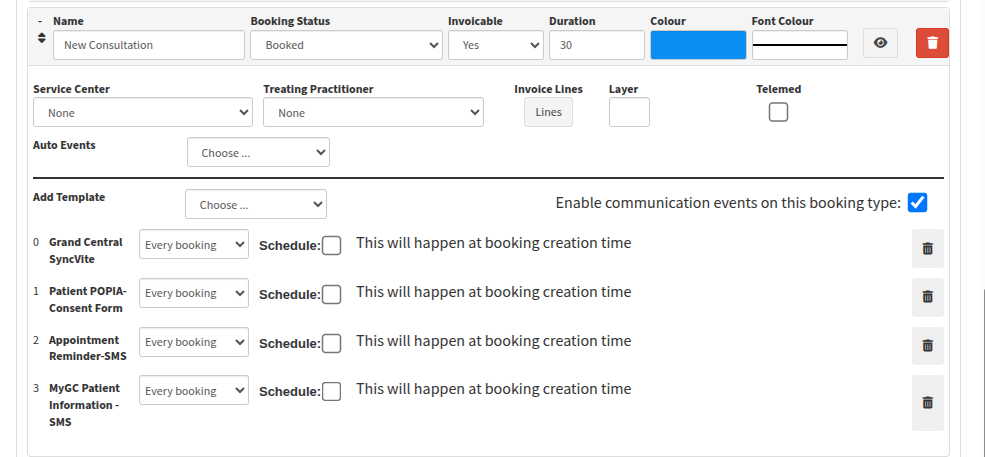
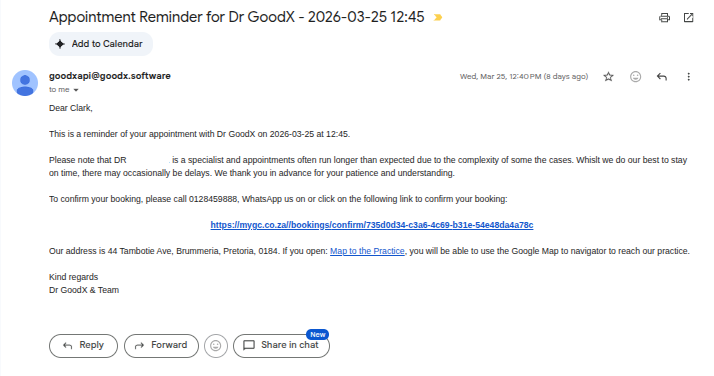
Below is an example of an appointment reminder set for a few days before the booking type created.
How would the patient confirm their booking through MyGC?
Save time and reduce "no-shows" with Self-Confirmation Links embedded in your automated emails, patients can verify their own appointments directly. This self-service functionality eliminates the need for manual courtesy calls, freeing up your reception staff for more complex tasks. The link serves a dual purpose: it acts as a timely reminder of the upcoming visit and empowers the patient to formally confirm their attendance, ensuring your diary remains accurate and optimized.
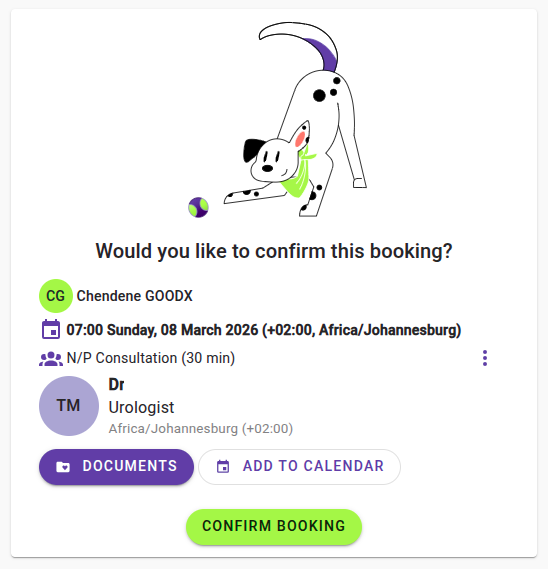
Experience Real-Time Diary Sync with every patient confirmation. Once a patient clicks their confirmation link and selects "Confirm Booking" highlighted in green - based on your pre-defined status naming conventions, the entry for that appointment will automatically transition from “Booked” to “Confirmed.” This ensures your schedule is always up to date, giving your team a clear, visual overview of confirmed appointments at a glance.
By selecting the “Documents” button highlighted in purple above, patients can instantly see if any requirements are outstanding. This allows them to complete everything necessary from the comfort of home, ensuring that when they arrive for their booking, they can head straight to their appointment instead of filling out forms in the waiting room.
How would you know if the links had been sent successfully?
For rapid navigation, the Notepad Icon on the diary serves as a direct link to the Admin Page.
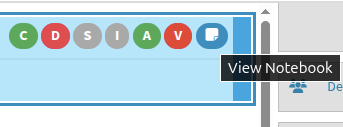
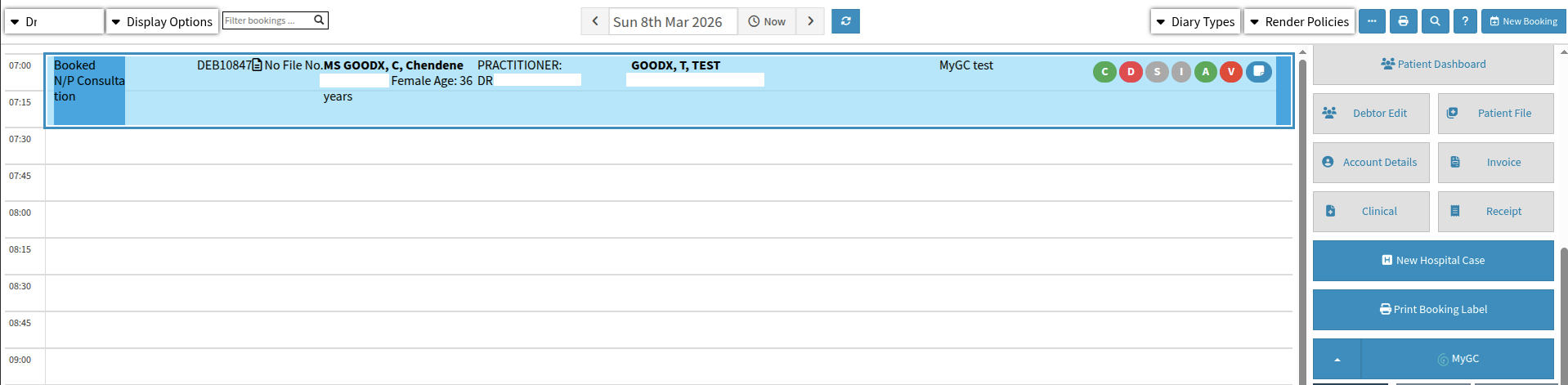
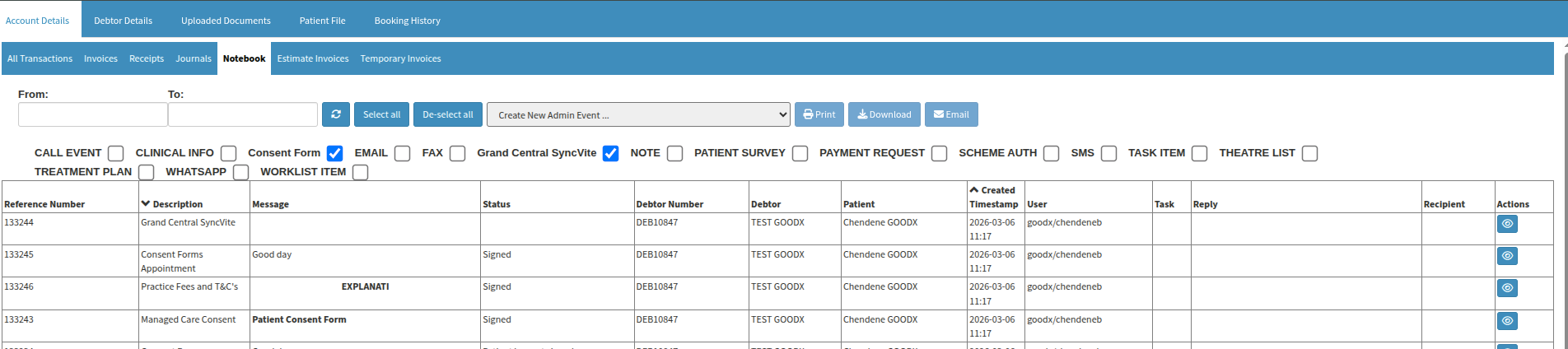
Optimize your search with Customized Data Filters. By choosing "De-select All," you can strip away unnecessary information and focus strictly on what matters. Simply tick the relevant options—like Grand Central Syncvite or Consent Forms—to view specific results and manage your practice setup with greater precision and speed.
Track every administrative action with the Admin Event History report. Found in the "Reports" menu on your navigation wheel, this tool lets you search by debtor or patient for full transparency. Speed up your search by using “De-Select All” to clear the clutter, then simply check the boxes for the specific data fields you want to monitor.
How would you know if the patient has completed the forms?
Upon the patient's completion and signature of all assigned forms, the booking's MyGC status indicator transitions to green. In instances where the MyGC link includes clinical forms, the corresponding C icon on the diary will similarly change from orange to green to signify that the documentation is complete.
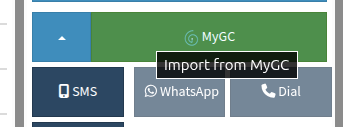
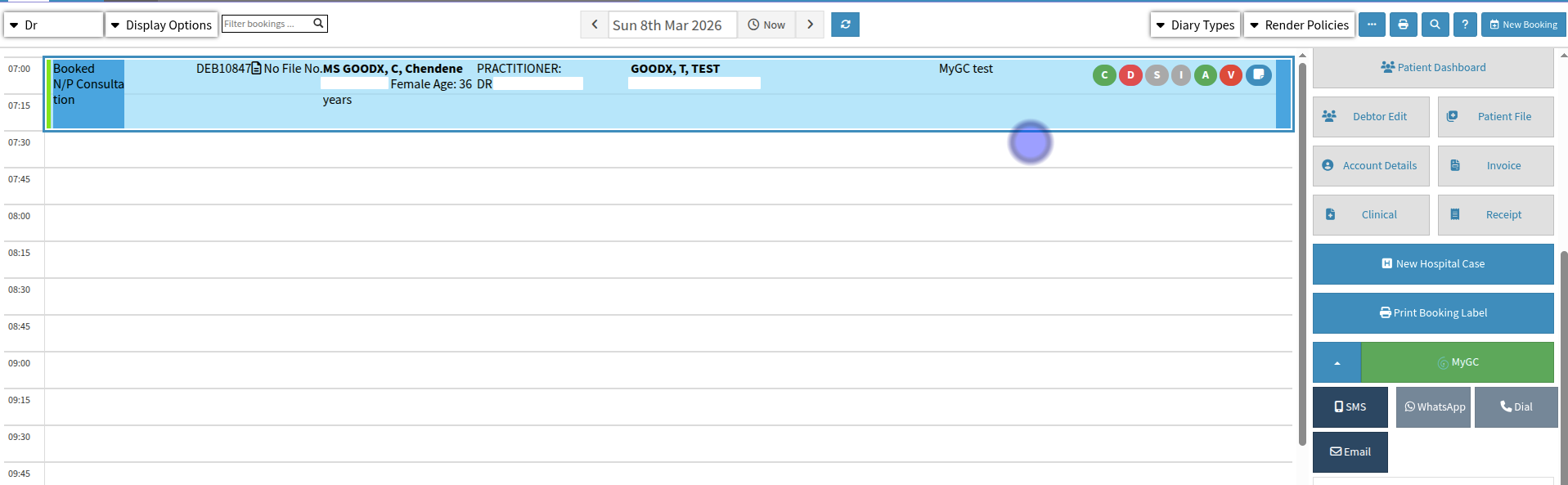
Selecting this option allows you to synchronise and import the patient's completed information through an interface that mirrors the Medical Scheme debtor validation import screen. You can finalise the process by simply choosing the relevant acceptance options. It is important to note that deselecting the listed debtor import option may result in the creation of a duplicate debtor record within the system.
What does the "MyGC" form look like to the patient?
The MyGC functionality facilitates the distribution of questionnaires, consent forms, and bespoke documentation for patient completion and signature through diary automation setups. You may dispatch individual custom or consent forms directly from the diary screen by accessing the MyGC drop-down menu to reveal the supplementary options. Furthermore, if a kiosk has been configured for your practitioner, these forms can be seamlessly directed to an available kiosk terminal within your practice.
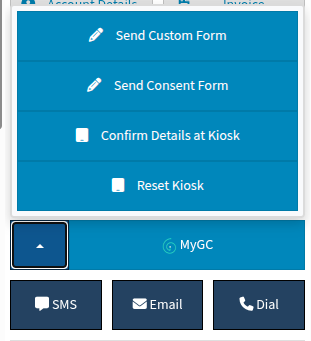
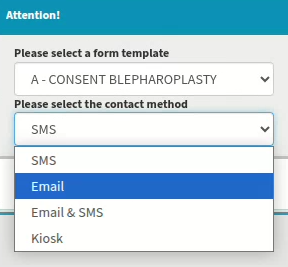
After choosing the desired form type, the specific template is selected from the populated drop-down menu, followed by the preferred contact method. In environments where a kiosk has been configured for the entity, you may also specify the particular kiosk name or number by selecting the "Kiosk" option from the drop-down menu.
As soon as the information is selected and dispatched, the patient receives the notification via their chosen delivery method. The following example illustrates the format and appearance of an automated email notification sent to the patient.
The email is dispatched from a linked address provided by the practice, such as admin@yourpractice.co.za, ensuring patients easily recognise the sender. If this configuration is not in place, the sender address will reflect as a generic goodxAPI account. To address this and personalise your communication, please contact your GoodX relationship liaison for assistance.
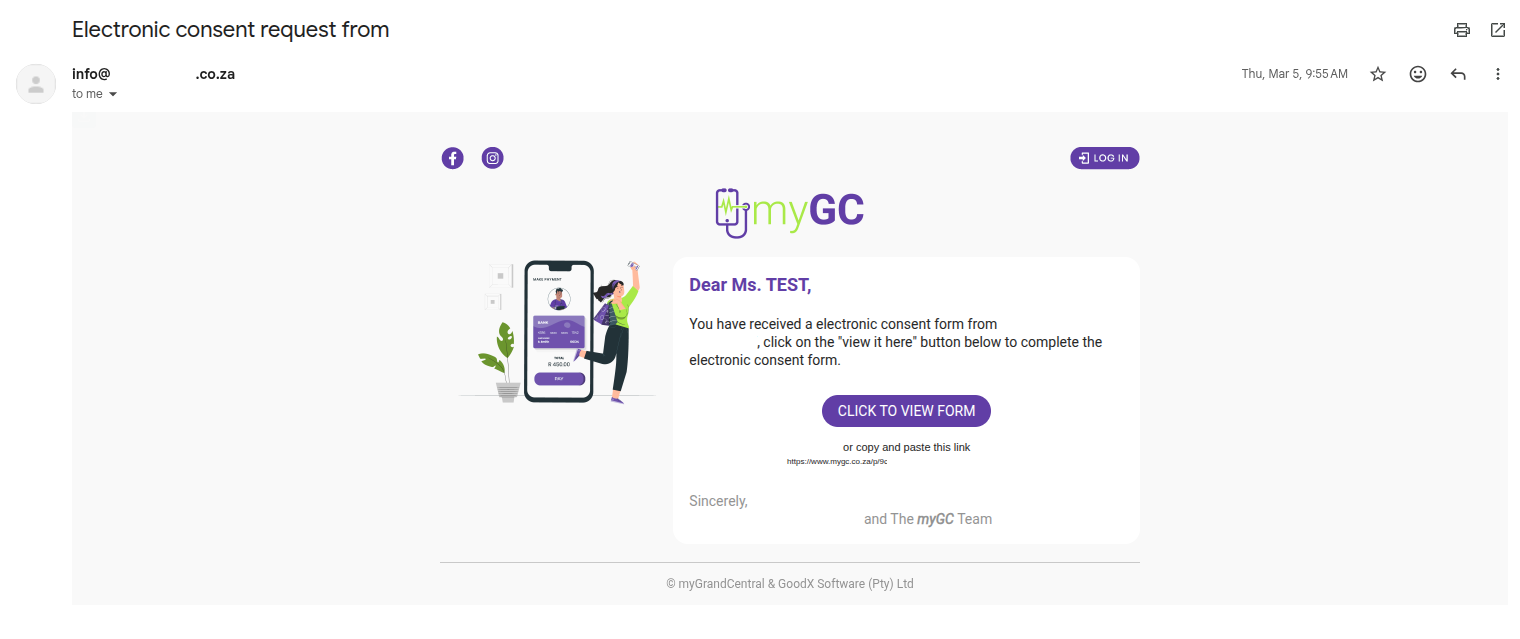
Your patient does not need to have a MyGC profile to complete these pages. They can continue with their google accounts or simply continue on the link provided embedded to the button “CLICK TO VIEW FORM”.
The example provided below illustrates a single-form completion process, specifically featuring the Demographic Information Questionnaire.
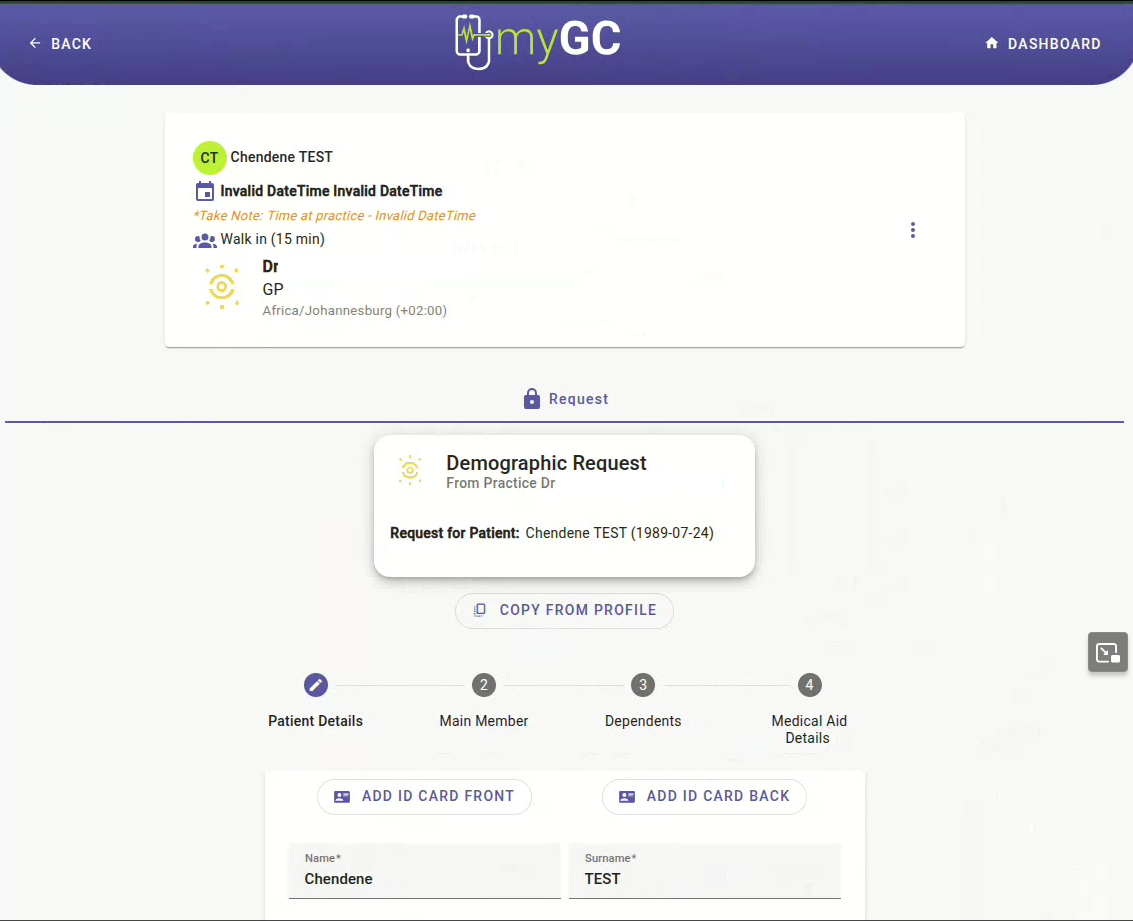
When completing demographic or healthcare forms, the patient's history will only be imported into and override their existing GoodX medical history if they have specifically selected the option to override current data. For this synchronisation to function correctly, the patient must possess an active MyGC account and be securely logged in while completing the relevant forms.
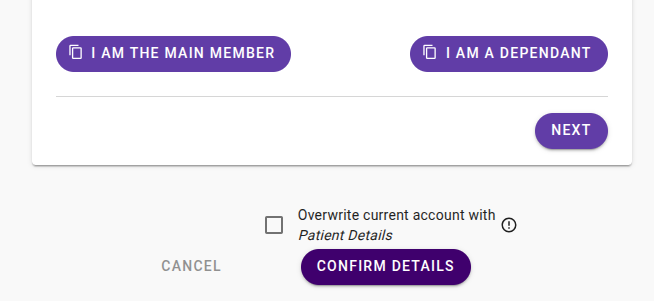
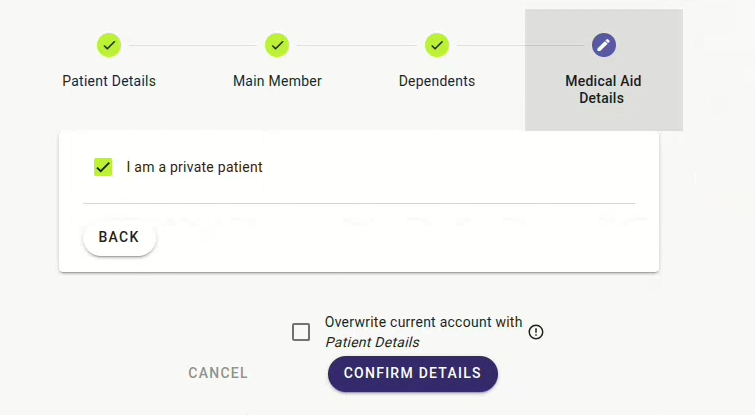
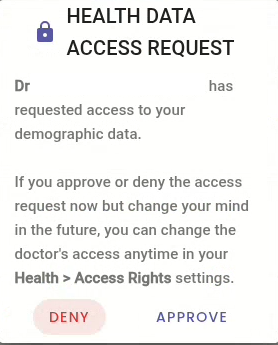
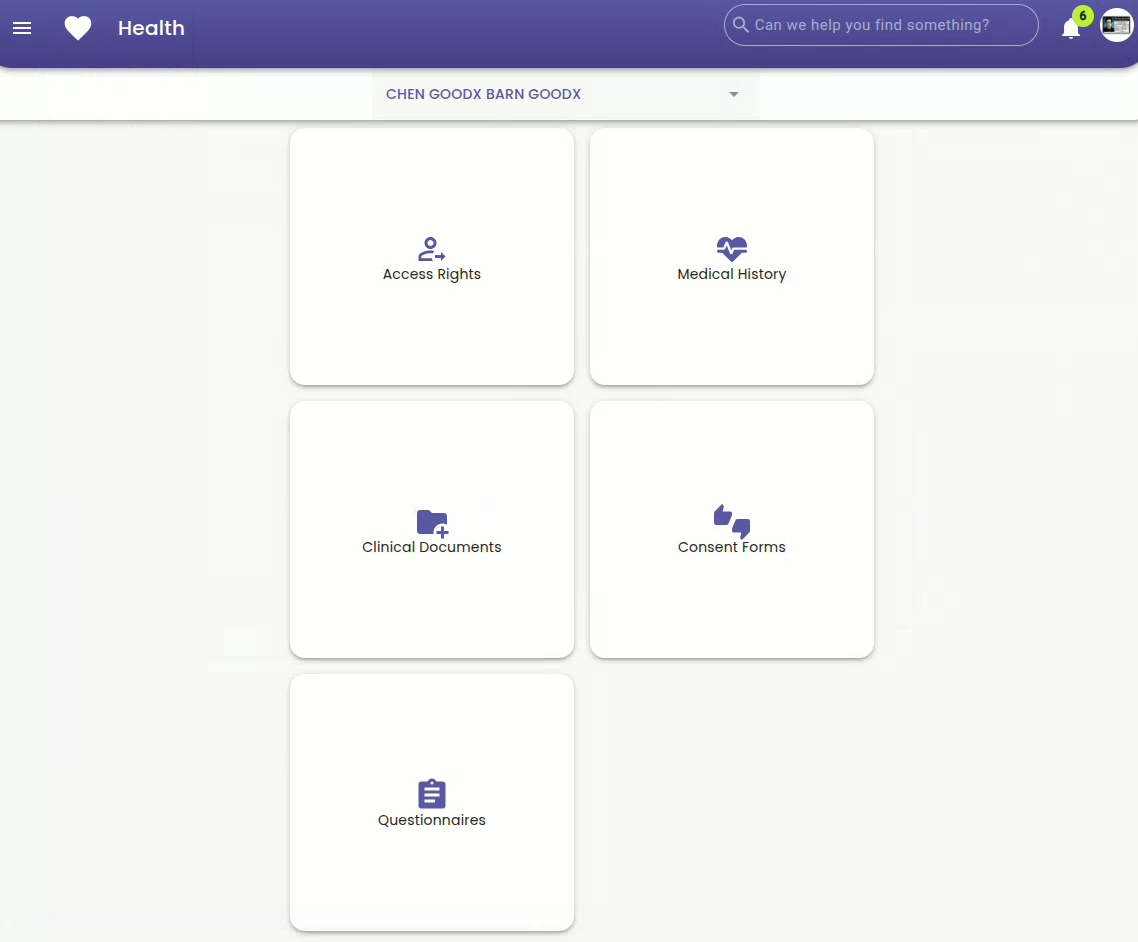
Upon confirmation of their details, a supplementary rights request is presented, empowering the patient to manage and control specifically who is authorised to access their personal health data.
How does multiple forms through "MyGC" display?
In instances where multiple forms require completion, these will be presented in succession provided that the diary automation for your specific diary types has been correctly configured. Should a patient exit the process prematurely, they can resume by logging back in and navigating to the last active tab or page. Progress is automatically saved as the patient advances through each section of the documentation.
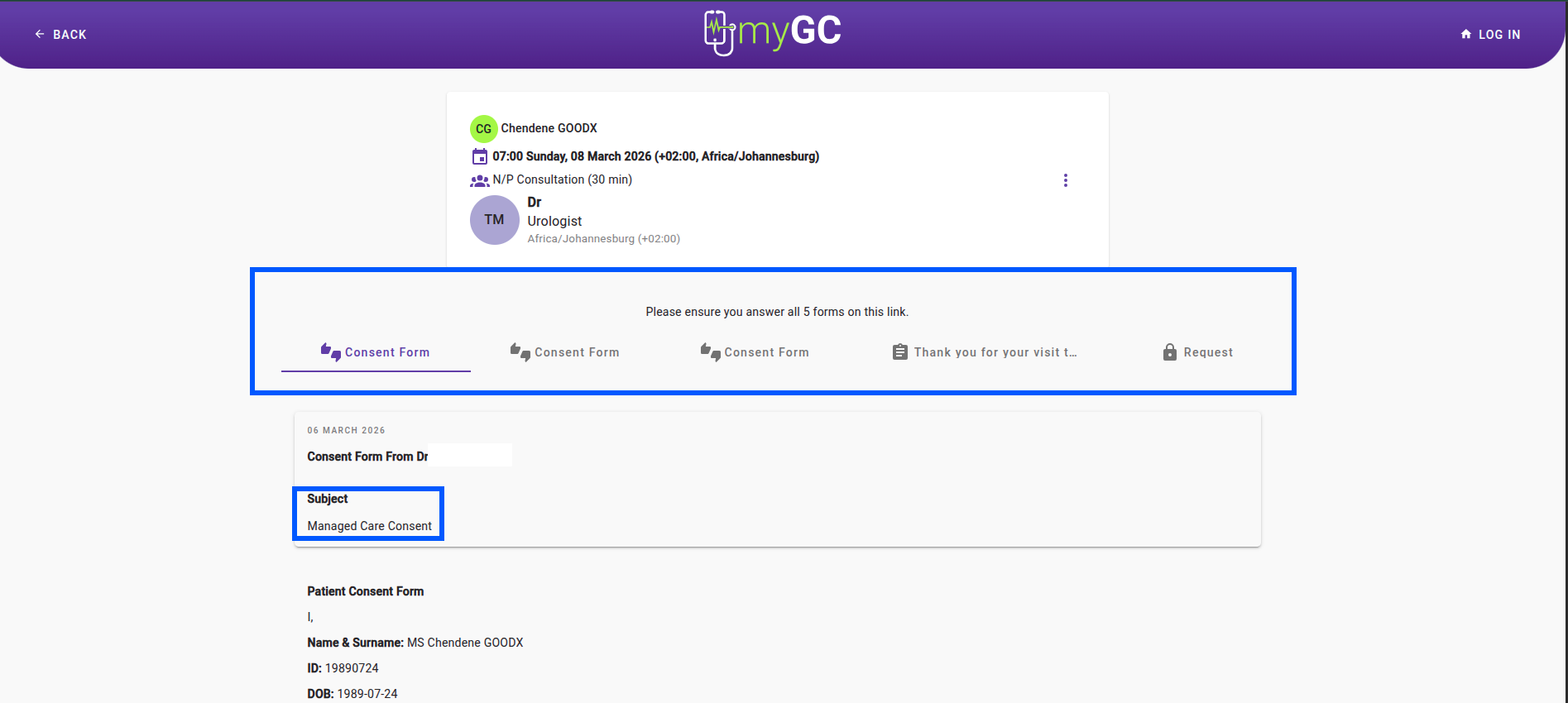
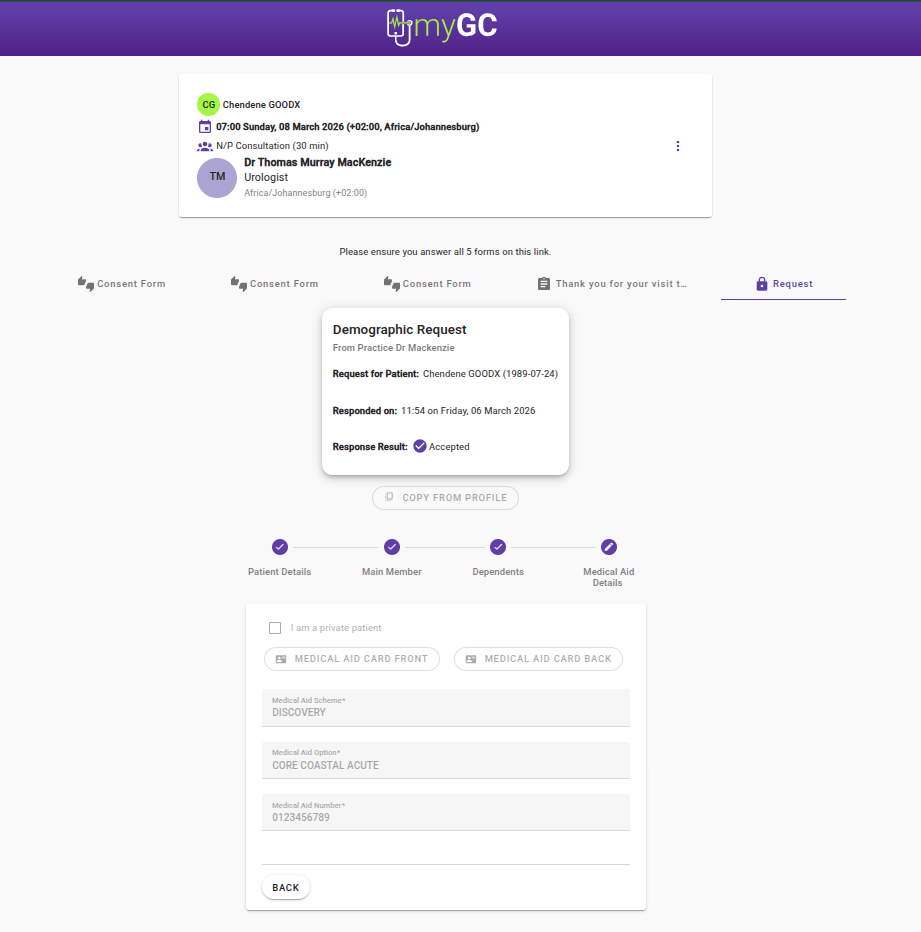
Upon successful submission of all required documentation, the MyGC status indicator on the patient’s diary booking transitions to green to signify completion.

Patients with an active MyGC profile can access and review all previously completed forms, while also benefiting from the various other functionalities offered through the MyGC interface.
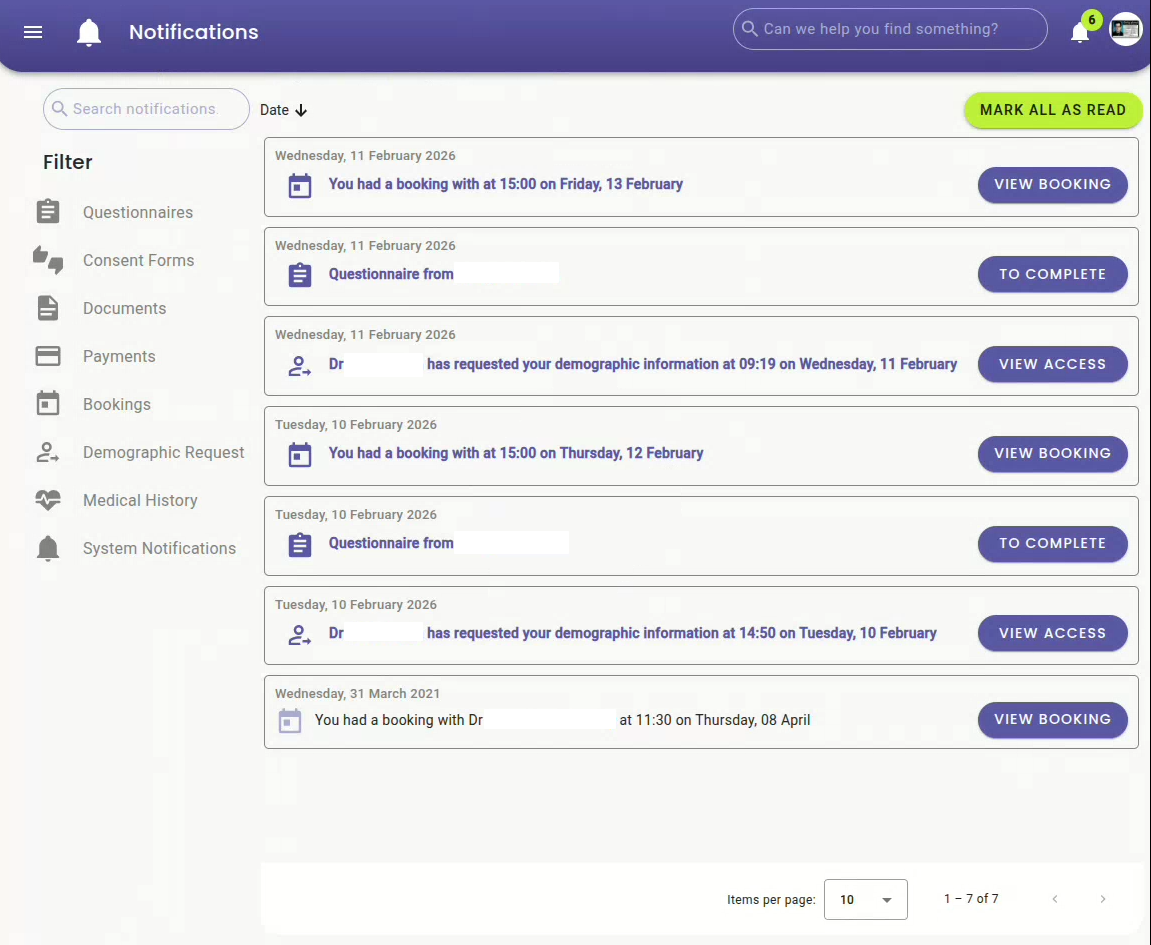
Where to learn more about MyGC within GoodX :
The GoodX Click&Learn Courses https://courses.goodx.co.za/
The GoodX YouTube Channel https://www.youtube.com/@GoodXSoftware
The GoodX Learning Centre https://learning.goodx.co.za/
Please note these courses are only modules and are different from the Click&Learn courses. To learn more about MyGC, you can apply these search terms:
| Date of Change | Changes | Editor |
| 2026 April 02 | Established Page | Chendene Barnard |
| 2026 May 12 | Updated to formal British-style English, which is the standard used in South African English. | Chendene Barnard |