Price structure and Contracts within GoodX
| Site: | GoodX Software Learning Centre |
| Course: | GoodX Manage for Medical |
| Book: | Price structure and Contracts within GoodX |
| Printed by: | Guest user |
| Date: | Wednesday, 22 July 2026, 9:32 PM |
Table of contents
- 1. Price terminology
- 2. General coding information
- 3. Billing sequences per discipline
- 3.1. What is a code?
- 3.2. What is unit type and RCV
- 3.3. Rules governing the coding structure
- 3.4. Modifiers governing the coding structure
- 3.5. General modifiers used in GoodX
- 3.6. Type of codes in GoodX
- 3.7. Prescribed Minimum Benefits (PMB)
- 3.8. Price list structure and RVU's
- 3.9. Price setup screen in GoodX
- 3.10. Namibie Price Setup
- 4. Price collections
- 5. Price lists
- 6. Relative Conversion Factors (RCF)
- 7. List of tariff codes - summary of changes
- 8. Maintaining billing groups - summary of changes
- 9. Linking price lists to billing codes
- 10. Testing
- 11. Create a New Manual Price List
- 12. Add custom linking profile
- 13. Price Configuration Checklist (Per Price Package/Speciality)
- 13.1. Step 1: Client on latest Version, Pricetool & Medprax updated?
- 13.2. Step 2: Server Client - is the WS Client running?
- 13.3. Step 3: Checksum Test: FD vs PG 2018
- 13.4. Step 4: Import Filedata Group Files (From FD to PG)
- 13.5. Step 5: Import Filedata Pricelists (From FD to PG)
- 13.6. Step 6: Save current 2018 Combinations with Items
- 14. Troubleshooting
- 15. Hospital Prices
- 16. Pricelist Management Tools
- 17. Altering tariff-code data in bulk
1. Price terminology
|
Term |
Notes |
|
Pricelist Discipline |
A pricelist discipline is a master collection of tariff codes that are used to generate pricelists. Examples of disciplines:
Tariff codes are unique within a collection , but may be duplicated across collections. Example – code 0005 means something different in a physio-therapist environment than in a medical practitioner environment. |
|
Price Collection |
A price collection is a collection of tariff codes that can be billed in the system. A price collection is subdivided into various pricelists. Individual pricelists are tailored to carry the prices necessary for effective billing in the medical environment. Individual price lists are linked to medical aids in the system. The system then “knows†which tariffs to charge, based on the medical aid to which the patient belong. Price collections are linked to a financial year. |
|
Price list |
A list of tariff codes with prices tailored to the specific pricelist. GoodX makes provision for the following type of pricelists:
|
|
Local prices vs GoodX prices |
GoodX issues official price collections to clients on demand. The prices are automatically updated from time to time, when necessary. Users have the option to
|
2. General coding information
xxx
3. Billing sequences per discipline
x
3.1. What is a code?
A code is a tariff code used by practitioners for services rendered. It can be a group in different categories so that a monetary value can be added to the codes.
Most common categories used in GoodX.
- Consultative Services
- Clinical Procedures
- Anaesthesiologists
- Radiology
- Ultrasound
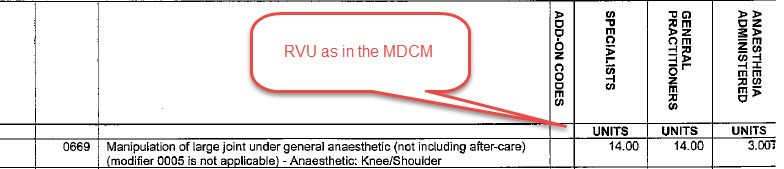
The MDCM (Medical Doctor's Coding Manual) is a publication SAMA (South African Medical Association) produces annually and contains all procedural codes, description of the codes, RVUs, Rules, Modifiers, and interpretation for the use of some procedure codes.
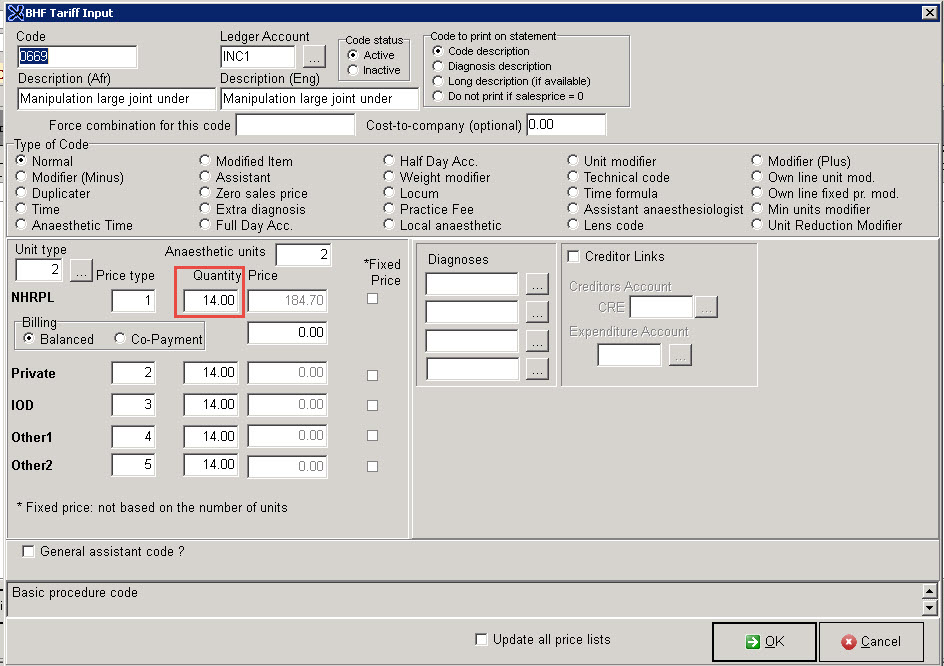
The MDCM provides us the RVU (Relative Value Unit) for each code. Every service rendered, is allocated a relative value unit. This compares the relativity between the various services, based on time, expertise, difficulty, etc. The RVU is constant for the service rendered for a specific specialty and may not be changed.
In GoodX you will see this as the quantity of a code.
3.2. What is unit type and RCV
As previously mentioned that all codes are divided into different categories what we call in GoodX the unit. Each category is given an RCF(Rand Conversion Factor)
RCF(Rand Conversion Factor)
A unit is allocated a monetary value. A different monetary value is allocated to each unit, based on whether it is a clinical procedure unit, consultative unit, anesthetic unit, etc
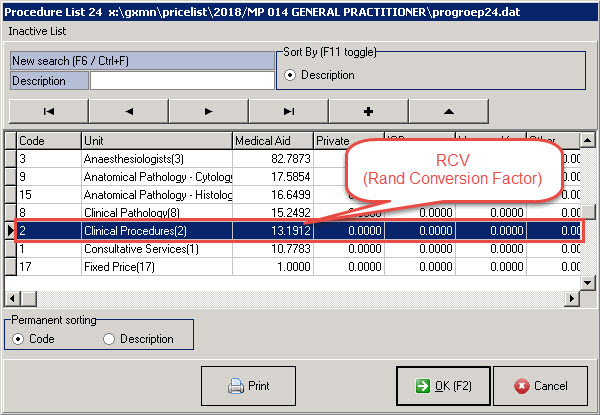
The monetary value for a service is calculated by multiplying the RVU with the RCF.
So in this example above the RVU value is 14 and the RCF is 13.1912
14 X 13.1912 = 184.70
3.3. Rules governing the coding structure
Why are Rules used in the coding Structure?
The rules for medical coding ensure that processes are properly followed and that information on the accounts is accurate and correct. It also ensures that the patient's records are accurate and the claim is sent with the correct codes.
Here are a few rules but the complete list can be found in the MDCD
Rule B: Normal and after hours:
- When non-emergency, elective visits/consultation falls outside of the normal practice hours and is requested by patient for their own convenience, refer to item 0148
- Bona fide emergency consultation/visit (21:00 - 06:00 daily), refer to item 0149
Please note: patients will be personally responsible for payment of the applicable items if these services fall outside the medical scheme benefits.
Rule D: Cancellation of appointments
- Unless timely steps are taken to cancel an appointment for a consultation, the relevant consultation item may be charged. In case of a general practitioner "timely" shall mean two hours and in case of a specialist one calendar day prior to the appointment. Each case shall, however, be considered on merit and, if circumstances warrant, no consultation shall be charged. If a patient has not turned up for a procedure, each member of the surgical team is entitled to charge for a visit at or away from medical doctor's rooms as the case may be.
Rule E: Pre-operative visits
- The appropriate consultation may be charged for all pre-operative visits with the exception of a routine pre-operative visit at the hospital since that routine pre-operative visit is included in the global surgical period for the procedure.
Rule G: Post-operative care
- Unless otherwise stated, the units in respect of an operation or procedure shall include normal aftercare for period not exceeding FOUR WEEKS (after-care is excluded from pure diagnostic procedures during which no therapeutic procedures were performed)
- If the normal after-care is delegated to any other registered health professional and not completed by the surgeon, it shall be his/her own responsibility to arrange for the service to be rendered without extra charge.
- When post-operative care/treatment of a prolonged or specialised nature is required, the benefits, as may be agreed upon between the surgeon and the scheme or patient (in case of a private account), may be used.
- Normal after-care refers to an uncomplicated postoperative period not requiring any further incisions.
- A complication or exacerbation of an underlying co-morbidity that requires care other than normal aftercare for the particular operation, will qualify for a follow-up consultation item. Treatment of conditions such as postoperative pneumonia, pyrexia, wound complications, prolonged ileus (>5 days), DVT, etc, is not considered as part of normal aftercare.
3.4. Modifiers governing the coding structure
Why are Modifiers used in the coding structure?Modifiers help to identify instances where the circumstances deviate from the norm.
Type of modifiers:
AM - Addition modifier - This indicates that when using this modifier the tariff will be increased.
IM - Information modifiers - These modifiers are for information only and don't have monetary value.
RM - Reduction Modifiers - In certain cases, the tariff is decreased due to the fact that eg. post-operative care runs concurrently for all the procedures performed.
3.5. General modifiers used in GoodX
0004 - Procedures performed in own procedure rooms:
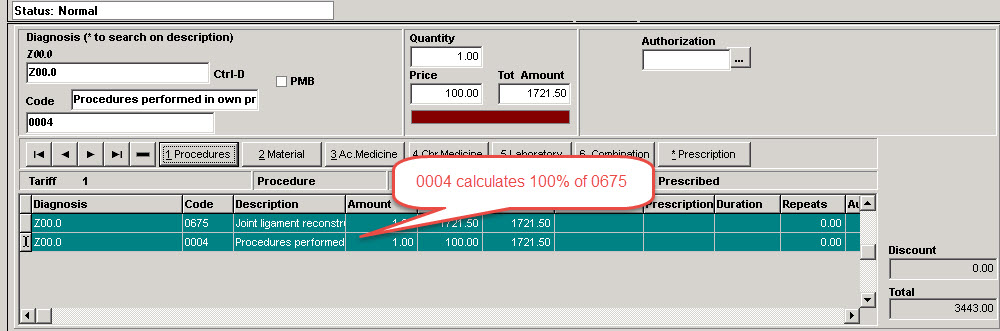
Procedures performed in a practitioner's own procedure room instead of in a hospital theatre or unattached theatre unit: as per fee for procedure + 100% (the value of modifier 0004 equals 100% of the value of the procedure performed). See Section G for a list of procedures, which are often done in rooms to which Modifier 0004 should not be applied. Please note: Only the medical practitioner who owns the facility and the equipment may charge modifier 0004. Only one person may claim this modifier for procedures performed in doctors' own procedure rooms
So the practitioner is entitled to 100% of the clinical producer's price because he takes up the risk of doing it in his own procedure room.
The modifier calculates 100% of a unit type 2 producer code. Note that it as AM (Plus modifier).

0005 - Multiple therapeutic procedures/operations under the same anaesthetic:
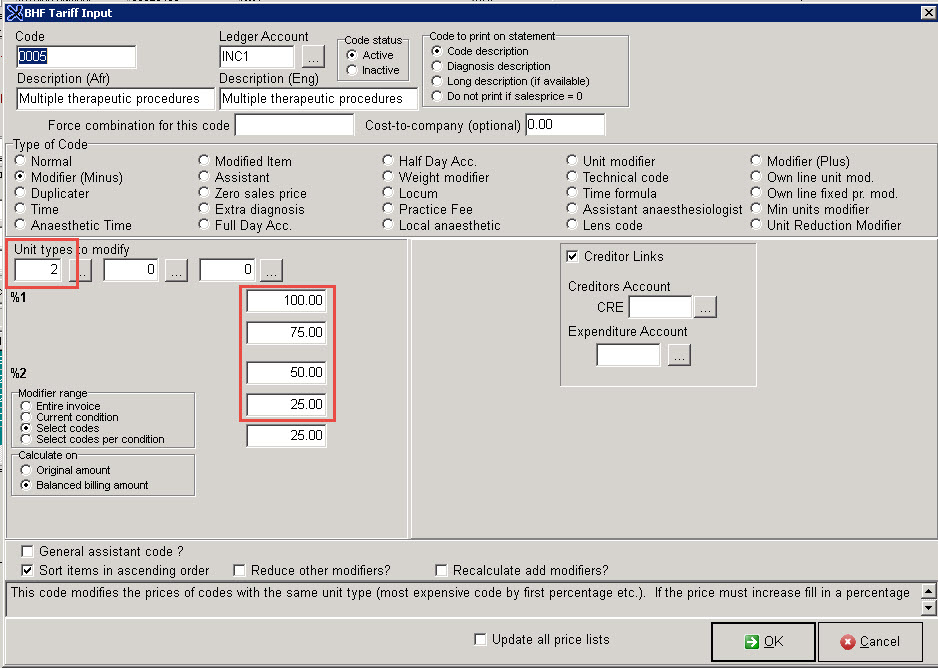
a) Unless otherwise identified in the tariff when multiple therapeutic procedures/operations add significant time and/or complexity, and when each procedure/operation is clearly identified and defined, the following values shall prevail: 100% (full value) for the first or major procedure/operation, 75% for the second procedure/operation, 50% for the third procedure/operation, 25% for the fourth and subsequent procedures/operations. This modifier does not apply to purely diagnostic procedures.
b) In the case of multiple fractures and/or dislocations the above values shall prevail.
c) When purely diagnostic endoscopic procedures or diagnostic endoscopic procedures unrelated to any therapeutic procedures performed, are performed under the same general anaesthetic, Modifier 0005 is not applicable to the fees for such diagnostic endoscopic procedures as the fees for endoscopic procedures do not provide for after-care. Specify unrelated endoscopic procedure and provide diagnosis to indicate diagnostic endoscopic procedure(s) unrelated to other (therapeutic) procedures performed under the same anaesthetic.
d) Please note: When more than one small procedure is performed and the tariff makes provision for items for "subsequent" or "maximum for multiple additional procedures" (see Section 2. Integumentary System) Modifier 0005 is not applicable as the fee is already a reduced fee.
e) “+†Means that this item is used in addition to another definitive procedure and is therefore not subject to reduction according to Modifier 0005 (see also Modifier 0082)
The following codes are used in this example:
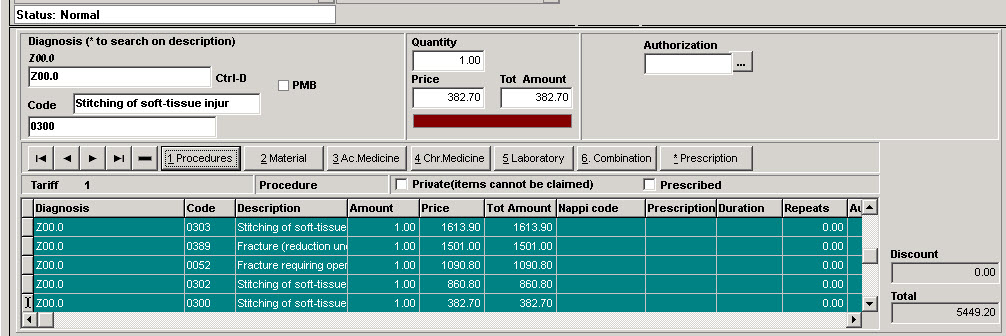
After the codes are billed the 0005 can be applied.
The 0005 will modify unit type 2 procedures. Note that it is an RM (Minus modifier).

3.6. Type of codes in GoodX
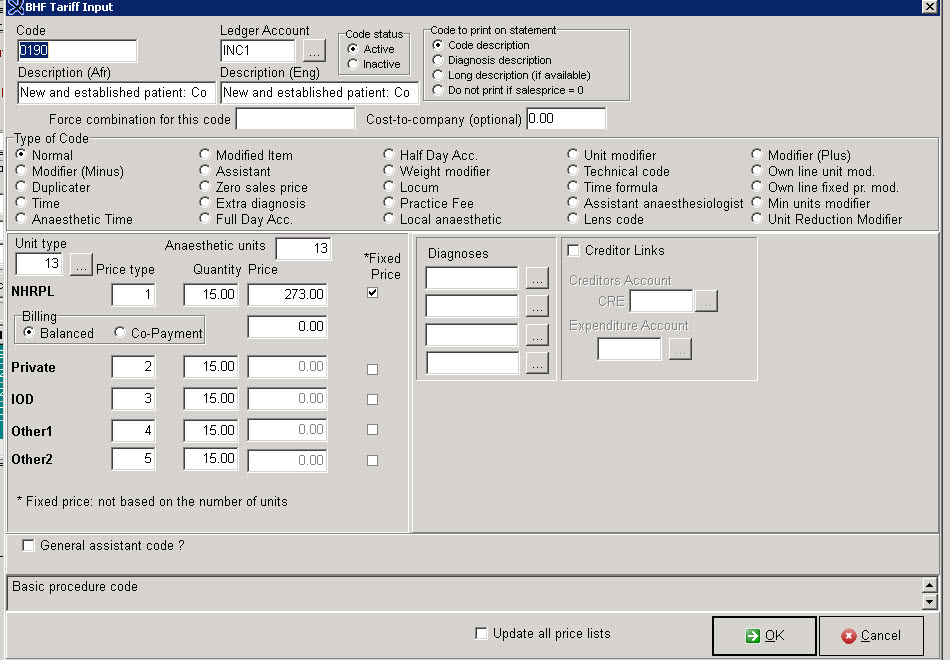
There are different types of codes in GoodX.Normal
These are the normal tariff codes such as consultations and procedures that work with the RVU and RCV or a fixed price.
3.7. Prescribed Minimum Benefits (PMB)
What are PMBs?
Prescribed Minimum Benefits (PMB) is a set of defined benefits to ensure that all medical scheme members have access to certain minimum health services, regardless of the benefit option they have selected. The aim is to provide people with continuous care to improve their health and well-being and to make healthcare more affordable.
PMBs are a feature of the Medical Schemes Act, in terms of which medical schemes have to cover the costs
related to the diagnosis, treatment and care of:
- any emergency medical condition;
- a limited set of 270 medical conditions (defined in the Diagnosis Treatment Pairs);
- and- 25 chronic conditions (defined in the Chronic Disease List).
When deciding whether a condition is a PMB, the doctor should only look at the symptoms and not at any other factors, such as how the injury or condition was contracted. This approach is called diagnosis-based.
Once the diagnosis has been made, the appropriate treatment and care is decided upon as well as where the patient should receive the treatment (at a hospital, as an outpatient or at a doctor's rooms).
Why do we have PMBs?
There are two main reasons why PMBs were created:
1. To ensure that medical scheme beneficiaries have continuous healthcare. This means that even if a member’s benefits for a year have run out, the medical scheme has to pay for the treatment of PMB conditions.
2. To ensure that healthcare is paid for by the correct parties. Medical scheme members with PMB conditions are entitled to the specified treatments and these have to be covered by their medical scheme, even if the patients were treated at a state hospital.
But there are other valid reasons too:
1. To provide minimum healthcare to everybody who needs it, regardless of their age, state of health or the medical scheme cover option they belong to.
2. PMBs have a part to play in ensuring that medical schemes remain financially healthy. When beneficiaries receive good care on an ongoing basis, their general wellness improves, resulting in fewer serious conditions that are expensive to treat.
3. To protect the interests of medical scheme beneficiaries by ensuring, for instance, that schemes first cover essential treatments before setting funds aside for discretionary services.
What are emergency conditions?
An emergency medical condition means the sudden and, at the time, unexpected onset of a health condition that requires immediate medical treatment and/or an operation. If the treatment is not available, the emergency could result in weakened bodily functions, serious and lasting damage to organs, limbs or other body parts, or even death.
In an emergency it is not always possible to diagnose the condition before admitting the patient for treatment. However, if doctors suspect that the patient suffers from a condition that is covered by PMBs, the medical scheme has to approve treatment. Schemes may request that the diagnosis be confirmed with supporting evidence within a reasonable period of time.
Responsibilities:
Medical scheme beneficiaries (Member)
PMBs are very good news for medical scheme beneficiaries and give them considerable rights as far as healthcare is concerned. However, as a consumer you also have certain responsibilities to ensure that PMBs work as well for you as they should.
1. First and foremost, educate yourself about your medical scheme’s rules, the listed medication and treatments (formularies) for your specific condition, as well as who the Designated Service Providers (DSPs) are.
2. Obtain as much information as possible about your condition and the medication and treatments for it. If there is a generic drug available, do your own research to find out whether there are any differences between it and the branded drug.
3. Don’t bypass the system: if you must use a GP to refer you to a specialist, then do so. Make use of your medical scheme’s DSPs as far as possible. Stick with your scheme’s listed drug for your medication unless it is proven to be ineffective.
4. Be a good consumer: ask questions and follow the complaints process if you are not treated fairly.
5. Make sure your doctor submits a complete account to the medical scheme. It is especially important that the correct ICD-10 code is reflected.
6. Follow up and check that your account is submitted within four months and paid within 30 days after the claim was received (accounts older than four months are not paid by medical schemes).
Healthcare providers (Doctors)
Doctors do not usually have a direct contractual relationship with medical schemes. They merely submit their accounts and if the medical scheme does not pay, for whatever reason, the doctor turns to the beneficiary for the amount due. This does not mean that PMBs are not important to healthcare providers nor that they don’t have a role to play in its successful functioning.
1. Doctors should familiarise themselves with ICD-10 codes and how they correspond with PMB codes. If you use the correct ICD-10 code your account will definitely be paid as PMBs enjoy guaranteed medical aid cover.
2. Consider on which option your patients are and what can realistically be covered before recommending a drug or treatment.
3. Alert patients to the fact that their condition is a PMB and encourage them to engage their medical scheme on the matter.
4. Keep proper clinical records of patients so that when a formulary drug or protocol is not effective, or causes adverse side-effects, you can justify your alternative recommendation.
5. Do not abuse PMBs. The result will be an unsustainable private healthcare system with unaffordable contribution increases. Abuse could compel government to consider alternative payment options in the private healthcare sector.
6. Allow your practice to be listed as a DSP.
The “payment in full†concept is there to ensure accessibility of healthcare services for medical scheme beneficiaries if the DSP is not available; it is not a reimbursement model.
Medical schemes
Among other objectives, PMBs want to achieve appropriate healthcare, resulting in lower costs associated with complications and hospitalisation. When beneficiaries are properly taken care of and their illnesses managed, the need for expensive hospitalisation decreases.
1. Medical schemes have a critical role to play in making PMBs work.
2. Schemes have to educate their beneficiaries about PMBs and the benefits that are included in them.
3. Schemes must inform their beneficiaries of their DSPs and keep them updated should any changes occur.
4. Schemes should empower their beneficiaries with information on matters such as the intricacies of rules and the formularies for specific conditions.
5. Medical schemes have to guarantee and ensure reasonable access and availability of DSPs.
6. The public sector cannot be designated as a DSP without the medical scheme ensuring that the necessary service will be available.
For more information, please visit:
https://www.medicalschemes.com/medical_schemes_pmb/index.htm
3.8. Price list structure and RVU's
To do
3.9. Price setup screen in GoodX
To do
3.10. Namibie Price Setup
Functionality has been adjusted to allow the user to create price list collections on a South African entity and link it to a Namibian entity.

4. Price collections
xxx
4.1. Adding new local price collections
xxx
5. Price lists
xxx
5.1. Type of price lists
|
Pricelist TYPE |
Notes |
|
BHF |
Traditional pricelist as issued by the medical aids. The “BHF†name is misleading – prices issued by individual entities , not the Board of Healthcare Funders. Not available for hospitals |
|
CPT |
Not available for hospitals (Hospitals use a non-price type of CPT code for case management. Beyond the scope of this project) |
|
PER DIEM |
Beyond the scope of this document |
|
Laboratory codes |
Subset of codes on “BHF†pricelists. Only available for dentists and orthodontists |
|
FFS |
Fee for service – hospital tariff codes. Only available for hospitals |
5.2. Creating / editing price lists
Pricelists are created on gxPrices on the Maintain Local Priclists button.
Add a pricelist by clicking on the “+†button on the list of pricelists screen. A submenu is displayed
SAVE AN EXISTING PRICELIST AS… (COPY PRICELIST)
The currently selected pricelist is saved as a new pricelist. User is prompted for a name for the pricelist and can indicate whether the new pricelist is active. The code length for the new pricelist can be set.
CREATE AN EMPTY PRICE LIST
An empty pricelist is created. Modifiers associated with the type of pricelist in the collection are added automatically to an empty pricelist as active codes.
EDITING A PRICE LIST
Name of the price list, code length and active status can be changed.
6. Relative Conversion Factors (RCF)
xxx
6.1. Maintain RCF - summary of changes
|
Change |
Notes |
|
RCF values can be maintained in GXPrices |
|
|
GoodX and local prices can be maintained separately |
If a local price is available the system will favour it over the GoodX price |
|
Duplicate RCF factors were loaded at some sites during the 2018 price updates project. |
The system will remove the duplicate prices during the initial update.
|
Price lists are created on gxPrices on the Maintain Local Price lists button.
6.2. Create new RCF
xxx
6.3. Copy an existing RCF list from another price list
xxx
7. List of tariff codes - summary of changes
|
Change |
Notes |
|
Single price list view |
Tariff column radio group no longer visible because it is no longer relevant |
|
FFS |
Fee for Service lists for hospital |
|
Type of code cannot be changed on the tariff code modification screen any longer |
The program requires a code to be off the same code type consistently across all price lists. See “Altering global tariff code settings†|
|
|
|
7.1. Alter global tariff code settings
Tariff codes are maintained at a global level, and linked to one or more pricelists as required.
The program requires some of the characteristics of tariff codes to be consistent across all pricelists. Some characteristics can be set at global level, but can be overwritten at pricelist level if required.
NOTE: All pricelist views need to be refreshed when global tariff code settings are altered.
The following code characteristics are global:
|
Characteristic |
Note |
|
Code class |
A code is classified as a BHF tariff code, CPT4 tariff code or a per diem code. The actual code may only appear once in the tariff collection. |
|
Description |
The system carries the following descriptions:
|
|
Claim code |
*** THIS FEATURE CAN BE MODIFIED , BUT IS NOT FULLY IMPLEMENTED YET The system carries the following claim code settings:
|
|
Code type |
The system carries the following Code types settings:
** Code types cannot be set at pricelist level. |
7.2. Adding / editing tariff codes - so that they can be linked to price lists
GxPrices -> Advanced -> Maintain Tariff Code List -> Maintain Tariff Code List ( Add / edit Tariff codes )
Medical Practitioner Pricecollection - the system allows the user to select which type of codes to maintain
Hospital Price collection – the system will automatically display the fee for service tariff codes.
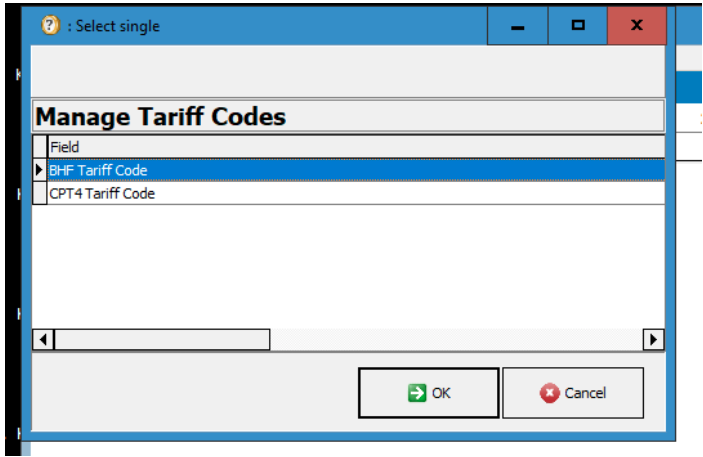
The system displays a list of available codes and allows the user to modify the values as necessary. The light blue and green columns columns can be modified. Click the “+†button to add new codes. To post the new code – fill in the row and use the “ok†button to post.
Click “ok†to post.
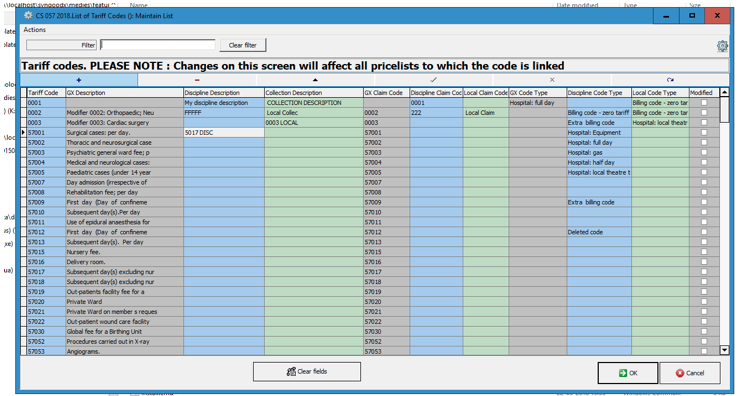
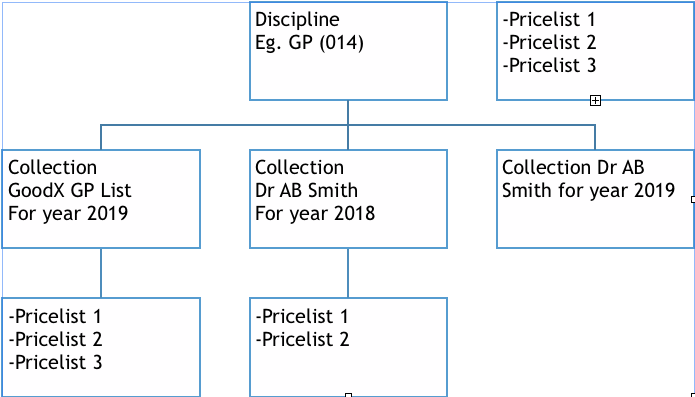
The column colours correspond to the level at which the change will be affected.
When to use which column:
|
Column |
Notes |
|
Gx Column (eg. GX Description) |
This is the value issued by GoodX. If the price code has been created locally, this column will not be Populated. This column CANNOT be modified locally. |
|
Discipline Column ( eg Discipline Description) |
One or more price collections can be created using the same discipline. Example: The official GoodX 018 price collection for a specific year has been imported at the site. A copy of the price collection is created locally for a specific practioner. When this type of column is edited, the value in the pricelist will change in ALL the collections linked to the discipline. In the example – the pricelist description will be changed on all pricelists, on both price collections. |
|
Collection Column (eg. Collection description ) |
When this type of column is edited, the value in the pricelist will change in the current collection only – in all pricelists, but not on any pricelists linked to another collection within the discipline. |
7.3. Add tariff codes to a single price list
xxx
7.4. Add tariff codes to multiple price lists
xxx
7.5. Editing single tariff code
xxx
7.6. Editing mutiple tariff codes
xxx
8. Maintaining billing groups - summary of changes
|
Change |
Notes |
|
Screen layout changed billing group editing screen |
|
|
Billing group selection screen has an additional column displaying the pricelist linked to the billing group ( if applicable). |
|
|
|
|
|
|
|
9. Linking price lists to billing codes
Version limitations
This feature is available in versions 8.0 and later.
Description of feature:
A pricelist can optionally be linked to a billing code. This function replaces the billing column feature available in the older system.
If no pricelist is linked to a billing group, the system will use the pricelist linked to the medical aid.
The feature is used by some anaesthetist practice, where the tariff to be billed is negotiated with the client during the patient-practioner encounter.
Example:
The anaesthetist wants to charge a standard Discovery Classic rate, even though the patient’s medical aid (Bestmed) is set to charge at 500% tariff. They will then select the “Standard practice rate†billing group (which points to the Discovery Classic pricelist) , and the system will automatically bill at the Discovery Classic rates.
Setting up the feature
GxPrices -> Advanced -> Billing groups
The system displays a list of billing groups, and indicates which groups have linked pricelists.
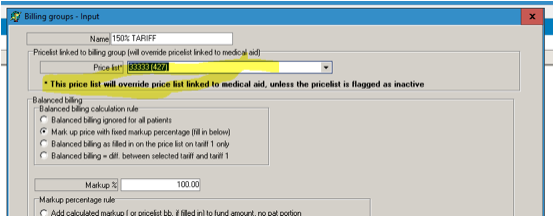
The pricelist is linked to the billing group on the editing screen.
Default value for the field is “--- UNLINKED†– which means that no pricelist is linked to the billing code.
10. Testing
Please test the following:
|
TOPIC |
TEST |
NOTES |
|
TARIFF PRICELISTS |
Add a new empty pricelist |
Program must add a new empty pricelist User must be allowed to
All modifiers for the type pricelists must automatically be imported into the empty pricelists as active codes (BHF list must only make BHF modifiiers available etc ) |
|
|
Save an existing pricelist as … |
User must be allowed to
User may not
Program must add a pricelist, and copy all tariff codes and RCF unit values All modifiers for the type pricelists must automatically be imported into the empty pricelists as active codes (BHF list must only make BHF modifiiers available etc ) |
|
|
Edit existing pricelist |
User must be allowed to
User may not
No tariff codes must be affected |
|
|
Import tariff codes into the pricelist |
Make sure that only the right type of codes are visible - CPT codes for CPT list , etc …. |
|
|
RCF values linked to pricelist Program must be able to copy an RCF list from another pricelist |
Make sure that the local applied prices are imported. (It stands to reason that a locally created pricelist will not be updated by GoodX. |
|
|
Flag a pricelist as inactive |
Make sure that billing can no longer be done against the pricelist. |
|
TARIFF CODES – BHF prices |
Create new tariff code |
|
|
|
Add to single pricelist |
|
|
|
Add to multiple pricelists |
|
|
|
Deactivate code on single pricelist |
Make sure that the tariff cannot be billed |
|
|
Reactive code that was deactivated in previous test |
Make sure that the tariff can be billed |
|
|
Modify code across pricelists |
|
|
TARIFF CODES – Lab codes |
Make sure that the lab code button only display on dentist and orthodontist entities |
|
|
|
Create new tariff code |
|
|
|
Add to single pricelist |
|
|
|
Add to multiple pricelists |
|
|
|
Deactivate code on single pricelist |
Make sure that the tariff cannot be billed |
|
|
Reactive code that was deactivated in previous test |
Make sure that the tariff can be billed |
|
|
Modify code across pricelists |
|
|
TARIFF CODES – BHF additional info |
|
|
|
|
|
|
|
|
|
|
|
|
|
|
|
|
|
|
|
|
|
|
|
|
|
|
|
|
|
|
|
|
|
|
|
|
|
|
|
|
|
|
|
|
|
|
|
|
|
|
|
|
|
|
|
|
|
|
|
|
|
|
|
|
|
|
|
|
|
|
|
|
|
|
|
|
|
|
|
|
|
|
|
|
|
|
|
|
|
|
|
|
|
|
|
|
|
|
|
|
|
|
|
|
|
|
|
|
|
|
|
|
|
|
|
|
|
|
|
|
|
|
|
|
|
|
|
|
|
|
|
|
|
|
|
|
|
|
|
|
|
|
|
|
|
|
|
|
|
|
|
|
|
|
|
|
|
|
|
|
|
|
|
|
|
|
11. Create a New Manual Price List
There are 2 Options on how you can Manually create Pricelists:
- Copy Pricelist from existing Pricelist (Codes that already exists in the system)
- Create a New Pricelist that's not on the system.
- From the Navigator click on GoodX Manage
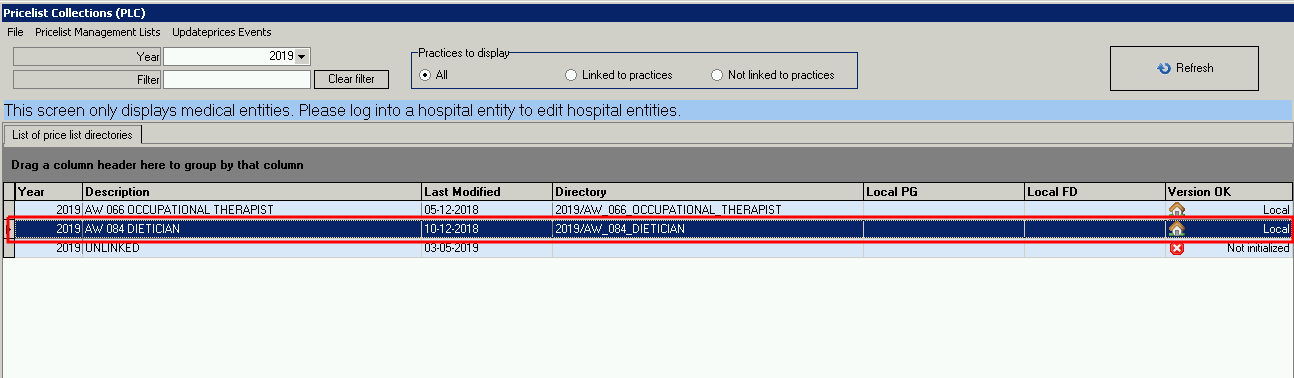
- Click on Pricelist Management

- Select the correct Pricelist. Double click to open it
- Select the Entity in which you want to create the Pricelist
- Click on Update Price Lists
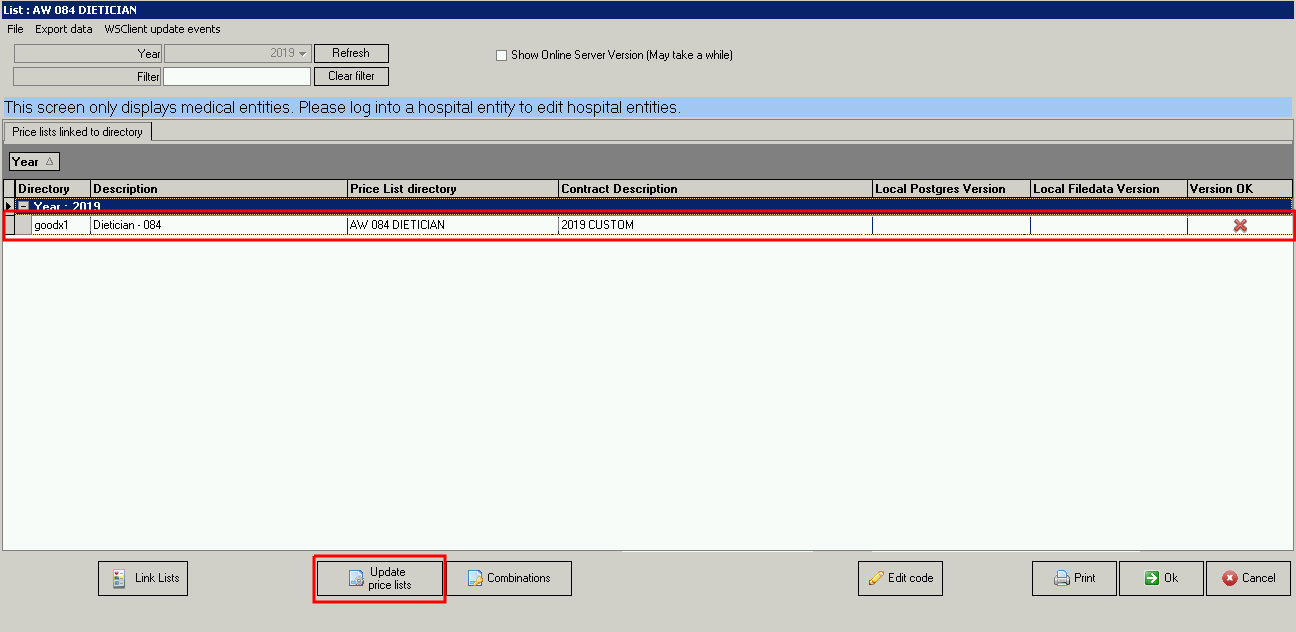
- Step 1: Create an empty Pricelist
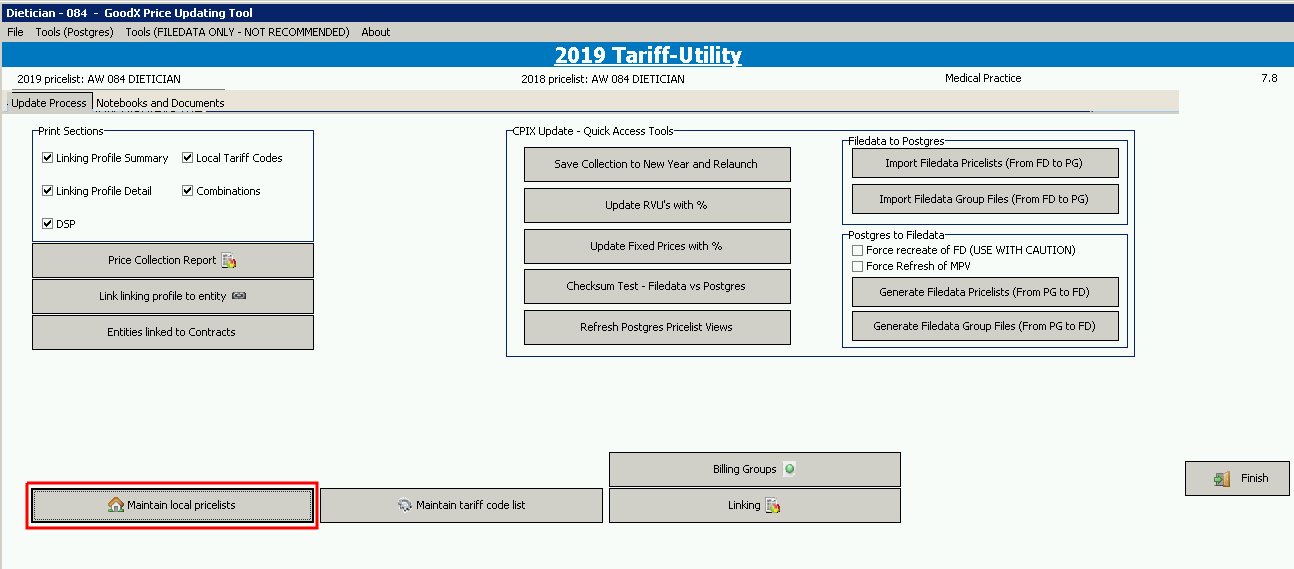
- Click on Maintain local Pricelist
- Click on the + button
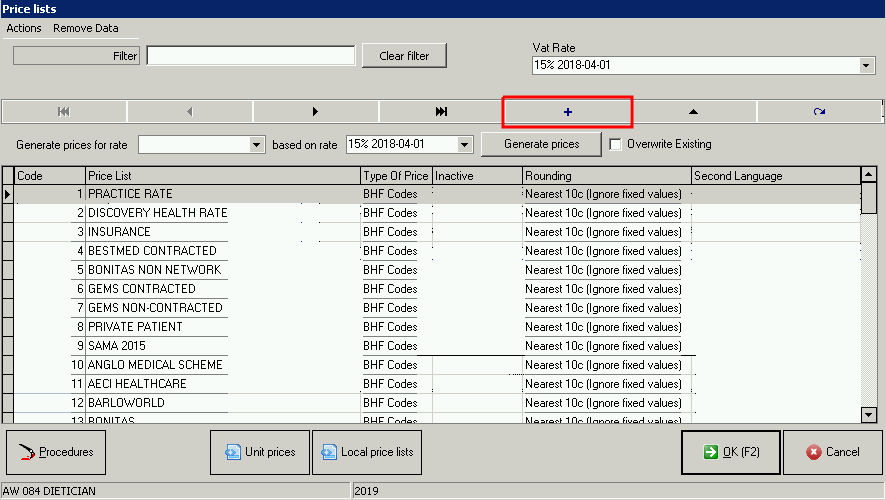
- Click on Create new pricelist - Create new empty pricelist

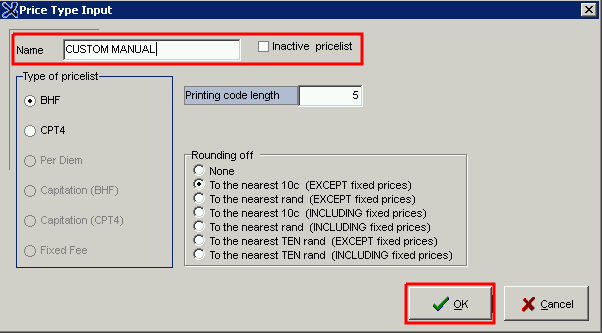
- Give your Pricelist a Name Ex. Custom Prices
- Click on OK
- The Pricelist will now be created and seen on the list
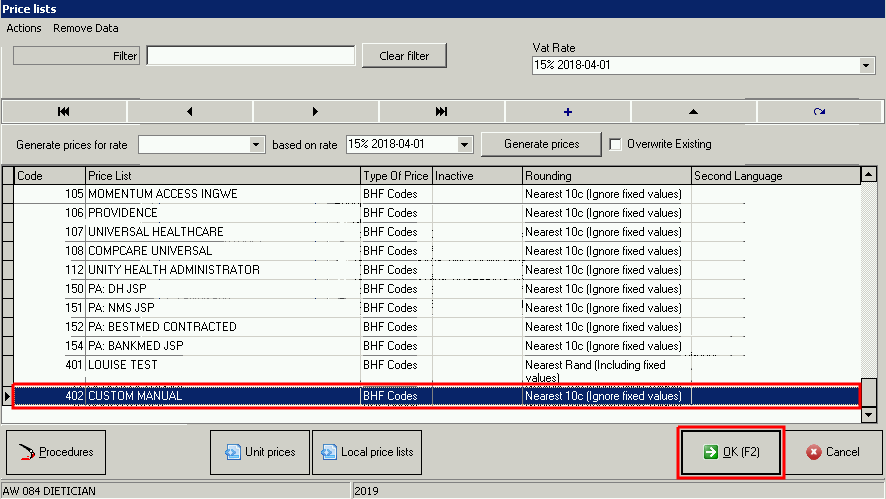
- Step 2: Build /.DMNC/.DMFP/.GLTC files
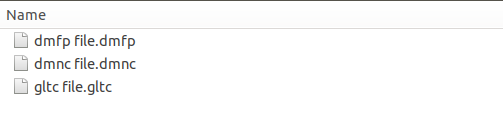
- A: Build a .dmnc file (format for DMNC is code and description).
- Create an excel sheet, add your tariff codes and descriptions. Save your excel sheet as a .csv
- Rename the extension of the saved .csv file to .dmnc (Ex: file save name is test.csv, rename it to test.dmnc)
- B: Build a .DMFP file (format for DMFP is pricelist number, tariff code, and price)
- Create an excel sheet with the following detail - pricelist number, tariff code, and price. Check that all prices are completed, if there's any blank detail, replace it with an R0 amount. The code description must shouldn't be too long. Save the excel sheet as a .csv
- Rename the extension of the saved .csv file to .dmfp (Ex: file save name is test.csv, rename it to test.dmfp)
- C: Build a .GLTC file (format for GLTC – only tariff codes)
- Create an excel sheet with a column for tariff codes. Save the excel sheet as a .csv
- Rename the extension of the saved .csv file to .dmnc (Ex: file save name is test.csv, rename it to test.gltc)
- Step 3: Copy files to Goodx folder (C: local
disc/GoodX)
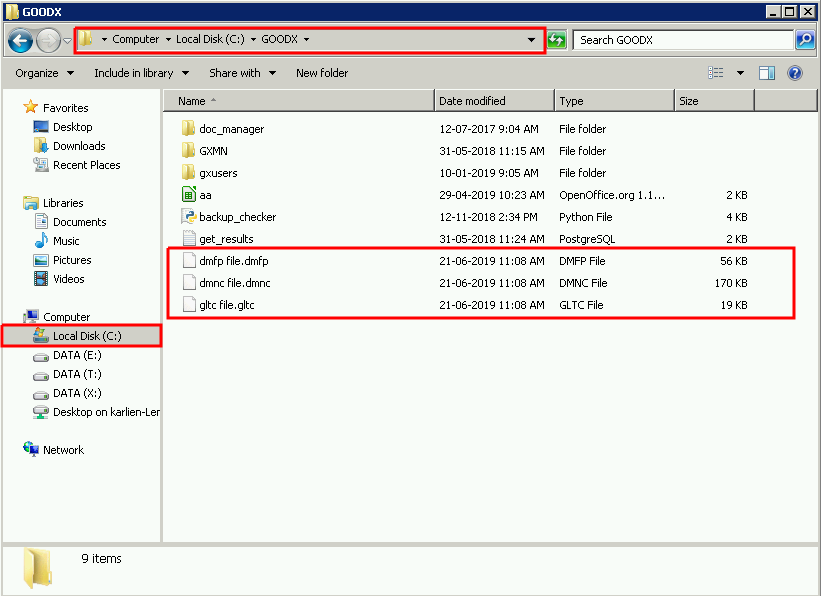
- Step 4: Add Codes to the System:
- Pricetools >> Click on Maintain tariff Code list >> Select Maintain tariff Code list (add/edit tariff codes)

- Select BHF Tariff Codes
- Click OK
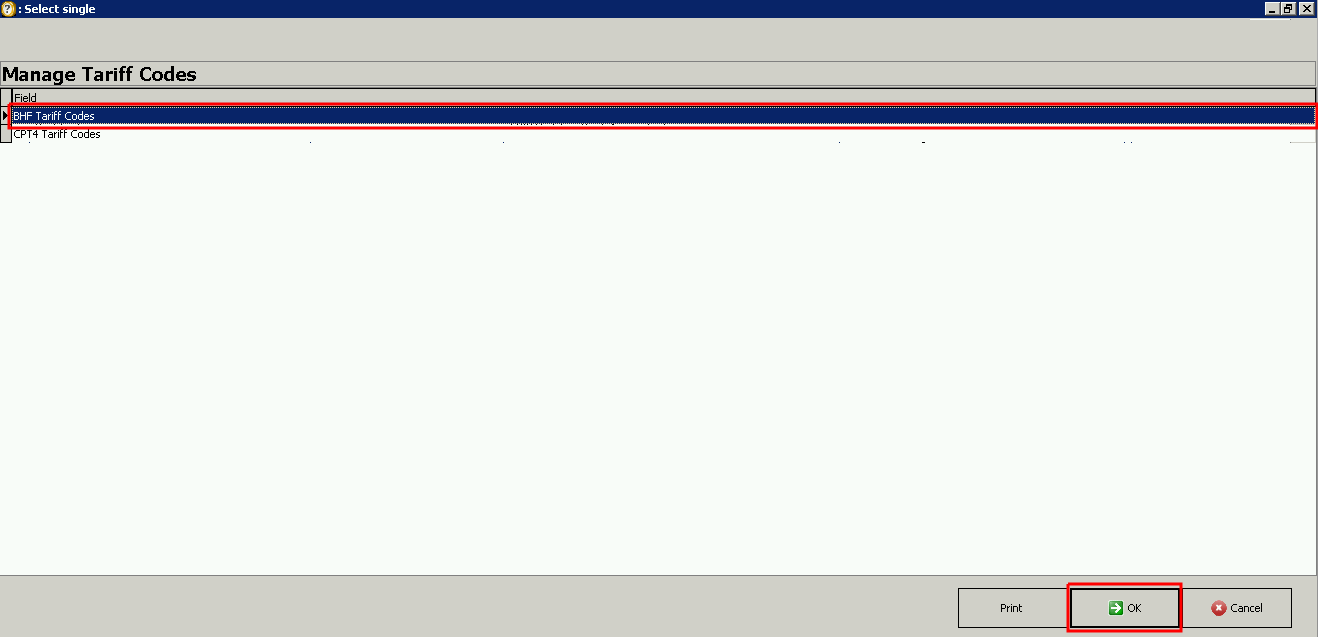
- Click on Actions
- Select Import list from .DMNC file - format: tariff_code|description|claim_code
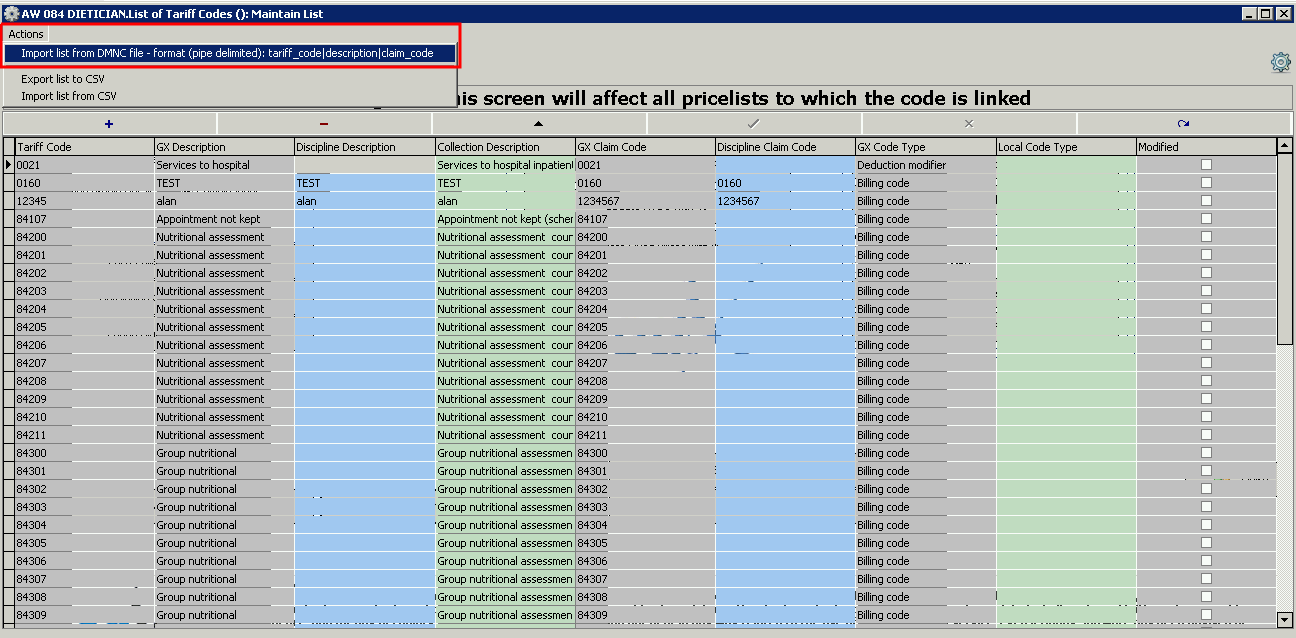
- Select the DMNC file that you created in Step 2A
- Click on Open

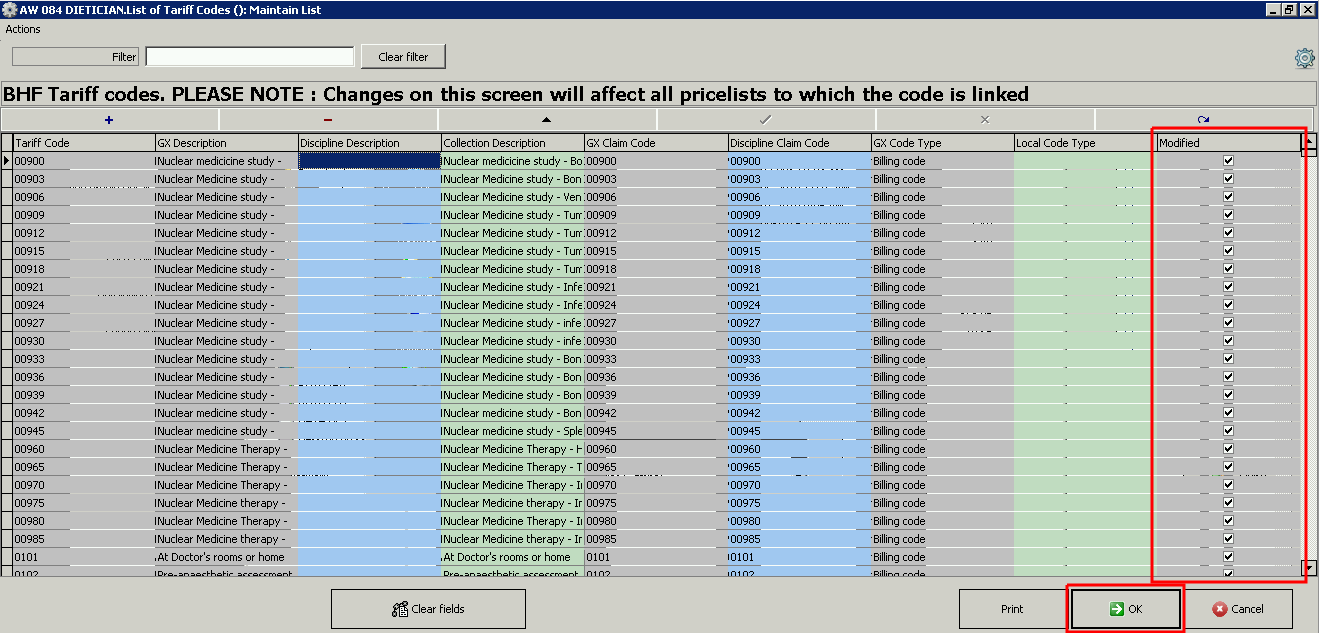
- Tick/Select all the boxes in the "Modified" field
- Click OK
TAKE NOTE: This step only adds the specific codes to the system. You will then add the codes to the Pricelist after its imported onto the system.
- Step 5: Add new Codes on Empty Pricelist:
- Pricetool >> Click on Maintain Tariff Code list >> Select Add Tariff codes to Multiple Pricelist
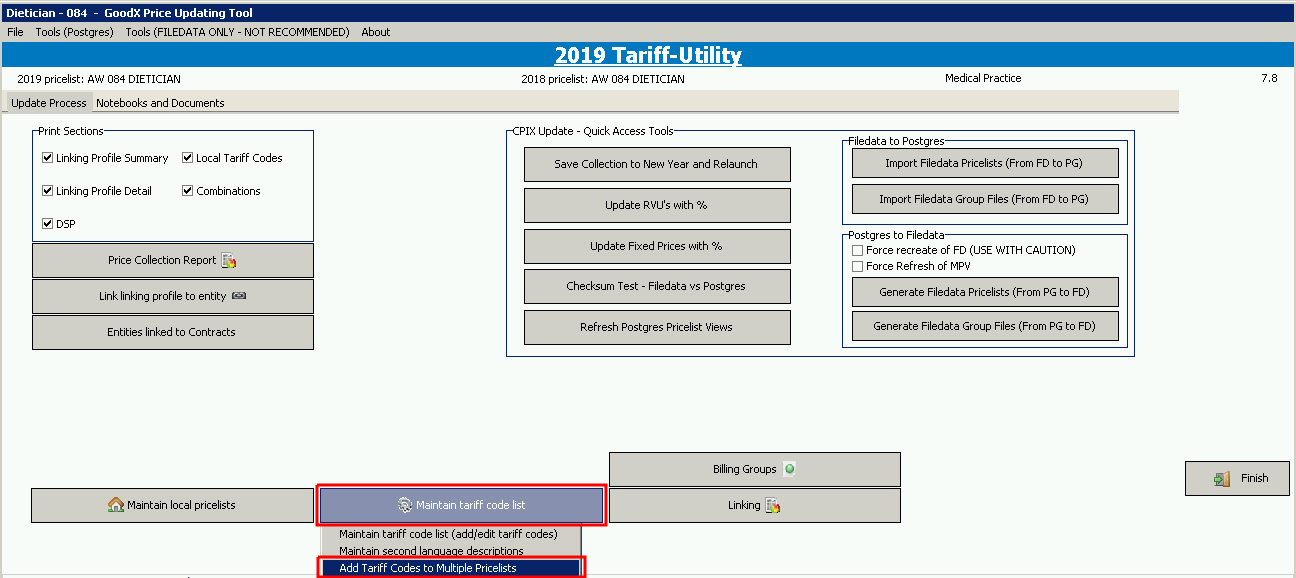
- Select BHF Tariff Codes
- Click on OK
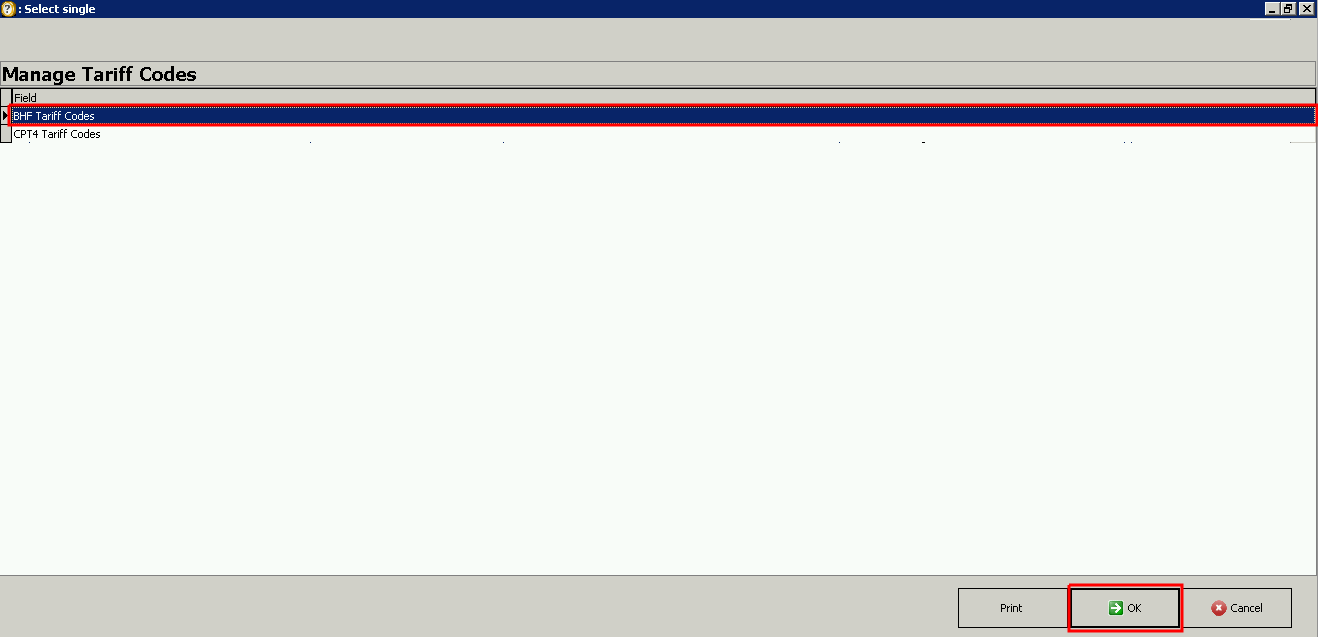
- Click on "Select tariff codes from file" (this option is in batch format)

- Select the GLTC file that you created in Step 2C
- Click on Open

- Select Yes
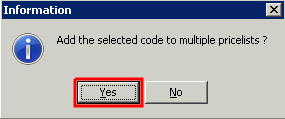
- All the codes thats saved in the .GLTC file will now be selected as a Batch on the system.
- Select the Batch (tick the box)
- Click on OK

- Select your Pricelist
- Click on Procedures
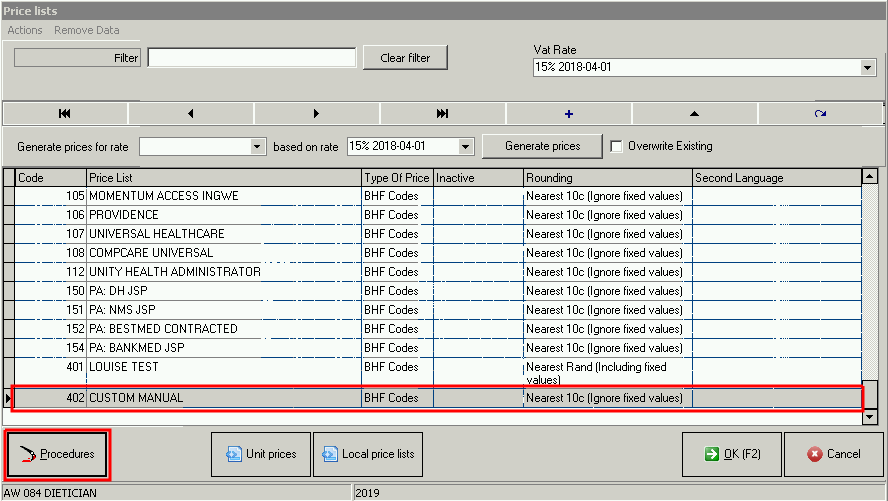
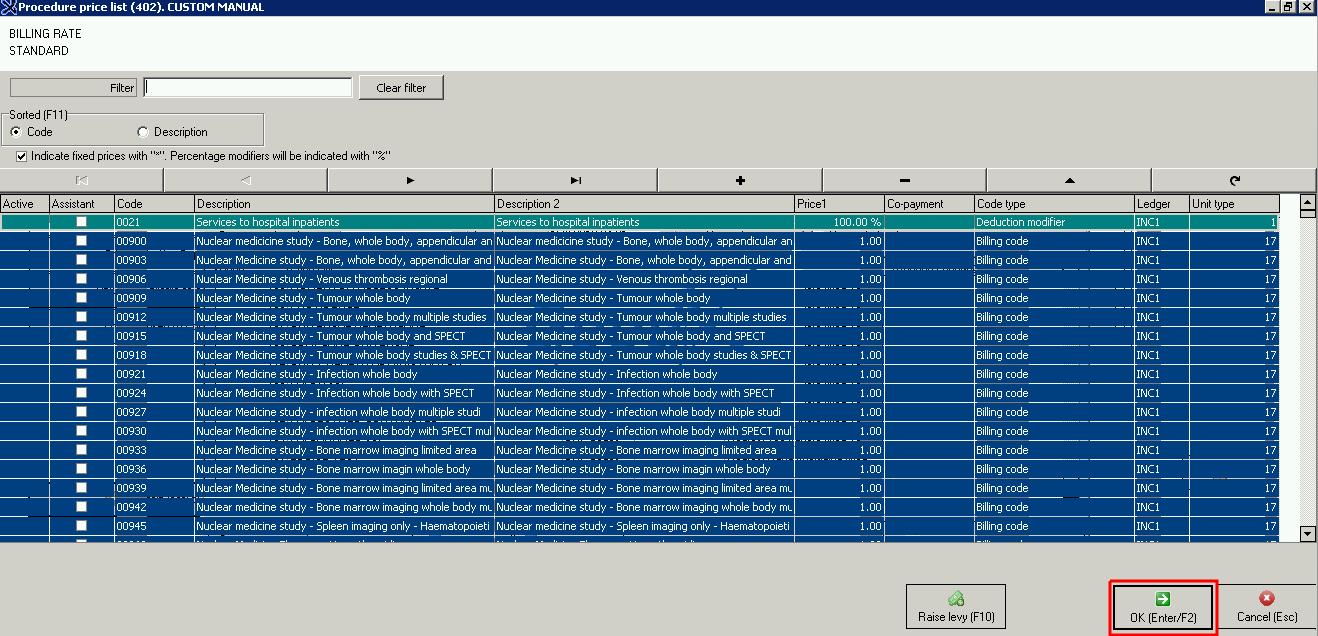
- Check if all Tariff Codes was imported on the Pricelist. (Step 5 >> Pricetools >> Maintain local Pricelist >> Procedures)
- Click on OK to Close
- Step 6: Update Price Tariffs
- Pricetools >> Click on Tools (Postgress) >> Select Batch Updates: prices / quantities / units

- Import Batch Files: Choose the file that you saved under .DMFP
- Select the correct VAT Rate (NB)
- Click on Apply changes

- End of Process - codes and prices must now be imported in the Pricelists
- Close to Exit

- Check if all Prices was imported on the Pricelist. (Pricetools >> Maintain local Pricelist >> Procedures)
12. Add custom linking profile
ADD CUSTOM LINKING PROFILE Version
1. GoodX Manage
2. Pricelist Management
3. Pricelist Management List
4. Global Price Linking Profiles
5. Click on + (bottom left of screen)
6. Add new Custom linking (2020) profile
7. OK
8. Link Pricelist to Medical Aids
9. Pricelist Linking Profiles
10. Copy this setup – Stand on the Profile you want to copy, eg Master Pricelist Linking Profile11. Update all empty rows in target profile
12. Choose new Custom Linking (2020) profile
13. OK
14. Log into GX Prices
16. Link linking profile to entity
Pricelist linking profile:
17. Linking
-Pricelist profiles-Activate VAT Dates
-Choose correct linking profile (Custom 2020)
-Show linking for Profile
-Column: 15%
-Date 01-04-2018
-OK
13. Price Configuration Checklist (Per Price Package/Speciality)
The steps according to this checklist are explained in the sub chapters.| Step | âœ”ï¸ | Action point |
| 1 | Latest Version, Pricetool & Medprax? | |
| 2 | Server Client: Is the WS Client Running? | |
| 3 | Checksum Test: FD vs PG 2018 | |
| 4 | Import Filedata Group Files (From FD to PG) | |
| 5 | Import Filedata Pricelists (From FD to PG) | |
| 6 | Save current 2018 Combinations with Items | |
| 7 | Refresh GX Prices | |
| 8 | Checksum Test: FD vs PG 2018, Check for any major differences | |
| 9 | 2018 Price Collection Report-Save as PDF | |
| 10 | Make sure any Custom Billing Groups are numbered from 70 + in 2018 GX Prices | |
| 11 | Save collection to New Year and Relaunch | |
| 12 | Refresh GX Prices | |
| 13 | Combinations check 2018 vs 2019 | |
| 14 | 2019 Price Collection Report-Save as PDF | |
| 15 | Any differences between 2018 & 2019 Price Collection Report | |
| 16 | Compare 2018 vs 2019 Billing Groups+Screenshot | |
| 17 | Update RVU’s with % | |
| 18 | Update Fixed Prices with % | |
| 19 | Server Client: Is the WS Client Running? | |
| 20 | Odoo:Entities:Push linked tariffs per Speciality | |
| 21 | Check Linking Profile-Linked to Custom profile where applicable | |
| 22 | Compare FD vs PG price package vs Odoo Date | |
| 23 | Pricelist rounding to nearest 10c or nearest R1 | |
| 24 | Group Files Rebuild List of Filedata from Postgress pricelists | |
| 25 | Rebuild List of FD pricelists from PG Pricelist | |
| 26 | Refresh list of Pricelist views. | |
| 27 | Mark up prices where Combinations are set with ‘Prices as filled in on Combination’ |
13.1. Step 1: Client on latest Version, Pricetool & Medprax updated?
Check that the latest program version has been loaded.
Medprax will need updating Jan 2019 as well.13.2. Step 2: Server Client - is the WS Client running?
- Start.
- Search under Services for WS Client.
- Start Service/Right Click & choose Start.

13.3. Step 3: Checksum Test: FD vs PG 2018
- GX Prices.
- Checksum Test – Filedata vs Postgres.
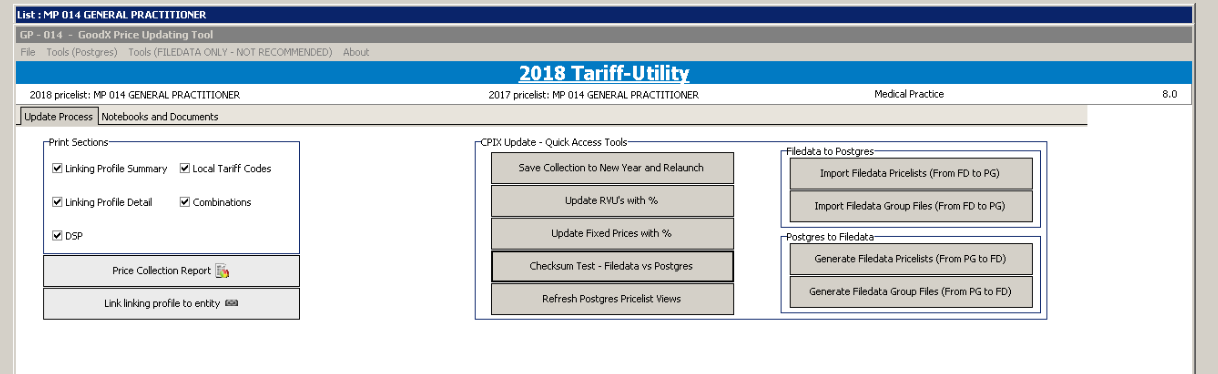
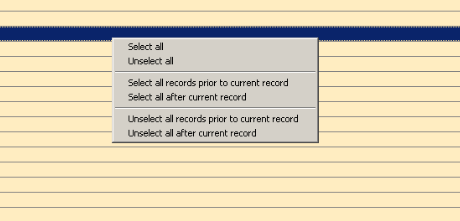
- Right Click & Select All.
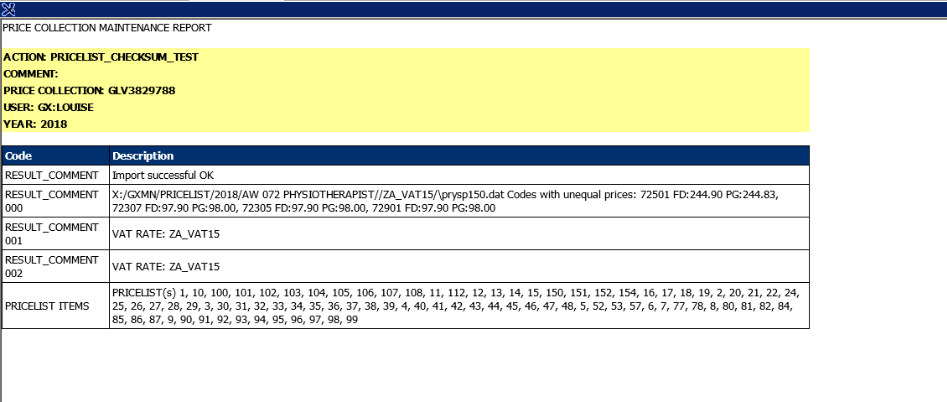
- OK.
- Print.
- TSPrint PDF.
- Print.
- Server Action - Save PDF.
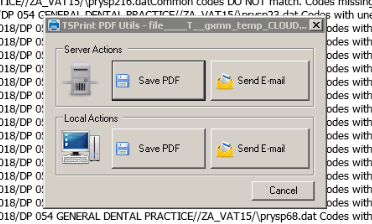
- Save under Documents as a PDF File
- Rename
to Checksum FD vs PG1.
- Close.
13.4. Step 4: Import Filedata Group Files (From FD to PG)
- Import Filedata Group Files (From FD to PG).
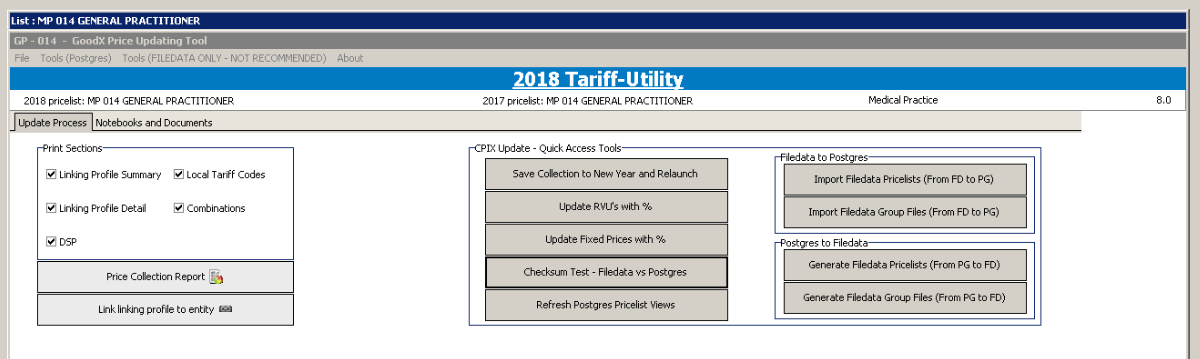
- Right Click, Select All, OK.
- Reason for Import: Pricing 2019 FD Import.

- OK.
- Right Click, Select All, OK.
- No need to print the Report.
- Exit/Cancel to close the screen.
13.5. Step 5: Import Filedata Pricelists (From FD to PG)
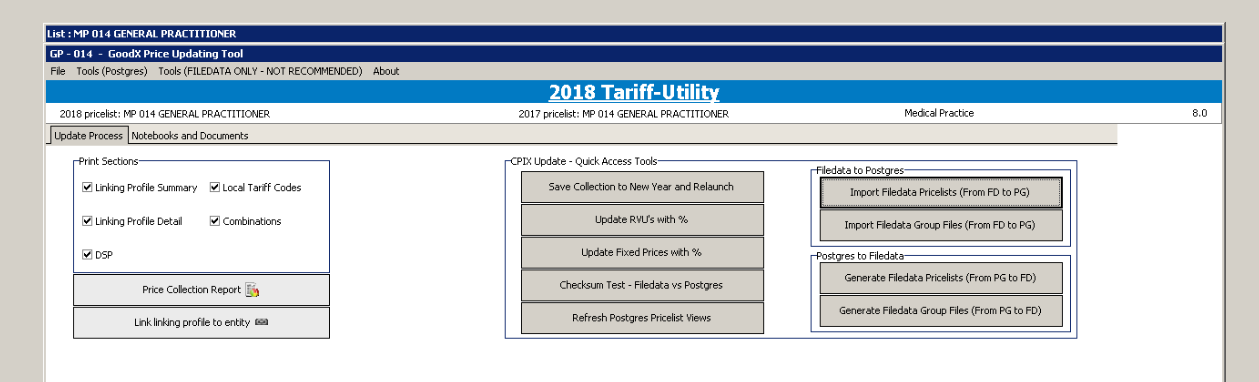
- Reason
for Import: Pricing 2019 FD Import.
- OK.
- Right Click, Select All, OK.
- No need to print the Report.
- Exit/Cancel to close the screen.
13.6. Step 6: Save current 2018 Combinations with Items
x
14. Troubleshooting
x
15. Hospital Prices
.
15.1. New Year Price Updates - Technical
Building the files
Requirements needed:
- Postgresql 9.5
- Python 2.7
- MS Office excel
- Build_nhn_dmfp_with_discription.py
- Build_nhn_dmfp_without_discription.py
- nhn_compare.sql
- xlrd folder
- A folder with full access (In the example it will be c:\goodx)
Setting up the environment
- Install Postgresql.
- Install Python 2.7.
- Install MS Office.
- Create a folder on the desktop (In the example it will be \builder).
- Copy the two py files to this folder.
- Copy and extract the xlrd folder into this folder.
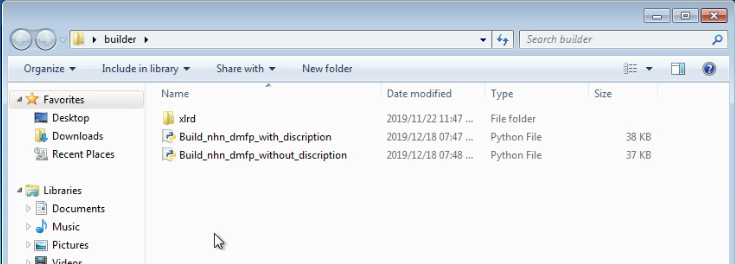
- Copy the nhn_compare.sql file into the full access folder (c:\goodx)
Building the dmnc files
- Copy the NHN 2019 excel files into the desktop folder (\builder)
- Exclude pricelist 100 WCA and also make sure there are no duplicate pricelists (example v1, v2, etc).
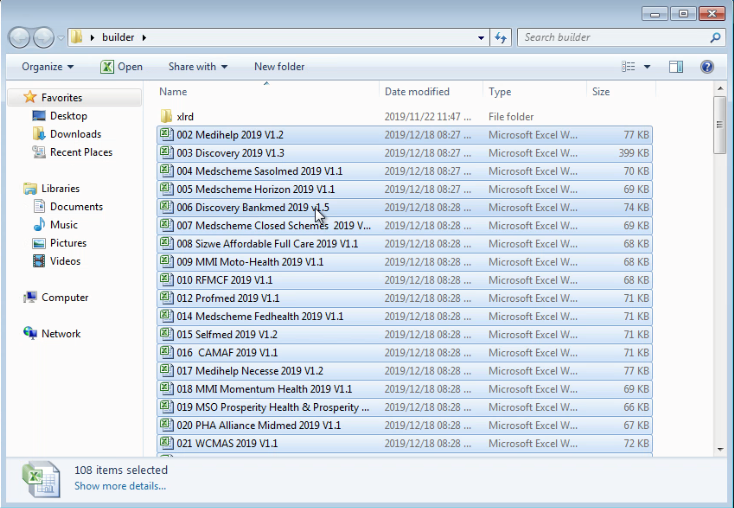
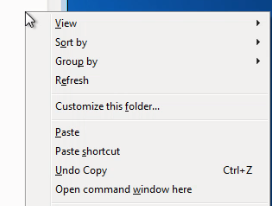
- Hold in shift and right-click in the folder window on a open space and click Open Command window here.
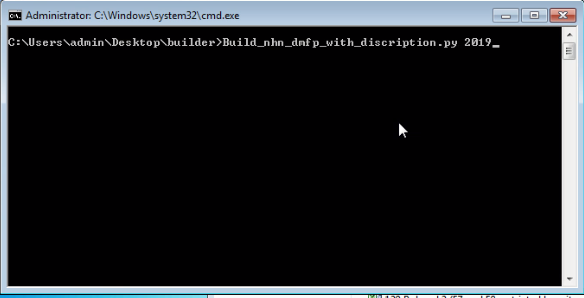
- Type the following command and hit the enter key: Build_nhn_dmfp_with_discription.py 2019.
- Notice the [space] 2019 at the end. This will be the previous year.
- The script will run through all the excels and build dmfp files. If there is an issue in the excel like the example below you first have to fix it then run the command again. The error will indicate the excel number, the line number and more or less an indication of the problem.

- Once successful, the script will generate dmfp files per discipline. Copy these files into the full access folder (c:\goodx).
- Follow the same process for the 2020 (new year) dmfp files using the new excel files and copy the dmfp files into the full access folder (c:\goodx).

- Open the nhn_compare.sql in postgresql.
- Confirm paths
- Confirm years example 2019 = previous year; 2020 = this year.
- Execute the script, if there is duplicate entries please fix first. The error should indicate the year, code, description.
- Once executed successfully the script will generate the dmnc file per discipline accompanied by a csv with the differences per pricelist.
Building the dmfp files
- Since the 2020 (new year) excels is already in the desktop folder (\builder) you can just do the following:
- Type the following command and hit the enter key: Build_nhn_dmfp_without_discription.py 2020.
- Notice the [space] 2020 at the end. This will be the new year.
- This will generate the dmfp files for you.
16. Pricelist Management Tools
XX
17. Altering tariff-code data in bulk
Summary
The application facilitates bulk copying of tariff code fields in the desktop application.
The feature updates tariff codes that have already been added to specific target pricelists, but never adds new tariff codes.
Screens that prompt selection of fields to copy are applied throughout.
This page describes the screens and lists various tools in the application where fields may be copied.
Definitions
Determination of the published price
- Local price when populated
- ELSE DSP price when populated
- ELSE Calculated price.

Screens that prompt selection of fields to copy
Screen: Information fields on the tariff items (excluding published prices )
The application displays a list of selectable fields for bulk copying. The items that appear on the list are dependent on the type of code that will be copied.
Published prices do not appear on the list of selectable fields.
The system will display unique lists for
- Standard tariffs
- Hospital tariffs
- CPT-4 tariffs
- Dental laboratory tariff codes
- Modifiers. The modifier screen always displays all possible fields that may be attached to a modifier. Some of the fields do not apply to all modifier types. The system will ignore selected items on the list that do not apply during the copy process
Screen: Published Prices

The screen has three options:
- Do not change the currently published price on the target pricelist.
- The price of the target price list will not be altered.
- Recalculate the published price.
- The published price on the target price list will be recalculated using the formula: RVU X RCF ( No-of-Units x Unit-price). RVU and RCF values as applied on the target pricelist, are used for the calculation.
- If a DSP price has been linked to the tariff code will be applied instead of the calculated price.
- The local price is removed for the line item.
- Transfer this published price
- The published price on the source pricelist is copied to the local price on the target pricelist. This price is used as the published price.
In all cases, the fixed price asterisk / tick will be calculated by the system.
Tools in the application for copying tariff-code fields
Copy tariff code data between years and vat-rates.
Copying data between pricelists within a specific pricelist collection
- Copy data for ALL billing codes from this pricelist () to multiple EXISTING pricelists (existing codes only)
- Copy data for SELECTED billing codes from this pricelist () to multiple EXISTING pricelists (existing codes only)
- Copy data for ALL modifiers from this pricelist () to multiple EXISTING pricelists (existing codes only)
- Copy data for SELECTED modifiers from this pricelist () to multiple EXISTING pricelists
Copying data between pricelists from a specific tariff code
Importing / Exporting local prices
Removing local prices from a pricelist
17.1. Copy custom pricelist information between price list collections
What this tool doesThis tool allows the user to copy custom data from a source collection to target collection.
User selects a source collection, pricelists and data fields that need to be copied.
Use-case example
ICD-10 codes linked to tariff codes can be copied across calendar years.
Warnings and limitations
- It is assumed that the source collection and target collection are of similar disciplines and that the price lists in the two collections match.
- The changes made by this tool cannot be reversed.
- Data is copied across entire price lists, specific codes cannot be selected. However the user can select which price lists to copy.
- Data can only be copied across collections that are linked to the same country.
- Tariff code data and modifier data must be copied in two separate steps.
How to use the tool
- Log into the price manager for the price collection and year that you want to modify.
- Select the applicable menu item on the top left hand of the screen
Tools (Postgres)
- Copy custom tariff-code data between collections (excluding modifiers)
- Copy custom modifier info between collections
- System displays an informational screen.
- User prompted to type in the calendar year in which the source collection is stored (you can only select this calendar year or the previous calendar year)
- System displays a list of collections that can be used as a source collection. Select the one you want to use.
- System displays a list of data fields that can be copied. Tick the applicable fields. Note that the tariff code prices are not displayed on this screen.
- For tariff-code data only:
- System displays a screen on which the user must indicate how the prices must be copied from the source list.
- Do not change the currently published price on the target price list. Flag as fixed price if necessary.
- Recalculate the published price (unit price x no of units). This option will remove the fixed price tick on the target price list, unless the price item is linked to a DSP price.
- Transfer this (source) published price. Flag as a fixed price if necessary.
- System displays a list of price lists. Click the price lists to modify.
- The system runs the process.