System Options Setup Hospitals
| Site: | GoodX Software Learning Centre |
| Course: | GoodX Supervisor for Hospitals |
| Book: | System Options Setup Hospitals |
| Printed by: | Guest user |
| Date: | Wednesday, 21 October 2026, 6:03 AM |
Table of contents
- 1. Entity Setup
- 2. Dispensing
- 3. Bussiness
- 4. Financial & Creditors
- 5. Interfacing
- 6. Debtors
- 7. Debtor Transactions 1
- 8. Debtor Transactions 2
- 9. EDI
- 10. Periods
- 11. Category
- 12. Number Series
- 13. Account Specifications
- 14. Diary
- 15. SMS
- 16. Hospital
- 17. Miscellaneous
- 18. Clinical/External Tools
- 19. Medprax/IQuest
- 20. Extended Notebook
- 21. Document Manager
- 22. Global Toggles
- 23. Debug Toggles
- 24. My Grand Central Configuration
1. Entity Setup
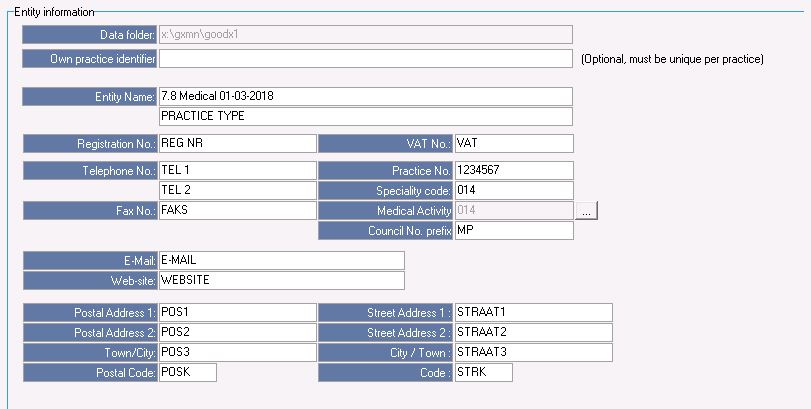
- Own Practice Identifier:
- Entity Name: The details entered here will display on Statements, reports etc as the heading. This is all the Practice details.
- The extra line can be used to enter additional information example Practice Type. This is optional.
- Registration No: This is the Financial (Company) Registration number of the Practice. Please note this cannot be blank. If there is no registration number use a (.).
- VAT No: Enter the Practice VAT number in here as provided by SARS. If no VAT number make sure the system is set to "None" VAT until the Practice gets VAT. (If Practice is registered for VAT, it must also be selected in 4. Financial and Creditors, Financial Toggles, VAT, Inclusive.)
- Telephone No: Two telephone numbers may be entered here.
- Fax No: Enter the Fax number here.
- Practice No: Enter the 7 digit Practice number here.
- Specialty code: The Practice Discipline code.
- Medical Activity: The Practice Discipline code.
- Council No. prefix: Enter one of the following:
- MP = Medical Practice
- AW = Allied Workers
- DP = Dental Practice
- HS = Hospital System
- CS = Custom Price Structure
- E-Mail: The email address to be displayed on the statements and reports etc.
- Web-site: The web address to be displayed on the statements and reports etc.
- Address details: Postal and Street address detail to be displayed on the statements and reports etc.
- Entity Group: Some Practices will group certain Entities to work on different Groups.
2. Dispensing

- Dispensing License: License number a Dr/Medical Practice needs to have to be able to dispense medication/consumables/needles etc. Cant dispense Medication without a license.
- Specify global rule for calculation of professional dispensing fee: This is the rule that has been applied that says that depending on your schedule, depending on the amount, there will be a certain mark up on the dispensed priced. But if the Doctor is a Private Practice the moment a Doctor tells you he wants a 50% mark up on all his consumables, he will use Multitier. Use Multitiermust generally be selected as Default.
- Select the Medical Aid Option: All Medical Aids can still determine their own rule on the dispensing price/percentage.
- Multitier Markups: This is all general, global set rules by the Medical Aids. Multitier gives the Doctor money mark up.
NOTE: Only Dispencing GP's and Sisters can Dispence.
3. Bussiness
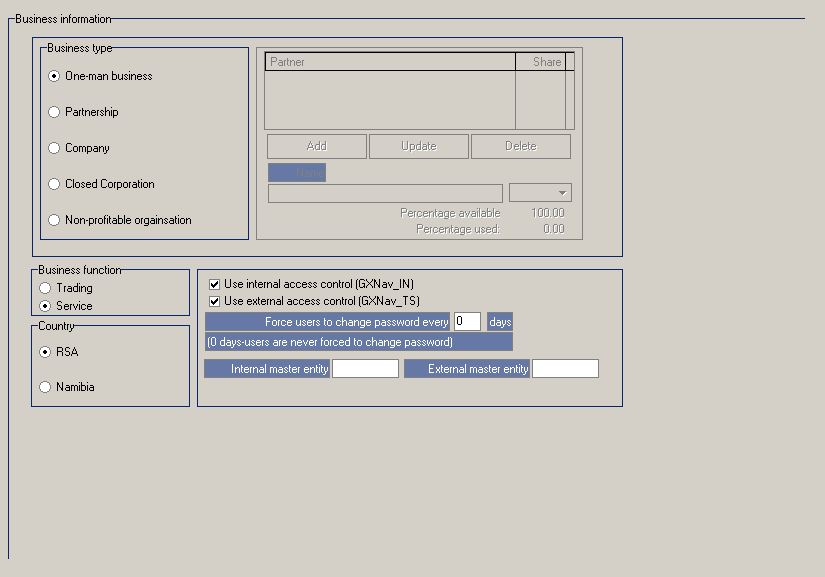
- Business Type: Tells you what type of Practice/Business it is.
- One man business
- Partnership
- Company
- Closed company
- Non-profitable organisation
- Business Function: Use own discretion
- Country: This option is for VAT purposes for RSA and Namibie
- RSA: 15%
- Namibie: As indicated by Client
- Use Internal access: Standard access (Always ON)
- Use External access: Only specific user will have access to own entity and preferences (Always ON)
4. Financial & Creditors
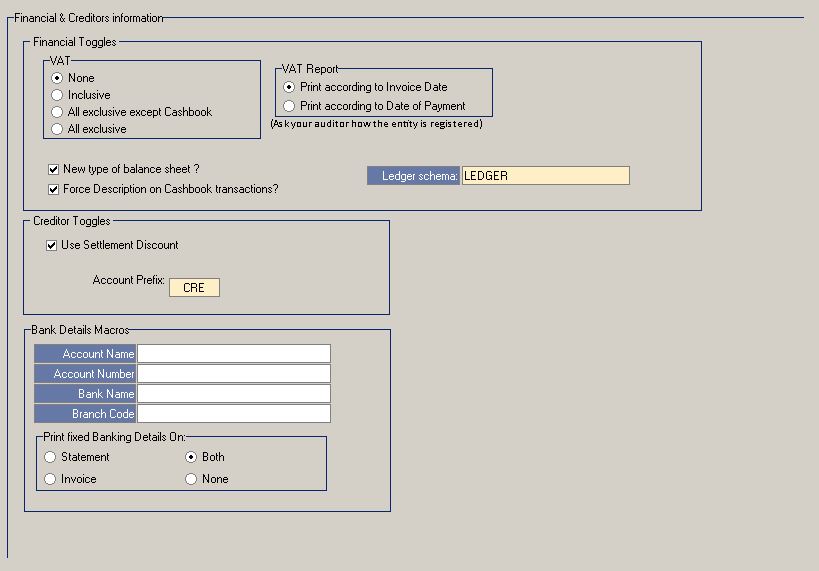
- Financial Toggles:
- VAT: GoodX only works on None or Inclusive of VAT
- None: If the Practice doesn't have a VAT number this Option will be selected
- Inclusive: If the Practice is registered for VAT this Option will be selected
- All exclusive except cashbook: N/A
- All exclusive: N/A
- VAT Report: The moment an Invoice is posted you will get a VAT Report of the Invoices according to the next 2 options. (To be confirmed by Practice Auditor)
- Print according to Invoice date: Date the Invoice was posted
- Print according to date of Payment: Date the Invoice was settled/paid
- New Type of balance sheet: This option must always be marked/selected
- Force descriptions on Cashbook transactions: Main descriptions for all receipts on Cashbook
- Ledger schema: This option is used where you will see what Entity is linked to what Ledger Profile.
- Creditor toggles: This option allows you to give discounts on debtor accounts
- Use settlement discount (Always ON)
- Account Prefix - Creditor account prefix (Cannot be changed)
- Bank details: VERY IMPORTANT. The Practice/Dr's bank details must be completed here. This will be printed on the Invoices and Statements. VERY IMPORTANT to capture correctly.
- Print fixed banking details on: This option (both) will always be on by default. The Practice banking details will print on the selected options below.
- Statement
- Invoice
- Both
- None
5. Interfacing
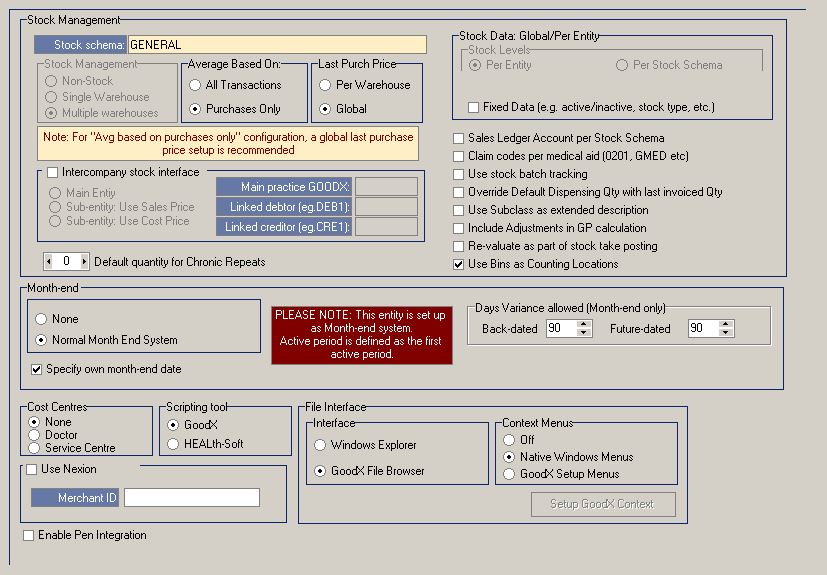
- Stock Schema: This is the selected entity stock profile name
- Stock Management:
- Non-stock:
- Single warehouse:
- Multiple warehouse: This option will be selected by default. If the Practice uses stock or not, this option will be selected
- Average based on:
- All transactions:
- Purchases only: This option will be selected by default.
- Last purchase price:
- Per warehouse:
- Global: This option will be selected by default.
- Stock Data: Global/Per Entity
- Stock levels:
- Per entity:
- Per stock schema:
- Fixed data:
- Inter-company stock interface:
- Main entity:
- Sub entity - Use sale price:
- Sub entity - Use cost price:
- Default quantity for Chronic Repeats: If a company works with a certain clinical note etc. EXAMPLE - Scripts, you can load a default script on the system.
- Month end:
- None: Open Month End System. There is no Month End System. You can go back and capture any transactions in any period that is still open. All periods are still open.
- Normal Month End System: A Normal Month End System is where you end your period every month. All transactions and billing must be done every month. The previous months period must be closed on a month end system. You must do a month end every month. You cant start working in a new period if the previous period is not ended with your month end.
- Specify own month end date: VERY IMPORTANT - The client must always use the last day of the months date
- Days variance allowed: If you are on a normal month end system, you need to put in a block (90 days) to not go further and post after the allowed days in older periods.
- Cost centres:
- None:
- Doctor:
- Service centres: By default ON
- Scripting tool: Program that helps a GP to generate scripts.
- File interface: This manages your look and feel on the old GoodX docs system
- Interface:
- Windows explorer: This is the default Windows look and feel
- GoodX file browser: This is a GoodX browser look and feel
- Context Menu's: (The right click menu)
- Use Nexion: Actual interface where the Practice Speedpoint interface directly with GoodX
- Enable Pen Integration: Pen to write down clinical notes etc and it will automatically save into GoodX Notes
6. Debtors
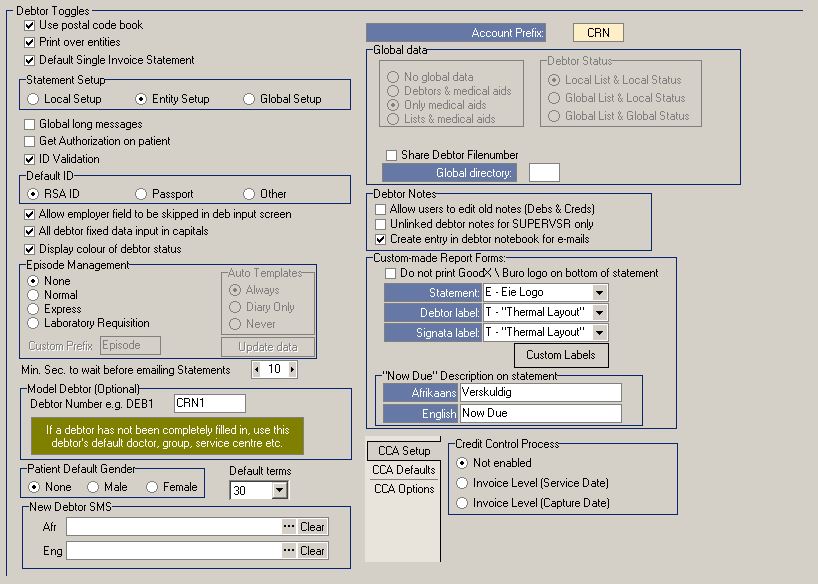
- Debtor toggles:
- Use postal code book: It will automatically pick up postal codes for all areas
- Print over entities: Set up a report over a few entities
- Default Single Invoice Statement: Will print singe Invoice on Satement that is outstanding
- Account Prefix: Is the Debtor Prefix
- Statement Setup:
- Local Setup: The Statement Setup is per station in a Practice
- Entity Setup: The Statement Setup is per entity in a Practice
- Global Setup: The Statement Setup, all entities will look at the same Statement Setup
- Global long messages: Actual Statement Settings that will permanently print a message out on statements
- Get Authorisation on patient: Only for certain disciplines where applicable
- ID Validation: Will do a valid/actual check if the ID number is correct and valid.
- Default ID: Tick the one below that will be defaulted on the Debtor Input screen to validate debtor
- RSA ID
- Passport
- Other
- Allow employer field to be skipped in debtor input screen: Select if employer details can be skipped
- All debtor fixed data input in capitals: Force all input in Capital letters
- Display colour of debtor status: To change colour of debtors on the debtor screen ex Active/Inactive/Discontinued
- Episode Management: Template tool for certain disciplines. Template to keep track and in sync with every Doctor and that specific Doctors billing. (Communication template Tool)
- None: Default
- Normal: Option for all Orthodontic Practices (this feature is used with a Payment Plan)
- Express: Client specific
- Laboratory Requisition: Option for all Pathologist Practices. Every Lab will get a specific lab reference number as per setup
- Min. Sec. to wait before emailing Statements: Takes GoodX time to generate batches of .pdf to send to Patients
- Model Debtor (Optional): The default debtor that will be mirrored for all new debtors (Doctor, Referring Doctor, Service Centre)
- Patient default Gender: The gender that will be the default option on the debtor input screen
- None
- Male
- Female
- Default terms: The default set days a debtor/medical aid will have to settle/pay account for a patient
- New debtor SMS:
- Afrikaans:
- English:
- Global data: Default Setup that must be sorted out before the site start. If all entities will share the same data according to:
- No global data - N/A
- Debtors & Medical Aids: (NOT ADVISABLE) - This means that all entities will share debtor information which may have legal implications
- Only Medical Aids: By default ON
- Lists & Medical Aids - N/A
- Debtor status: N/A
- Local List & Local Status:
- Global List & Local Status:
- Global List & Global Status:
- Share debtor File number: If global debtors will share the same file number or have separate file numbers per entity
- Global directory
- Debtor Notes:
- Allow users to edit or delete old notes (Debs & Creds): This setting MUST NEVER be switched on unless on request in writing from Doctor. No notes must be edited or deleted from the system.
- Unlinked debtor notes for Supervisors only: N/A
- Create entry in debtor notebook for emails: Every time you send an email it will automatically add the whole email/template/text in the notebook
- Custom-made Report Forms: The details that the Practice want printed on the Reports/Statements/Invoices
- Do not print GoodX/Buro logo on bottom of statement: This is only applicable if the Practice doesn't have their own logo
- Statement: Always default.
- Debtor label: By default we always use the "Thermal Layout" (FCL to customise logo if otherwise requested)
- Signata label: By default we always use the "Thermal Layout" (FCL to customise logo if otherwise requested)
- Custom labels: By default we always use the "Thermal Layout" (FCL to customise logo if otherwise requested)
- "Now Due" Description on statement: Message that will be printed on Statement/Invoice/Age Analysis
- Afrikaans: Gelde Verskuldig
- English: Money Now Due
- Credit Control Process:
- CCA Setup: Processes for credit control. Credit Control processes setup for Invoices.
- Not enabled
- Invoice Level (Service Date): Date Invoice was posted
- Invoice Level (Capture Date): Date Invoice was captured
7. Debtor Transactions 1
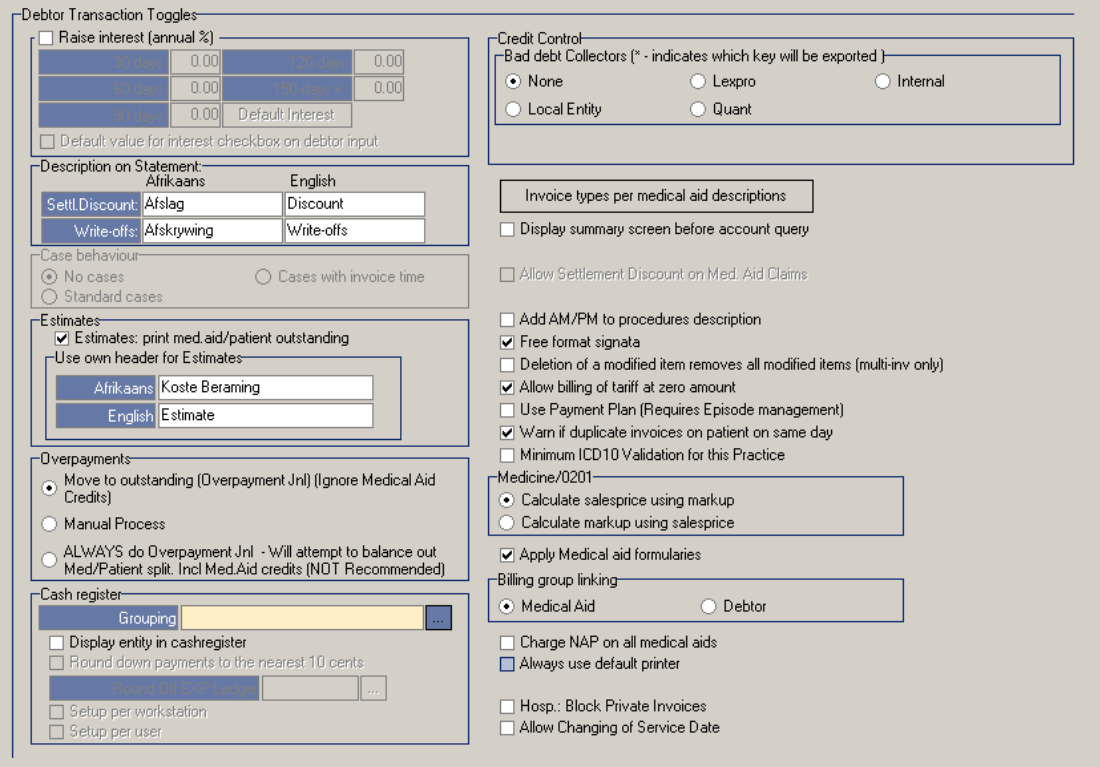
- Raise interest (annual %): The amount will be generated according to 30 days, 60 days, 90 days. Doctors can only switch this on via a written request.
- Default value for interest checkbox on debtor input: The default value interest that the system will add on the sale every month
- Description on statement: Any description the Doctor chooses to show on Statement for the following:
- Settlement discount (Afrikaans/English)
- Write offs (Afrikaans/English)
- Case behaviour: Different notes can be typed on selected debtor/patient file
- No cases: Always default
- Estimates: Print Medical Aid/Patient Outstanding: Function for estimate to show only outstanding amount and not patient or medical aid outstanding amount. The patient and medical aid outstanding amounts can be split and displayed separately
- Use own header for estimates: Default descriptions on template
- Over-payments: Purpose of over payment, is that when a Patient makes a payment that the patient will be in a credit if not taken off from medical aid amount. Medical Aid Journal to be split.
- Move to outstanding: Medical Practices
- Manual process:
- ALWAYS do over-payment Journal: For Hospital Practices
- Cash Register: Enable the cash register. The cash register is a pay point station where a till slip can be printed for a patient. The cash register is used to cash up every day to reconcile payments per user or at the end of every day.
- Grouping: You can set up your own profile
- Display entity in cash register
- Round down payments to the nearest 10 cents
- Setup per work station: The session is per work station
- Setup per user: The session is per user
- Credit control: Interface with Lexpro (debt collecting), if you switch it on, you can hand over the debtor and it will automatically do a journal, close the file in GoodX and export the file to the debt collecting company. They will then import the file and have access to all the data to process for handover.
- Bad debt collectors
- Invoice types per medical aid descriptions:
- Display summary screen before account query: N/A
- Post procedures and stock as separate invoices: When you charge stock and procedure codes the system will split all the procedure codes on one Invoice and all the stock codes on one Invoice
- Add AM/PM to procedures descriptions: Invoice must have times displayed of treatment. Physios use this function
- Free format signata: Any site that dispense medication or work with prescriptions, you generate preferences, you load the item Ex. Mybulin, you choose the signata coding/instructions on how a patient must use the medication/stock Ex. Take 1 tablet 3 times per day for 5 days. This allows you to use your own custom signata
- Deletion of a modified item removes all modified items (Multi Invoice only) - by Default OFF
- Allow billing of tariff at zero amount: Yes/No. Doctors can charge NO CHARGE Invoices. So Invoice still shows on patient
- Use Payment Plan (Requires Episode Management): Orthodontics. Payment plan that generates every month
- Warn if duplicate Invoices on patient on same day: Warning screen will pop up if theres an Invoice posted on the same day for the same debtor
- Minimum ICD-10 Validation for this Practice: by Default OFF
- Medicine/0201:
- Calculate sales price using mark up: Put a mark up % on price
- Calculate markup using sales price: Calculate the price after mark up % is added
- Apply Medical Aid Formularies: Apply specific Medical Aid rules from the Medical Aid on specific plans (Exclusion Rules) - with Hospitals ALWAYS OFF
- Billing group linking: Must always be on Medical Aid.
- Medical Aid: What tariff to charge. Stays on default
- Debtor: Calculated when doing the Invoice
- Always use default printer: Will automatically select the default Windows printer on the system and not ask what printer to use
- Allow changing of Service date: When ON you are allowed to change the service date of the posted Invoice
- Charge NAP on all medical aids: When a Hospital is signed with NHN, this option is ON to allow the Client to charge Net acquisition Price on stock items
- Hosp: Block Private Invoices: Do not allow the billing of Private Invoices. Default OFF
8. Debtor Transactions 2
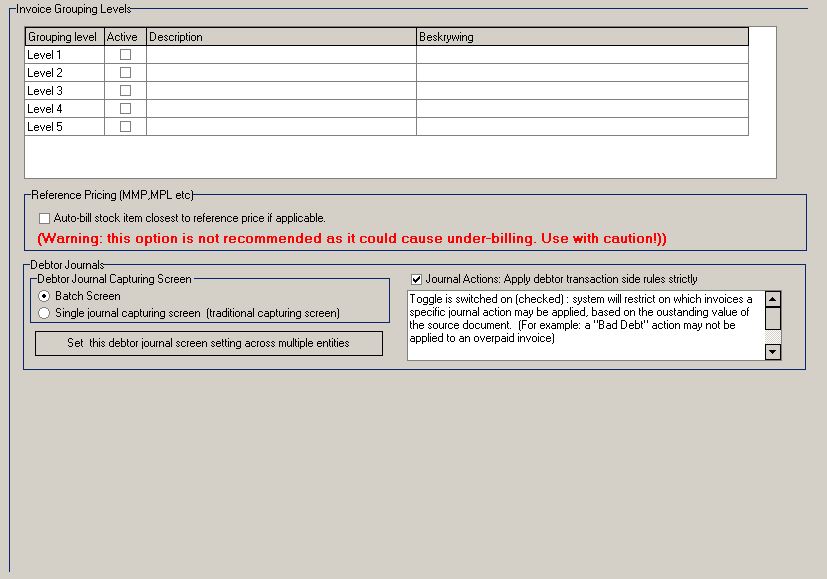
- Debtor Journals:
- Debtor Journal Capturing Screen:
- Batch screen: New journal function used by default
- Single journal capturing screen: Only applicable for Hospital Systems
9. EDI

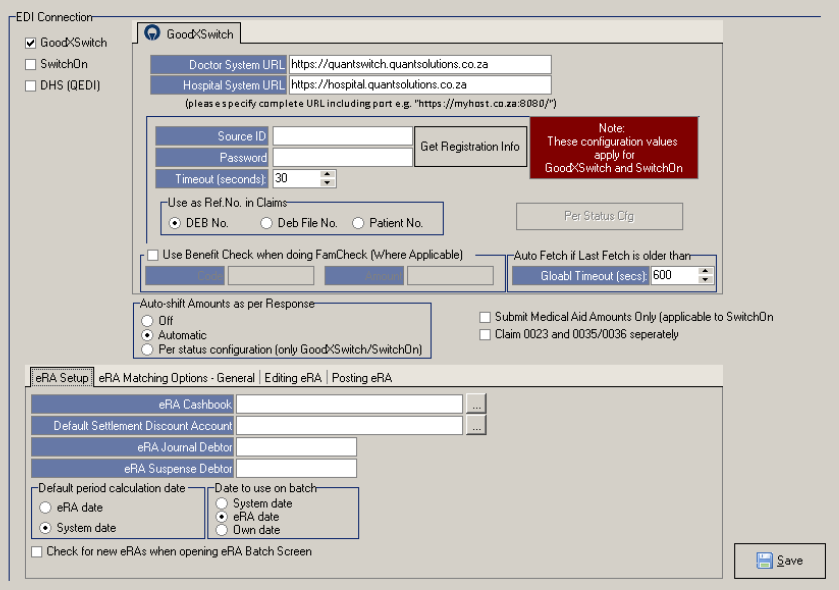
EDI Connection:
- GoodXSwitch:
- Doctor System URL: location of the quant switch portal for Medical Practices
- Hospital System URL: location of the quant switch portal for Hospitals
- Registration Info: (Note - DO NOT CLICK ON THIS BUTTON)
- Use as Ref No in Claims: Default Deb No
- Auto Fetch if Last Fetch is older than: Must always be on default - 600

- Auto-shift Amounts as per Response:
- Off: N/A
- Automatic: By default ON

eRa Setup:
- eRA Cashbook: The cashbook selected for all eRA transactions
- Default Settlement Discount Account: This is the selected ledger account for this type of transaction
- eRA Journal Debtor: The debtor created during setup of eRA
- eRA Suspense Debtor: The debtor created during setup of eRA
- Default period calculation date:
- System date: ON by default
- Date to use on batch:
- eRA date: ON by default
10. Periods
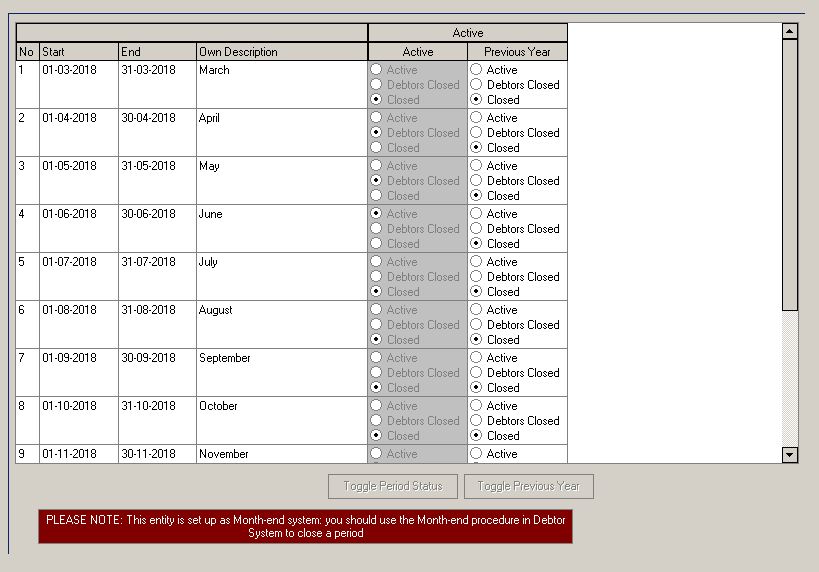
- Periods:
- Start: Start date of period
- End: End date of period
- Own description: You can type any description you want there
- Active - The selected period will be active/"open"
- Debtors Closed - The selected period is closed but users with specific rights can still operate in it
- Closed: The period is closed
- Toggle Period Status: Change option on all periods
11. Category
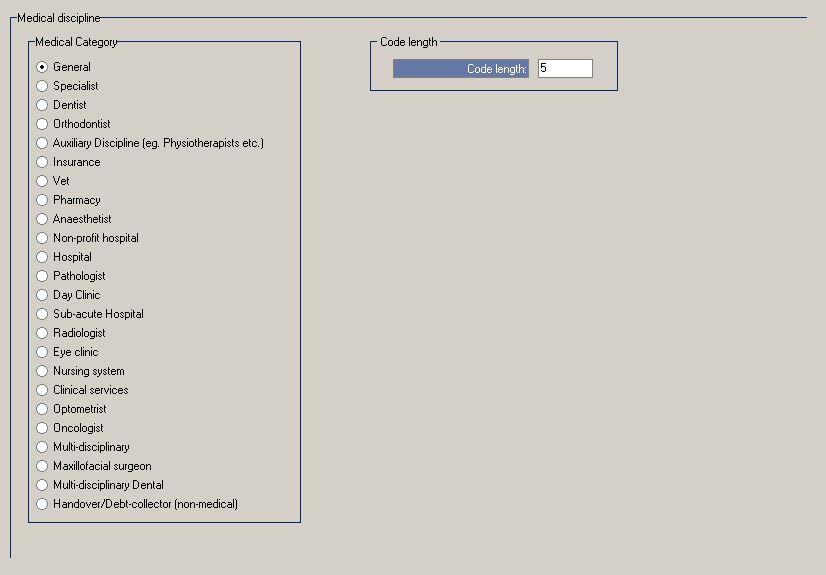
- Category:
- Medical Category: Speciality ex GP, Dentist
- Code length: The length of the billing code that will be shown on the edi response as well as the statement. Set up per discipline
12. Number Series
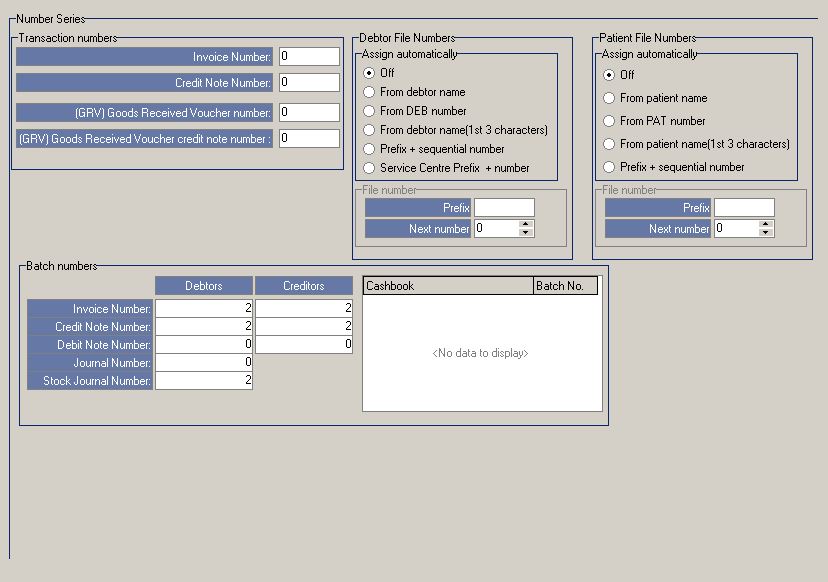
- Debtor File Number: Set up of debtor file numbers in the debtor input screen
- Assign automatically:
- Off: User captures own file number
- From debtor name: The system generates file number using the debtors name
- From DEB number: The system generates file number using the debtor number ex. DEB7
- From debtor name (1st 3 characters): The system generates file number using the first 3 characters of the debtors name
- Prefix + sequential number: Custom assigned prefix plus sequence number as stated below in the file number section
- Service Centre Prefix + number: The service centre prefix as setup on the actual service centre
- File Number: Used on "Prefix + sequential number"
- Patient File Number: Set up of dependant file numbers in the Patient capture screen
- Assign automatically:
- Off: User captures own file number
- From Patient name: The system generates file number using the dependants name
- From PAT number: The system generates file number using the dependant number
- From Patient name (1st 3 characters): The system generates file number using the first 3 characters of the dependants name
- Prefix + sequential number: Custom assigned prefix plus sequence number as stated below in the file number section
13. Account Specifications
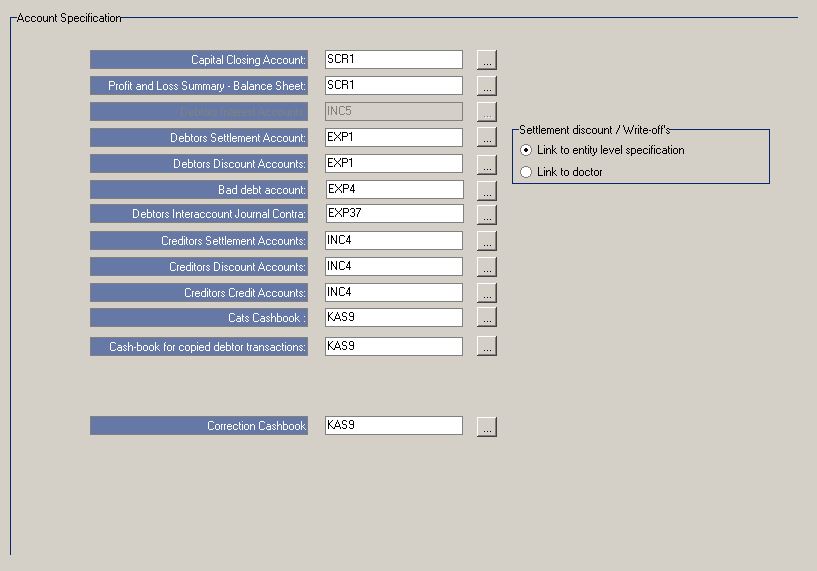
- Account Specifications: Here you will assign the correct ledger account to the correct function
- Settlement discount/Write-offs:
- Link to entity level specifications: ON by default
14. Diary
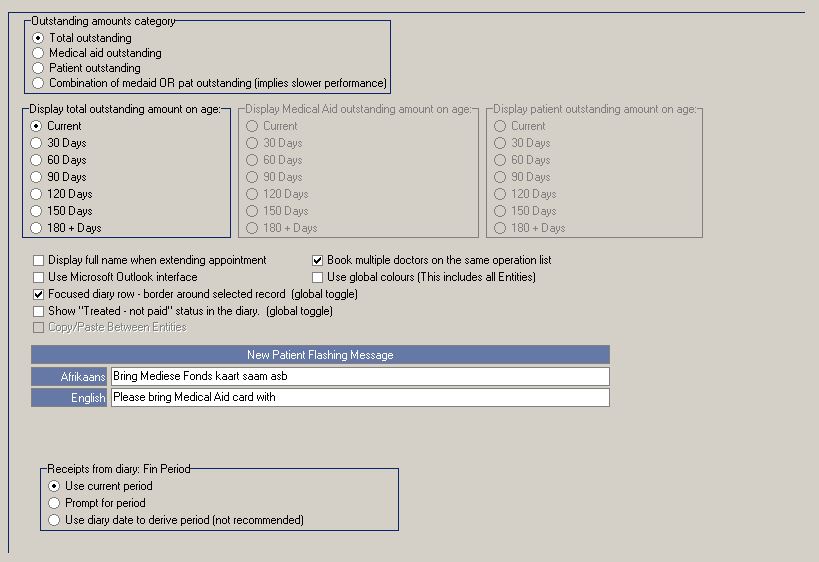
- Outstanding amounts category:
- Total outstanding: ON by default
- Display total outstanding amount on age: Current (ON by default)
- Display full name when extending appointment:
- Use Microsoft Outlook interface:
- Focused diary row - border around selected record (global toggle): ON by default
- Show "Treated - not paid" status in the diary (global toggle):
- Copy/Paste between Entities:
- Book multiple doctors on the same operation list: ON by default
- Use global colours (this includes all entities):
- New Patient Flashing Message: FCL to setup if customisation required
- Afrikaans:
- English:
- Receipts from diary; Fin period:
- Use current period:
- Prompt for period:
- Use diary to derive period (not recommended):
15. SMS
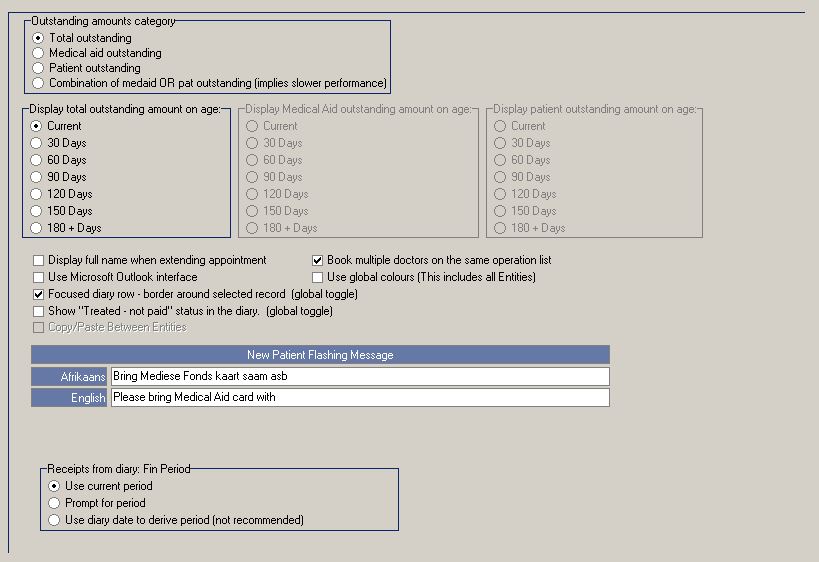
- SMS Configuration: (NOTE - When a GoodX Web client make sure the GoodX SMS System is used and not Amicell)
- The following configuration is fo AmiCell:
- SMS activation status: Always choose GoodX SMS (This is Amicell)
- SMS Templates: FCL to setup templates used for SMS purposes
- Validate cell numbers on prefix
- Current SMS template group: With this function you will be able to setup different profiles for your templates
16. Hospital

Hospital/Clinic related configuration:
- Statement Codes: Default claiming codes Setup Practice
- Per Diem Posting Profile:
- Billing:
- Billing Code: Customised fixed fee billing code that will be used on all price lists for fixed fee billing
- Description: Billing codes above description
- Ledger: Linked to fixed fee ledger account
- Footer for case printout: Customised footer message for cases
17. Miscellaneous
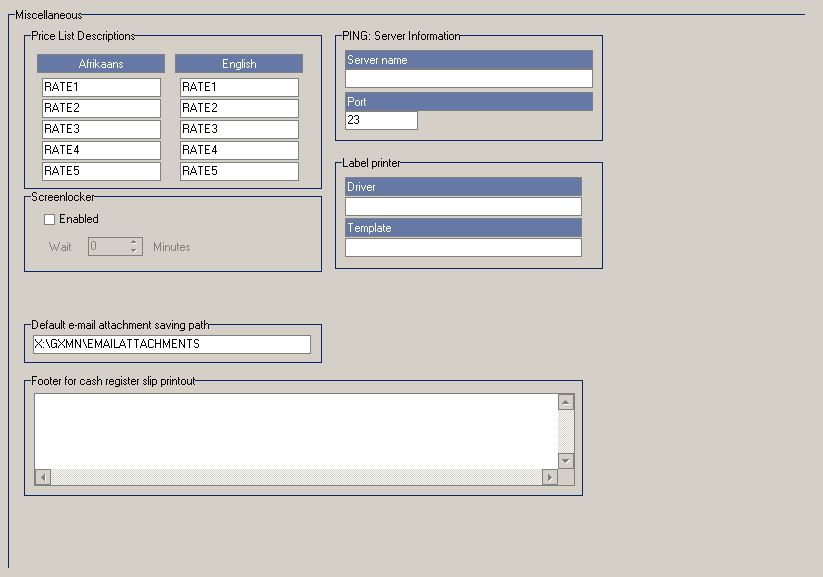
- Default email attachment saving path: This is the location of your email generated pdf's
- Footer for cash register slip printout: You can use this to set up your own custom message on your slip print out
18. Clinical/External Tools
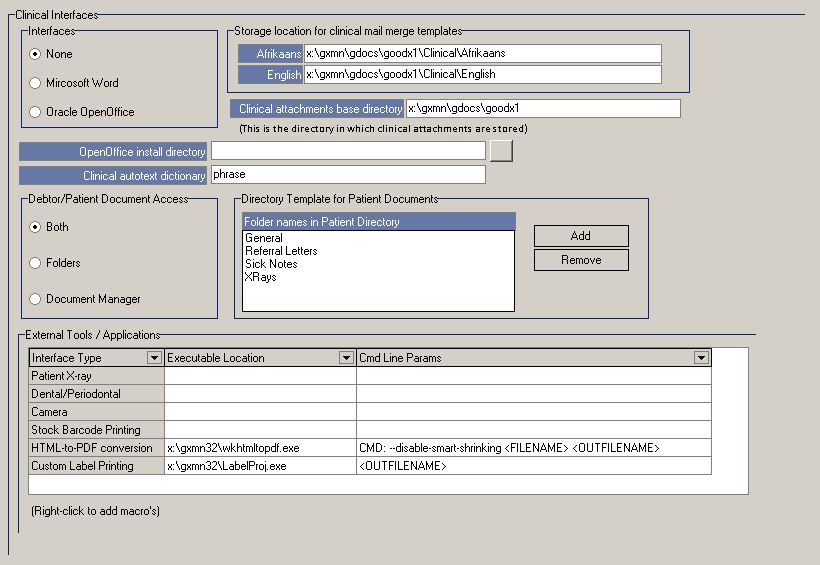
- Clinical Interfaces: SEE DEFAULTS AS PER SCREEN SHOT
- Interfaces:
- None: Default
- Debtor/Patient Document Access:
- Both: Default
19. Medprax/IQuest
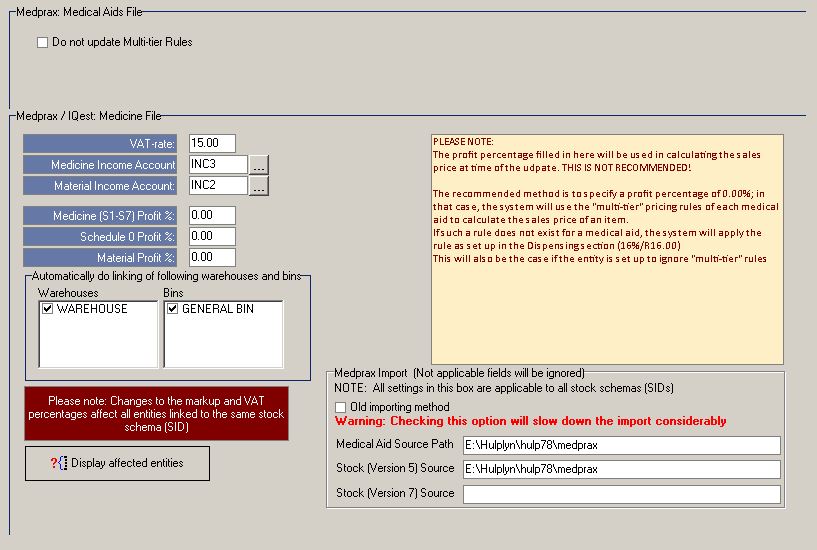
- Medprax; Medical Aids File:
- Do not update Multi-tier Rules:
- Medprax/IQuest - Medicine File:
- VAT Rate: 15%
- Medicine Income Account: Choose the expense ledger account for ethical
- Material Income Account: Choose the expense ledger account for surgicals
- Medicine (S1-S7) Profit %: Default 0.00
- Schedule 0 Profit %: Default 0.00
- Material Profit %: Default 0.00
- Display affected entities: Summarised screen of Stock Setup
- Medprax Import (Not applicable fields will be ignored):
- Medical Aid source Path: The location of the new Medprax Medical Aid update file
- Stock (Version 5) Source: The location of the new Medprax Stock file
- Stock (Version 7) Source: N/A
20. Extended Notebook
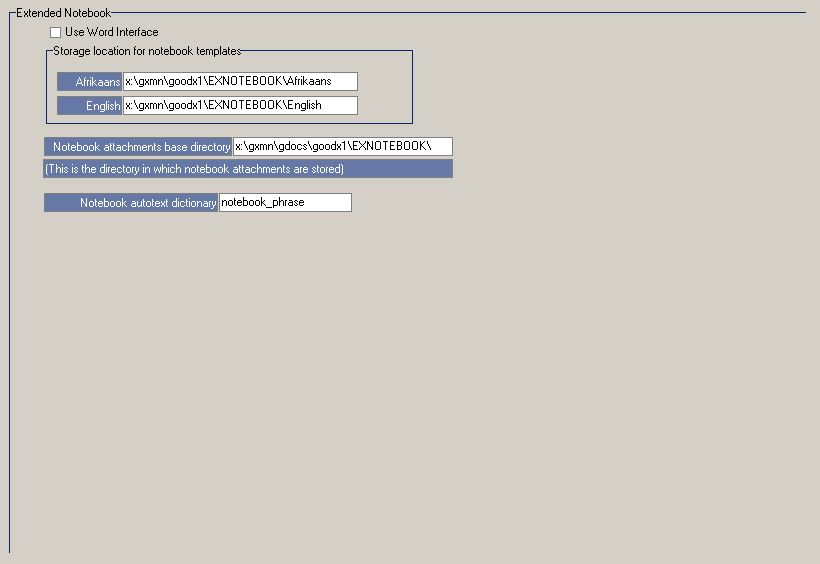
- NOTE: INFORMATION GENERATED BY SYSTEM
21. Document Manager
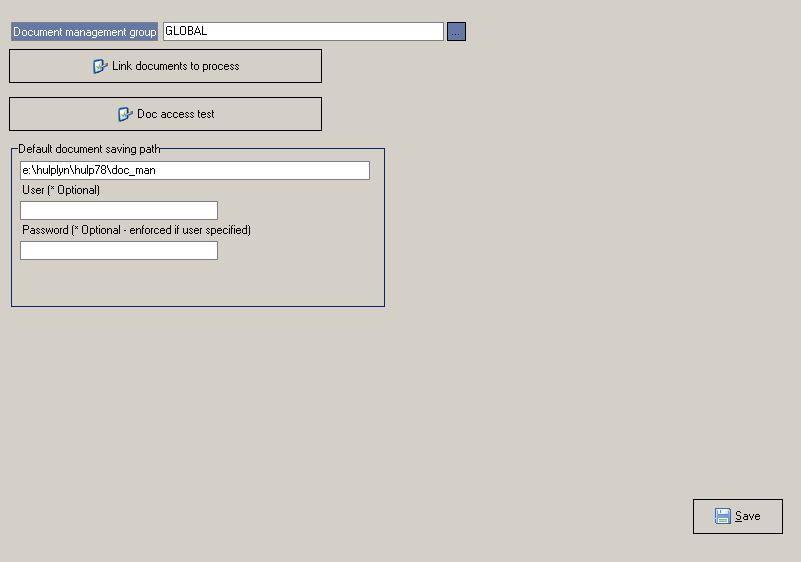
- Document Management:
- Document Management group: You can setup profiles for your document manager
- Doc access test: Used to test if your document manager works
- Default document saving path: Location of your document manager files
22. Global Toggles
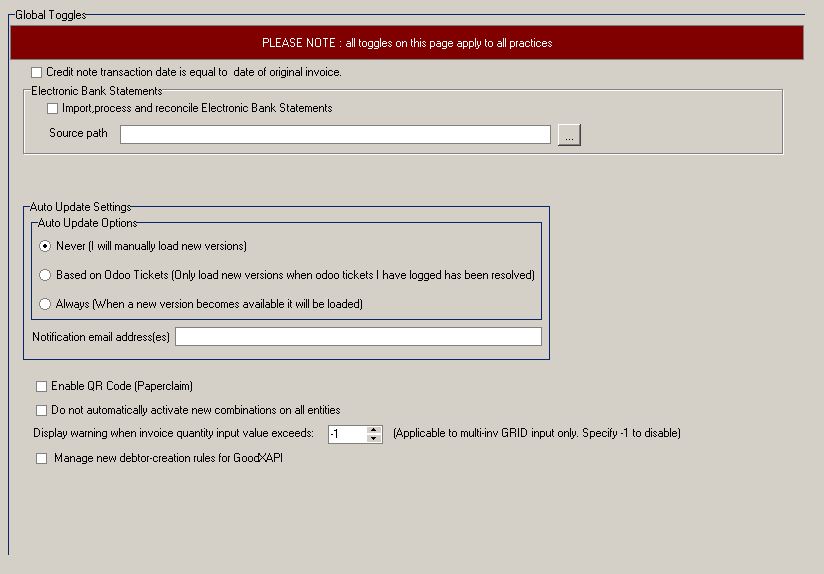
- NOTE: Various tools used by Developers
23. Debug Toggles
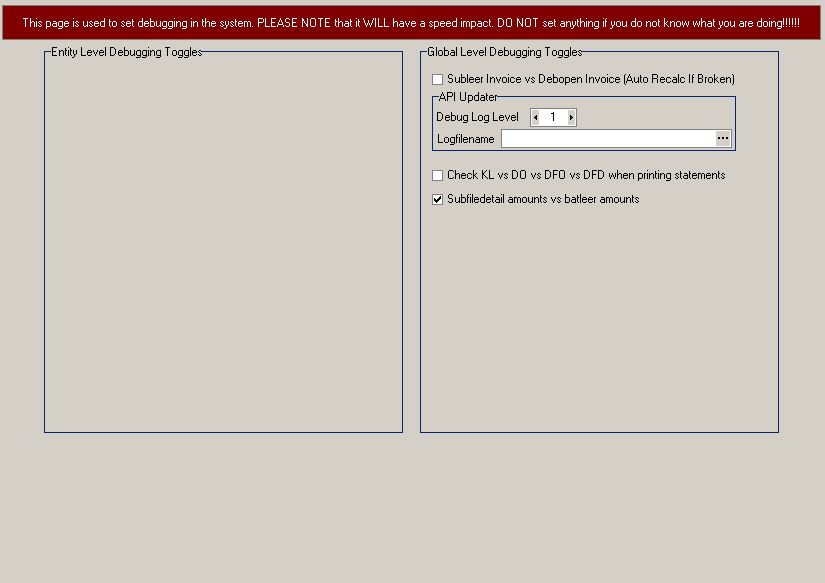
- NOTE: Various tools used by Developers
24. My Grand Central Configuration
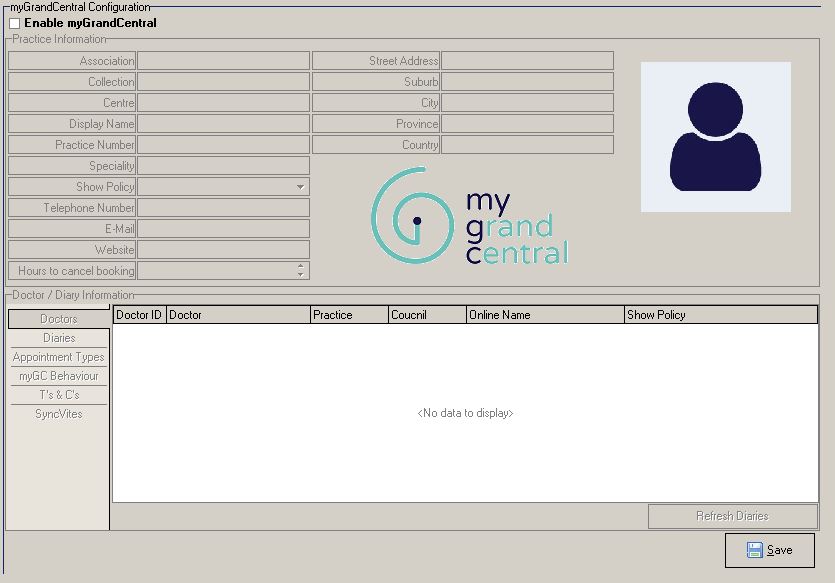
myGrandCentral Configuration:
- Enable myGrandCentral:
- Practice Information:
- Doctor/Diary Information:
- Doctors:
- Doctor ID:
- Doctor:
- Practice:
- Council:
- Online Name:
- Show Policy:
- Diaries:
- Appointment Types:
- myGC Behaviour:
- T's & C's:
- Syncvites:
- Refresh Diaries: